
How to Turn a Phone Photo Into a Professional Product Photo
A step-by-step home workflow for small sellers: set up window light and a paper sweep, shoot steady with your phone, then clean, square and compress the photo for upload.
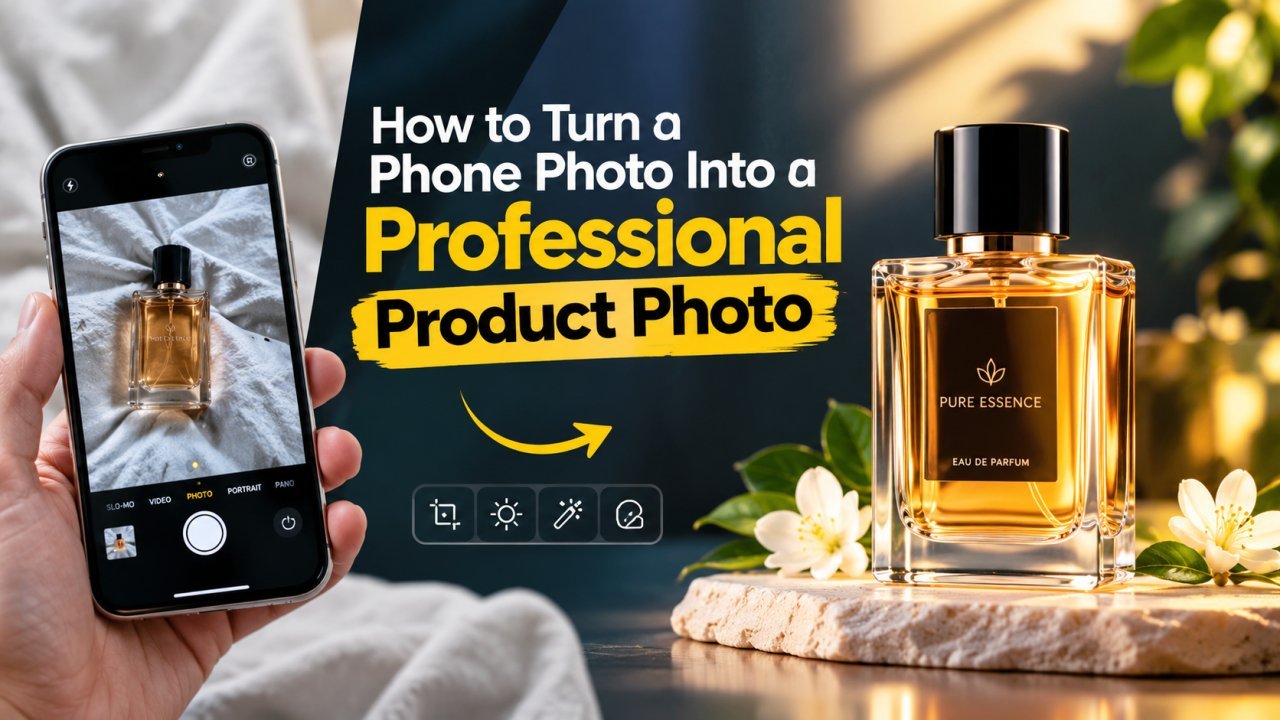
You can turn a phone photo into a professional product photo with three things: soft window light, a plain white background, and a steady phone. Get those right while shooting, then spend five minutes editing: remove or clean the background, fix small marks, crop every image to the same square, sharpen lightly and compress for upload. This guide walks through that whole workflow as a small seller in India would do it at home, with no studio and no extra camera.
If you are trying to choose between editing apps, our comparison of the best AI tools for product photo editing covers that. This post is the hands-on part: what to do with the phone and the product in front of you.
Set Up a Simple Home Studio
Most "unprofessional" product photos fail before the shutter is pressed. Harsh light, a busy bedsheet behind the product and a smudged lens cannot be fully fixed later, so spend ten minutes on the setup.
Use Window Light, Not the Room Bulb
Place a table next to a large window during the day. Bright indirect light is ideal; if direct sun falls on the table, hang a thin white curtain or tape tracing paper over the glass to soften it. Turn off the tube light and ceiling bulbs. Mixing warm indoor light with cool daylight is the most common reason product colours come out yellow on one side and blue on the other.
Put the product side-on to the window so light falls across it. The side away from the window will be darker; hold a sheet of white chart paper or a piece of thermocol on that side to bounce light back and lift the shadows.
Build a White Paper Sweep
Buy a large sheet of white chart paper or use a roll of white craft paper. Tape the top edge to a wall, a box or a stack of books, and let it curve down onto the table without a fold. This curve, called a sweep, removes the hard line where the wall meets the table, so the background looks seamless in the photo.
Keep the paper clean and uncreased, and replace it when it gets marked. Even if you plan to remove the background later, a white sweep gives the AI cleaner edges and reflects neutral light onto the product.
Keep the Phone Steady
A cheap phone tripod or a small stand with a clamp is the best thing a seller can buy for product photos. If you don't have one, rest the phone on a stack of books or a box at the right height. A steady phone gives sharper photos in indoor light and, just as importantly, lets you shoot every product from the same position so your listings look consistent.
Use the camera's 2- or 3-second self-timer so tapping the shutter does not shake the phone.
Clean the Product and the Lens
Wipe dust and fingerprints off the product with a microfibre cloth, remove price stickers, straighten labels and steam or iron fabric. Then wipe the phone's camera lens. Phone lenses pick up pocket lint and finger grease all day, and a smudged lens is the hidden cause of many hazy, low-contrast photos.
Get the Phone Camera Settings Right
You don't need a "pro" mode. A few basic settings in the normal camera app are enough.
- Turn on gridlines. On most phones this is in the camera settings. The grid helps you keep the product straight and centred, and keep the horizon of the table level.
- Tap to focus on the product. Tap the product on screen before every shot so the phone focuses on it, not on the background.
- Adjust exposure after tapping. Most camera apps show a sun icon or slider after you tap. On a white background, phones often underexpose and make the white look grey, so nudge exposure up slightly until the background looks white without the product losing detail.
- Lock focus and exposure when possible. Many phones let you long-press to lock them, which keeps every shot of a product consistent.
- Use the main camera and avoid digital zoom. Pinching to zoom just crops and enlarges the image, which loses detail. Instead, move the phone closer, or step back slightly and crop later. If your phone has a dedicated 2x or 3x telephoto lens, that is real optical zoom and fine to use; it also reduces the stretched look a wide lens gives to close objects.
- Switch off beauty filters and heavy "AI scene" modes if they make colours look unnatural. Leave the flash off; it causes glare and flat, harsh shadows.
Shoot the Product From Every Angle a Buyer Needs
A buyer cannot pick up the product, so your photos have to answer their questions. Plan a short, repeatable shot list.
The Main Image
This is the front view on a clean white background, product centred and filling most of the frame with a little space around it. Leave some room on all sides while shooting; you can always crop tighter, but you cannot add back a part of the product you cut off.
Supporting Angles
Add a 45-degree view that shows depth, a side view, a back view (for labels, ingredients or ports), and a top view for flat items like jewellery, stationery or folded clothes.
Scale and Details
Buyers often complain that a product was "smaller than expected". Show scale with one photo of the product in a hand, next to a common object, or in use. Then take close-ups of what matters for the decision: stitching, fabric texture, a clasp, a zip, the label, a texture or a finish. Move the phone closer rather than zooming.
Consistency Across Your Catalogue
Use the same table spot, the same time of day, the same phone height and the same angle for every product of a type. When a customer scrolls your shop, matching photos look like a real brand. Take several shots of each angle and pick the sharpest one on a bigger screen later.
Selling clothes? Folding, hanging and flat-lay shots have their own tricks, covered in our guide to making thrift clothing photos look professional.
Edit the Photo Step by Step
Transfer the best shots to your computer or keep working on the phone browser. All the tools below run in your browser, so your product photos are not uploaded to a server. Always keep the original file untouched and edit a copy.
Step 1: Remove the Background and Make It White
Open the background remover and upload your shot. It cuts out the product and gives you a transparent PNG. Zoom in and check the edges, especially around thin straps, hair-like fibres, transparent glass and shiny metal; these are where any background remover struggles most.
To put the cut-out on pure white, the Ecommerce Photo Optimizer centres the product on a white square canvas with marketplace and square presets. It doesn't crop into the product; it places the whole product on the canvas with space around it. If you want background removal and a 2x upscale in one go, the Product Photo Enhancer does both, which helps when the product looked small in the original frame.
For more on edge cleanup and getting a true white, see how to make a photo background white online and our guide to removing backgrounds from images for free.
Step 2: Clean Up Small Marks
Dust specks, a stray thread, a scuff on the paper sweep or a small reflection can be removed with the object remover: brush over the mark and the tool fills in the area. Keep it to genuine distractions. Do not remove real scratches, defects or wear on the product itself; a photo that hides a flaw leads to returns and bad reviews. The guide on removing unwanted objects from photos with AI has tips for getting a clean fill.
Step 3: Crop to a Consistent Square
Square images display well in most marketplace grids and social feeds. If you kept the original background, use the crop tool with the 1:1 preset, centre the product, and leave a similar margin on every image. If cropping to a square would cut off part of a tall or wide product, place it on a square canvas instead; making a picture square without cropping explains how.
If a store asks for a specific pixel size, set it in the resize tool with the aspect ratio locked so the product is not stretched.
Step 4: Sharpen Lightly
A touch of sharpening helps text on labels and fabric texture look crisp. Run the photo through the blur image fixer and compare it with the original at full size. Stop if you see white halos around edges or a gritty texture. Sharpening improves slight softness only; a photo blurred by shake or missed focus is faster to reshoot. Our guide on fixing blurry photos explains the difference.
Before moving on, put the edited photo next to the real product. The colour of a kurta, a lipstick shade or a phone cover should match what the buyer will receive. If it does not, go back to the light rather than pushing saturation sliders.
Step 5: Compress for Upload
Phone photos are often several megabytes, which is more than most listings need and slows down your own website. Use compress image to size when a platform has a KB limit, or bulk compress to handle up to 100 photos at once and download them as a ZIP. Moderate JPG compression is usually invisible on a product photo; check the result at full size. More on balancing size and quality is in how to compress images without losing quality.
If you shot at home, consider stripping location data with remove metadata before posting the photo publicly, especially on your own site or social media.
Marketplace Image Rules
Amazon, Flipkart, Meesho and other marketplaces each have their own rules for the main image: background colour, minimum size, how much of the frame the product must fill, and what is not allowed (such as text, watermarks or props on the main image). These requirements are updated from time to time, so check the image guidelines in the marketplace's seller help or seller central before you upload. Build your workflow to the strictest platform you sell on, and you can reuse the same files everywhere.
Pre-Upload Checklist
Run through this list for every product before you hit upload:
- The product is clean, straight and centred, with similar margins on all sides.
- The background is evenly white with no grey patches, paper creases or leftover edges from background removal.
- Colours match the real product when viewed side by side.
- The main details (label, texture, stitching, ports) are sharp at full size.
- Real defects are still visible; only dust and background marks were removed.
- Every image in the listing is the same square size and has a similar look.
- There is at least one photo showing scale and one close-up of the key detail.
- File size and dimensions match the platform's current requirements.
- Location metadata is removed where needed.
- The untouched original is saved separately in case you need to re-edit.
Frequently Asked Questions
Can a phone really take product photos good enough for an online store?
Yes, for most small products. The camera is rarely the weak point. Soft window light, a plain background, a steady phone and a clean lens make a far bigger difference than the phone model.
Should I shoot on a white background or remove the background later?
Do both. Shooting on white paper gives cleaner edges and more natural colours, so the background remover has an easier job and the final white background looks believable.
Why do my product photos look yellow or blue?
Mixed light is the usual cause, for example daylight from a window plus a warm room bulb. Switch off the room lights and use only the window, then compare the photo with the real product.
What size and format should my product photos be?
It depends on the marketplace or store, and the rules change. Check the seller help pages of Amazon, Flipkart, Meesho or your own store platform for current requirements, keep a full-resolution master, and export copies to match.
Can sharpening fix a blurry product photo?
Only slight softness. A photo blurred by camera shake or missed focus should be reshot, which takes a minute and gives a better result than any filter.
Related articles

Best AI Tools for Product Photo Editing
How small sellers can use AI for background removal, enhancement, upscaling and marketplace sizing to turn phone shots into clean listing photos.

How to Upscale Your Cricket Photos Without Losing Quality
Make your own match photos from local games, club fixtures or the stands sharper and bigger with AI upscaling, without fake faces or garbled jersey text.
How to Make a Photo Background White Online
Turn any photo or transparent PNG into a clean white-background image in your browser, with fixes for grey halos, white products and floating subjects.