
How to Remove the Background from an Image for Free
Remove a photo background for free in your browser, get a clean transparent PNG, and fix the tricky cases: hair, glass, low contrast and multiple subjects.
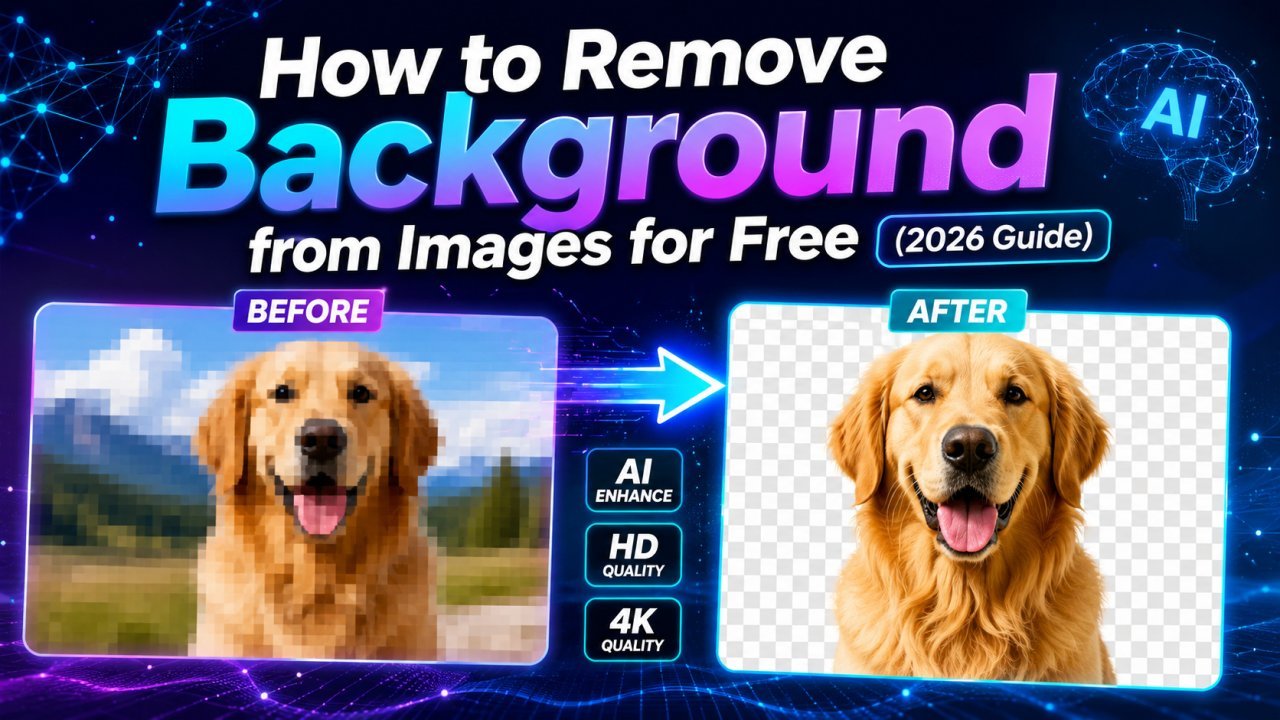
You can remove the background from a photo for free without Photoshop: open a browser-based AI background remover, add your image, and download the result as a transparent PNG. With Image EditPro's background remover the whole process runs in your browser, so there is no sign-up and your photo is not uploaded anywhere. This guide covers the steps, how to prepare a photo for a clean cutout, and how to handle the cases where one click is not enough.
What Background Removal Gives You
Background removal separates the main subject from everything behind it. The output is an image where the subject keeps its pixels and the background becomes transparent. You can then place the subject on a plain colour, a new photo, a slide or a product template.
Common reasons to do it:
- Product photos for marketplaces and online stores
- Profile, resume and ID-style photos with a plain background
- YouTube thumbnails and social graphics where the subject sits on a designed background
- Presentations, posters and school projects
The cutout is usually a middle step, not the final image. Plan what the subject is going on before you start. If you only want the background softer rather than gone, see how to blur a photo background like a DSLR.
How to Remove a Background Step by Step
- Open the tool. Go to the Image EditPro background remover on a computer or phone.
- Add your photo. Drag it into the upload area or tap to choose a file. JPG, PNG and WebP photos all work. If you have an iPhone HEIC photo, convert it first with the HEIC to JPG converter.
- Wait for the AI. The model finds the subject and removes the background. The first run can take a little longer because the model loads in your browser; later images are quicker.
- Check the edges. Zoom in on hair, fingers, straps and anything thin. This is where problems show up.
- Download the PNG. The file keeps its transparent background, ready to place on anything.
Because processing happens on your device, a slow or older phone may take longer than a laptop. That is normal.
Prepare the Photo for a Cleaner Cutout
The model can only work with the information in the photo. A minute of prep often makes more difference than any setting:
- Crop close to the subject. When the subject fills most of the frame, the AI has more pixels to work with and fewer distractions. Use the crop tool first.
- Use the original file. Photos forwarded through messaging apps or screenshotted are often compressed and smaller. Blocky JPEG artefacts around edges become ragged cutout edges.
- Avoid tiny images. A subject only a couple of hundred pixels tall does not contain enough edge detail. If that is all you have, try the AI image upscaler first.
- Shoot with contrast, if you can. A dark product on a light wall, or a person standing away from a busy background, gives the cleanest separation.
- Keep it sharp. Motion blur and soft focus leave no clear boundary for the AI to find.
Photos That Need a Second Look
Most portraits, products and pets come out cleanly in one go. These situations are harder for every background remover, not just ours:
Hair, Fur and Fine Detail
Flyaway hair and fur are partly transparent, so each strand mixes subject and background colours. Expect some strands to be trimmed or to carry a faint halo of the old background. Viewing the result on a dark and a light background shows halos quickly.
Glass and Transparent Objects
A wine glass or clear bottle shows the background through it. The AI has to decide whether those pixels belong to the object, and the answer is often "partly". Glassware usually needs manual touch-up or a reshoot on a plain background.
Subject Matching the Background
A white product on a white table, or a green shirt against green leaves, gives the model little contrast to work with. Parts of the subject may disappear. Reshooting on a contrasting surface is the reliable fix.
More Than One Subject
Group shots and several products in one frame can confuse the model about what the "main" subject is. It may keep only the largest. Crop to one subject at a time if you get unexpected results.
When It Does Not Work at All
Very blurry, very small or heavily compressed photos, and close-ups of textures with no clear foreground, often produce unusable results. In those cases the realistic options are a better source photo or manual selection in an editor like GIMP or Photopea.
Fixing Small Errors by Hand
If the cutout is 95% right, you do not need to start over. Open the PNG in any layer-based editor (GIMP and Photopea are free), add a layer mask, and paint back missing areas or erase leftover background with a soft brush. For a stray spot in an otherwise good image, a minute of masking is far quicker than tracing the whole subject with a pen tool.
Save in the Right Format
Transparency only survives in formats that support an alpha channel:
- PNG is the safe default. It is lossless and opens everywhere.
- WebP also supports transparency and is usually much smaller, which suits websites. Convert with the PNG to WebP converter.
- JPG does not support transparency. If you save or convert a cutout to JPG, the empty area is filled with a solid colour (usually white or black).
The MDN image format guide lists which formats support transparency if you need to check another one. For more on working with transparent files, see our guide to creating transparent PNG images.
What to Do After the Cutout
A transparent PNG is rarely the finished image. The usual next steps:
- Put it on a white or coloured background for marketplaces, ID photos and resumes. Our guide to making a photo background white walks through it.
- Place it on a new scene using any layer-based editor. See how to change a photo background without Photoshop for matching light and shadows so it does not look pasted on.
- Resize to the platform's dimensions with the resize tool.
- Compress before uploading. Transparent PNGs can be large. Compress or convert to WebP for web use.
Working Through a Batch
For a set of product photos, keep the process consistent:
- Shoot everything with the same lighting and background so results are predictable.
- Run each photo through the background remover one at a time.
- Place each cutout on the same background colour and canvas size.
- Use bulk compress to shrink up to 100 images at once and download them as a ZIP.
Consistent framing matters as much as the cutout itself. A product grid where every item sits at the same size and position looks far more professional than perfect cutouts at random scales. For a wider look at the options, see our roundup of the best AI tools for product photo editing.
Why AI Is Faster Than Manual Selection
Tracing a subject with a pen tool or lasso can take several minutes per image, longer with hair or complex shapes. An AI remover gives you a usable mask straight away, and you only spend time on the small part it gets wrong. For anyone editing many photos a week, that difference adds up quickly. If you are curious about what the model is actually doing, read how AI background removers work.
Use It on Your Own Images
Background removal is meant for photos you took or have the rights to use. Do not use it to lift subjects out of stock photos, artwork or other people's images and reuse them as your own.
Frequently Asked Questions
Can I remove an image background for free without Photoshop?
Yes. A browser-based AI background remover detects the subject and removes the background automatically. Image EditPro's tool runs in your browser, needs no sign-up, and gives you a transparent PNG.
Why did my transparent background turn white or black?
The image was saved or converted to JPG somewhere along the way. JPG cannot store transparency, so the empty area is filled with a solid colour. Keep the cutout as PNG or WebP.
Which photos give the cleanest cutout?
Sharp, well-lit photos of a single subject that contrasts with its background. Products, portraits and pets usually cut out cleanly. Glass, fine flyaway hair and subjects that match the background colour need checking.
Is my photo uploaded to a server?
Not with Image EditPro. The background remover processes the image in your browser, so the file stays on your device. Many other online removers do upload images to their servers, so check their privacy policy.
Can I remove backgrounds from many photos at once?
Process each photo through the background remover one after another, resize them to the same dimensions, then use the bulk compressor to shrink up to 100 images and download them as one ZIP file.
Related articles
How to Make a Photo Background White Online
Turn any photo or transparent PNG into a clean white-background image in your browser, with fixes for grey halos, white products and floating subjects.
How to Change a Photo Background Without Photoshop
Swap a photo background for free: cut out the subject in your browser, place it on a new background in a free editor, and match light, scale and shadows.

Best Free AI Image Editors in 2026: Which Tool for Which Job
A practical guide to free AI image editors grouped by job: background removal, upscaling, object removal, design, generation and everyday image prep.