
How to Upscale a Low-Resolution Image Into a Sharp YouTube Thumbnail
Turn a small photo, old thumbnail or video frame into a clean 1280×720 YouTube thumbnail: pick the right upscale factor, crop first, and avoid the steps that cause blur.
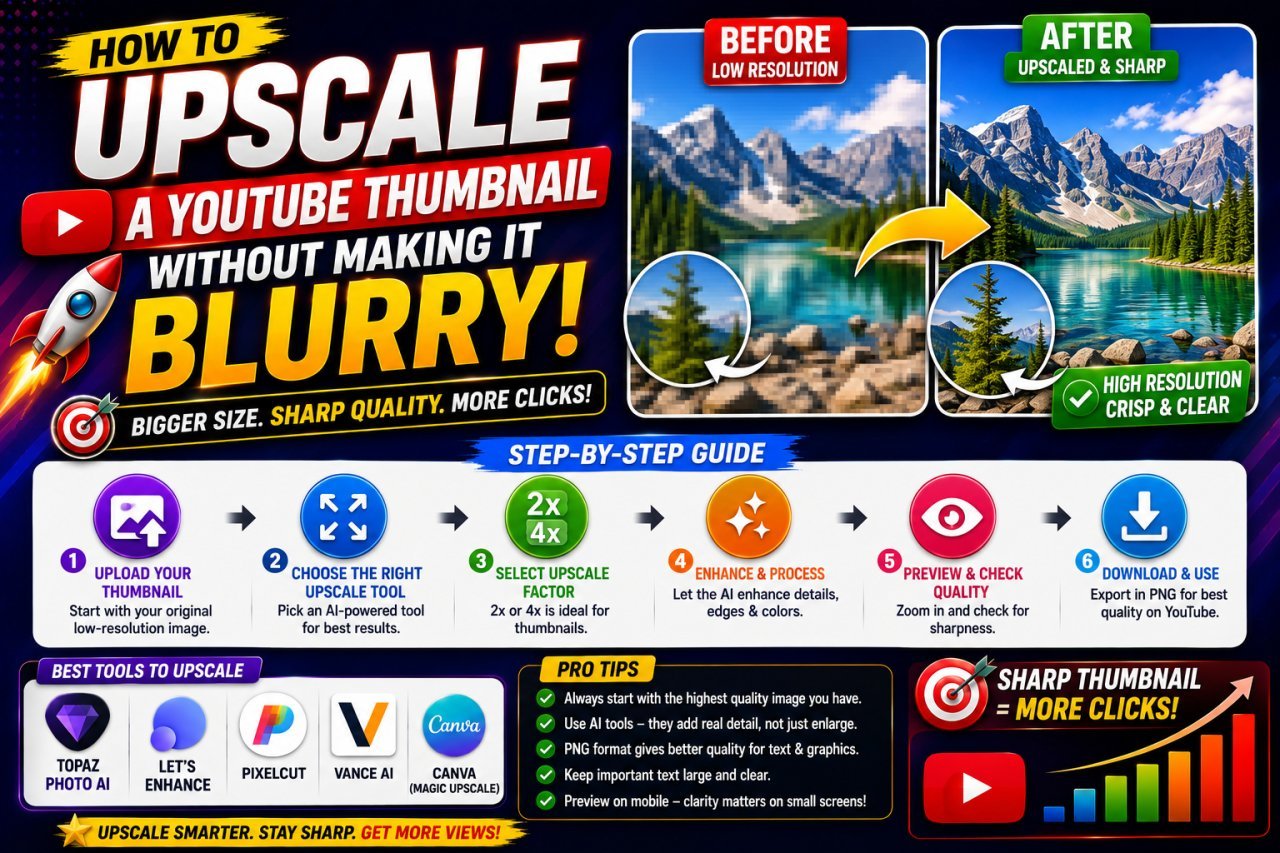
To upscale a low-resolution image into a YouTube thumbnail without blur, start from the best copy you have, crop to the subject first, upscale once with an AI upscaler to reach 1280 × 720, and only then add text and light sharpening. Stretching a small image on the canvas, upscaling in several small steps, or sharpening heavily before enlarging are what make the result soft or artificial.
This guide covers turning a small source (an old thumbnail, a video frame, a phone photo) into a clean full-size thumbnail. If your thumbnail already looks wrong and you are not sure why, start with why a YouTube thumbnail looks blurry after upload. For dimensions and file limits, see the YouTube thumbnail HD size guide.
What Upscaling Can and Cannot Do
Upscaling increases an image's pixel dimensions. There are two broad ways to do it:
- Standard resizing (bilinear, bicubic and similar interpolation methods) calculates new pixels by averaging their neighbours. It is predictable but adds no new detail, so large enlargements look soft.
- AI upscaling uses a trained model to predict what finer detail is likely to look like, producing crisper edges and textures than interpolation.
Both have the same hard limit: the original image sets the ceiling. AI upscaling works well on images that are small but in focus. It does much less for images that are blurry, motion-smeared or crushed by compression, because there is no real detail to build on, and it may invent texture that was never there. Treat the output as an estimate and check it.
Work Out How Much You Need to Enlarge
YouTube's custom thumbnail guidance asks for 1280 × 720 pixels at 16:9. Divide 1280 by your source width (after cropping) to see the scale factor you need, then pick the upscale setting at or just above it.
| Source width (16:9) | Scale needed to reach 1280 | Upscale setting | Expectation |
|---|---|---|---|
| 1100 × 619 | about 1.2× | Standard resize is enough | Very clean |
| 960 × 540 | about 1.3× | 2×, then resize down | Very clean |
| 640 × 360 | exactly 2× | 2× | Usually clean if in focus |
| 427 × 240 | exactly 3× | 3× | Good for simple subjects |
| 320 × 180 | exactly 4× | 4× | Usable for bold, simple images; check faces closely |
| under about 320 wide | more than 4× | Find a better source | Rarely looks natural |
Overshooting slightly and then resizing down to exactly 1280 × 720 is fine; scaling down does not cost sharpness. What hurts is enlarging the same image several times in small steps, or scaling up the finished design after text has been added.
Step-by-Step: Small Image to Clean 1280 × 720 Thumbnail
1. Start from the best copy you have
Before upscaling anything, look for a larger or cleaner original: the camera photo instead of the WhatsApp copy, the original video file instead of a screenshot of it, your layered design file instead of an old exported thumbnail. For your own videos, extracting a sharp frame at full video resolution often removes the need to upscale at all.
2. Crop to the subject before you upscale
If the useful part of the image is a face or product in the middle of a wider shot, crop to that area first, in 16:9, with the crop tool. That way the upscaler spends its effort on the pixels that will actually appear in the thumbnail. Do not crop so tightly that you need far more than 4× to fill the frame; if that happens, keep the subject smaller in the layout.
3. Upscale once, to the final size
Run the cropped image through the AI Image Upscaler at 2×, 3× or 4× using the table above, then set exact dimensions with the resize tool, which has a YouTube 1280 × 720 preset. If you want one step instead of two, the YouTube Thumbnail Enhancer upscales, applies sharpening and outputs a 1280 × 720 file directly. Both run in your browser, so the image is not uploaded to a server.
4. Inspect the result at 100% and at small size
At 100% zoom, check the areas where AI upscaling most often goes wrong: eyes, teeth, hair, hands, logos, product labels and any text. Then shrink the view to roughly feed size and ask whether the subject reads instantly. Small artefacts that vanish at feed size are fine; a face that no longer looks like the person is not.
5. Sharpen lightly, only if needed
Sharpening goes after upscaling, not before. If the upscaled image is still a little soft, apply a small amount. Stop as soon as you can see halos around edges or gritty skin texture. Many AI-upscaled images need no extra sharpening at all.
6. Add text and graphics last
Never rely on text that was part of the small source image. Enlarged letters stay fuzzy no matter how good the upscaler is. Cover or remove the old text and type new text in your editor at the final 1280 × 720 size, so it is rendered crisp.
7. Export once and keep it under 2 MB
Export the finished design as PNG or high-quality JPG. If it exceeds YouTube's 2 MB limit, compress it with a target-size tool rather than dropping the quality slider to its minimum, and keep the layered project so future edits start from the clean version.
When the Source Is Not 16:9
Portrait phone photos and square images are common thumbnail sources, and stretching them is the quickest way to make an upscaled image look wrong. Better options:
- Crop a 16:9 slice if the subject fits within it after a moderate upscale.
- Use a blurred background fill. Upscale the subject, place it on one side of a 1280 × 720 canvas, and fill the rest with an enlarged, heavily blurred copy of the same image. The blur hides the low resolution of the background copy, and the empty side becomes space for text. The guide to changing aspect ratio without cropping walks through this.
- Cut out the subject with the background remover and place it on a plain colour or gradient, which needs no upscaling at all.
Tips for Faces, Products and Screenshots
Faces
Faces are where viewers notice AI errors first. Upscale moderately, compare against the original, and reject results that change eye shape, teeth or skin into a plastic texture. A slightly soft but natural face is better than a razor-sharp one that looks like someone else. If the face is only a few dozen pixels wide in the source, choose another frame.
Products and logos
Check outlines, buttons, screens and printed labels for warped lines or invented lettering. For your own logo, use the original vector or high-resolution file instead of upscaling a small copy. Keep the product at a size the source can support rather than filling the whole frame with it.
Screenshots and gameplay captures
For your own software tutorials or gameplay, retaking the screenshot at full display resolution is better than upscaling an old one. Upscalers cannot make tiny interface text readable; highlight the important area and add your own large label instead. For game captures specifically, see how to make your GTA 6 screenshots clearer and sharper.
Standard Resize vs AI Upscaling
| Standard resize | AI upscaling | |
|---|---|---|
| How it adds pixels | Averages neighbouring pixels | Predicts detail with a trained model |
| Best for | Small enlargements (under about 1.5×) | 2× to 4× enlargements of in-focus images |
| Typical weakness | Soft edges at larger scales | Can invent textures or alter faces and text |
| Predictability | High | Varies with the image |
| Speed | Instant | Takes longer |
When to Stop and Use a Different Image
Upscaling is the wrong tool when the source is badly out of focus, smeared by motion, covered in heavy compression blocks, or so small that it needs well beyond 4×. It is also unnecessary when a high-resolution original exists. In those cases, a different frame, another photo from the same shoot, or a simpler layout with a smaller subject will give a cleaner thumbnail than any amount of enhancement.
Frequently Asked Questions
Can I upscale a 640 × 360 image to a 1280 × 720 YouTube thumbnail?
Yes. 640 × 360 is exactly half of 1280 × 720 in each direction, so a 2× upscale lands on the final size with no extra resizing. If the original is reasonably sharp, a 2× AI upscale usually gives a clean, usable thumbnail.
Does AI upscaling make a blurry image sharp?
AI upscaling adds pixels and estimates plausible detail, which works well for images that are small but in focus. It cannot recover detail lost to motion blur or missed focus, and it may invent textures. For those images, find a sharper frame instead.
Should I sharpen before or after upscaling?
After. Sharpening before enlargement exaggerates edges that then get scaled up. Upscale to the final size first, inspect the result, and add only light sharpening if it still looks slightly soft.
How do I upscale a thumbnail that has text on it?
Upscale the image without relying on the old text, then cover or remove it and add new text in your editor at the final 1280 × 720 size. Freshly rendered text is always cleaner than enlarged text from a small image.
How small is too small to upscale for a thumbnail?
There is no fixed cutoff, but anything that needs more than a 4× enlargement to reach 1280 pixels wide, such as an image under about 320 pixels wide, rarely looks natural. At that point a better source or a redesigned layout works better than more processing.
Related articles
How to Change, Remove or Blur the Background of a YouTube Thumbnail
Remove, replace or blur the background of your own YouTube thumbnail, clean up distracting objects, and make the cutout look natural at 1280×720.
Why Does My YouTube Thumbnail Look Blurry After Upload? Causes and Fixes
A blurry, pixelated or low-quality YouTube thumbnail usually loses its sharpness before upload. Here is how to find the exact step and fix it.
How to Extract the Best Frame From Your Video for a YouTube Thumbnail
Find the sharpest moment in your own video, export it at full resolution instead of screenshotting a player, and turn it into a clean 1280×720 thumbnail.