
How to Make a YouTube Thumbnail That Gets More Clicks
A practical guide to YouTube thumbnail design: one clear idea, a strong subject, short text, contrast, split layouts, and using AI tools without misleading viewers.
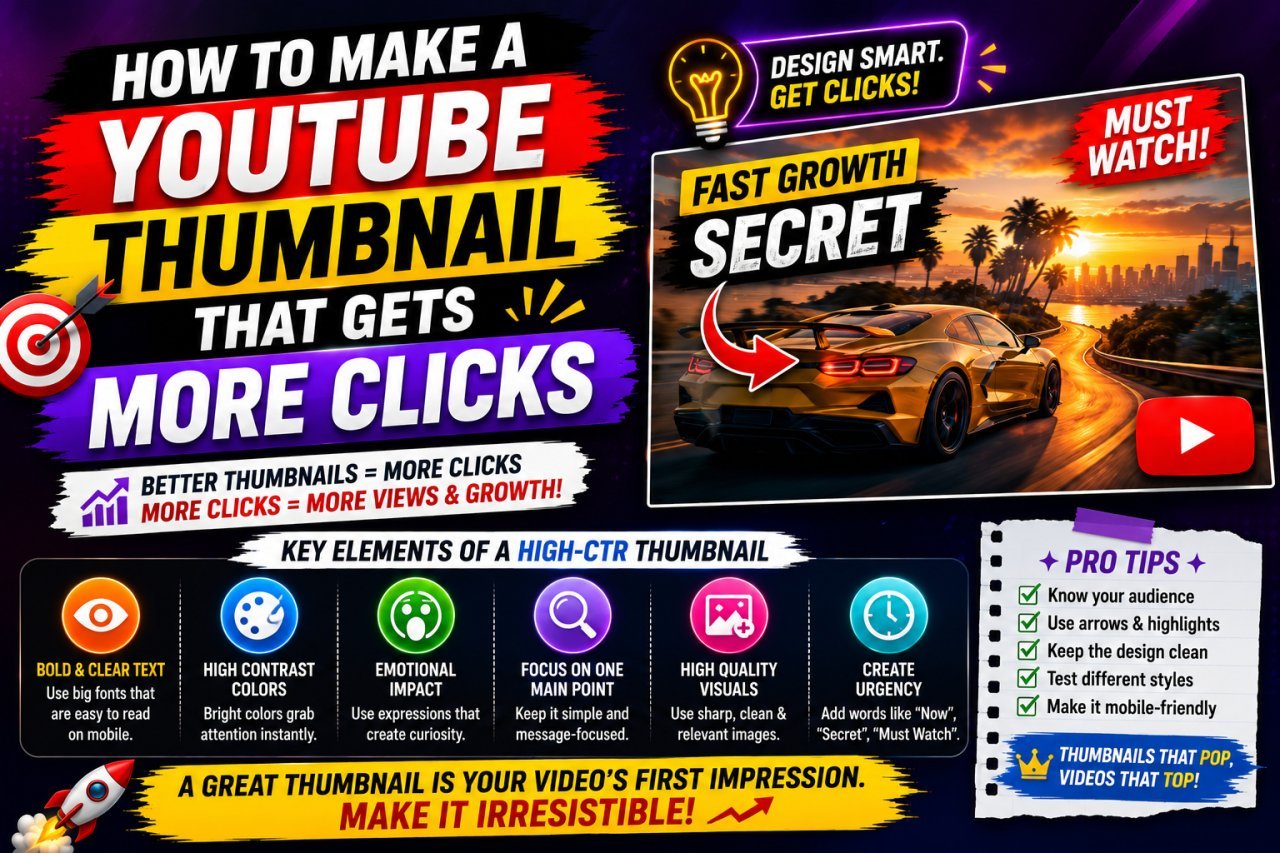
A YouTube thumbnail gets clicked when a viewer understands, in about the time it takes to scroll past, what the video is and why it might be worth watching. That comes from one clear idea, a large recognisable subject, a few words of readable text, strong contrast, and a promise the video keeps. No design guarantees a particular click-through rate, but these fundamentals stop a good video from being ignored because of a confusing or forgettable image.
This guide covers composition, faces, colour, text, two-image and before-and-after layouts, and how to use AI tools without misleading anyone. For pixel sizes and file limits, see the YouTube thumbnail HD size and quality guide.
Start With One Idea, Not the Whole Video
Before opening an editor, write the video's main promise in one sentence, then ask: what is the one thing a viewer should notice first?
Thumbnails fail most often because they try to say everything. A video that tests five photo editors does not need five logos in the thumbnail. It might need just "5 tools, 1 winner" or a single before-and-after result. If someone needs several seconds to work out what the image shows, it is too complicated.
Useful one-idea concepts include:
- Problem to result: a blurry photo next to the fixed version
- A versus B: two products, two methods, a cheap and an expensive option
- Reaction plus object: the creator's face next to the thing they are reacting to
- A number with context: "3 MISTAKES" or "30 DAYS", when the video really is built around that number
- The finished result: the dish, the room, the edited photo
Choose a Main Subject That Fills the Frame
The main subject is the person, product, result or scene that represents the video. Pick the most relevant visual you have, not just the most attractive one. A striking image that has nothing to do with the video sets the wrong expectation.
Then make it big. Thumbnails are usually seen as small previews, so a person standing far away or a product lost in a wide shot disappears. Crop in until the subject is the obvious focal point. A face can fill a large part of one side of the frame, and a product can take up a meaningful share of the canvas.
Never stretch an image to fill the 16:9 frame. Stretched faces look wider and products look misshapen. Crop instead, or choose a layout that suits the photo's proportions. The crop tool has a 16:9 preset, which makes this quick.
Use Faces When They Carry Meaning
Faces are easy to notice and can show emotion quickly, which is why creator-led channels use them. They work best when the creator's reaction is part of the story: reviewing a product, sharing an experience, explaining a mistake, taking on a challenge.
Match the expression to the content: surprise for an unexpected result, concern for a mistake, excitement for a discovery. A shocked face on every thumbnail soon looks repetitive, and an exaggerated expression on a calm tutorial feels off. For software walkthroughs, product reviews and screen recordings, the result or the object is often a better subject than a face.
When you use a face, keep the eyes and mouth clear of text and graphics, light it well, and avoid heavy retouching that makes it look artificial.
Build a Clear Visual Hierarchy
Visual hierarchy is the order in which the eye moves through the design. A simple, reliable order is:
- Main subject
- Short text
- Supporting detail, such as a small logo or label
You create that order through size, position, brightness, contrast and spacing. If every element is equally large, bright and outlined, nothing stands out and the thumbnail looks noisy.
Leave Empty Space on Purpose
Empty space is not wasted. A common, effective layout puts the subject on one side and a short headline on the other, with calm background behind both:
[ MAIN SUBJECT ] [ SHORT MESSAGE ]
The rule of thirds is a good starting point (place the face or product near one vertical third and the text in the open area), but if a centred subject reads better, centre it. What matters is that the viewer understands the image, not that you followed a grid.
Use Arrows and Circles Sparingly
An arrow or circle helps when the important thing is small: one setting in a screenshot, a crack in a phone screen, a change in a before-and-after. One pointer is usually enough. Several arrows, badges and stickers compete with each other and with the subject.
Make the Subject Stand Out From the Background
A subject in a dark shirt against a dark wall, or a white product on a pale table, blends in. Separate it with:
- Brightness: a brighter subject against a darker or blurred background
- Simplification: remove clutter, darken distracting areas, or use a clean gradient
- Depth: blur the background so the subject sits in front of it
- Scale: a large subject next to smaller supporting elements
- Background replacement: cut the subject out and place it on a cleaner backdrop
Background replacement is one of the most useful thumbnail techniques. The background remover turns your own photo into a transparent PNG in the browser, which you can then place over a simple colour, gradient or relevant scene. Our guide to changing a YouTube thumbnail background walks through that step in detail.
A quick manual alternative is to duplicate your photo: enlarge and blur one copy as the background, then keep the sharp copy on top as the subject. Avoid thick glowing outlines around cut-out subjects. A subtle shadow or slight brightness difference usually separates them well enough without looking dated.
Use Colour With a Purpose
More colour does not make a thumbnail more noticeable. A limited palette is easier to control:
- One dominant background colour or tone
- One text colour with strong contrast against it
- One accent colour for the single word or detail you want to highlight
Choose colours by contrast, not trend. Light text needs a dark area behind it, and dark text needs a light one. The WCAG contrast guidance was written for web text, but its principle applies here: low contrast between letters and background makes reading harder, and that gets worse at small sizes. For palettes that work, see our guide to the best color combinations for social media posts.
Over time, a recurring accent colour, font and layout style help viewers recognise your channel in a crowded feed. Keep the system consistent, but change the subject and composition for each video so your thumbnails do not all look the same. To pick that recurring typeface, see the best fonts for thumbnails and posters.
Keep the Text Short and Let the Title Do the Explaining
Thumbnail text should add something the image cannot say on its own, in as few words as possible. Instead of "Here Are the Five Best Ways to Improve Your Thumbnails", use "5 FIXES" or "BEFORE / AFTER". Shorter text can be set larger, and larger text survives a phone screen.
The title and thumbnail should work as a pair, not repeat each other:
| Video title | Thumbnail text |
|---|---|
| How to Reduce Image Size Without Losing Quality | SMALLER, SAME QUALITY? |
| I Tested 5 Free Photo Editors | WHICH ONE WINS? |
| How to Make Better Product Photos at Home | BEFORE → AFTER |
| Can You Edit Photos Using Only Your Phone? | PHONE ONLY? |
The title gives context and search keywords. The thumbnail gives a visual hook. Any number or claim in the text must match the video: if the video covers three fixes, do not write "10 SECRETS".
Use one bold, simple font (two at most) and keep text away from faces and product details. Font choice, outlines, sizing and mobile testing are covered in depth in how to make YouTube thumbnail text clear and sharp.
Layouts That Work Repeatedly
Most effective thumbnails are variations on a handful of structures. Choose the one that matches how the video is built.
| Layout | Best for | Watch out for |
|---|---|---|
| Face plus reaction | Personal stories, reviews, challenges | Repetitive if every video uses it |
| Product hero | Reviews, unboxings, tech | Can look plain without good lighting |
| Before and after | Editing, restoration, makeovers, tutorials | Needs a real, visible difference |
| Comparison (A vs B) | Product tests, price comparisons | Both sides must stay recognisable |
| Big number plus topic | List videos, timed challenges | The number must reflect the content |
| Tier list or ranking grid | "Best of" and ranking videos | Items become tiny; keep few rows |
| Result-focused | Tutorials with a clear end product | Needs a strong final image |
| Text-led | Some educational topics | Needs excellent typography |
Making a Thumbnail With Two Images
Split layouts are the backbone of comparison and before-and-after thumbnails, but two pictures on one canvas can easily become two small, unreadable pictures. Use two images only when both carry information. If the second adds nothing, a single subject is stronger.
Plan What Each Side Shows
Decide each image's job before editing: original and improved result, product A and product B, the starting step and the finished outcome, or two people in a challenge. Use your own photos and screenshots, or images you have permission to use.
Pick the Split That Fits the Story
- Side by side: the default for comparisons and before-and-after. Give both halves enough room. If one matters more, such as the final result, it can be slightly larger.
- Top and bottom: useful when both images are wide scenes. Make sure the dividing line does not cut through a face or the key object.
- Overlap: one image partly over the other creates depth, but the top image must not cover the important part of the lower one. Keep each image on its own layer so you can resize and reorder them freely.
- Diagonal split: adds energy, but check that neither subject is cropped awkwardly by the angle.
Crop and Match the Two Halves
Crop each image so its subject fills its panel, rather than stretching to fit. For comparisons, use similar framing and subject size so the difference is easy to see. If one photo is much darker or warmer than the other, make small brightness and colour adjustments so they look like they belong together. For a before-and-after, do not correct away the difference you are trying to show.
Separate the halves with a thin line, a narrow gap or a slight tone change. Pick one method; thick decorative borders steal space the images need. Short labels such as "BEFORE / AFTER", "OLD / NEW" or "₹500 vs ₹5,000" can clarify the story. Place each label near its own image and keep it off the subjects.
Above all, keep comparisons honest. A before-and-after should show a real result from the video, not a doctored "before" made worse to exaggerate the change.
Using AI Tools Responsibly
AI can speed up the slowest parts of making a thumbnail. It is a design assistant, not a replacement for judgement.
Where AI Helps
- Brainstorming concepts: describe the video and ask for several visual directions
- Backgrounds: generate a studio, abstract or atmospheric scene to place your own subject in front of
- Editing: background removal, cleanup of unwanted objects in your own photo, and upscaling a small source image
- Headline ideas: a list of short phrases you then edit and fact-check
If you use an image generator, write a prompt that describes the composition, not just the topic. For example: subject, setting, lighting, mood, "subject on the right, clean darker space on the left for headline text, 16:9 composition, no text or logos." Generate several variations and compare them at a small size, not at full screen.
Where You Stay in Control
- Add the text yourself. Image generators often misspell words or produce odd letters, and you need exact control over wording, font and placement.
- Use real photos for real things. If the video features you, a specific product, a real place or a brand, use your own photo or an approved asset. AI versions change details, and a thumbnail showing a product that looks different from the one in the video is misleading.
- Inspect for AI errors. Look for distorted hands and faces, repeated objects, garbled text in the background, wrong logos and impossible shadows.
- Match the lighting. When you combine your own cut-out photo with a generated background, match brightness, colour temperature and shadow direction so the subject does not look pasted on.
- Do not imitate. Do not prompt for another creator's thumbnail style, recognisable copyrighted characters, or real people who are not in your video.
AI-generated images can also look generic. Your usual font, accent colour, your own face or product shots, and a consistent layout make the result recognisably yours.
Fix Image Quality Before You Design
A clean layout cannot rescue a blurry, pixelated or heavily compressed main photo. Start from the original file rather than a screenshot of a screenshot. If your only source is small or soft, improve it before adding text. The YouTube Thumbnail Enhancer upscales, sharpens and outputs at 1280 × 720 in your browser. Severe blur cannot be fully recovered, so a sharper frame or a reshoot is sometimes the better option.
Design on a 16:9 canvas. YouTube's custom thumbnail help page lists 1280 × 720 pixels, a 2 MB limit and JPG, GIF or PNG. Export once from your full-resolution design rather than repeatedly resizing and re-saving. If your thumbnail looks soft after upload, our guide to why YouTube thumbnails look blurry after upload covers the usual causes.
Check It Small, Then Check It Honestly
Before publishing, shrink the thumbnail to roughly the size it appears in a phone feed (zoom out, or view it on your phone) and ask:
- Can I identify the main subject immediately?
- Can I read the text without zooming in?
- Is the main idea obvious in a glance?
- Has any detail become meaningless clutter? If so, remove it.
- Does it look different enough from other videos on the same topic?
Then check it against the video. Would a viewer who clicked feel the thumbnail was accurate? Curiosity should come from the real content ("PHONE ONLY?" for a phone-only editing challenge), not from fake results, unrelated celebrities or claims the video does not support. Misleading thumbnails may win a click, but viewers who feel tricked leave quickly and are less likely to trust your next video.
Testing and Improving Over Time
Your favourite design is not necessarily the one your audience responds to. Make two or three genuinely different concepts, such as face plus short text, before-and-after, and large result with minimal text. If your channel has access to thumbnail testing in YouTube Studio, use it to compare them, and check YouTube Help for how the current version chooses a winner.
When reviewing analytics, look at impressions and click-through rate together with average view duration and retention. A thumbnail that raises clicks but lowers watch time is probably over-promising. To learn what caused a change, alter one major variable at a time: the subject, the text or the layout, not all three at once.
Study thumbnails you like by asking why they work (what is the focal point, how much text, where the contrast comes from), then apply those principles to your own footage instead of copying the design.
Frequently Asked Questions
What makes a YouTube thumbnail get more clicks?
A thumbnail that communicates one clear idea at a glance: a large, recognisable subject, a few words of readable text, strong contrast against the background, and a promise the video actually delivers. Nothing guarantees a particular click-through rate, because the topic, title and audience matter too.
Should every YouTube thumbnail include a face?
No. A face works well when the creator's reaction or opinion is part of the video. For tutorials, reviews and screen-based content, the product, the result or a before-and-after comparison is often the better main subject.
How do I put two images in one YouTube thumbnail?
Start with a 16:9 canvas, decide what each image must show, then use a side-by-side, top-and-bottom or slight overlap layout. Crop each image instead of stretching it, use similar framing for comparisons, separate them with a thin divider or gap, and check that both are recognisable at a small size.
Can I use AI to make YouTube thumbnails?
Yes, AI is useful for concepts, backgrounds and editing tasks such as background removal. Add the final text yourself, use your own photos for real people and products, inspect the image for AI errors, and never show something the video does not contain.
What size should a YouTube thumbnail be?
YouTube's help page recommends 1280 x 720 pixels in a 16:9 ratio, under 2 MB, as JPG, GIF or PNG. Check the official help page before uploading, because requirements can change.
Related articles
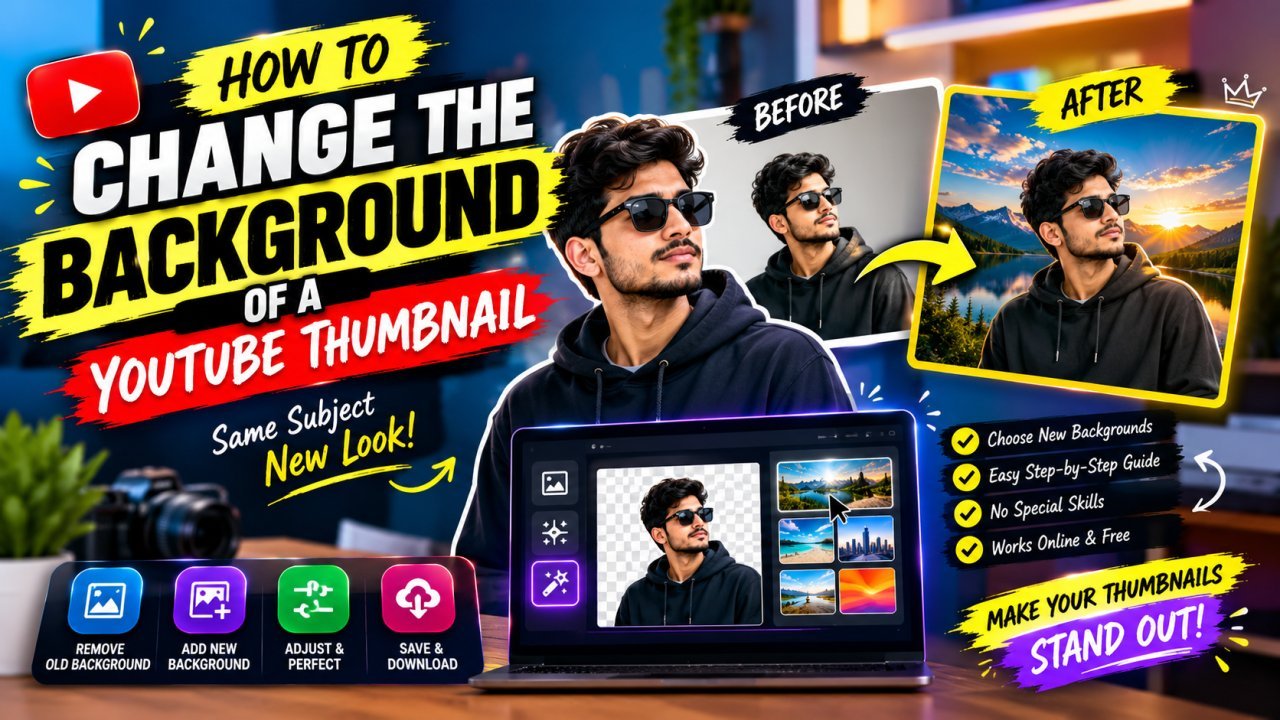
How to Change, Remove or Blur the Background of a YouTube Thumbnail
Remove, replace or blur the background of your own YouTube thumbnail, clean up distracting objects, and make the cutout look natural at 1280×720.
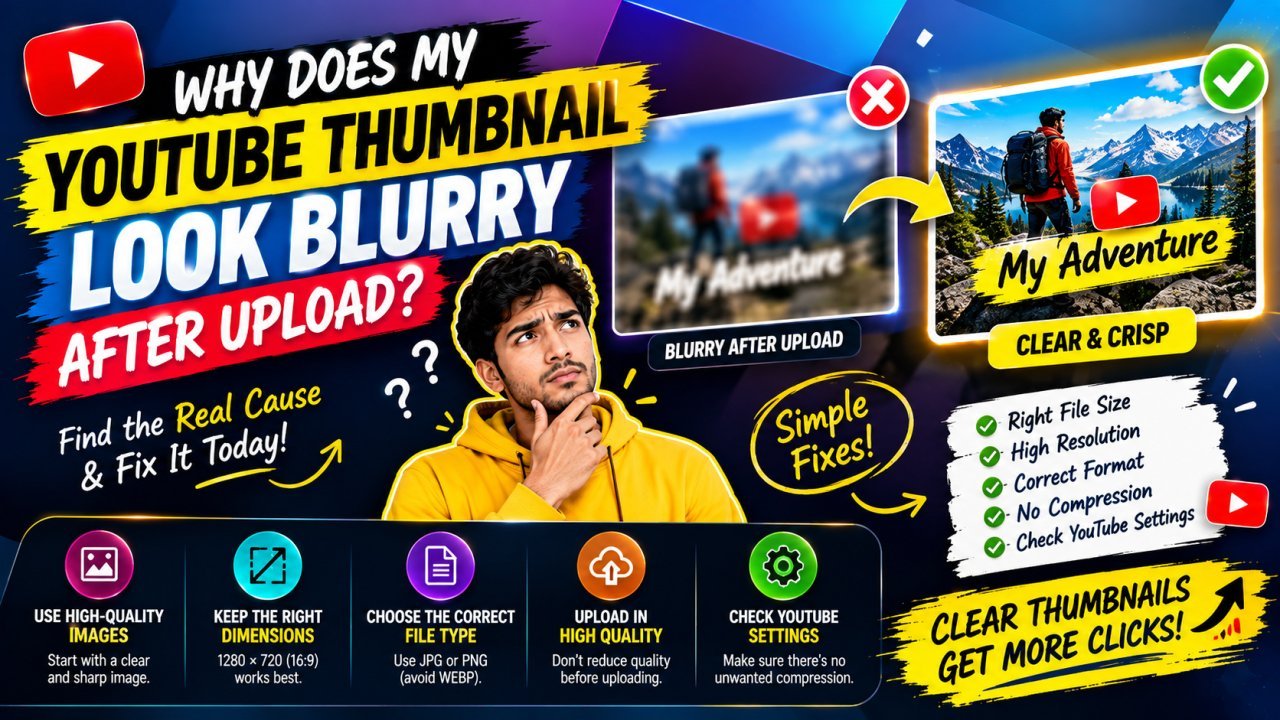
Why Does My YouTube Thumbnail Look Blurry After Upload? Causes and Fixes
A blurry, pixelated or low-quality YouTube thumbnail usually loses its sharpness before upload. Here is how to find the exact step and fix it.
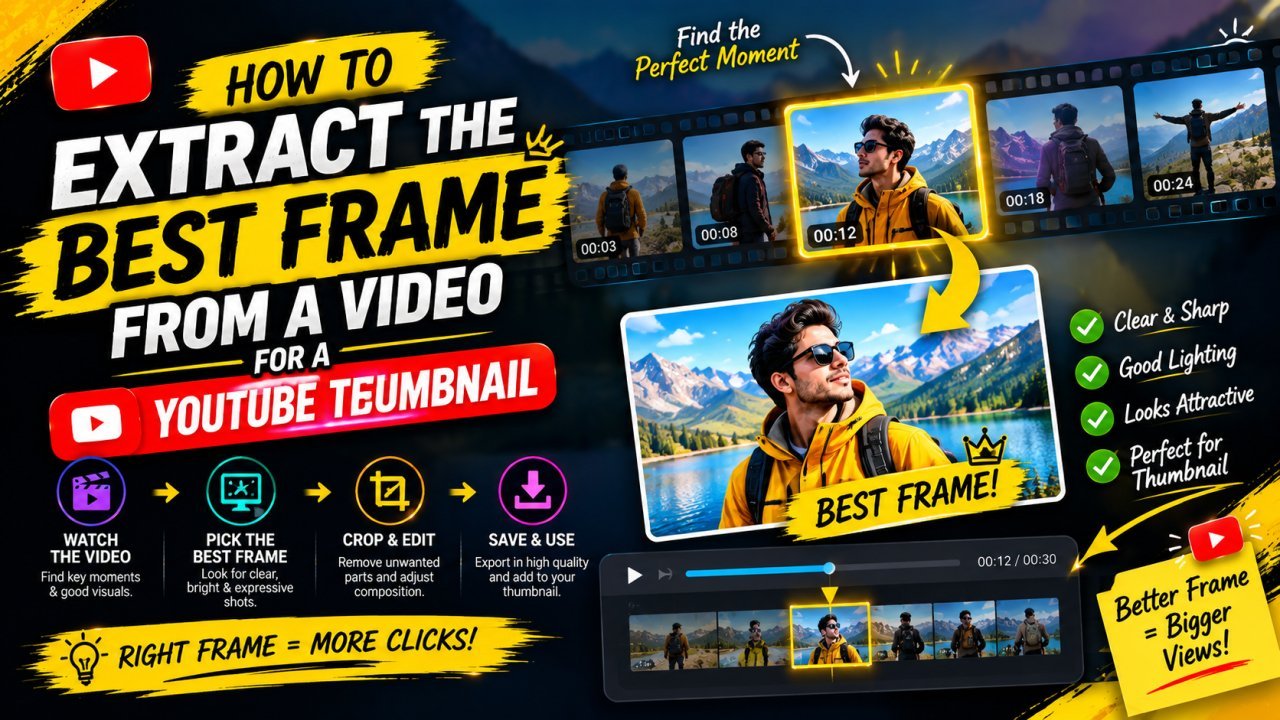
How to Extract the Best Frame From Your Video for a YouTube Thumbnail
Find the sharpest moment in your own video, export it at full resolution instead of screenshotting a player, and turn it into a clean 1280×720 thumbnail.