How to Change an Image Aspect Ratio Without Cropping
Keep the whole photo and change its shape by adding space: plain padding, a blurred background, or AI outpainting. Includes canvas sizes for common conversions.
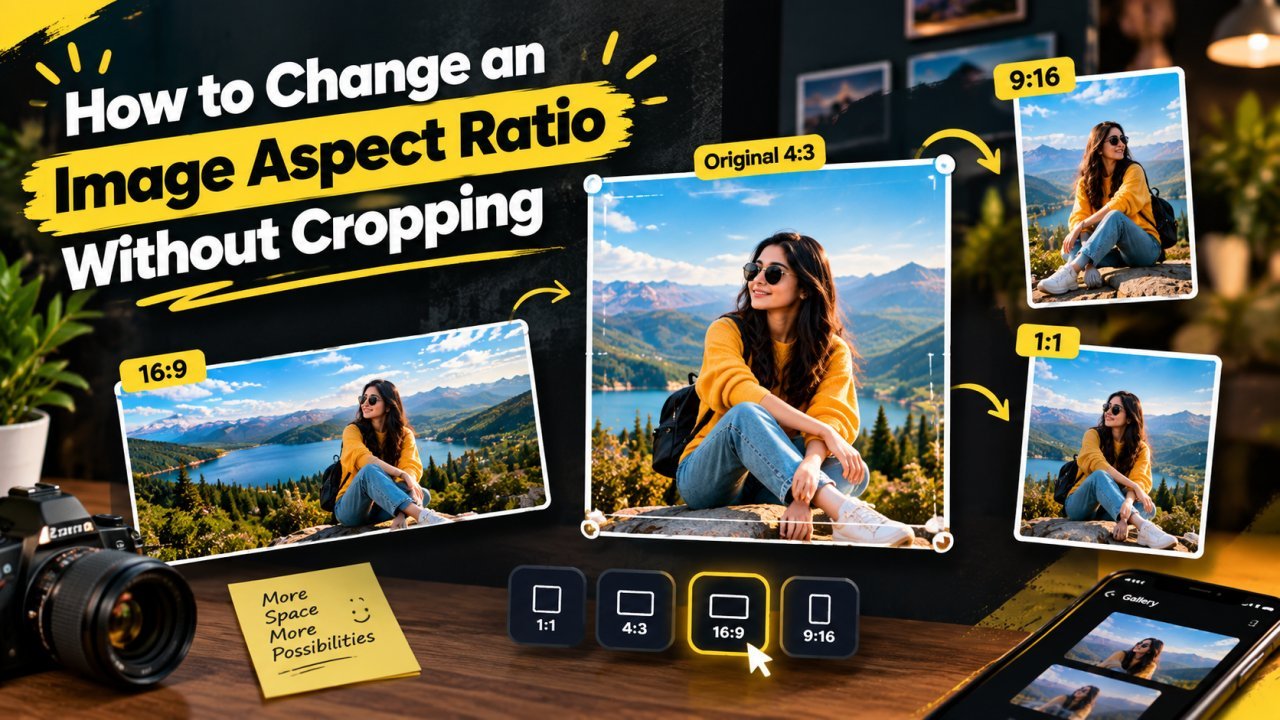
To change an image's aspect ratio without cropping, change the shape of the canvas, not the photo. Place the whole photo, at its original proportions, on a canvas with the new ratio and fill the extra space. That space can be a plain colour, a blurred copy of the same photo, or new background generated by AI. Nothing is cut off and nothing is stretched.
Why changing aspect ratio normally means cropping
Aspect ratio is the shape of an image: width compared to height. 1080×1080 is 1:1, 1920×1080 is 16:9, 1080×1350 is 4:5 and 1080×1920 is 9:16. The ratio is separate from the pixel count. 1280×720 and 1920×1080 are both 16:9.
When you change the dimensions of a photo while keeping its ratio, you are resizing. When the target has a different ratio, there are only three ways to make it fit:
| Approach | What happens | Result |
|---|---|---|
| Crop | Cuts off the edges that do not fit | Loses content |
| Stretch | Scales width and height by different amounts | Distorted faces and objects |
| Expand the canvas | Adds space around the untouched photo | Keeps everything |
Cropping is often the right answer, and our guide to cropping a photo to any size covers it. This article is about the third option, for when the edges of the photo matter: a full-length portrait, a group shot with people at both ends, a product touching the frame, or a screenshot with text near the border.
Canvas size vs image size
This distinction is the whole trick.
- Image size is the pixel dimensions of the photo itself.
- Canvas size is the area the photo sits on.
Take a 1200×800 photo. Resizing it to 1600×1067 makes the photo bigger. Putting it, unchanged, on a 1600×1200 canvas leaves the photo at 1200×800 and adds 400 pixels of new space across the width and 400 down the height. That new space is the padding you then fill.
How big should the new canvas be?
Keep one side of the photo the same and extend the other until the ratio matches. Some common conversions:
| Starting photo | Target | Canvas | Space added |
|---|---|---|---|
| 1080×1350 (4:5 portrait) | 1:1 square | 1350×1350 | 135 px left and right |
| 1080×1350 (4:5 portrait) | 16:9 wide | 2400×1350 | 660 px left and right |
| 1920×1080 (16:9 landscape) | 1:1 square | 1920×1920 | 420 px top and bottom |
| 1920×1080 (16:9 landscape) | 9:16 vertical | 1920×3413 | about 1167 px top and bottom |
| 1080×1080 (square) | 16:9 wide | 1920×1080 | 420 px left and right |
| 1600×1200 (4:3) | 16:9 wide | 2133×1200 | about 267 px left and right |
The formula: for a wider target, new width = height × (target width ÷ target height). For a taller target, new height = width × (target height ÷ target width).
Big conversions, such as landscape to 9:16, add more new space than the original photo occupies. In that case it usually looks better to resize the photo down first (for example a 1920×1080 photo to 1080×608) and place it on a 1080×1920 canvas, so the final file is not unnecessarily huge.
Method 1: plain padding or letterbox
The simplest method: fill the new space with a single colour. When the bars appear above and below a wide image it is called letterboxing; at the sides it is pillarboxing.
- Open the photo in an editor with a canvas size option. In GIMP and Photoshop it is under Image > Canvas Size. On phones, look for "canvas", "padding", "border", "frame" or "fit" in your editor, since names vary between apps.
- Enter the new canvas dimensions from the table above, or choose the target ratio.
- Set the anchor or position. Centre for even borders, or push the photo to one side to leave room for text.
- Pick the fill colour.
- Export.
Choosing the colour
- White suits product photos, documents and clean, minimal layouts.
- Black suits portraits, night shots and cinematic images, but can overpower light photos.
- A colour from the photo (or a muted version of it) makes the padding feel connected. Our colour palette tool pulls the main colours out of an image so you can use an exact shade.
- A brand colour works for business graphics.
Plain padding is predictable and never invents anything, which makes it the safest choice for product listings and screenshots.
Method 2: blurred background fill
A blurred copy of the photo behind the sharp original is the look you often see when a vertical phone video is shown on a horizontal screen. It fills the space with colours from the same scene, so it feels less empty than a flat border.
- Create a canvas at the target size.
- Add a copy of the photo and scale it up, proportionally, until it covers the whole canvas. Parts of this copy will hang off the edges; that is fine.
- Apply a strong blur to that copy. A light blur looks like a mistake; a heavy one reads as a deliberate background.
- Optionally darken or desaturate the blurred layer slightly so the main photo stands out.
- Place the original, sharp photo on top at its original proportions and centre it.
- Export.
Any layer-based editor or design app can do this: GIMP, Photoshop, or a slide or design tool where you set the page to the target size. It works best for portraits, travel photos and social posts. It is less suitable for product listings, where marketplaces usually want a plain background.
Method 3: AI outpainting
AI outpainting, also called generative expand or AI image extension, goes a step further. Instead of padding, an AI model generates new content beyond the original edges so the scene appears to continue: more sky, more floor, more wall, more beach.
How it works
You enlarge the canvas and the model looks at the existing pixels near each edge (colours, textures, lighting, perspective and objects) and predicts what could plausibly be outside the frame. Some tools also accept a short text prompt. The key point is that the model does not know what was really there. The extension is invented, so it can look convincing and still be wrong.
Where it works well
- Sky, clouds, water, sand and grass
- Plain walls and studio backdrops
- Simple floors and roads with clear perspective
- Soft, out-of-focus backgrounds
Where it struggles
- Faces, hands and bodies cut by the frame edge
- Text, signs and logos, which often come out garbled
- Detailed architecture, repeating patterns such as tiles and bricks, and straight lines that must continue exactly
- Product details that must stay accurate
Getting a natural result
- Keep the subject inside the original area. Let the AI generate background around the person or product, not part of them.
- Expand in steps. Add a moderate amount, review it, then expand again. A huge expansion around a small photo forces the model to invent too much.
- Describe what is already there. If a prompt is supported, use something like "continue the same plain studio wall with the same soft lighting". Do not ask for a sunset if the photo shows midday.
- Generate several variations and pick the best one, or regenerate only the part that looks wrong.
- Inspect at 100% zoom. Look for a visible seam, mismatched brightness or colour temperature, shadows pointing the wrong way, a bent horizon, duplicated objects or extra people.
When not to use it
Avoid generated content anywhere accuracy matters: documents, ID or form photos, evidence, technical images, product packaging, or anything where an invented detail could mislead someone. Many outpainting services also process your photo on their servers, so check their privacy terms before uploading personal pictures.
Image EditPro does not have an outpainting or canvas-extend tool. The methods above work in common editors, and our browser tools handle the steps before and after, as described below.
Which method to choose
| Method | Best for | Main advantage | Main risk |
|---|---|---|---|
| Solid padding | Products, screenshots, documents, minimal designs | Clean, predictable, nothing invented | Can look empty on photos |
| Blurred fill | Portraits, travel and social posts | Uses the photo's own colours | Looks odd if the blur is too weak |
| AI outpainting | Scenic backgrounds, banners, wallpapers | Scene appears to continue naturally | Invented details, seams, artefacts |
Use the simplest method that looks right. If plain padding works, there is no reason to bring in AI.
Common conversions in practice
Portrait to landscape (4:5 or 9:16 to 16:9)
Typical for website banners, slides and YouTube thumbnails. Rather than centring, consider placing the person on one side and using the new space on the other side for a headline. If the final image will be a thumbnail, keep the subject large enough to recognise at small sizes, and see our guide on YouTube thumbnail size and resolution.
Landscape to portrait (16:9 to 9:16 or 4:5)
For stories, phone wallpapers and vertical ads. The amount of new space is large, so either use a blurred fill or use the space deliberately for text above and below. On a phone wallpaper, keep the subject away from where the clock and app icons sit.
Rectangle to square (1:1)
The most common case, especially for profile pictures and marketplaces. It has its own guide: how to make a picture square without cropping. For WhatsApp in particular, see making a photo fit as a WhatsApp DP.
Finishing steps with Image EditPro
Once the padded or expanded image is ready, these browser-based tools (your files are processed on your device, not uploaded) take care of the rest:
- Set exact output dimensions with the resize tool, keeping the ratio locked. For example, scale a 2400×1350 banner down to 1920×1080.
- Separate the subject from its background first with Remove Background if you want to place a person or product on a clean colour before padding.
- Shrink the file with the image compressor, since padding adds pixels and the file size grows.
Mistakes to avoid
- Stretching instead of expanding. If faces look wider or circles look oval, the photo was resized to the new shape. Undo, lock the ratio and change only the canvas.
- Using a crop or "fill" mode by accident. Many apps default to filling the frame, which crops. Look for "fit", "canvas" or "expand" instead.
- Adding far more space than needed. The subject shrinks and the image feels empty. Use the smallest canvas that gives the required ratio.
- Uneven borders without a reason. Either centre the photo exactly or make the offset clearly deliberate, for example to hold text.
- Enlarging a small photo to fill a big canvas. That makes it soft. Keep the photo at its own size, or upscale it properly first.
Frequently Asked Questions
How do I change an image aspect ratio without cropping?
Make the canvas the new shape instead of making the photo the new shape. Place the whole photo on a canvas with the target aspect ratio, keep its proportions locked, and fill the extra space with a solid colour, a blurred copy of the photo, or AI-generated background.
What is the difference between canvas size and image size?
Image size is the pixel dimensions of the photo itself. Canvas size is the total area the photo sits on. Increasing the canvas adds empty space around the photo without stretching or cutting it.
Does adding space around a photo reduce its quality?
No. The original pixels are left untouched. Quality only drops if you also enlarge a small photo to fill a big canvas, or export at a low JPG quality.
What is AI outpainting?
Outpainting, also called generative expand, is when an AI model generates new image content beyond the original edges so the scene appears to continue. The added area is invented, not recovered, so it should be checked for mistakes such as warped lines, extra objects or mismatched lighting.
Why does my image look stretched after changing the aspect ratio?
The photo itself was resized to the new shape instead of the canvas. Undo, lock the aspect ratio, and change only the canvas so the photo keeps its original proportions.
Related articles
How to Make a Picture Square Without Cropping It
Turn a portrait or landscape photo into a 1:1 square without cutting anything off: use the longer side as the canvas and fill the gap with colour, blur or transparency.
WhatsApp DP Size: How to Make Any Photo Fit Without Cropping
WhatsApp shows your DP as a circle cut from a square. Here is the size to prepare, how to fit a full photo, selfie or group shot without cropping, and the circle safe area.
How to Crop a Photo to Any Size Without Losing Quality
Crop to the right aspect ratio first, then resize to the exact pixels. Worked examples for 1000×1000, 1200×800 and 1080×1350, plus how to avoid blurry crops.