
How to Blur Background Like a DSLR Using Online Tools (No Camera Needed)
That dreamy DSLR portrait blur (bokeh) is now reproducible from any phone photo — using free online tools that simulate depth of field convincingly.
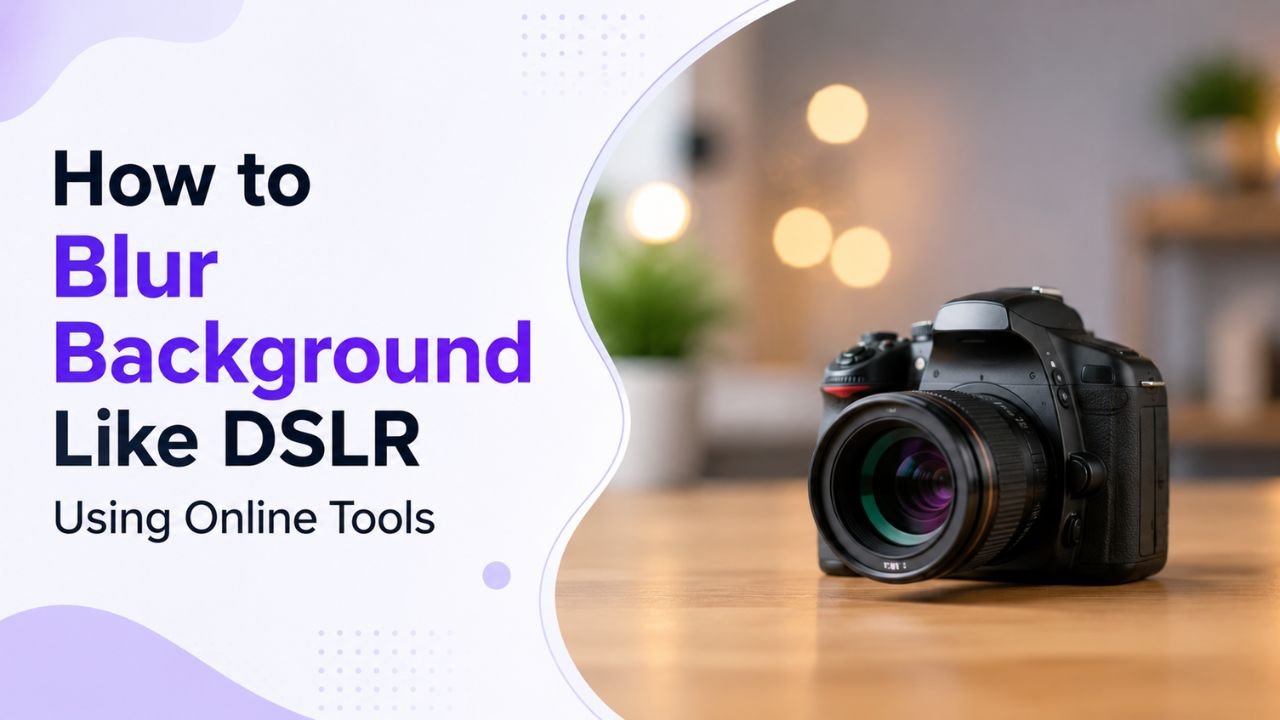
A DSLR camera with a fast lens (f/1.8 or wider) produces that creamy out-of-focus background photographers call "bokeh." It's why portrait photos from a Nikon look more "professional" than the same shot from a basic phone camera.
The good news: in 2026, free online tools can simulate this effect convincingly on any sharp photo. Here's how to do it properly.
The trick is depth separation
Real DSLR blur happens because the camera physically focuses on the subject while the background is out of the focus plane. A short depth-of-field means everything not on the focus plane goes soft.
Simulated blur works differently: software must first identify what's foreground (your subject) and what's background, then blur only the background. AI background detection (the same tech that powers background removers) is what makes good fake bokeh possible in 2026.
Step-by-step: convert a flat photo into a "DSLR" portrait
-
Pick a good source photo. Sharp focus on the subject, decent lighting, subject distinct from background. AI can't fake bokeh on already-blurry photos.
-
Identify the foreground. Most AI tools handle this automatically. You drop the photo in, the tool detects the subject.
-
Apply gradient blur to the background only. The AI blurs the background (often 15-40px Gaussian blur is the sweet spot) while leaving the subject untouched.
-
Optionally add "bokeh balls" highlights. Some tools simulate the round highlights you get from real lenses — these add to the DSLR feel but aren't essential.
-
Fine-tune blur intensity. Too little looks fake, too much looks cartoonish. Sweet spot: noticeable but believable.
Tools that do this well in 2026
Free options:
- Phone built-in "Portrait Mode" — Pixel, iPhone, Samsung all have this. Best quality if you have the right phone.
- Lensa, Picsart, Snapseed — free mobile apps with bokeh effects
- YouCam Perfect, Photo Editor Pro — free Android/iOS apps
- Photopea — free web Photoshop clone, do it manually
- PixCut, Pixelcut — AI-powered free tiers
There isn't yet a great "one-click portrait blur" tool in our toolkit — but you can build the effect yourself using our Background Remover + a basic editor (see manual method below).
Manual method (for full control)
If automatic tools don't give you the look you want:
- Run the photo through a background remover — get a transparent PNG of the subject
- Take the original photo and apply a strong Gaussian blur (try 25-40px) to the entire image
- Layer the transparent subject on top of the blurred original
- Optional: add a subtle vignette and warm colour grade for that "magazine portrait" finish
This gives you complete control over the blur amount and lets you adjust the subject's mask if needed. Takes about 5 minutes per photo.
Common mistakes that make fake bokeh look fake
- Hard mask edges — if the subject's outline against the blurred background is too sharp, the photo looks like a paste-up. Modern AI handles this; manual editing requires you to feather the edges 1-3 pixels.
- Uniform blur strength everywhere — real DSLR bokeh increases with distance from the focus plane. Far backgrounds should be more blurred than near ones. Most apps don't simulate this, which is the #1 telltale of fake portrait mode.
- Hair flyaways still in focus — AI mistakenly marks hair tips as background. Look for sharp little hairs that shouldn't be sharp — they betray the fake.
- Background brightness mismatches the subject — if the subject is well-lit and the background is dark, blurring doesn't fix the lighting inconsistency.
When the simulation actually beats a real DSLR
Counter-intuitive but true: in some cases, fake bokeh is better than real:
- You can adjust it after the fact — real DSLR captures one focus plane; you can't un-blur a real DSLR shot
- You can have selective control — leave one earring sharp while blurring everything else, for example
- You don't need ₹50,000+ of camera gear
- You don't need to be in the right physical setup — group photos that would have impossible DOF on a real lens still work
When you should still use a real DSLR
- Product photography — fake bokeh on glossy or reflective products often fails
- Video — frame-by-frame consistency is hard; real lens beats fake every time
- Group photos with subjects at different depths — fake bokeh treats them as one foreground
Realistic expectations
A 2026 phone in portrait mode + post-processing gets you 85% of the way to a 50mm f/1.8 lens look. The remaining 15% is what professionals shoot for.
For Instagram, dating profile photos, professional headshots for LinkedIn — fake bokeh is more than enough. For wedding photography or paid portrait work, invest in real glass.
Post-blur workflow
After blurring the background, common follow-ups:
- Crop to portrait aspect ratio (4:5 for Instagram, 3:4 for LinkedIn). Use our free Crop tool with aspect ratio presets.
- Resize to platform spec — Instagram 1080×1350, LinkedIn 400×400. Free Resize tool.
- Compress before upload — bokeh-heavy images compress well into WEBP. Try JPG to WEBP.
Quick recipe for the perfect "portrait mode" look
- Sharp subject in good light → photo
- Background-removed transparent PNG (foreground only)
- Same image with 25-30px Gaussian blur applied uniformly
- Layer foreground over blurred background
- Slight warm colour grade (+5 temperature, +3 tint)
- Subtle vignette (-15 corners exposure)
- Crop to 4:5 portrait
- Export at 1080×1350 quality 85
Total time once you've done it twice: 3-4 minutes per photo. Faster than most apps that try to do it automatically poorly.
Ready to optimize your images?
Every tool mentioned in this article is free to use. No upload, no signup, no watermarks on small files.
Try our free toolsRelated articles
How to Remove Background from Images in One Click (Free, No Photoshop)
Background removal used to take 10 minutes per image with the Pen Tool. In 2026 it takes one click. Here's the practical guide for any image type.
How to Resize Images Without Losing Quality (The Real Guide)
Resizing seems trivial but most tools make it look worse than it should. Here's how to keep images crisp regardless of which direction you're going.
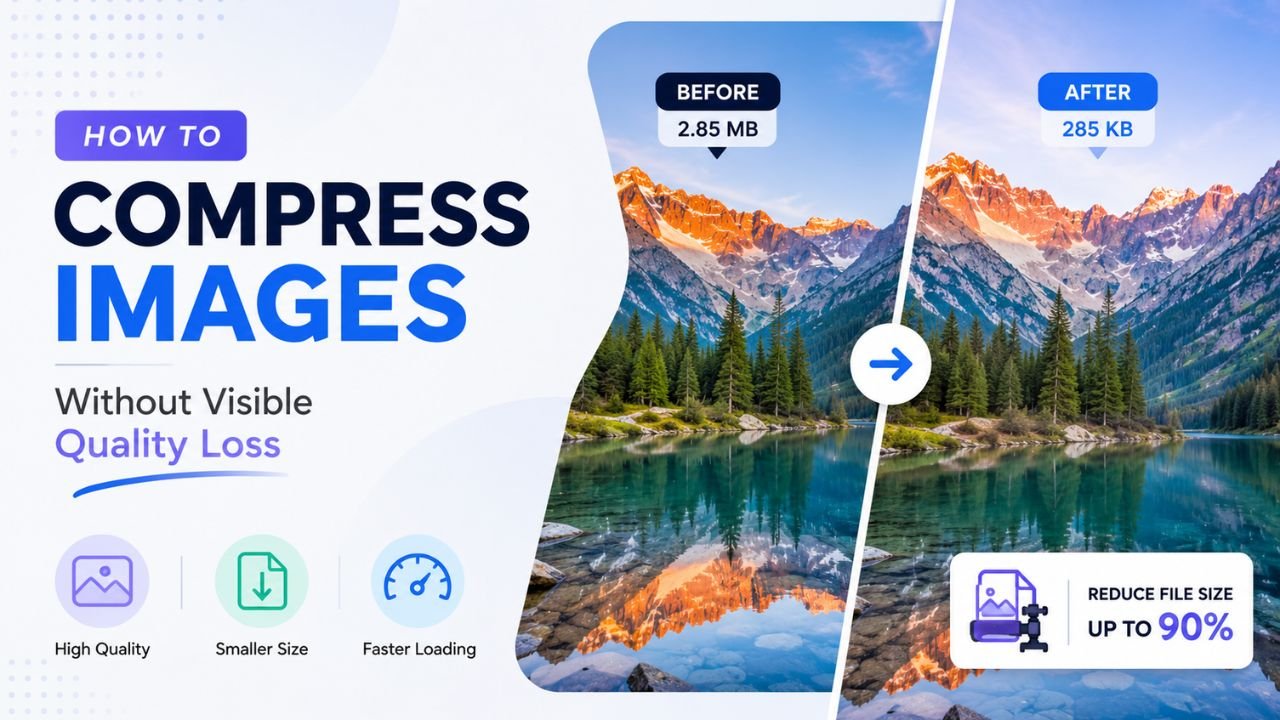
How to Compress Images Without Any Visible Quality Loss
There's a science to picking the exact quality setting where files shrink dramatically but no human can spot the difference. Here's how to find that sweet spot every time.