
How to Create Transparent PNG Images (4 Practical Methods)
Transparent PNGs let logos, icons, and product cutouts sit on any background. Four ways to create them, from one-click AI to manual precision.
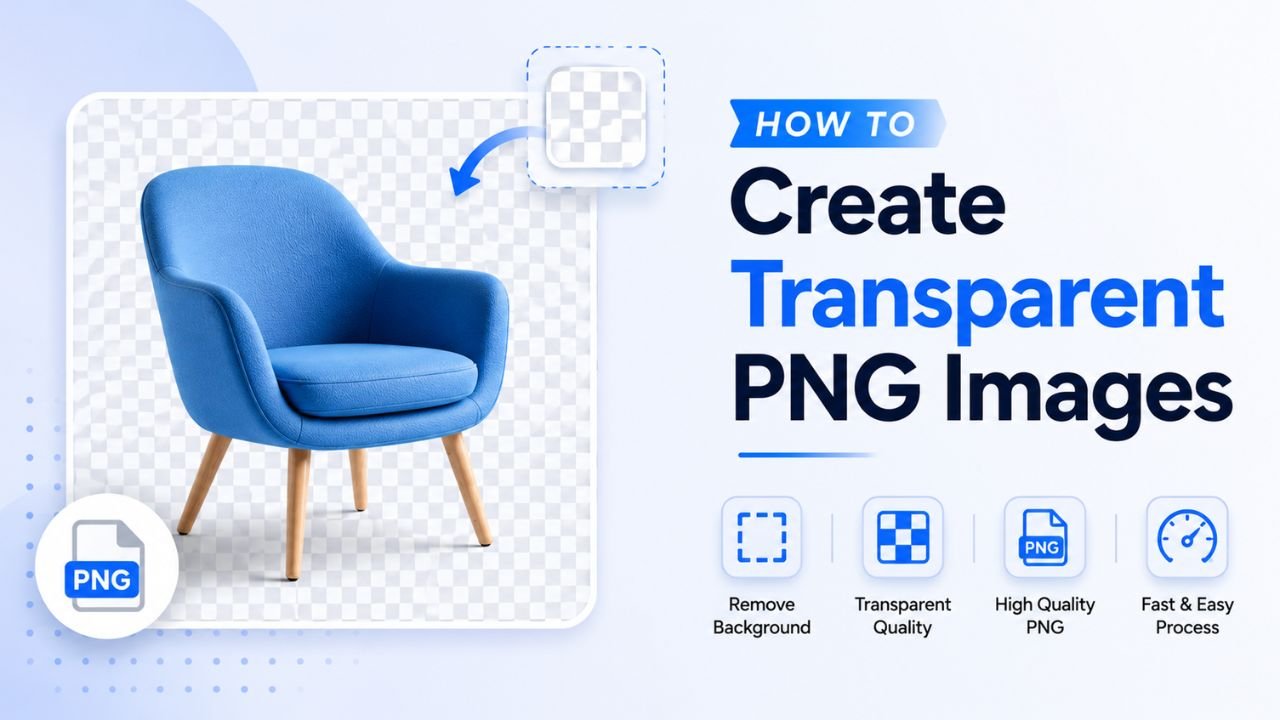
A transparent PNG has "see-through" pixels in some areas — the background. This lets you layer the image on any colour or photo and it blends naturally. Logos, icons, product cutouts, and stickers all rely on this.
Here are four practical methods, from instant to advanced.
Method 1: AI background removal (the fast way)
Best for: photographs, product shots, portraits with clear subjects.
Time per image: 5 seconds.
- Drop your image into our free Background Remover
- The AI separates subject from background automatically
- Download the transparent PNG
This works for 95% of photographic content. Output is a PNG with the alpha channel correctly set — transparent in the original background area, opaque where the subject was.
Tip: the result format is PNG by default. If you want WEBP with transparency (smaller file), convert afterward with our PNG to WEBP tool.
Method 2: Manual selection in a free editor
Best for: logos, graphics, technical illustrations, photos where AI gets it wrong.
Time per image: 5-15 minutes.
Tools: Photopea (free, web-based, Photoshop-clone), GIMP (free, desktop), Pixlr (free, web).
The workflow:
- Open your image
- Use Magic Wand / Quick Selection on the background
- Refine the selection edges (feather 1-2 pixels)
- Delete the background area
- The deleted area becomes transparent (shown as the checkered pattern)
- Save / Export as PNG
This gives you precise control over edges — useful for logos where AI may miss subtle details.
Method 3: Create from scratch in a design tool
Best for: logos, icons, illustrations you're designing.
Time per image: depends on design complexity.
Most design tools default to transparent backgrounds:
- Figma — start with a frame, no background fill → export as PNG
- Adobe Illustrator — vector design, export as PNG with "Transparent Background" checked
- Canva — design with no background, export as PNG (Pro tier only for transparent backgrounds)
- Inkscape (free) — same as Illustrator workflow
Once exported, the PNG file has transparent areas wherever you didn't fill with colour. Open it on any background to verify.
Method 4: Colour-based key (chroma key)
Best for: images with a uniform colour background (green screen, single solid colour backdrop).
Time per image: 1-2 minutes.
If your photo was taken against a uniformly green or blue or white background:
- Open in any editor with a "Replace Color" or "Magic Wand" tool
- Click on the uniform background
- Tolerance setting around 30-50 selects similar shades
- Delete the selection
- Save as PNG
This is faster than AI for very clean studio shots but fails on photos without uniform backgrounds.
How to verify your PNG is actually transparent
A common mistake: thinking you have a transparent PNG when you don't. Quick check:
- Open the PNG file
- View it in a browser by drag-dropping it into a Chrome/Firefox tab
- The browser shows transparent images on a checkered or white background by default
- If you see your subject floating on white, transparency is correct
- If you see your subject on whatever background you intended to remove, transparency failed — go back and redo
When to use transparent WEBP instead of PNG
WEBP supports transparency just like PNG but produces 25-35% smaller files. For web use:
- Logos in headers: prefer transparent WEBP
- Product cutouts on shopping sites: prefer transparent WEBP
- Icons in apps: SVG > WEBP > PNG
If you need broad compatibility (older browsers, image software not from 2020+), stick with PNG.
Convert PNG → WEBP with our free PNG to WEBP tool.
When to NOT use transparent PNG
- Photos that don't need transparency — saving as PNG balloons file size 6-12× without benefit. Use JPG or WEBP.
- Print materials — most print workflows use TIFF or PDF, not PNG. Some printers don't handle alpha cleanly.
- Email attachments — many email clients strip alpha channels. Composite onto a known background colour first.
- Social media posts — most platforms render PNG fine, but composite onto your intended background colour to avoid surprises.
Pre-cutout checklist
Before running any background removal:
- Crop loose — give the AI enough subject area to work with. Free Crop.
- Check resolution — at least 500×500 ideal
- Save as PNG before processing if your source is a heavily compressed JPEG — re-save as PNG with JPG to PNG converter for cleaner edges
- Strip EXIF to avoid confusion (free EXIF Remover)
Post-cutout cleanup
The output rarely needs zero touch-up:
- Check edges at 100% zoom — look for hard pixels, missed strands, halos
- Manual fix in 5-10 pixels at a time for missed edges
- Add a subtle white halo (0-1px outline) for graphics that need to "pop" against any background
For most photographic cutouts, the AI output is good enough as-is. Only critical hero shots need manual edge work.
Common transparent PNG mistakes
- Saving as JPG — JPG doesn't support transparency. The transparent area becomes solid white (or whatever fill the app picks). Always export as PNG or WEBP.
- Half-transparent hair edges turning into hard edges — happens when alpha is converted to binary on/off. Use tools that preserve continuous alpha.
- Saving at 8-bit when 24-bit is needed — 8-bit PNG limits colours to 256, fine for icons, bad for photos.
- Composite onto white then re-cutting out — if you save a composite, the transparency is gone forever; you can't recover it.
Bulk workflow
Multiple images needing cutouts? Sequential workflow:
- Run each through our free Background Remover
- Bulk resize to consistent dimensions (Bulk Compressor handles batches)
- Apply consistent watermark if needed (Watermark tool)
Time for a batch of 10: about 3-5 minutes total.
Start with our free Background Remover — your photos stay on your device, no signup, no upload.
Ready to optimize your images?
Every tool mentioned in this article is free to use. No upload, no signup, no watermarks on small files.
Try our free toolsRelated articles
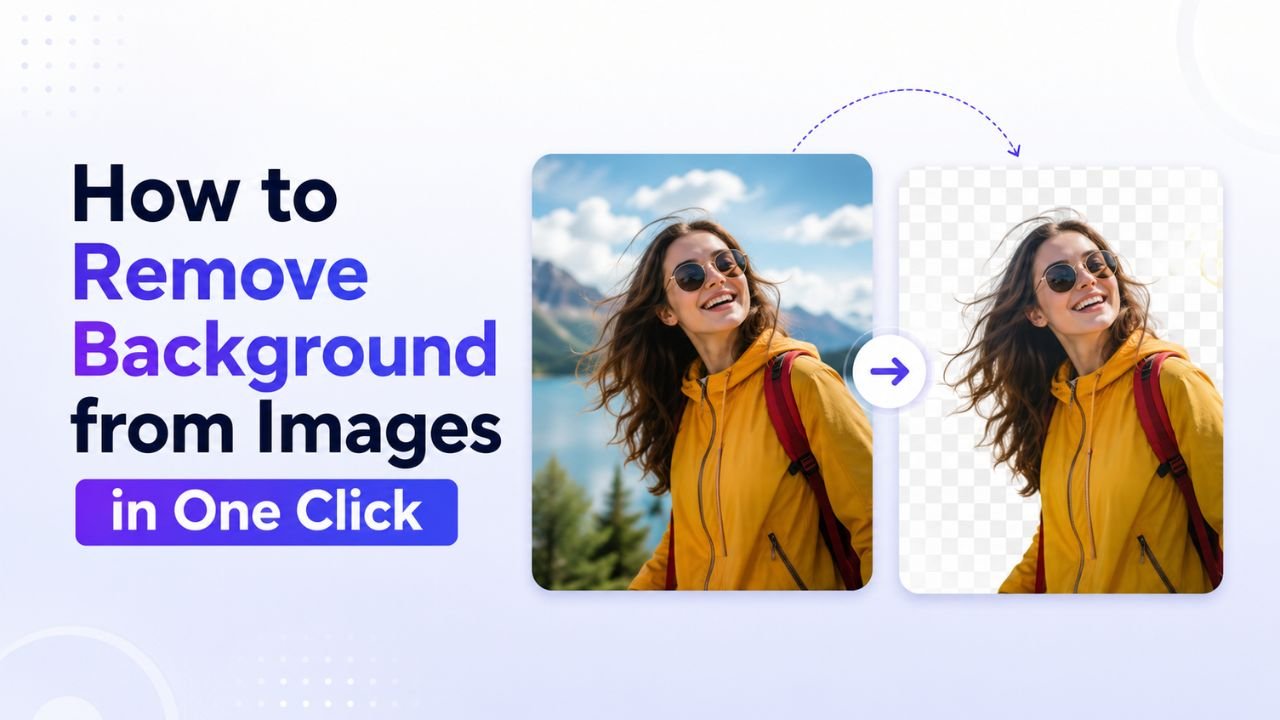
How to Remove Background from Images in One Click (Free, No Photoshop)
Background removal used to take 10 minutes per image with the Pen Tool. In 2026 it takes one click. Here's the practical guide for any image type.

How to Blur Background Like a DSLR Using Online Tools (No Camera Needed)
That dreamy DSLR portrait blur (bokeh) is now reproducible from any phone photo — using free online tools that simulate depth of field convincingly.
How to Resize Images Without Losing Quality (The Real Guide)
Resizing seems trivial but most tools make it look worse than it should. Here's how to keep images crisp regardless of which direction you're going.