
How to Turn Your Photo Into a 1980s Vintage Photo With AI
Learn how to turn your photo into a 1980s vintage photo with AI using retro outfits, film effects, old cameras, vintage backgrounds, and realistic prompts.
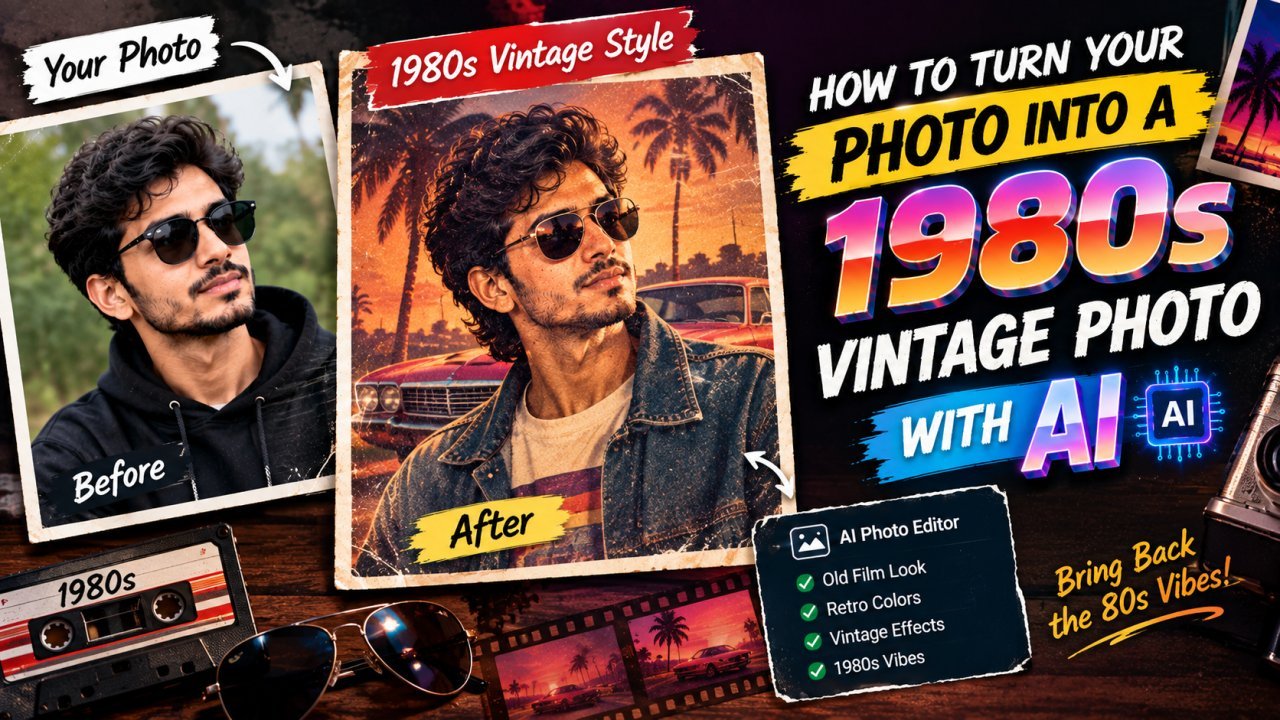
How to Turn Your Photo Into a 1980s Vintage Photo With AI
Want to give a modern picture an old-school look? You can turn your photo into a 1980s vintage photo with AI without needing professional photo-editing skills.
AI image tools can transform a regular portrait into a retro-looking photograph by changing the clothing, hairstyle, background, lighting, colors, camera style, and film texture. You can create the look of an old family photograph, school portrait, studio picture, street photo, or casual snapshot from the 1980s.
The important part is giving the AI clear instructions. A simple request such as “make this photo look old” may produce a generic result. A detailed prompt can create a much more convincing 1980s style while keeping your face recognizable.
In this guide, you will learn how to transform your own picture into a realistic 1980s vintage photo, choose the right style, write better prompts, avoid common mistakes, and improve the final result.
What Is a 1980s Vintage Photo?
A 1980s vintage photo is an image designed to resemble photographs commonly produced during the 1980s.
The exact appearance could vary depending on the camera, film, lighting, location, and type of photography. However, many photos from this period have visual characteristics such as:
- All Tools
- Remove Background from Image — Free & Private
- Passport Photo Maker
- Analog film grain
- Slightly faded colors
- Warm or muted tones
- Direct camera flash
- Soft image details
- Mild color shifts
- Natural skin texture
- Simple studio backgrounds
- Retro clothing and hairstyles
- Slightly imperfect exposure
- Printed-photo characteristics
AI can recreate some of these visual qualities in a modern digital photograph.
Instead of simply adding an old-photo filter, you can ask an AI image editor to change several elements at once.
For example, you might transform a modern portrait into:
A 1980s family studio portrait
or:
A casual 1980s street photograph
or:
A vintage school yearbook portrait
The best choice depends on the type of image you want to create.
Why Turn Your Photo Into a 1980s Vintage Photo With AI?
There are several reasons people enjoy this type of AI photo transformation.
1. It Creates a Retro Look
A modern photograph can look completely different after adding 1980s-inspired styling.
You can combine:
- Retro clothes
- Vintage hairstyles
- Analog film texture
- Old-fashioned backgrounds
- Flash photography
- Soft colors
This can make the image feel visually different without changing the person in the original photo.
2. You Can Use Your Own Face
One of the biggest advantages of using an image-to-image AI tool is that you can start with your own photograph.
Instead of generating a random person, you provide a reference image and ask the tool to restyle it.
For example:
Transform this portrait into a realistic 1980s vintage photograph while keeping the person's facial identity recognizable.
The exact identity-preservation features depend on the AI tool you use.
3. You Can Experiment With Different 1980s Styles
The 1980s did not have one single visual style.
You can experiment with:
- Studio portraits
- Family photographs
- School portraits
- Mall photography
- Arcade scenes
- Street photography
- Casual home photographs
- Couple portraits
- Professional portraits
- Music-inspired fashion
- Instant-film-inspired photographs
This makes the process more creative than applying one standard filter.
How to Turn Your Photo Into a 1980s Vintage Photo With AI
The basic process is simple.
You need:
- A suitable photo of yourself
- An AI image editing or image-to-image tool
- A clear transformation prompt
- A little patience for testing different results
Let's go through the process step by step.
Step 1: Choose a Good Photo
Start with a clear photograph.
The quality of your original image can have a major effect on the final result.
For the first attempt, choose a photo where:
- Your face is clearly visible
- Your face is not heavily covered
- The image is reasonably sharp
- Lighting is not extremely dark
- Your head is not severely cropped
- There are no major objects covering your face
A simple portrait often works well.
Best Photo Types for AI Vintage Transformations
A front-facing portrait is usually an easy starting point.
You can also use:
- Half-body portraits
- Full-body photographs
- Couple pictures
- Family photos
- Outdoor portraits
- Casual selfies
- Professional headshots
However, complicated images with many people or objects may require more careful prompting.
Avoid Extremely Blurry Photos
If the original image is already very blurry, the AI may have difficulty understanding important facial details.
It may invent details instead of preserving them.
For better results, use the clearest version of the photograph you have.
Step 2: Decide What Kind of 1980s Photo You Want
Before writing your prompt, decide what the final photograph should look like.
This is important because “1980s vintage” can mean many different things.
For example, compare these ideas:
Style A: Studio portrait
A formal 1980s studio portrait with a simple backdrop and direct flash.
Style B: Family photograph
A casual 1980s family photograph taken indoors with an analog film camera.
Style C: Street photograph
A candid 1980s street photograph with period clothing, natural lighting, and film grain.
Style D: School portrait
A classic 1980s school portrait with a simple colored backdrop and traditional studio lighting.
Each prompt describes a different photographic situation.
Step 3: Upload Your Photo to the AI Tool
Open an AI image editor that supports image uploads or image-to-image editing.
Upload your original photograph.
Depending on the tool, you may see options such as:
- Edit image
- Transform image
- Image-to-image
- Reference image
- Restyle
- Image editor
- Generate from image
The names and available features can change between tools, so check the current instructions for the specific platform you are using.
After uploading the picture, describe the transformation you want.
Step 4: Tell the AI to Preserve Your Face
If you want the final image to still look like you, include an identity-preservation instruction.
For example:
Keep the person's facial identity recognizable. Preserve the main facial features, face shape, eyes, nose, mouth, and overall appearance.
This gives the AI a clearer instruction than simply saying “keep the person.”
However, AI image editing is not always perfect.
A transformation can change facial details, especially when you ask for major changes to hairstyle, age, pose, clothing, or lighting.
If your first result looks like a different person, simplify the prompt and emphasize identity preservation.
Step 5: Add 1980s Clothing
Clothing is one of the easiest ways to communicate the decade.
Instead of writing:
Make the clothes old.
Be more specific.
You could describe:
- High-waisted trousers
- Denim jackets
- Oversized jackets
- Patterned shirts
- Sweaters
- Vintage dresses
- Polo shirts
- Casual denim
- Retro sportswear
- Period-appropriate accessories
For example:
Change the outfit to authentic 1980s casual clothing while keeping the person's face and body proportions natural.
You can also describe the clothing based on the setting.
For a family portrait:
Add a modest 1980s family-photo outfit with classic denim and a simple patterned shirt.
For a professional portrait:
Add a formal 1980s office outfit with a period-appropriate jacket and shirt.
For a casual street scene:
Add relaxed 1980s streetwear with denim and a vintage jacket.
The goal is not to add every possible retro element. A few carefully selected details can look more believable.
Step 6: Add a 1980s Hairstyle
Hair can strongly influence how old the image feels.
Ask the AI for a hairstyle that matches the decade and your chosen setting.
For example:
Give the person a natural 1980s-inspired hairstyle appropriate for the period.
If you want more control, describe the hairstyle more specifically.
For example:
Use a natural late-1980s hairstyle with realistic volume and texture.
Avoid asking for exaggerated hair unless you specifically want a dramatic retro style.
The hairstyle should also make sense for the person in the photograph.
Step 7: Choose a Vintage Background
The background can make a major difference.
A modern background may make the clothing and film effects look less convincing.
You can replace it with a period-inspired environment.
Simple Studio Background
Try:
Place the person in a simple 1980s portrait studio with a plain textured backdrop.
Home Interior
Try:
Place the person in a modest 1980s living room with period-appropriate furniture and decor.
Street Scene
Try:
Place the person on a typical 1980s city street with period-appropriate cars, signs, storefronts, and architecture.
School Portrait
Try:
Use a classic 1980s school portrait backdrop with simple studio lighting.
Arcade
Try:
Place the person in a 1980s arcade with vintage arcade machines, colorful lights, and a candid photographic composition.
The background should support the story of the photograph rather than distract from the subject.
Step 8: Add an Analog Film Look
This is one of the most important parts of creating a convincing vintage photograph.
Modern digital images are usually very clean.
Older photographs can have subtle imperfections.
You can ask for:
- Fine film grain
- Slightly soft detail
- Natural color variation
- Mild fading
- Subtle exposure imperfections
- Analog film texture
- Slightly muted colors
- Realistic photographic contrast
For example:
Give the image a realistic analog film appearance with fine grain, slightly faded colors, soft detail, and subtle exposure variation.
Do not overdo these effects.
Too much grain can make the image look like a digital filter instead of an old photograph.
Step 9: Add Vintage Flash Photography
Direct flash can help create the feeling of a casual old photograph.
Try a prompt such as:
Use direct on-camera flash with natural shadows and the slightly imperfect exposure of an old consumer film camera.
This can work particularly well for:
- Indoor family photos
- Party photographs
- Casual portraits
- Mall photographs
- Nighttime snapshots
The flash should still look physically believable.
If the entire image becomes unnaturally bright, reduce the strength of the effect in your prompt.
Step 10: Describe the Camera Look
Instead of only saying “make it vintage,” describe how the photograph should appear.
For example:
Make it look like a photograph taken with an affordable 1980s consumer film camera.
Or:
Create the appearance of a printed 1980s color photograph with natural film grain and slightly soft focus.
This helps the AI understand that you want a photographic transformation rather than simply a color filter.
A Simple 1980s Vintage Photo Prompt
If you are a beginner, start with a short prompt.
Turn this photo into a realistic 1980s vintage photograph. Keep the person's facial identity recognizable and preserve natural facial features. Add authentic 1980s clothing, hairstyle, and a period-appropriate background. Use analog film grain, slightly faded colors, soft photographic detail, natural lighting, and a realistic old-film appearance. Avoid modern objects and overly artificial effects.
How to Turn Your Photo Into a 1980s Vintage Photo With AI — Part 2
In Part 1, we covered the basic process of turning a modern picture into a 1980s vintage photo with AI. Now it is time to go deeper.
A simple retro filter can make a picture look old, but a detailed AI transformation can create something that feels much more like an actual photograph from the 1980s.
The difference usually comes from the small details.
The clothing should match the period. The background should make sense. The lighting should feel photographic. The colors should have the characteristics of analog film. Most importantly, your face should remain recognizable if you are transforming your own photograph.
This part covers advanced techniques, realistic prompts, negative instructions, different 1980s photo styles, film effects, camera characteristics, and practical ways to improve an AI-generated vintage image.
Create Different Types of 1980s Vintage Photos
One of the easiest ways to improve your results is to stop thinking about “1980s” as a single style.
Instead, choose a specific type of photograph.
A real photograph from the 1980s could have looked completely different depending on where and how it was taken.
Here are several styles you can try.
1. 1980s Family Album Photo
Family photographs are excellent for a vintage AI transformation because they naturally allow for imperfect lighting, casual poses, and consumer-camera characteristics.
Try this prompt:
Transform this photo into a realistic 1980s family album photograph. Preserve the person's recognizable facial identity and natural facial proportions. Use authentic 1980s clothing, a simple family-home interior, natural casual posing, direct on-camera flash, subtle analog film grain, slightly faded colors, soft photographic detail, and realistic consumer film-camera characteristics. Make it feel like an ordinary printed family photograph rather than a stylized digital image.
How to Turn Your Photo Into a 1980s Vintage Photo With AI — Part 3
How to Make Your 1980s AI Photo Look More Realistic
After creating your first 1980s vintage photo with AI, the next step is improving the small details.
A realistic result should not look like a modern photograph with a simple vintage filter. The clothing, background, lighting, colors, and film texture should work together.
Here are some simple ways to improve the final image.
Keep the Face Natural
If the AI changes your face too much, simplify the prompt.
Use:
Preserve the original facial identity, face shape, eyes, nose, mouth, and natural proportions.
Avoid asking for too many facial changes at the same time.
Keep the Colors Subtle
A good vintage photo does not always need extremely faded colors.
Try:
Use slightly muted analog colors with subtle natural fading.
This usually looks more realistic than extreme yellow, orange, or brown coloring.
Use Fine Film Grain
Instead of heavy grain, use:
Add subtle fine analog film grain with slightly soft photographic detail.
The grain should support the photograph rather than become the main effect.
How to Fix Common AI Problems
Problem 1: The Photo Looks Too Modern
Add:
Remove modern visual characteristics and use authentic 1980s photography, clothing, lighting, and analog film characteristics.
Problem 2: The Face Does Not Look Like You
Add:
Keep the original facial identity and facial proportions closely matched to the reference image.
Problem 3: The Image Looks Like a Cartoon
Add:
Create a realistic photographic result with natural skin texture and realistic lighting. Avoid illustration or cartoon styling.
Problem 4: The Image Has Too Much Grain
Add:
Reduce the film grain and keep it subtle and natural.
Problem 5: The Background Looks Modern
Add:
Replace modern background elements with realistic period-appropriate 1980s details.
Problem 6: Clothing Looks Wrong
Add:
Use authentic 1980s clothing appropriate for the setting instead of generic retro fashion.
Best 1980s AI Photo Prompt
If you want one general prompt that works as a starting point, use this:
Turn this photo into a realistic 1980s vintage photograph. Keep the person's facial identity, facial structure, and natural proportions recognizable. Add authentic 1980s clothing and hairstyle with a realistic period-appropriate background. Use analog color film, subtle fine film grain, slightly faded colors, soft photographic detail, natural skin texture, realistic exposure, and period-appropriate lighting. Make the image look like a genuine printed photograph from the 1980s rather than a modern photo with a filter. Avoid modern objects, contemporary clothing, excessive grain, extreme blur, artificial skin, HDR effects, and unnatural facial features.
Ready to optimize your images?
Every tool mentioned in this article is free to use. No upload, no signup, and no watermarks — ever.
Try our free toolsRelated articles

How to Improve a YouTube Thumbnail With AI
Learn how to improve a YouTube thumbnail with AI using practical methods for better composition, text, backgrounds, colors, faces, and visual clarity. Discover how to use AI to enhance an existing thumbnail without making it look confusing or generic.

How to Create a YouTube Thumbnail With AI
Learn how to create a YouTube thumbnail with AI using simple prompts, image generation, editing, text placement, and mobile-friendly design tips.
How to Make a YouTube Thumbnail With Two Images
Learn how to make a YouTube thumbnail with two images. Follow simple steps to combine photos, arrange them clearly, and create a balanced thumbnail that works on mobile.