
WhatsApp Status Size and Why WhatsApp Makes Your Photos Blurry
WhatsApp shrinks and recompresses every photo you send or post to Status. The right Status size, the HD settings that reduce the damage, and when to send a photo as a document instead.
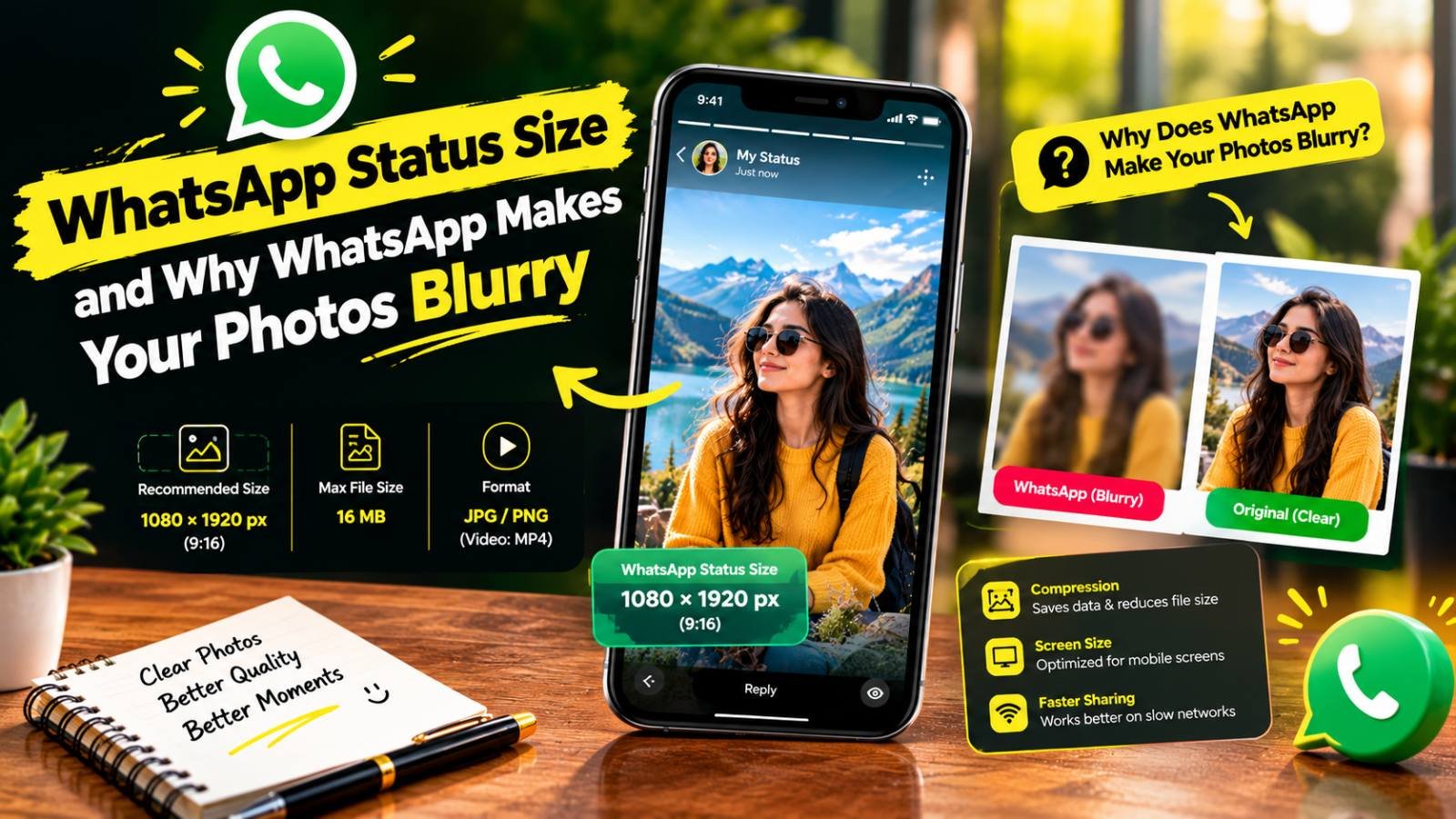
You take a sharp photo, post it to your WhatsApp Status or send it to a family group, and it arrives looking soft, blotchy or slightly smaller. It is not your phone and it is not your internet connection. WhatsApp deliberately shrinks and recompresses photos before sending them.
You cannot switch that off completely, but you can reduce it a lot. This guide explains what happens to your photos, which size to use for Status, the HD settings that help, and when to skip compression entirely by sending a photo as a document.
Quick Answer
- Best Status image size: 1080 × 1920 pixels, a vertical 9:16 shape. Keep text and faces in the middle.
- For better quality: tap the HD button before sending, or set HD as the default under Settings → Storage and data → Media upload quality.
- For the original, untouched file: send the photo as a Document.
- Before you upload: start from the original photo, not a screenshot or a forwarded copy.
Why WhatsApp Makes Photos Blurry
WhatsApp carries billions of photos every day, many over slow or expensive mobile data. To keep messages fast and to save storage on everyone's phone, it does two things to every photo sent normally:
- It reduces the resolution. A 12- or 50-megapixel phone photo is scaled down to a much smaller size.
- It recompresses the image as a JPG at a fairly strong compression level, which removes fine detail and texture.
On a small phone screen at normal size the result often looks fine. The damage shows up when you zoom in, look at fine text, or view the photo on a laptop or TV: hair and grass turn into smudges, edges get blocky halos, and smooth skies show bands.
It gets worse with every hop. A photo that is forwarded from group to group is recompressed again each time it is saved and resent, so a "forwarded many times" picture can be several generations away from the original. The same thing happens when you screenshot a photo and post the screenshot.
The Right Size for WhatsApp Status
Status is shown full screen on a phone, so the best shape is the phone's own shape: 9:16 vertical, 1080 × 1920 pixels. That size fills the screen without black bars and without WhatsApp cropping your image.
Other shapes still work, but:
- Square or landscape photos appear with empty space above and below, so they look small.
- Very tall screenshots may be scaled down to fit, which makes text tiny.
Mind the Safe Zone
WhatsApp places its own interface on top of your Status: your name, profile photo, time and the progress bars at the top, and the reply box and other controls at the bottom. Design guides recommend keeping important content within the central area, roughly the middle 1080 × 1600 pixels (Instasize).
In practice:
- Put greeting text, prices or dates in the middle third of the image.
- Leave some breathing room at the top and bottom.
- Do not put thin text along the edges, where it may be covered or cut by rounded screen corners.
How to Make a 1080 × 1920 Status Image
- Open the photo in the crop tool and choose the 9:16 preset. Position the box over the most important part of the photo.
- Scale it to exactly 1080 × 1920 with the resize tool, keeping the ratio locked.
- Save it as a JPG at high quality.
If you want to keep a landscape or square photo whole rather than cropping it, place it on a 9:16 canvas with a plain or blurred background. Our guide on changing an image's aspect ratio without cropping explains how.
Both tools run in your browser, so your personal photos are not uploaded to a server.
Send HD Photos Instead of Standard
WhatsApp added an HD option for photos in 2023, and later a setting to make HD the default (Android Central, TechRadar).
For One Photo
When you select a photo to send or post to Status, look for the HD button at the top of the editing screen. Tap it and choose HD quality before sending. The recipient sees an HD label on the photo.
As the Default
On recent versions of WhatsApp:
- Open Settings.
- Go to Storage and data.
- Tap Media upload quality.
- Choose HD quality.
Menu names and positions can vary slightly between Android and iPhone and between app versions. If you cannot see the option, update WhatsApp from the Play Store or App Store.
What HD Does and Does Not Do
HD keeps a much higher resolution than standard, so photos look clearly sharper, especially when zoomed. But it is still a compressed copy, not your original file. Tests by tech sites have found HD photos are noticeably better than standard, yet still not identical to the original. HD files are also larger, which uses more mobile data for you and for every person in the group, and more storage on their phones.
A sensible approach: use HD for photos people will look at closely (family portraits, events, products), and standard for quick snaps and memes.
Send as a Document to Keep the Original
When quality truly matters, for example photos for printing, for a photographer or designer, or for an official upload someone will do on your behalf, send the photo as a document. WhatsApp then sends the file exactly as it is, without resizing or recompressing it. The document limit is widely reported as 2 GB per file, far more than any photo needs.
How to send a photo as a document:
- Android: in the chat, tap the attachment (paperclip) icon, choose Document, then browse to the photo. Some file pickers open in a "recent files" view; use the menu to open your gallery or the DCIM folder.
- iPhone: in the chat, tap +, choose Document, then Choose Photo or Video, and select the photo.
The trade-offs:
- The recipient sees a file instead of a photo preview in the chat, and has to open it.
- The full file uses more data. A 4 MB photo is still a 4 MB download for every person who opens it.
- The original file includes its metadata. That can mean the camera model, the date and time, and the GPS location where the photo was taken.
Check the Location Data Before You Share
Normally sent photos are re-encoded, which generally removes most hidden data. A document, being the untouched original, can carry it. If you are sending photos taken at home to a large group or to someone you do not know well, remove the metadata first with the metadata remover. It runs in your browser and strips location and camera details. JPGs are re-saved at a very high quality setting, so the difference in the picture is not normally visible.
Why Your Status Looks Worse Than the Photo You Sent
People often notice that a Status looks softer than the same photo sent in a chat. Common reasons:
- The image was not the right shape, so WhatsApp scaled it down to fit the screen.
- It was a screenshot of a photo or of another app, which is already smaller and compressed.
- It was edited inside WhatsApp with lots of text and stickers, then saved and reposted, adding another round of compression.
- It was posted over a weak connection. Upload over Wi-Fi when quality matters.
- HD was not selected for that Status.
Getting the shape right before uploading and starting from the original photo solve most of these.
How to Get the Best Quality Every Time
- Start from the original. Use the photo from your camera roll, not a forwarded copy, a screenshot or a photo saved from social media.
- Edit before WhatsApp. Make your crops and adjustments in your gallery app or a photo editor, then share once.
- Use the right shape. 9:16 for Status, any shape for chats.
- Don't pre-compress too hard. If you shrink a photo to 100 KB before sending, WhatsApp still compresses it again, and the two rounds stack. A clean, high-quality JPG of a few hundred KB to a few MB survives best.
- Choose HD for photos that matter, or Document when the recipient needs the original.
- Ask for the original back. If someone sent you a blurry photo, ask them to send it as a document or HD rather than trying to repair a heavily compressed copy.
Fixing a Photo That Is Already Blurry
If all you have is a compressed WhatsApp copy, some recovery is possible but there are limits:
- Light softness and blockiness can often be improved with gentle sharpening and noise reduction. The blur image fixer handles mild cases in your browser.
- A small, low-resolution photo can be enlarged more cleanly with an AI upscaler than by simply stretching it. See how to make a low-quality image HD online.
- Details that compression has destroyed, such as small text or faces in a group photo, cannot be truly restored. AI tools may invent plausible detail, which is fine for a casual photo but not for documents.
Whenever possible, getting the original file is better than any repair.
WhatsApp DP vs Status
The profile picture (DP) has different rules from Status: it is shown as a circle, so the corners are always cut off. If your DP is being cropped badly, see our separate guide on WhatsApp DP size and fitting a photo without cropping.
Frequently Asked Questions
What is the best size for a WhatsApp Status photo?
A vertical 9:16 image, 1080 x 1920 pixels, fills a phone screen without bars or cropping. Keep text and faces in the middle, because WhatsApp shows your name at the top and the reply bar at the bottom.
Why does WhatsApp reduce the quality of my photos?
WhatsApp resizes and recompresses photos so they send quickly and use less data and storage for everyone. The standard setting makes files much smaller, which removes fine detail. HD quality keeps more resolution, and sending as a document keeps the original file.
How do I always send HD photos on WhatsApp?
On recent versions, open Settings, then Storage and data, then Media upload quality, and choose HD quality. You can also tap the HD button in the editor each time you send a photo. Menu names can differ slightly between Android and iPhone versions.
Does sending a photo as a document keep its location data?
A document is sent as the original file, so any information stored inside it, such as camera details and GPS location, can travel with it. Remove the metadata first if you do not want to share where the photo was taken.
Related articles
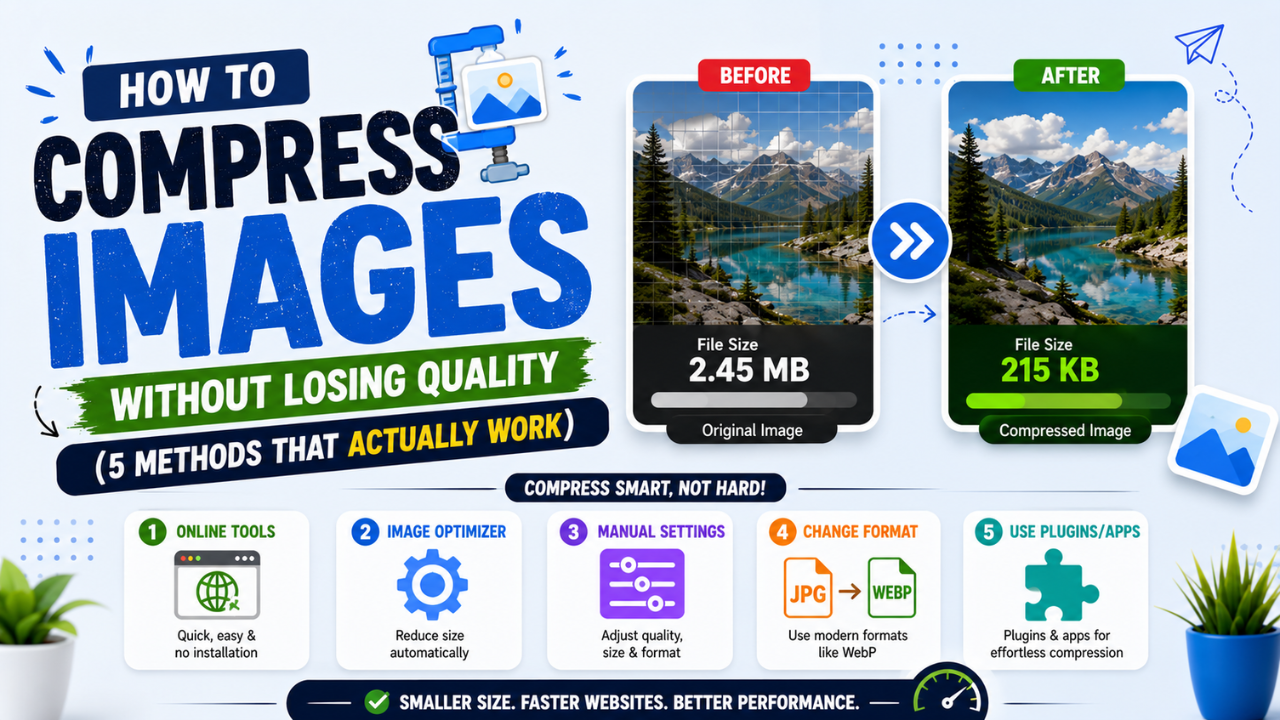
How to Compress Images Without Losing Quality (and Reduce Size in KB)
Resize to the size you need, pick the right format, use a moderate quality setting and compare. How to shrink JPG, PNG and WebP files, or hit an exact KB limit, without visible loss.
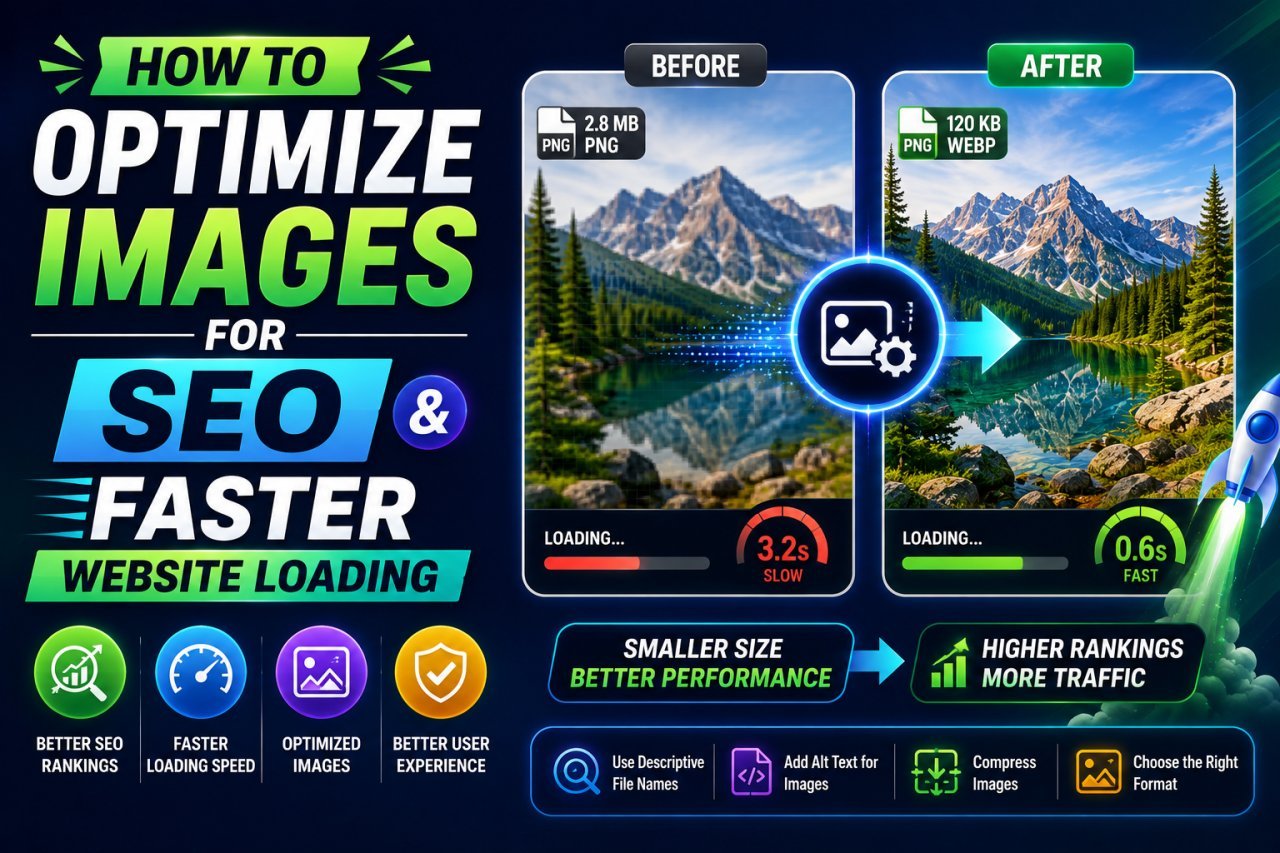
How to Optimize Images for SEO: File Names, Alt Text, Sitemaps and LCP
Help Google find, understand and rank your images: descriptive file names, useful alt text, crawlable img elements, image sitemaps, structured data and a fast LCP image.
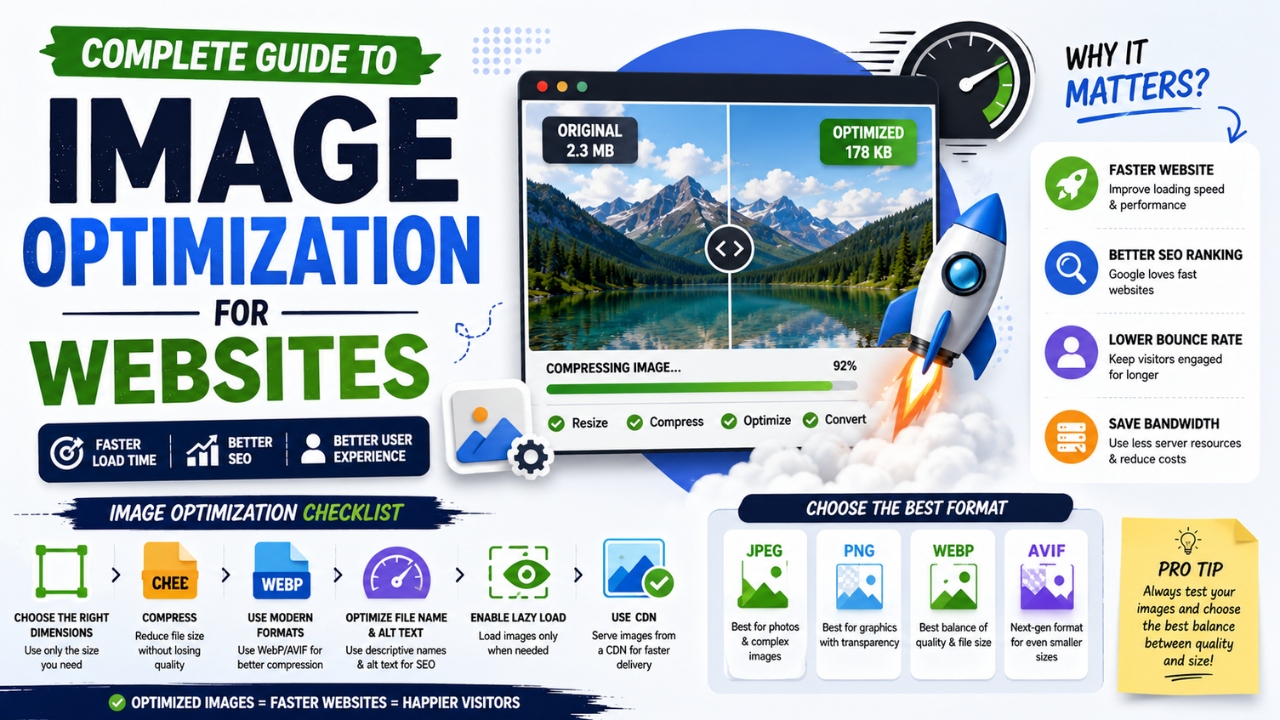
Image Optimization for Websites: Formats, Sizing, Lazy Loading and Caching
A practical, step-by-step workflow for faster pages: pick the right format, resize to display size, compress sensibly, serve responsive images, lazy-load and cache.