
WhatsApp DP Size: How to Make Any Photo Fit Without Cropping
Learn the WhatsApp DP size and how to make any photo fit your profile picture without cropping, stretching, or losing important details.
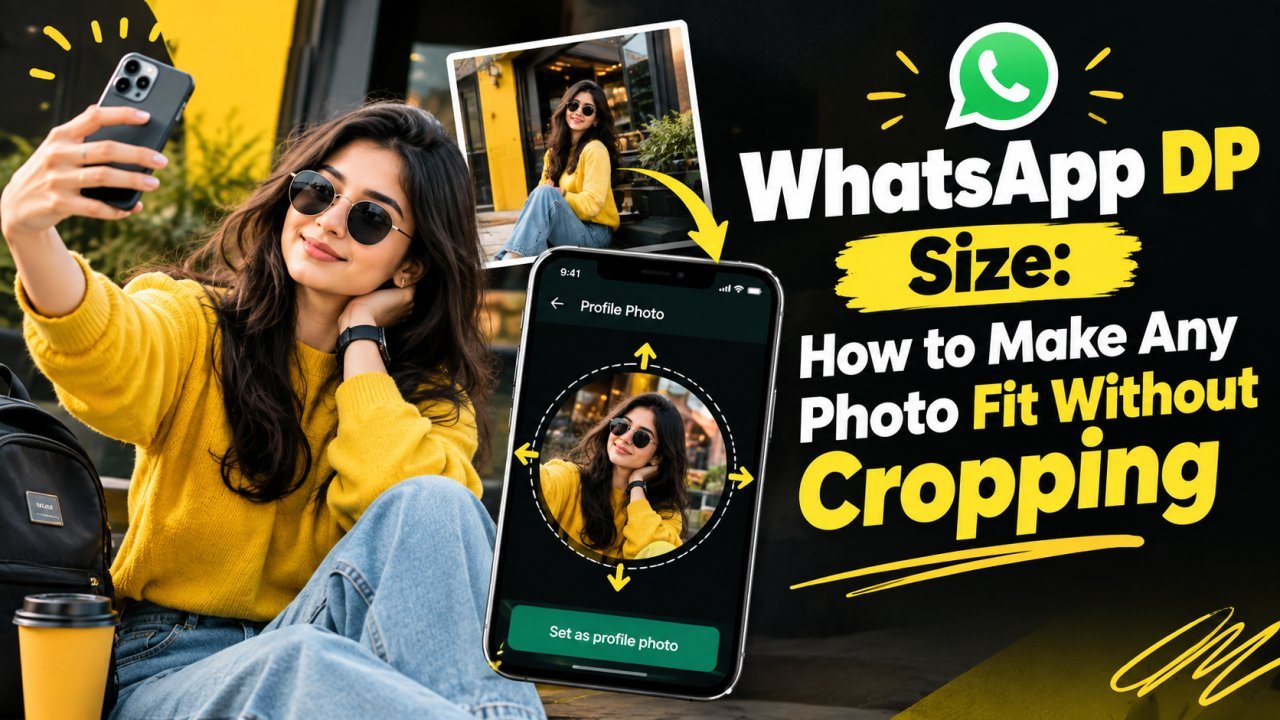
WhatsApp DP Size: How to Make Any Photo Fit Without Cropping
If you have ever tried to set a full photo as your WhatsApp profile picture, you may have noticed a common problem: WhatsApp may crop the image to fit the profile picture area.
This is especially frustrating when the photo is vertical, horizontal, or contains important details near the edges.
Understanding the correct WhatsApp DP size can help you prepare your photo before uploading it. More importantly, you do not always need to crop the photo to make it fit. You can add space around the image, resize it proportionally, or place it on a square background so the complete photo remains visible.
In this guide, you will learn what WhatsApp DP size means, why photos get cropped, how to make any photo fit without cropping, and which methods work best for portraits, group photos, landscape images, and other pictures.
What Is the WhatsApp DP Size?
The WhatsApp DP, or WhatsApp profile picture, is displayed inside a square profile-picture frame, although the final display may appear circular in parts of the WhatsApp interface.
Because of this square-style image area, photos with different proportions may not fit perfectly.
Use full tools
- All Image Tools
- YouTube Thumbnail Enhancer
- Ecommerce Photo Optimizer
- Flip Image Online — Free, Private, In Your Browser
For example:
- A square photo already matches the basic shape.
- A portrait photo is taller than it is wide.
- A landscape photo is wider than it is tall.
- A very tall photo may lose its top or bottom when fitted into a square.
- A very wide photo may lose its left or right sides.
The important point is that image dimensions and image aspect ratio are not the same thing.
A photo can have thousands of pixels in both directions and still be difficult to fit if its shape is very different from the square profile-picture format.
What Size Should a WhatsApp Profile Picture Be?
For practical editing, the easiest approach is to prepare your WhatsApp DP as a square image, such as 1080 × 1080 pixels.
The exact display size can vary depending on the app, device, and interface, so you should not focus only on one pixel number.
Instead, focus on these two things:
- Use a square canvas.
- Keep the important part of your photo inside the safe central area.
A square image gives you more control before you upload it to WhatsApp.
If your original photo is not square, you can create a square canvas around it without cutting away the original image.
Why Does WhatsApp Crop My Photo?
The main reason is the difference between the shape of your original photo and the shape of the profile-picture area.
Imagine you have a vertical portrait photo.
The original image may look like this:
Tall rectangle
But the WhatsApp profile-picture area is closer to:
Square
To make a tall rectangle fill a square area, something has to change.
There are three common possibilities:
- Crop part of the photo.
- Stretch the photo.
- Add empty or generated space around the photo.
Cropping removes part of the original image.
Stretching can make people or objects look distorted.
Adding space allows you to keep the complete original photo.
For most people who want the entire photo visible, the third option is the most useful.
Can You Use a Full Photo as a WhatsApp DP Without Cropping?
Yes.
The easiest method is to add space around the original photo until the canvas becomes square.
For example, if you have a tall portrait photo, you can place it in the center of a square canvas.
The additional space can be:
- White
- Black
- A blurred version of the photo
- A matching color
- A gradient
- A simple background
- A generated background
This allows the original photo to remain intact while the overall image becomes suitable for a square profile-picture format.
How to Make Any Photo Fit WhatsApp DP Without Cropping
There are several ways to prepare a photo.
The best method depends on the type of image and the look you want.
Method 1: Add a Background Around the Photo
This is one of the simplest methods.
Suppose your original photo is vertical.
Instead of cropping the top and bottom, create a square canvas and place the complete photo in the center.
The empty area on both sides can then be filled with a suitable background.
For example:
Original: Vertical portrait
New canvas: Square
Result: Full portrait visible with extra space on the left and right
This is a good choice when preserving the complete photo is more important than filling every part of the square.
Method 2: Use a Blurred Background
A blurred background is popular for profile pictures because it can make the added space look more connected to the original photo.
The process is simple:
- Create a square canvas.
- Duplicate the original photo.
- Place one copy in the background.
- Enlarge the background copy until it covers the square canvas.
- Apply a strong blur.
- Place the original photo clearly in the center.
- Adjust the background brightness if necessary.
This creates a visual effect where the original image remains sharp while the surrounding area uses a soft version of the same photo.
Method 3: Use a Solid Background
If you prefer a clean and simple profile picture, use a solid background.
For example, you could use:
- White
- Black
- Light grey
- Beige
- A color that appears in the original photo
A solid background can work particularly well for professional profile pictures.
Method 4: Use AI to Add Space
An AI image extender can generate additional content around your photo instead of leaving empty borders.
This can be useful when you want the expanded image to look more like a natural photograph.
For example, AI can sometimes extend:
- Sky
- Walls
- Grass
- Studio backgrounds
- Roads
- Outdoor scenery
The advantage is that the final image may look like a naturally wider or taller photograph.
However, AI-generated areas should always be checked for mistakes before using the image as a profile picture.
How to Fit a Portrait Photo Into WhatsApp DP
Portrait photos are among the most common images that need adjustment.
A portrait photo is usually taller than a square.
If you crop it directly, you may lose:
- Hair
- Head
- Shoulders
- Clothing
- Hands
- Other people
- Important background details
Instead, place the portrait inside a square canvas.
Simple Portrait Workflow
- Open your photo in an image editor.
- Create a square canvas.
- Add the original portrait.
- Scale it proportionally.
- Keep the entire person visible.
- Fill the remaining space with a suitable background.
- Export the square image.
- Upload it as your WhatsApp profile picture.
This approach prevents unnecessary cropping.
How to Fit a Landscape Photo Into WhatsApp DP
Landscape photos have the opposite problem.
They are wider than they are tall.
If you crop them into a square, the left and right sides may disappear.
This can be a problem when the image contains:
- Multiple people
- A group
- A landscape
- A vehicle
- A building
- A wide travel scene
Instead of cropping the sides, create a square canvas and add space above and below the photo.
You can use a solid background, blurred background, or AI-generated extension.
How to Fit a Group Photo as a WhatsApp DP
Group photos can be especially difficult because several people need to remain visible.
If you crop the image too tightly, one or more people may disappear from the frame.
A better approach is to make the image square while keeping the entire group inside the central area.
Before uploading, check the image at a smaller size.
If everyone's face is still clearly visible, the composition is likely to work better as a profile picture.
Why You Should Not Stretch Your Photo
Stretching is another way people try to make a rectangular image fit a square.
However, it changes the proportions of the original image.
For example, a person's face may become wider or taller.
Buildings may look distorted.
Cars may appear unusually wide.
Circles can become ovals.
For this reason, resize proportionally rather than stretching the image.
If the aspect ratio needs to change, add space instead of distorting the original photo.
WhatsApp DP Safe Area
Making the image square is only part of the process.
You should also think about the safe area.
Important elements should stay toward the center of the image because profile pictures are displayed relatively small.
Keep these elements away from the extreme edges:
- Face
- Eyes
- Logo
- Text
- Product
- Main object
- Important details
This is particularly important when the profile image is displayed as a circular shape.
Even if the uploaded file is square, parts near the corners may not be visible in every display context.
What Is the Best Aspect Ratio for a WhatsApp DP?
For preparing a profile picture, a 1:1 aspect ratio is the easiest choice.
That means:
Width = Height
Examples include:
- 500 × 500
- 800 × 800
- 1080 × 1080
- 1200 × 1200
The exact pixel dimensions are less important than creating a clean square image with enough resolution for the intended use.
How to Make WhatsApp DP Fit Without Losing Quality
When preparing a profile picture, avoid repeatedly resizing and exporting the same image.
A better workflow is:
- Start with the highest-quality original.
- Create the square canvas.
- Add background space.
- Position the original photo.
- Make final adjustments.
- Export once at a suitable quality.
- Upload the finished image.
This reduces unnecessary quality loss from repeated editing and compression.
Also avoid enlarging a very small image excessively.
Starting with a larger original gives you more flexibility.
How to Add White Space Around a Photo
White space is one of the easiest solutions.
For example, if your photo is a tall portrait:
- Create a square canvas.
- Set the background to white.
- Place the photo in the center.
- Resize it proportionally until the full photo is visible.
- Export the result.
The final image may look like a framed photograph.
This method is simple, clean, and does not require AI.
How to Add a Blurred Background Around a Photo
A blurred background can create a more polished appearance.
Use this workflow:
Step 1: Duplicate the Photo
Create a second copy of your original image.
Step 2: Enlarge the Background Copy
Make the duplicate large enough to cover the entire square canvas.
Step 3: Blur It
Apply enough blur to remove distracting details.
Step 4: Add the Original Photo
Place the sharp original image above the blurred background.
Step 5: Center the Subject
Position the photo so the main subject is easy to see.
Step 6: Adjust the Background
If the background is too bright or distracting, reduce its brightness or contrast.
This technique works well for portraits, family photos, travel images, and many casual profile pictures.
How to Use AI to Make a Photo Fit WhatsApp DP
AI can make the process more flexible.
Instead of simply adding a blank background, you can use AI to generate additional space that matches the existing environment.
For example, imagine a portrait where the person is standing outdoors.
You could expand the sides and ask the AI to continue:
- The sky
- Trees
- Buildings
- Ground
- General outdoor surroundings
The goal is not to change the person.
The goal is to create additional space around the person so the original subject can fit inside a square composition.
Always inspect the result before uploading it.
AI may create unexpected objects or modify visual details near the expansion area.
What If the Face Gets Too Small?
One problem with adding a lot of space is that the main subject may become too small.
This is especially important for WhatsApp profile pictures because they are displayed at a relatively small size.
If the face is tiny in the final square image, consider:
- Reducing the amount of added space.
- Moving the subject closer to the center.
- Creating a tighter crop while keeping the important parts visible.
- Using a simpler background.
- Removing unnecessary empty space.
The goal is not simply to keep every pixel of the original photo.
The goal is to create a profile picture where the main subject remains recognizable.
How to Position a Person in a WhatsApp DP
For a person-focused profile picture, place the face or upper body near the center.
Avoid positioning the face too close to:
- The top edge
- Bottom edge
- Left edge
- Right edge
Leave enough surrounding space so the profile-picture display does not cut into important details.
For a head-and-shoulders photo, a centered composition usually works well.
For a full-body photo, you may need more surrounding space so the entire person remains visible.
How to Make a WhatsApp DP With Text
If your profile image includes text, keep the text away from the edges.
Small text may also become difficult to read when the profile picture is displayed at a small size.
Use:
- Large enough lettering
- High contrast
- Simple fonts
- Short text
- A clean background
If the text is important, check the final image at a small display size before uploading it.
Common WhatsApp DP Size Mistakes
Mistake 1: Cropping Before Trying Other Methods
Cropping is quick, but it can remove important parts of the photo.
Try adding space first if you want the complete image visible.
Mistake 2: Stretching the Image
Never stretch a portrait horizontally just to make it square.
This can distort faces and objects.
Mistake 3: Making the Subject Too Small
Adding too much background can make the main subject difficult to recognize.
Mistake 4: Putting Important Details Near the Edges
Keep faces, text, and logos toward the center.
Mistake 5: Using a Very Low-Resolution Photo
Starting with a tiny or heavily compressed image can produce a poor final result.
Mistake 6: Ignoring the Final Display
Always check how the image looks when viewed small.
An image that looks perfect at full resolution may not work as well as a small profile picture.
Quick Method: Make Any Photo WhatsApp DP Ready
If you want the simplest process, follow these steps:
- Choose your original photo.
- Create a square canvas.
- Place the photo in the center.
- Resize it proportionally.
- Add background space instead of cropping.
- Keep the important subject inside the central area.
- Export the square image.
- Upload it to WhatsApp.
- Check the preview before confirming.
This method works for most portrait, landscape, and group photos.
What We Will Cover in Part 2
In Part 2, we will go deeper into exact WhatsApp DP preparation workflows, including how to fit different photo shapes, how to create blurred and AI-generated backgrounds, how to position faces and group photos, how to avoid quality loss, and how to troubleshoot common WhatsApp profile-picture problems.
We will also cover practical methods for making a WhatsApp DP look clean and professional without unnecessarily cropping the original photo.
WhatsApp DP Size: Practical Ways to Fit Different Photos Without Cropping
Now that you know the basic WhatsApp DP size and why rectangular photos can get cropped, the next step is choosing the right method for your specific photo.
A portrait, landscape, group photo, selfie, product image, and travel photo may all need slightly different treatment. The goal is always the same: make the photo fit a square profile-picture format while keeping the important parts visible.
How to Fit a Vertical Photo Into a Square WhatsApp DP
A vertical photo is usually taller than it is wide.
If you force it into a square by cropping, the top and bottom may be removed. Instead, create additional space on the left and right.
Recommended workflow
- Open the original vertical photo.
- Create a square canvas.
- Keep the photo's original proportions.
- Reduce the photo slightly if necessary.
- Center it vertically and horizontally.
- Fill the empty side areas.
- Check the subject at a small size.
- Export the finished square image.
You can use a plain color, blurred version of the photo, or another suitable background.
Example
Imagine you have a 4:5 portrait photo.
If you crop it aggressively to make it square, some of the image may disappear.
Instead, keep the full 4:5 photo and add space on both sides until the complete canvas becomes 1:1.
This preserves the original composition.
How to Fit a Horizontal Photo Into a WhatsApp DP
Horizontal images have the opposite problem.
They are wider than a square, so direct cropping may remove important details from the left and right.
This is common with:
- Family group photos
- Travel pictures
- Cars
- Landscapes
- Buildings
- Wedding photos
- Sports photos
To preserve the entire image, add space above and below it.
A blurred background is especially useful for wide photos because it fills the empty area without competing too strongly with the original image.
How to Make a Selfie Fit WhatsApp DP
Selfies are usually portrait-oriented, so the face should be the main focus.
A simple approach is:
- Create a square canvas.
- Place the selfie in the center.
- Keep the face near the middle.
- Add background space around the photo.
- Avoid excessive empty space.
- Check that the face remains large enough to recognize.
If the original selfie contains a lot of background, you can also create a slightly tighter composition while keeping the important parts of the person visible.
Tip for Face-Focused DPs
Do not place the eyes too close to the top edge.
Keep some breathing room around the head so the final profile picture does not feel cramped.
How to Make a Full-Body Photo Fit WhatsApp DP
Full-body photos require more space because the entire person needs to remain visible.
If you crop a full-body photo into a square, you may lose the feet, head, or both.
Instead:
- Create a square canvas.
- Place the full-body photo inside it.
- Scale it proportionally.
- Add space around the person.
- Keep the person centered.
- Use a background that matches the photo.
Be careful not to make the person too small.
The profile picture will be displayed at a relatively small size, so the subject still needs to be visually clear.
How to Make a Family or Group Photo Fit
Group photos are more difficult because every person matters.
If you crop the photo from the sides, someone may disappear from the frame.
The better approach is usually to preserve the full group and add space around the image.
Group Photo Checklist
Before uploading, check:
- Is every person visible?
- Are faces large enough?
- Is anyone too close to an edge?
- Are important faces covered by the profile-picture shape?
- Is the background distracting?
- Does the image still look clear when viewed small?
If the group is very large, it may be impossible to make every face highly visible in a small profile picture. In that situation, composition becomes more important than simply preserving every pixel.
How to Make a Landscape Photo Fit
Landscape photos can work well as WhatsApp DPs when the subject is positioned correctly.
For example, if a person is standing on the left side of a wide landscape, you can preserve the full scene and add space above and below.
If the main subject is extremely far away, however, the profile picture may become difficult to recognize.
In that case, a tighter composition may work better.
How to Make a Wedding Photo Fit WhatsApp DP
Wedding photos often contain multiple people, decorative backgrounds, clothing details, and important objects.
Cropping too aggressively can remove one of the people or cut off important parts of the composition.
A square canvas with added background space can preserve more of the original photograph.
For formal photos, a subtle background is often better than a highly dramatic AI-generated extension.
How to Make a Sports Photo Fit WhatsApp DP
Sports photos often have movement and action extending toward one side of the frame.
For example, a cricket player may be looking or moving toward the right.
When preparing the image, consider leaving some additional space in the direction of movement or gaze.
This can make the composition feel more natural.
Avoid placing the player's face or body too close to the edge.
How to Use a Blurred Background for WhatsApp DP
A blurred background is one of the easiest ways to turn a rectangular photo into a square profile picture.
Step 1: Create a Square Canvas
Start with a 1:1 canvas.
Step 2: Add the Original Photo
Place the original photo in the center without changing its proportions.
Step 3: Duplicate the Photo
Create a second copy underneath the original.
Step 4: Enlarge the Background
Scale the background copy until it covers the entire square canvas.
Step 5: Apply Blur
Use a strong enough blur to hide distracting details.
Step 6: Adjust Brightness
The background should support the original photo rather than overpower it.
Step 7: Review the Final Image
Make sure the sharp foreground photo is clearly separated from the blurred background.
This technique works particularly well when the original photo has attractive colors or scenery.
How to Choose the Right Background Color
If you do not want a blurred background, use a solid color.
The easiest option is often a color already present in the original photo.
For example:
- Blue sky → soft blue background
- Green outdoor scene → muted green background
- White studio → white or light grey
- Dark portrait → dark neutral background
- Warm indoor photo → warm neutral background
The goal is to make the added space feel intentional.
How to Use a Gradient Background
A gradient can look more polished than a single solid color.
For example, you could use a subtle transition between two colors taken from the original photo.
Avoid very bright or highly saturated gradients if the main subject is already visually busy.
A profile picture should usually keep the focus on the subject.
How to Use AI Background Expansion for WhatsApp DP
AI can be useful when a plain border does not look attractive enough.
Suppose you have a portrait photo taken outdoors.
Instead of adding white space around it, an AI image editor can expand the surrounding environment.
For example, it may continue:
- Trees
- Sky
- Walls
- Buildings
- Grass
- Studio backgrounds
The advantage is that the final image can look more like a naturally composed photograph.
Keep the AI Prompt Simple
For an outdoor portrait, a prompt might be:
"Continue the same outdoor background with matching lighting, colors, and natural depth."
For a studio portrait:
"Extend the same clean studio background with matching soft lighting."
Avoid adding unnecessary objects that were not present in the original photo.
AI Expansion vs Blurred Background
Both methods can solve the same basic problem, but they create different visual results.
AI Expansion
Best when you want:
- A natural-looking environment
- More realistic background space
- A creative photo
- Continuation of a landscape or room
Blurred Background
Best when you want:
- A simple workflow
- Consistent colors
- Fewer AI artifacts
- A clean profile picture
- Fast editing
For a simple WhatsApp DP, a blurred background may be enough.
For a creative photograph, AI expansion can provide more flexibility.
How to Keep Your Face Clear in a WhatsApp DP
The face is often the most important part of a personal profile picture.
After creating the square image, zoom out or preview it at a small size.
Ask:
Can I recognize the face immediately?
If not, the photo may contain too much surrounding space.
You can improve it by:
- Making the original photo slightly larger.
- Reducing the amount of background.
- Moving the face toward the center.
- Removing unnecessary borders.
- Increasing contrast slightly if needed.
Do not enlarge a low-resolution face excessively because this can make the image look soft or pixelated.
How to Make a WhatsApp DP Clear
A correctly sized image can still look poor if the original quality is low.
For better results:
Start With the Original File
Avoid using a screenshot of a photo if the original image is available.
Avoid Repeated Compression
Every time an image is repeatedly exported and compressed, some quality can be lost.
Resize Carefully
Keep the original aspect ratio while positioning the image inside the square canvas.
Avoid Extreme Enlargement
Do not enlarge a tiny image far beyond its original resolution.
Check Sharpness
Make sure the face or main subject is reasonably sharp before uploading.
Should You Use 500 × 500 or 1080 × 1080 for WhatsApp DP?
Both are square dimensions, but the important point is the 1:1 aspect ratio.
A larger square working file can give you more flexibility while editing.
For example, you might prepare your design at 1080 × 1080 and then let the platform handle its own display processing.
The exact final display size can vary, so focus on creating a clean square image with a good-quality source rather than relying on one fixed number as a guarantee.
WhatsApp DP Size for Different Photo Types
| Photo type | Main problem | Recommended approach |
|---|---|---|
| Portrait | Too tall | Add space on left and right |
| Landscape | Too wide | Add space above and below |
| Selfie | Face may become too small | Keep face centered and prominent |
| Group photo | People may be cropped | Preserve the full group |
| Full-body photo | Head or feet may disappear | Use a square canvas with added space |
| Product photo | Product may be cropped | Keep product centered |
| Travel photo | Wide scene may be lost | Expand vertically |
| Sports photo | Action may reach the edge | Leave space around movement |
| Wedding photo | Multiple people/details | Preserve the full composition |
How to Make a Product Photo Fit WhatsApp DP
A product image used as a WhatsApp profile picture needs a slightly different approach.
Keep the product:
- Centered
- Large enough to recognize
- Away from the edges
- Properly lit
- Free from unnecessary background distractions
If the product photo is already square, you may not need additional editing.
If it is rectangular, place it on a square canvas instead of stretching it.
For business accounts, keeping the product or brand mark clearly visible is usually more important than filling every part of the canvas.
How to Make a Logo Fit WhatsApp DP
Logos can be difficult because some are horizontal.
If you put a wide logo into a square profile picture, it may become too small.
A better approach is to create a square brand canvas with:
- The logo centered
- Enough padding
- A clean background
- Strong contrast
- No unnecessary decoration
If the logo is designed specifically for a horizontal layout, consider using a simplified or stacked version if your brand system provides one.
Do not stretch a logo to make it square.
How to Fit a WhatsApp DP Without a White Border
If you dislike white borders, you have several alternatives.
You can use:
- A blurred background
- A matching color
- A gradient
- An AI-generated background
- A zoomed version of the original image behind the main photo
The blurred-background method is particularly useful because it fills the entire square while keeping the original image intact.
How to Avoid Pixelation
Pixelation usually happens when a low-resolution image is enlarged too much.
To reduce the problem:
- Start with the largest original image available.
- Avoid unnecessary enlargement.
- Do not repeatedly save and reopen compressed images.
- Export at a suitable quality.
- Use an image upscaler when the original resolution is genuinely too small.
Remember that upscaling and fitting are different tasks.
Upscaling increases the resolution of an image.
Fitting changes the composition so it works inside a particular shape.
Sometimes you may need both.
WhatsApp DP Editing Workflow for Beginners
If you are new to image editing, keep the process simple.
Step 1: Select Your Photo
Choose the best-quality version.
Step 2: Create a Square Canvas
Use a 1:1 canvas.
Step 3: Place Your Photo
Keep the original proportions.
Step 4: Add Space
Use a background color, blur, or AI expansion.
Step 5: Center the Main Subject
Keep the face, logo, product, or main object in the safe central area.
Step 6: Check the Preview
Look at the image at a small size.
Step 7: Export
Save the final square image.
Step 8: Upload to WhatsApp
Check the profile-picture preview before confirming.
Troubleshooting Common WhatsApp DP Problems
Problem: WhatsApp Still Crops My Image
Make sure the final file itself is square.
If you upload a rectangular image, the platform may still need to fit it into its profile-picture area.
Create a 1:1 version before uploading.
Problem: My Face Is Cut Off
Your face may be too close to an edge.
Move the photo inward and leave additional space around the head.
Problem: My Whole Body Does Not Fit
Reduce the original image slightly inside the square canvas.
Then fill the remaining area with a suitable background.
Problem: My Group Photo Looks Too Small
You may have added too much empty space.
Reduce the amount of background and make the original group photo larger while keeping everyone visible.
Problem: My Photo Looks Stretched
Undo the stretching and resize the image proportionally.
Then add space around it instead.
Problem: The Background Looks Distracting
Use a simpler background or apply more blur.
The background should support the main subject.
Problem: AI Created Strange Objects
Regenerate the expanded area with a simpler prompt or use a non-AI background.
Problem: The Photo Looks Blurry
Start with a higher-quality original or use an appropriate image-upscaling method before preparing the DP.
Final WhatsApp DP Checklist
Before setting your profile picture, check:
- The final image is square.
- The original photo is not unnecessarily cropped.
- The image has not been stretched.
- The main subject is centered.
- The face is clearly visible if it is a personal DP.
- Important text or logos are away from the edges.
- The background is not distracting.
- The image is sharp enough.
- The file was not repeatedly compressed.
- The photo looks good at a small size.
- The WhatsApp preview does not cut off important details.
A Simple Formula for Any WhatsApp DP
If you remember only one process, use this:
Original photo → Square canvas → Proportional resize → Add space → Center subject → Check safe area → Export → Upload
This approach works for most photo shapes.
You do not need to crop every image just because WhatsApp uses a square-style profile-picture format.
What We Will Cover in Part 3
In Part 3, we will finish the guide with best practices, common mistakes, detailed troubleshooting, FAQs, FAQ schema, internal and external link suggestions, keyword usage notes, image suggestions, and a complete SEO/E-E-A-T publishing checklist.
We will also summarize the best way to prepare a WhatsApp DP so the original photo remains visible without unnecessary cropping.
WhatsApp DP Size: Best Practices, FAQs, Troubleshooting, and SEO Checklist
Choosing the right WhatsApp DP size is only the first step. A good profile picture also needs the right composition, enough quality, and a layout that keeps the important parts visible.
Whether you are using a selfie, family photo, travel picture, business logo, or full-body portrait, the same basic principle applies:
Do not force the original photo into a square by stretching or aggressively cropping it.
Instead, prepare a square canvas and use the surrounding space intelligently.
Best Practices for WhatsApp DP Size
1. Start With the Highest-Quality Photo Available
Always begin with the original image whenever possible.
Avoid starting with:
- Screenshots
- Images downloaded from messaging apps
- Very small thumbnails
- Heavily compressed copies
- Photos that have already been resized multiple times
A better-quality source gives you more flexibility when creating your WhatsApp profile picture.
2. Use a Square Canvas
For a practical WhatsApp DP workflow, use a 1:1 square canvas.
For example:
- 500 × 500 pixels
- 800 × 800 pixels
- 1080 × 1080 pixels
- 1200 × 1200 pixels
The exact dimensions are less important than maintaining a square aspect ratio and using a good-quality source.
3. Resize Proportionally
When changing the size of your original photo, keep its original proportions.
If you reduce the width, the height should change proportionally.
This prevents:
- Wide faces
- Stretched bodies
- Distorted cars
- Warped buildings
- Misshapen logos
If the image does not naturally fit the square canvas, add space instead of stretching it.
4. Keep the Important Subject Near the Center
The center of the profile picture is usually the safest place for the most important content.
For a personal DP, this might be:
- Face
- Eyes
- Head and shoulders
For a business DP:
- Logo
- Brand name
- Product
For a group photo:
- People's faces
Avoid placing important information directly against the edges.
5. Leave Enough Breathing Room
Do not make the subject touch the edges of the square canvas.
A little surrounding space can make the profile picture look cleaner and give you more protection against different display treatments.
This is particularly useful for faces, logos, and text.
Best Background Options for WhatsApp DP
There is no single background style that works for every image.
Choose the option that fits your photo.
Solid Background
A solid background is simple and clean.
It works well for:
- Professional portraits
- Logos
- Product images
- Minimal profile pictures
Choose a color that does not overpower the subject.
Blurred Background
A blurred version of the original photo can make the added space feel connected to the main image.
This is useful for:
- Selfies
- Family photos
- Travel pictures
- Wedding photos
- Outdoor portraits
Gradient Background
A subtle gradient can give the profile picture a more designed appearance.
Use colors that complement the original photo.
Avoid very strong gradients when the subject already contains many colors.
AI-Generated Background
AI can extend the original scene beyond its edges.
This can work well when the background is visually simple or naturally continuous.
For example, AI may extend:
- Sky
- Grass
- Walls
- Studio backgrounds
- Roads
- Outdoor scenery
Always inspect AI-generated areas before using them.
Common Mistakes When Preparing a WhatsApp DP
Mistake 1: Using the Wrong Shape
Uploading a very wide or very tall photo without preparing it can result in unwanted cropping.
Better approach: Create a square version before uploading.
Mistake 2: Stretching the Photo
Stretching changes the proportions of the original image.
Better approach: Resize proportionally and add space around the photo.
Mistake 3: Cropping Too Much
A quick square crop may remove important details.
Better approach: Try adding background space before deciding to crop.
Mistake 4: Making the Subject Too Small
Adding too much empty space can make the face, logo, or product difficult to recognize.
Better approach: Use enough space to preserve the full image while keeping the main subject prominent.
Mistake 5: Ignoring the Profile Preview
An image can look perfect in an editor but different when displayed as a small profile picture.
Better approach: Always inspect the final image at a small size.
Mistake 6: Putting Text Near the Edges
Text close to the edges may become difficult to read or may not appear comfortably within the visible profile-picture area.
Better approach: Keep important text toward the center.
Mistake 7: Using Excessive AI Expansion
AI-generated backgrounds can sometimes contain strange objects or visual inconsistencies.
Better approach: Expand only as much as necessary and inspect the result carefully.
How to Make a Professional WhatsApp DP
For a professional profile picture, simplicity usually works better than excessive editing.
Start with a clear portrait or business logo.
Then:
- Create a square canvas.
- Position the main subject centrally.
- Use a simple background.
- Keep the face or logo large enough to recognize.
- Avoid unnecessary effects.
- Check the image at a small size.
- Export the final version.
A clean image often communicates more clearly than a heavily edited one.
How to Make a WhatsApp DP for a Business
Businesses may use a logo, product, employee photo, or brand graphic as the WhatsApp profile picture.
For a Logo
Keep the logo centered and give it enough padding.
If the logo is horizontal, do not stretch it into a square.
Instead, place it inside a square brand canvas.
For a Product
Keep the product large enough to recognize while leaving some space around it.
A simple background usually works well.
For a Business Portrait
Use a clear face-focused photo and avoid excessive background clutter.
A square portrait with a clean background can make the profile picture easier to recognize.
How to Make a WhatsApp DP for Instagram or Other Platforms Too
If you want to reuse the same image across several platforms, creating a square master version can be useful.
Keep the important subject close to the center and avoid placing essential details near the corners.
You can then create platform-specific versions from the master image when necessary.
This is better than repeatedly cropping the same original photo in different ways.
How to Keep a Full Photo Without Making It Look Like a Border
Some people dislike the appearance of white or black borders.
In that case, try one of these approaches:
Option 1: Blurred Background
Use a blurred copy of the same image.
Option 2: Color-Matched Background
Pick a background color from the original photo.
Option 3: AI Expansion
Continue the existing environment around the photo.
Option 4: Creative Frame
Use a subtle gradient or design element that matches the overall image.
The choice depends on whether you want the final DP to look natural, minimal, creative, or professional.
What Is the Difference Between Cropping, Resizing, and Adding Space?
These three techniques solve different problems.
Cropping
Removes part of the original image.
Use it when you are comfortable losing some content.
Resizing
Changes the dimensions of the existing image.
It should normally preserve the original aspect ratio.
Adding Space
Increases the canvas around the original image.
This is the preferred approach when you want to keep the entire photo visible.
AI Image Expansion
AI image expansion goes one step further by generating new content in the added area.
It can make the extra space look like a continuation of the original scene.
Understanding these differences makes it easier to choose the right editing method.
Frequently Asked Questions About WhatsApp DP Size
1. What is the WhatsApp DP size?
For practical editing, a square 1:1 image is a useful format for a WhatsApp profile picture. A common working size is 1080 × 1080 pixels, although the exact display and processing can vary.
2. What is the WhatsApp profile picture size in pixels?
A 1080 × 1080 pixel square is a practical high-resolution working canvas for preparing a WhatsApp profile picture. The important part is maintaining a 1:1 aspect ratio and starting with a good-quality image.
3. Can I use a full photo as my WhatsApp DP?
Yes. If your photo is not square, place it on a square canvas and add suitable space around it instead of cropping the original photo.
4. How can I make my WhatsApp DP fit without cropping?
Create a square canvas, place the original photo inside it without stretching, and fill the remaining space with a solid color, blurred background, gradient, or AI-generated extension.
5. Why does WhatsApp crop my profile picture?
A rectangular photo does not naturally match the square-style profile-picture format. The image may therefore be fitted to the available profile-picture area, which can remove parts of the original photo.
6. Can I use a portrait photo as a WhatsApp DP?
Yes. Keep the portrait's original proportions and add space to the sides until the overall canvas becomes square.
7. Can I use a landscape photo as a WhatsApp DP?
Yes. Add space above and below the landscape photo instead of cutting away the left and right sides.
8. How do I make a WhatsApp DP without losing quality?
Start with the highest-quality original photo, avoid unnecessary resizing and repeated compression, keep the image proportional, and export the final square version at a suitable quality.
9. Should a WhatsApp DP be square?
A square 1:1 image is the easiest format to prepare because the profile-picture area is designed around a square-style composition.
10. Can I use 1080 × 1080 for WhatsApp DP?
Yes. 1080 × 1080 pixels is a practical square working size for preparing a profile picture. What matters most is the 1:1 aspect ratio and the quality of the source image.
11. How do I fit a group photo into a WhatsApp DP?
Place the complete group photo inside a square canvas and add space around it instead of cropping people from the sides. Keep the faces as large and central as practical.
12. How do I fit a full-body photo into a WhatsApp DP?
Use a square canvas, keep the full person visible, resize the photo proportionally, and add background space around it. Avoid making the person so small that the profile picture becomes difficult to recognize.
13. Can AI make a photo fit WhatsApp DP?
Yes. AI image expansion can generate additional background around a photo so that the overall composition becomes square without removing the original subject.
14. What should I do if my WhatsApp DP looks blurry?
Start with a higher-quality original image and avoid excessive enlargement. If the source is too small, an appropriate image-upscaling process may help before you prepare the final square DP.
15. How do I keep my face from being cropped in WhatsApp DP?
Keep the face toward the center of the square image and leave enough surrounding space. Avoid placing the head too close to the top, bottom, left, or right edge.
Ready to optimize your images?
Every tool mentioned in this article is free to use. No upload, no signup, and no watermarks — ever.
Try our free toolsRelated articles
How to Make a WhatsApp DP Without Cropping Your Photo
Learn how to make a WhatsApp DP without cropping your photo using simple resizing, borders, backgrounds, and easy photo editing methods.
AI Image Extender: How to Expand a Photo Beyond Its Original Edges
Learn how an AI image extender expands photos beyond their original edges, adds realistic backgrounds, and changes image proportions without cropping.
How to Add Space Around an Image Without Cropping
Learn how to add space around an image without cropping using canvas resizing, borders, padding, and simple background techniques.