
Instagram Post Size 2026: 4:5 vs 3:4 and How to Fit Photos Without Cropping
Instagram feeds show 4:5 portraits while the profile grid shows 3:4 tiles, so the same photo is cropped two ways. The exact sizes to use for posts, carousels, Stories and Reels, and how to keep faces and text out of the cut zone.
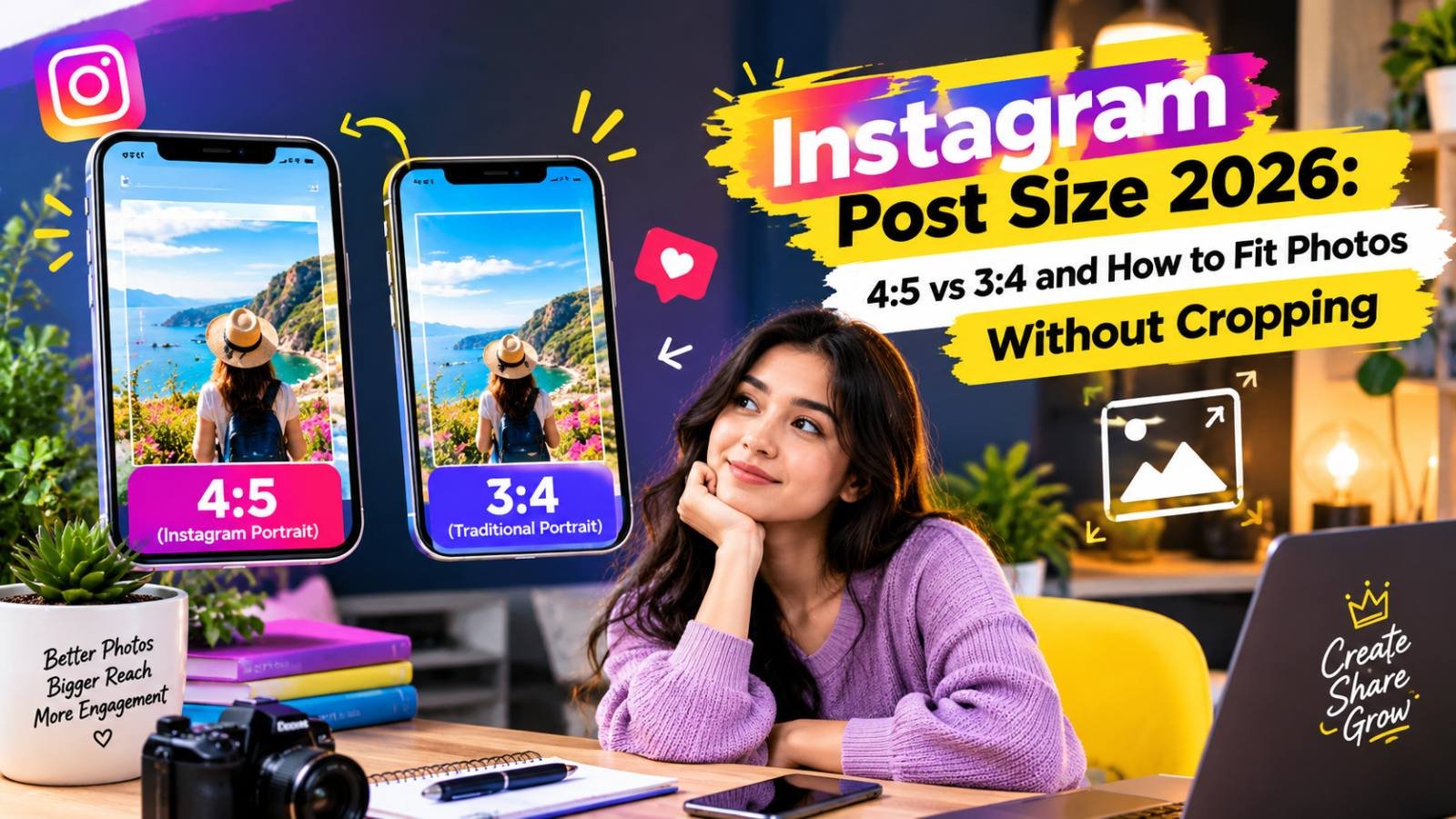
There is no longer one "Instagram size". Your post appears in two places, and Instagram shapes it differently in each. In the feed, a portrait post can be as tall as 4:5. On your profile grid, every post has been shown as a 3:4 rectangle since early 2025. A photo that looks perfect in the feed can lose its edges, or someone's ear, on the grid.
The fix is to choose the right size for what matters most to you, then keep the important part of the picture inside the area that survives both crops. This guide gives the exact numbers and a simple process for each type of post.
Quick Answer: Which Size Should You Use?
| What you are posting | Size to export | Ratio |
|---|---|---|
| Normal feed photo (best all-round choice) | 1080 × 1350 px | 4:5 |
| Photo where the profile grid look matters most | 1080 × 1440 px | 3:4 |
| Square photo | 1080 × 1080 px | 1:1 |
| Landscape photo | 1080 × 566 px | 1.91:1 |
| Story or Reel | 1080 × 1920 px | 9:16 |
| Profile picture | at least 320 × 320 px | 1:1, shown as a circle |
Sizes from Buffer's 2026 Instagram size guide and SocialBu. Instagram works at a width of about 1080 pixels and resizes larger uploads, so exporting at 1080 px wide gives you control over the final result instead of leaving it to Instagram's resizer.
If you only remember one thing: export portrait photos at 1080 × 1350 and keep faces and text away from the left and right edges.
What Changed: The 3:4 Profile Grid
For most of Instagram's history the profile grid was made of squares, a leftover from the years when Instagram only allowed square photos. In August 2024 Instagram began testing a taller grid, and in January 2025 it rolled out the change widely: grid thumbnails are now 3:4 rectangles (Kapwing, O'Brien Media). Instagram's head, Adam Mosseri, explained that most of what people upload is vertical, and cropping vertical photos into squares was, in his words, "pretty brutal".
The grid change did not change what you can upload. It changed how existing and new posts are previewed on your profile. That is why carefully planned square grids, including puzzle-style grids split across several posts, suddenly looked broken in 2025.
4:5 vs 3:4: Which One Is Better?
The two ratios are close. A 3:4 image is slightly taller than a 4:5 image of the same width: 1440 px tall versus 1350 px at 1080 px wide.
Choose 4:5 (1080 × 1350) When
- You want the photo to look right in the feed, where most people actually see it.
- You use a scheduling tool. Instagram's publishing API, which most schedulers use, is documented for ratios from 1.91:1 to 4:5, according to SocialBu. A 3:4 file may be cropped or rejected there.
- You want one export that also works on Facebook, LinkedIn and most other apps.
The cost is small: on the grid, a 4:5 post shows as a 1013 × 1350 slice, which removes about 33 px from each side. That rarely matters if your subject is centred.
Choose 3:4 (1080 × 1440) When
- Your profile grid is part of your brand, for example a portfolio, a shop or a creator page where visitors judge you on the grid.
- You post directly from the Instagram app, which accepts 3:4 portrait photos. Guides such as Buffer list 1080 × 1440 as a valid vertical feed size.
A 3:4 image matches the grid tile exactly, so nothing is cut. In the feed it looks almost the same as 4:5.
If you are unsure, use 4:5. It is the format Instagram has recommended for portrait posts for years, and it is the least likely to cause problems.
How Each Shape Is Cropped on the Grid
This is the part most guides skip. The grid tile is 3:4, so anything wider loses its sides:
| Your post | What the 3:4 grid shows | What is cut |
|---|---|---|
| 1080 × 1440 (3:4) | the whole image | nothing |
| 1080 × 1350 (4:5) | the centre 1013 × 1350 | about 33 px on each side |
| 1080 × 1080 (1:1) | the centre 810 × 1080 | 135 px on each side, a quarter of the width |
| 1080 × 566 (1.91:1) | the centre 425 × 566 | more than 60% of the width |
So a square post with text near its left and right edges will have that text cut off on the grid, and a landscape photo turns into a narrow slice of its middle. Instagram crops from the centre, so the centre is your safe zone.
Step by Step: Preparing a Photo for an Instagram Post
1. Start From the Best Copy
Use the original from your camera or phone gallery, not a screenshot or a photo saved from WhatsApp. Those copies are already smaller and compressed, and Instagram will compress them again.
2. Crop to the Ratio Yourself
Do not let Instagram choose the crop. Open the photo in the crop tool and:
- choose the 3:4 preset for a grid-perfect post, or
- choose Free and drag the box to a 4:5 shape. After cropping, the tool shows the result size in pixels: width divided by height should come to 0.8, such as 2400 × 3000 from a large phone photo. If it is off, crop again.
Place the box so faces, products and any text sit in the middle area, away from the left and right edges.
3. Resize to 1080 Pixels Wide
Phone photos are usually 3000–4000 px wide. Scale the cropped image down to exactly 1080 × 1350 (or 1080 × 1440) with the resize tool, keeping the aspect ratio locked. If the crop was not quite 4:5, crop again rather than typing both numbers and stretching the photo.
Downsizing yourself with a good resampler usually looks sharper than letting Instagram shrink a 12-megapixel photo during upload.
4. Export as JPG at High Quality
Save as JPG at a quality of around 85–90. Instagram re-encodes every upload, so a slightly larger, clean file survives better than one you have already compressed hard. A 1080 × 1350 photo at that quality is usually a few hundred KB, which is fine.
5. Check the Grid After Posting
Open your profile right after posting and look at the new tile. If something important is cut, it is better to delete and re-post within a minute or two than to leave it.
Carousels: Make Every Slide the Same Shape
Carousel posts follow the first slide. Depending on the option you choose when posting, Instagram either crops every other slide to the first slide's shape, converts them all to squares, or shows mixed sizes with padding (Buffer). Once Instagram has cropped a slide automatically, you cannot change that crop later.
To keep control:
- Decide the shape first, normally 4:5.
- Crop every slide to that exact shape before uploading.
- Put the slide you want on the grid first, because the first slide is the grid thumbnail.
- If a slide is a landscape photo you do not want to crop, place it on a 4:5 canvas with a plain or blurred background instead. Our guide on changing an image's aspect ratio without cropping shows how.
For slides with text, such as tips, quotes or step-by-step guides, keep the text block inside the central 3:4 area of the first slide so the grid preview is readable too.
Stories and Reels: 1080 × 1920 With Safe Zones
Stories and Reels are full-screen 9:16 vertical images and videos. Export at 1080 × 1920.
The whole frame is visible, but Instagram covers parts of it with its own interface: your name and progress bar at the top, and the reply box, captions and buttons at the bottom and right. Buffer recommends leaving roughly 250 px free at the top and bottom of a Story for that reason. Keep text and faces in the middle.
Reels appear in three shapes:
- full screen (9:16) when someone is watching,
- the 3:4 grid tile on your profile,
- a smaller crop in some feeds.
When you post a Reel, open Edit cover and check the Profile grid preview, where you can adjust how the cover is cropped for your grid. A cover with the title in the centre third works in every view.
Profile Picture: 320 × 320, Shown as a Circle
Upload a square image of at least 320 × 320 px. Instagram shows it as a small circle, so the corners are always cut off. Keep your face, or your logo, centred with some space around it, and avoid thin text that turns unreadable at small sizes. If your logo is wide, place it on a square canvas first rather than letting the circle cut its ends. The same idea is covered for WhatsApp in our WhatsApp DP size guide.
Keeping a Landscape or Square Photo Whole
Sometimes you do not want to crop at all: a group photo with people at both ends, a panorama, or a product shot touching the frame. You have two options:
- Post it as it is. Instagram accepts landscape posts down to 1.91:1. The whole photo shows in the feed, but it appears small, and the grid shows only its middle.
- Put it on a 4:5 canvas. Place the full photo, unchanged, on a 1080 × 1350 canvas and fill the space above and below with white, a colour from the photo, or a blurred copy of it. The post fills more of the screen, and nothing is cut. Our square without cropping guide uses the same technique for 1:1.
Why Your Instagram Photos Look Blurry
If your photos look soft after posting even at the right size, the usual causes are:
- Uploading a tiny or already compressed copy. Screenshots and photos forwarded through messaging apps have lost detail before Instagram even sees them.
- Uploading on a weak connection. The app may send a lower-quality version to save data. Instagram's settings include a media quality option for uploading at the highest quality; turn it on and upload over Wi-Fi when quality matters.
- Letting Instagram do a big resize. A 4000-pixel photo shrunk by Instagram can look softer than one you resize to 1080 px yourself.
- Editing too much. Heavy sharpening and noise reduction in the editing app create halos and smudges that compression makes worse.
For a deeper look at sizes and compression, read how to resize images without losing quality.
A Checklist Before You Post
- Ratio chosen: 4:5 (safe default) or 3:4 (grid-perfect).
- Cropped yourself, not by the app.
- Resized to 1080 px wide, ratio locked, no stretching.
- Faces and text in the centre, not near the left and right edges.
- Carousel slides all the same shape, best slide first.
- Stories and Reels: nothing important in the top and bottom 250 px.
- Exported as a high-quality JPG from the original photo.
Frequently Asked Questions
What is the best Instagram post size in 2026?
For most photos, 1080 x 1350 pixels (4:5 portrait) is the safest choice: it fills the most space in the feed and works everywhere, including scheduling tools. If you mainly care about how your profile grid looks, 1080 x 1440 (3:4) matches the grid tile exactly, but check that your app or scheduler accepts it.
Why is my Instagram photo cropped on my profile grid?
Since early 2025 the profile grid shows every post as a 3:4 rectangle. A 4:5 post loses a thin strip on the left and right, a square post loses more, and a landscape post loses most of its width. Keep faces and text in the centre of the frame so the grid crop does not cut them.
Can I post a full landscape photo on Instagram without cropping?
Yes, Instagram accepts landscape posts down to 1.91:1, but they appear small in the feed and are heavily cropped on the grid. To keep the whole scene and look bigger, place the landscape photo on a 4:5 canvas with a plain or blurred background.
Do all photos in an Instagram carousel need the same size?
The first image sets the shape for the carousel, and Instagram crops the others to match unless you choose its mixed-size option. Crop every slide to the same ratio before you upload so you decide what is cut, not the app.
Related articles
How to Change an Image Aspect Ratio Without Cropping
Keep the whole photo and change its shape by adding space: plain padding, a blurred background, or AI outpainting. Includes canvas sizes for common conversions.
WhatsApp DP Size: How to Make Any Photo Fit Without Cropping
WhatsApp shows your DP as a circle cut from a square. Here is the size to prepare, how to fit a full photo, selfie or group shot without cropping, and the circle safe area.
How to Make a Picture Square Without Cropping It
Turn a portrait or landscape photo into a 1:1 square without cutting anything off: use the longer side as the canvas and fill the gap with colour, blur or transparency.