
What Your Photos Reveal: EXIF, GPS Location and How to Remove It
Most phone photos carry hidden EXIF data, including the GPS location where they were taken. What is stored, which apps remove it and which keep it, and how to strip it on iPhone, Android, Windows and Mac before you share.
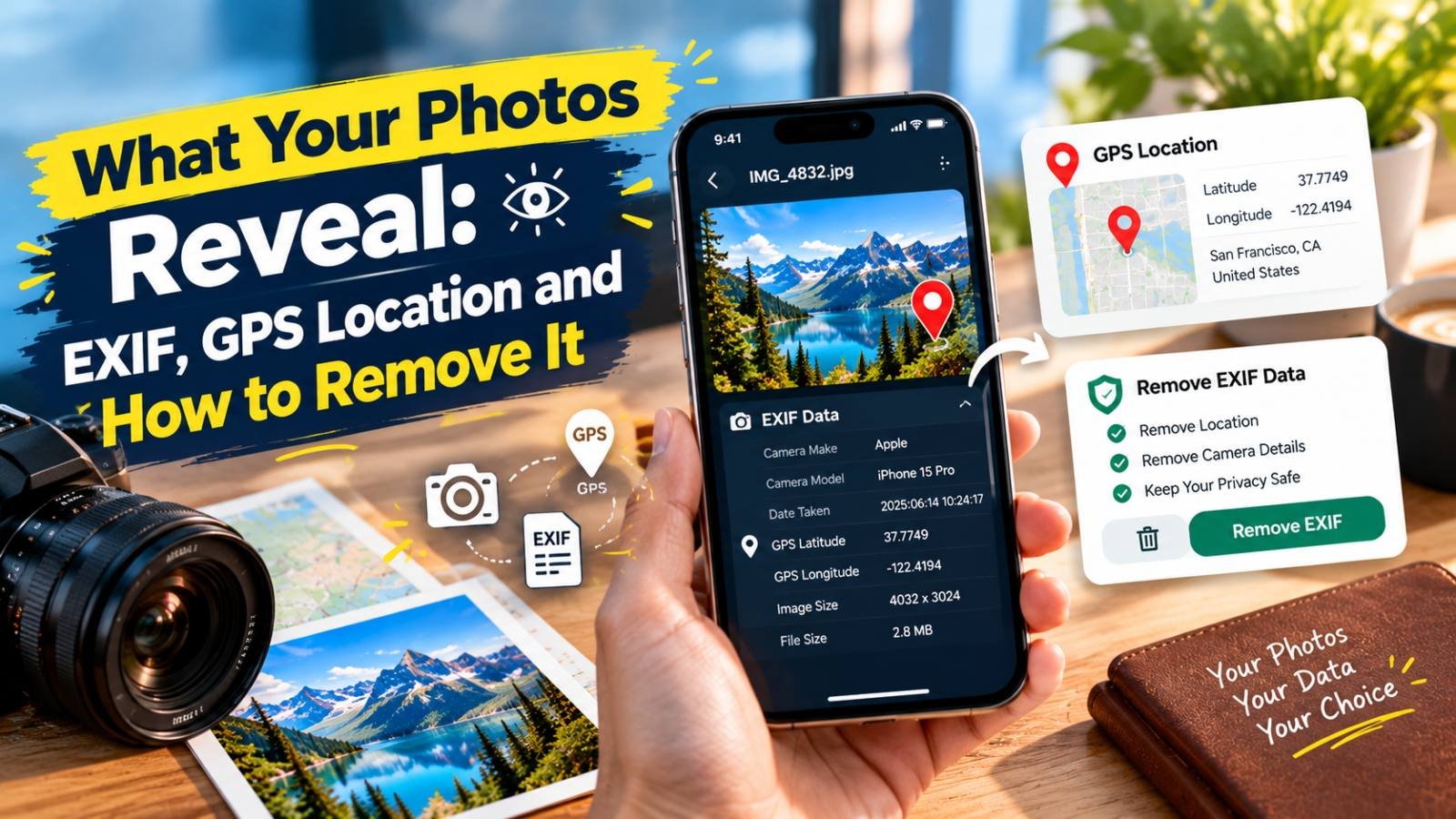
Every photo you take on a phone carries a small hidden record about itself. It includes the date and time, the phone model and camera settings, and, on most phones, the exact GPS location where you were standing. That record, called EXIF metadata, travels with the file wherever you send it, unless something removes it along the way.
Most of the time that is harmless or even useful: it is how your gallery groups holiday photos on a map. But a photo of your new sofa sent to an online buyer, or a picture of your child in the garden posted to a public forum, can quietly reveal your home address. This guide explains what is stored, when it is shared, and how to remove it on any device.
What EXIF Data Contains
EXIF (Exchangeable Image File Format) is a standard way of storing information inside JPG, HEIC and some other image files. A typical phone photo can include:
| Information | Example | Privacy risk |
|---|---|---|
| GPS latitude and longitude | 21.2361, 72.8724 | Shows where the photo was taken, often within a few metres |
| Date and time | 9 Nov 2026, 19:42 | Reveals routines when combined with location |
| Phone make and model | Samsung Galaxy S25 | Low, but adds to a profile of you |
| Camera settings | f/1.8, 1/60 s, ISO 800 | None |
| Altitude and direction | 14 m, facing north-east | Can pinpoint a floor or window |
| Software used | Editing app name and version | Low |
| Thumbnail | A small preview of the original | Can show content you later cropped out |
The last row surprises people. Some editors keep an embedded preview of the original image inside the EXIF data, so a cropped photo can still contain a tiny version of the uncropped scene.
How to See What Your Photo Contains
Before removing anything, check what is there:
- iPhone: open the photo in Photos and swipe up, or tap the ⓘ button. If a map appears, the photo has a location.
- Android: open the photo in Google Photos or your gallery app and swipe up, or tap the three-dot menu and choose Details or Info.
- Windows: right-click the file, choose Properties, then the Details tab, and scroll to the GPS section.
- Mac: open the photo in Preview, then choose Tools → Show Inspector and look for a GPS tab.
- In your browser: our metadata remover lists the EXIF fields it finds, including any GPS coordinates, before you remove them.
When Location Data Gets Shared, and When It Does Not
Whether the hidden data reaches the other person depends on how you send the photo:
| How you share | Is metadata usually kept? |
|---|---|
| Normal photo in WhatsApp or similar chat apps | Generally removed, because the photo is recompressed |
| WhatsApp or Telegram "document" or "file" | Kept: the original file is sent as is |
| Email attachment | Kept |
| Google Drive, Dropbox, iCloud or OneDrive link | Kept in the downloaded file, unless the service's sharing settings remove it |
| Bluetooth, Nearby Share, AirDrop or USB | Kept |
| Upload to a website or online marketplace | Depends entirely on the site |
| Major social networks | Reported to strip location from what other users see, but policies change |
The rule of thumb: whenever the original file is delivered, the metadata goes with it. That is exactly what happens when you choose "send as document" to keep the best quality, as described in our guide to why WhatsApp makes photos blurry, or when you send large photos by email. In those cases it is worth stripping location first.
Also remember that the platform itself may read the data when you upload, even if other users never see it. If you do not want a company to know where a photo was taken, remove the location before uploading.
How to Remove Location on iPhone
For One Share
Apple's personal safety guide describes a per-share switch:
- Open Photos and select the photo or photos.
- Tap the Share button.
- Tap Options at the top of the share sheet.
- Turn off Location, then tap Done.
- Share as usual.
There is also an All Photos Data switch in the same panel, which sends the photo without other metadata as well. These switches only apply to that one share, so you need to repeat them each time.
For a Photo Already in Your Library
Open the photo, tap ⓘ, tap Adjust next to the location, and choose No Location.
Stop Recording Location
Go to Settings → Privacy & Security → Location Services → Camera and choose Never. New photos will not contain GPS data. You lose the map view in your gallery, so decide whether that trade-off suits you.
How to Remove Location on Android
Android phones vary by brand, but the main options are:
- Stop recording it: open the Camera app's settings and turn off the option called Save location, Location tags or similar. Android Central recommends this as the simplest approach, since it is far easier than cleaning hundreds of photos later (Android Central).
- Remove it from a photo: many gallery apps, such as Samsung Gallery, offer a Remove location data option in the photo details or in the share screen. Look for it before sending.
- Google Photos: Google Photos can edit or remove locations that it estimated, but it cannot remove GPS tags that the camera wrote into the file. Its sharing settings include an option to remove geo location from items shared by link, which helps for shared albums but does not change the original file.
If your phone has no built-in option, use the browser method below.
How to Remove Location on Windows and Mac
- Windows: right-click the photo, choose Properties → Details, then click Remove Properties and Personal Information at the bottom. You can either create a copy with all possible properties removed, or choose specific fields such as GPS to remove from the file itself.
- Mac: open the photo in Preview, choose Tools → Show Inspector, open the GPS tab, and click Remove Location Info. Note that if the photo is also in the Photos app library, Photos may keep its own copy of the location; export a fresh copy for sharing.
Removing Metadata in Your Browser
For a method that works the same on any phone or computer, use the metadata remover:
- Open the tool and choose your photo.
- Review the list of metadata found, including GPS coordinates if present.
- Download the cleaned copy.
The tool runs entirely in your browser, so the photo never leaves your device. It works by redrawing the image and saving a new file without the hidden data. PNGs are saved losslessly, and JPGs and WebPs are re-saved at a very high quality setting, so the difference is not normally visible. The embedded colour profile is also removed, so colours can shift very slightly in some apps.
If you also need the photo smaller, for example for a form with a KB limit, clean it first and then compress it with the image compressor.
When You Should Remove Location
It is worth stripping location before:
- selling something online from home: furniture, appliances, a car or a bike,
- sending photos to a landlord, buyer, tenant or anyone you do not know well,
- posting photos of your children, your house or your daily routine to public sites, forums or review pages,
- sharing photos as documents or cloud links, which keep the original file,
- publishing photos on your own website or blog, where anyone can download the file.
You do not need to worry much when sending photos to close family in a normal chat, or when location is the point, such as sharing a meeting spot with a friend.
What Removing Metadata Does Not Hide
Cleaning EXIF data removes the hidden record, not what the picture shows. A clean file can still reveal your location through:
- house numbers, street signs, shop names or vehicle number plates in the frame,
- a distinctive view from your window,
- reflections in mirrors, windows and sunglasses,
- documents, envelopes or screens visible on a table.
Look at the photo itself before sharing. Crop or blur anything that identifies your address. The object remover can erase small items such as a house number or a parcel label.
Keep Metadata Where It Helps
Metadata is not only a risk. Dates and locations are what make your photo library searchable and let you find "Goa, December 2024" in seconds. The best approach for most people is to keep the data in their own originals and remove it from the copies they share. That way you lose nothing and give away nothing.
Frequently Asked Questions
Do my phone photos contain my location?
Often, yes. If location access is allowed for the camera app, each photo stores the GPS coordinates where it was taken, usually accurate to a few metres, along with the date, time and phone model. You can check by opening the photo's details or info panel.
Does WhatsApp or Instagram remove location from photos?
Photos sent normally on WhatsApp are recompressed, which generally removes most metadata, and major social networks are reported to strip location data from what other users see. But files sent as documents, email attachments and cloud links usually keep everything, and policies can change, so remove the data yourself when it matters.
How do I share a photo without location on iPhone?
In the Photos app, select the photo, tap Share, tap Options at the top of the share sheet, turn off Location and tap Done, then share as usual. You have to do this each time. To stop recording location at all, set Settings, Privacy and Security, Location Services, Camera to Never.
Does removing EXIF data reduce photo quality?
Not noticeably. Some methods remove the data without touching the image at all. Browser tools that rebuild the image, including ours, re-save JPGs at a very high quality setting, so the difference is not normally visible. The picture you see stays the same.
Related articles

Product Image Requirements for Amazon, Flipkart and Meesho Sellers
Image size, background, format and content rules for Amazon, Flipkart and Meesho listings, the reasons photos get rejected, and one simple workflow that produces images all three marketplaces accept.
How to Make Thrift Clothing Photos Look Professional
A phone-only workflow for second-hand clothing sellers: prepare, light and shoot each piece, show flaws honestly, then crop, clean up and size the photos for listing.

How to Make Your GTA 6 Screenshots Clearer and Sharper
Capture cleaner GTA 6 screenshots of your own, then upscale, sharpen and resize them for wallpapers, thumbnails and posts without stretching or over-processing.