
JPEG XL Is Back in Chrome: Should You Use It Yet?
Chrome 155 can finally display JPEG XL images. What the format does better than JPG, WebP and AVIF, which browsers and apps support it today, and when it makes sense to start using it.
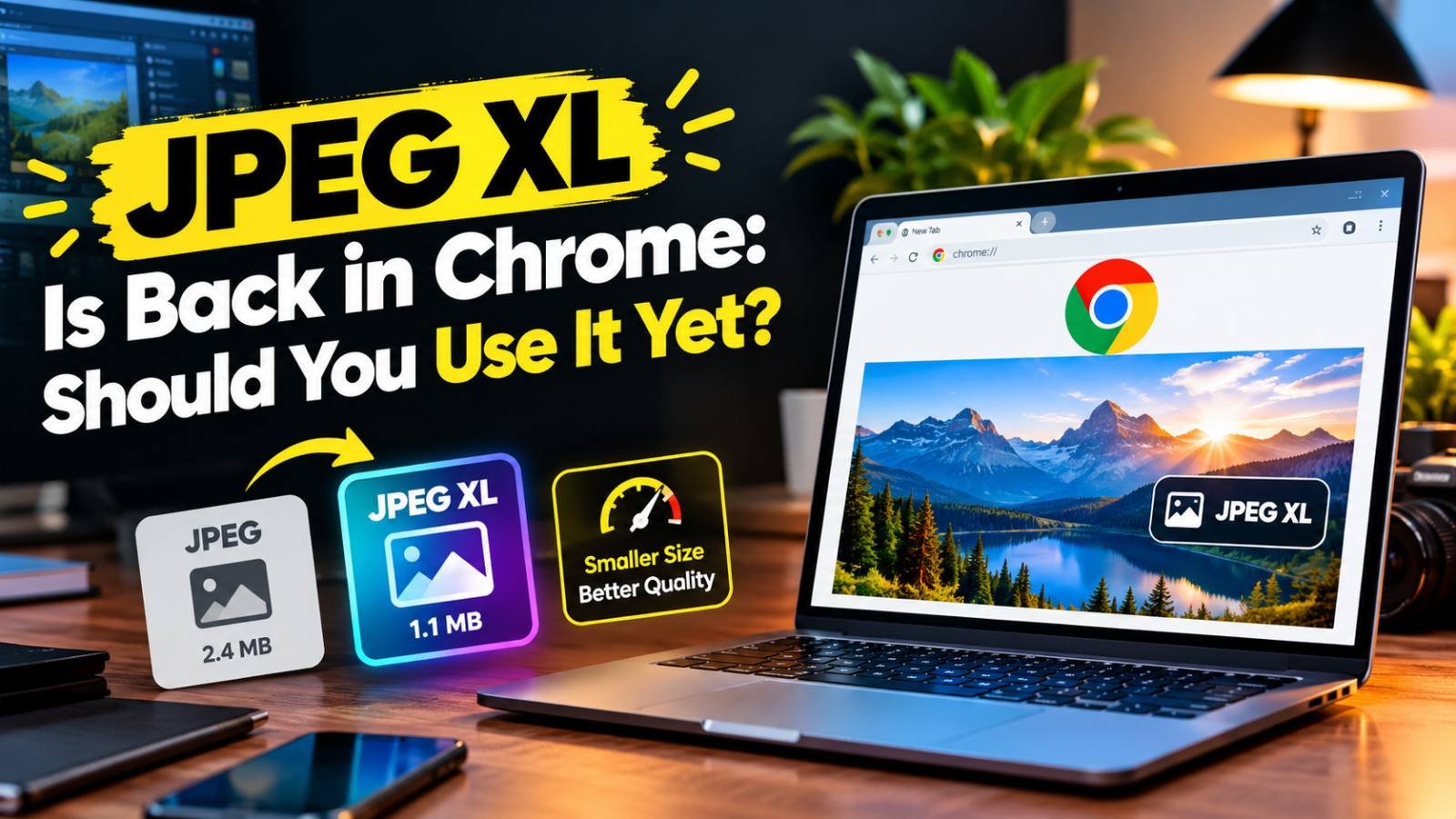
For about four years, JPEG XL was the image format that web developers liked and browsers ignored. That changed in October 2026, when Google announced that Chrome supports decoding .jxl images starting with Chrome 155. Firefox switched it on by default the same month, and Safari has displayed JPEG XL since version 17.
So should you start saving your photos as JPEG XL? For most people the honest answer is "not for everything, but for some things, yes". This guide explains what changed, what the format is actually good at, where it still fails, and how to try it on a website without breaking anything for visitors whose browser cannot read it.
What Changed in Chrome 155
Chrome's developer blog put it plainly on 6 October 2026: "Chrome is shipping decoding support for the JPEG XL (.jxl) image format starting from Chrome 155" (Chrome for Developers).
A few details matter here:
- It is decoding only. Chrome can now display JPEG XL images. It does not mean every tool built on Chrome can save them.
- The decoder is written in Rust. Chrome uses
jxl-rs, a pure Rust implementation. Google says it has "not found any memory safety bugs throughout the entire implementation history" of that code. Image decoders are a classic place for security holes, so this was a big part of why Chrome was willing to ship it. - It was available earlier behind a flag. Chrome 145, released in February 2026, already contained the decoder, but it was switched off unless you enabled it in
chrome://flags. Chrome 155 is the first version where it works for everyone.
Why It Disappeared in the First Place
Chrome actually supported JPEG XL once before, behind a flag, starting in 2021. In late 2022 the team removed it, and Chrome 110 shipped without it. The reasons Google gave at the time were a lack of interest from the wider ecosystem, not enough improvement over existing formats, and a wish to focus on WebP and AVIF instead (Wikipedia).
That decision was unpopular with photographers, publishers and some large web companies. Over the next three years Apple added JPEG XL to Safari, iOS and macOS, Adobe added it to the DNG raw format, Microsoft added it to Windows 11, and the PDF Association chose it as the preferred format for HDR images inside PDF files. In November 2025 the Chrome team reversed its position, and the decoder was merged into Chromium in January 2026.
What JPEG XL Does Better
JPEG XL was standardised as ISO/IEC 18181, with the first parts published in 2021 and 2022. It was designed as a long-term replacement for the original JPEG, and that shows in its feature list.
Lossless Recompression of Existing JPGs
This is the feature no other modern format has. JPEG XL can take an existing JPG and repack it into a .jxl file that is typically around 20% smaller, without changing a single pixel. The process can be reversed: you can turn the .jxl back into the exact original JPG, bit for bit.
Think about what that means for a photo library. You can shrink thousands of old JPGs by roughly a fifth with zero quality risk, and if any app later refuses the JXL files, you convert them back and lose nothing. WebP and AVIF cannot do this. Converting a JPG to either of them is a second round of lossy compression, which always throws away a little more detail.
Better Quality at High Settings
Google's announcement describes JPEG XL as offering "30-50% better compression than JPEG". Independent comparisons generally agree on one pattern (corewebvitals.io):
- At very heavy compression, where files are tiny and quality is visibly reduced, AVIF usually looks better.
- At medium to high quality, the range photographers and online shops care about, JPEG XL usually keeps fine detail such as hair, fabric and skin texture better.
Google's own advice is balanced: "we recommend trying both AVIF and JPEG XL to get the best results", and it describes JPEG XL as "most helpful for high-fidelity or lossless compression, especially of photographic images".
Faster Encoding
AVIF is famously slow to encode, especially at its best-compression settings. JPEG XL encoders are much quicker, close to the speed of a classic JPEG encoder at normal settings. If you process large batches of photos on a server, that difference shows up directly in time and hosting cost.
Progressive Loading
A JPEG XL file can be arranged so that a rough version of the whole image appears after only a small part of the file has downloaded, then sharpens as the rest arrives. Old progressive JPGs could do a crude version of this. AVIF and WebP effectively cannot: the image appears only when enough of it has loaded. On a slow mobile connection, a blurry-then-sharp hero image feels faster than a blank box.
Room for the Future
The technical limits are generous: images of more than a billion pixels per side, up to 32 bits per channel, HDR colour (the same standards HDR TVs use), transparency, and animation. You will not hit these limits with everyday photos, but they mean the format will not need replacing when cameras and screens improve.
Where JPEG XL Still Falls Short
None of the advantages above matter if the person on the other end cannot open your file. As of October 2026:
| Browser or platform | JPEG XL status |
|---|---|
| Chrome (desktop and Android) | Supported from version 155 |
| Firefox | Supported by default from version 158 |
| Safari (Mac, iPhone, iPad) | Supported since Safari 17, but listed as partial support |
| Microsoft Edge | Not enabled yet, even though it is built on Chromium |
| Samsung Internet | Not supported |
| Windows 11 | Opens and saves JXL with the free JPEG XL Image Extension from the Microsoft Store |
| Apple Photos (iOS 17+, macOS 14+) | Opens JXL natively |
According to caniuse, around 60% of global browser usage could display JPEG XL in some form at the time of writing. That is a big jump from the low teens earlier in 2026, but it also means roughly two out of five visitors still cannot see a bare .jxl image. Edge's position is the most surprising gap, because Edge shares Chrome's engine; it will most likely follow, but it had not at the time of writing.
Outside browsers, support is patchy:
- Upload forms do not accept it. Exam portals, job sites, banks and passport services accept JPG, sometimes PNG or PDF. Even WebP is often rejected there.
- Messaging apps convert or refuse it. WhatsApp, Instagram and most social apps recompress everything you upload anyway, so sending them a JXL file gains you nothing.
- Editing software varies. Recent versions of Photoshop and Lightroom can open and save JPEG XL, but older versions, many free editors and most phone gallery apps cannot. Check your own tools before converting a whole archive.
Should You Use JPEG XL Yet? It Depends on What You Do
If You Run a Website
Yes, cautiously, as an extra option rather than a replacement. Serve JPEG XL to browsers that ask for it and keep WebP or JPG for everyone else (the next section shows how). Your best candidates are large, detailed photos where quality matters: product images, portfolio work, travel photography and hero images. Small icons, logos and simple graphics gain little; keep those as SVG, PNG or WebP.
If converting and storing an extra copy of every image sounds like too much work, WebP is still a perfectly good default. Our article on why WebP images make websites faster explains why it remains the safe choice, and the full format comparison is in PNG vs JPG vs WebP vs AVIF.
If You Are a Photographer or Keep a Large Photo Archive
This is where JPEG XL is most attractive right now, thanks to lossless JPG recompression. You can test it on a copy of one folder, confirm your photo viewer and editor open the files, and see how much space you save. Because the JPG can be rebuilt exactly, the risk is low. Just keep the conversion tool installed so you can reverse it if needed.
If you shoot ProRAW on a recent iPhone Pro, or use a camera app that saves DNG files, you may already be using JPEG XL without knowing it: DNG version 1.7 allows JPEG XL compression inside raw files, and Apple's ProRAW uses it to keep raw files smaller.
If You Just Need a Photo for a Form, Email or WhatsApp
Do not use JPEG XL. Use JPG. Forms check the file type and will reject anything unusual, and the people you email may not be able to open it. If a form needs a photo under a specific size, compress the JPG instead. Our guide on photo and signature sizes for online forms lists typical limits, and the compress image to size tool gets a JPG under a target KB in your browser.
How to Create JPEG XL Files
Most online converters, including the ones on this site, do not output JPEG XL yet, because browsers can now decode it but most cannot encode it. For now, these are the practical routes:
- The official command-line tools (libjxl). The reference encoder
cjxland decoderdjxlare free and run on Windows, Mac and Linux. - Windows 11 Photos and Paint, after installing the JPEG XL Image Extension from the Microsoft Store.
- Recent versions of Photoshop, Lightroom, GIMP and other editors, which list JPEG XL as an export format. Check your version.
With the command-line tools, three commands cover most needs:
# Repack an existing JPG losslessly (the default for JPG input)
cjxl photo.jpg photo.jxl

# Turn the JXL back into the exact original JPG
djxl photo.jxl photo-restored.jpg

# Encode a PNG or other source at visually lossless quality
cjxl photo.png photo.jxl -d 1
The -d value is "distance": 0 is mathematically lossless, 1 is the usual "visually lossless" setting, and higher numbers mean smaller files with more loss. You can also use -q with a familiar 0–100 quality scale instead.
Always start from the best original you have. If your only copy of a photo is an already compressed JPG, use the lossless repack; do not decode it and re-encode it at a lossy setting, which stacks two rounds of loss.
How to Serve JPEG XL on a Website Safely
Never put a .jxl file straight into an <img> tag yet: visitors on Edge and older browsers would see a broken image. Use the <picture> element, which lets each browser pick the first format it understands:
<picture>
  <source srcset="product.jxl" type="image/jxl">
  <source srcset="product.webp" type="image/webp">
  <img src="product.jpg" alt="Leather wallet on a white background"
       width="1200" height="900" loading="lazy">
</picture>
Chrome 155+, Firefox 158+ and Safari 17+ take the JXL file. Edge and older browsers fall through to WebP, and anything older still gets the JPG. Keep the width, height and alt attributes on the <img>: they apply whichever file is chosen, and they protect your layout and accessibility.
Two more things to check:
- The server must send the right content type. Many servers do not know
.jxlyet and send it as a generic download, which some browsers will not display. On Apache, addAddType image/jxl .jxlto your.htaccessfile. On Nginx, addimage/jxl jxl;to the MIME types list. - Test in at least two browsers. Open the page in Chrome, then in Edge or an older browser, and use the DevTools Network tab to confirm each one downloads the format you expect. The response's
Content-Typeheader should readimage/jxlin Chrome.
Image CDNs are another route: several can automatically serve JPEG XL to browsers that send image/jxl in their Accept header, with no change to your HTML. If you already use one, check its settings before doing it by hand.
A Simple Way to Decide
- Website owner with lots of high-quality photos: add JPEG XL as the first
<source>, keep WebP and JPG fallbacks, and measure the difference. - Photographer or archivist: test lossless JPG recompression on a copy of one folder; adopt it if your tools handle the files.
- Everyone else, for forms, email and social apps: stay with JPG (or PNG for graphics with transparency). Nothing you upload to those services benefits from JPEG XL today.
The format has finally cleared its biggest hurdle. Once Edge and the major apps catch up, it is likely to become the natural successor to JPG for high-quality photos. Until then, treat it as a bonus for the browsers that can use it, not a replacement for the formats everyone can open.
Frequently Asked Questions
Does Chrome support JPEG XL now?
Yes. Google announced in October 2026 that Chrome supports decoding JPEG XL (.jxl) images starting with Chrome 155. Versions 145 to 154 had a decoder that was switched off unless you enabled a flag.
Can I use JPEG XL on my website without breaking it for some visitors?
Yes, if you serve it inside a picture element with a WebP or JPG fallback. Browsers that understand JPEG XL pick the .jxl file and everyone else gets the fallback. Do not use a bare .jxl file in an img tag yet.
Is JPEG XL better than AVIF?
It depends on the job. AVIF tends to do better at very heavy compression, while JPEG XL tends to keep more detail at medium and high quality, encodes faster and can recompress existing JPGs losslessly. Google itself recommends trying both.
Can I upload a JPEG XL photo to an exam form or WhatsApp?
Not reliably. Government portals, marketplaces and most messaging apps still expect JPG or PNG. Use JPEG XL for your own website or archive, and export JPG for forms and sharing.
Related articles
PNG vs JPG vs WebP vs AVIF: Which Image Format Should You Use?
JPG for photos you share anywhere, PNG for graphics and transparency, WebP for most website images, AVIF when you can serve it with a fallback. Here is how to decide.
How to Convert HEIC to JPG on Windows, Mac, iPhone and Android
iPhone photos are saved as HEIC, which many PCs, websites and forms reject. Every free way to turn them into JPG, plus how to stop your iPhone creating HEIC files.
Why WebP Images Make Websites Faster
WebP stores the same picture in fewer bytes than JPG or PNG, so pages download less and render sooner. How it works, when not to use it, and how to switch your site.