
The Complete Guide to Convert HEIC to JPG Without Losing Quality
Learn how to convert HEIC to JPG without losing image quality. Explore easy methods for Windows, Mac, iPhone, Android, and online tools with expert tips.
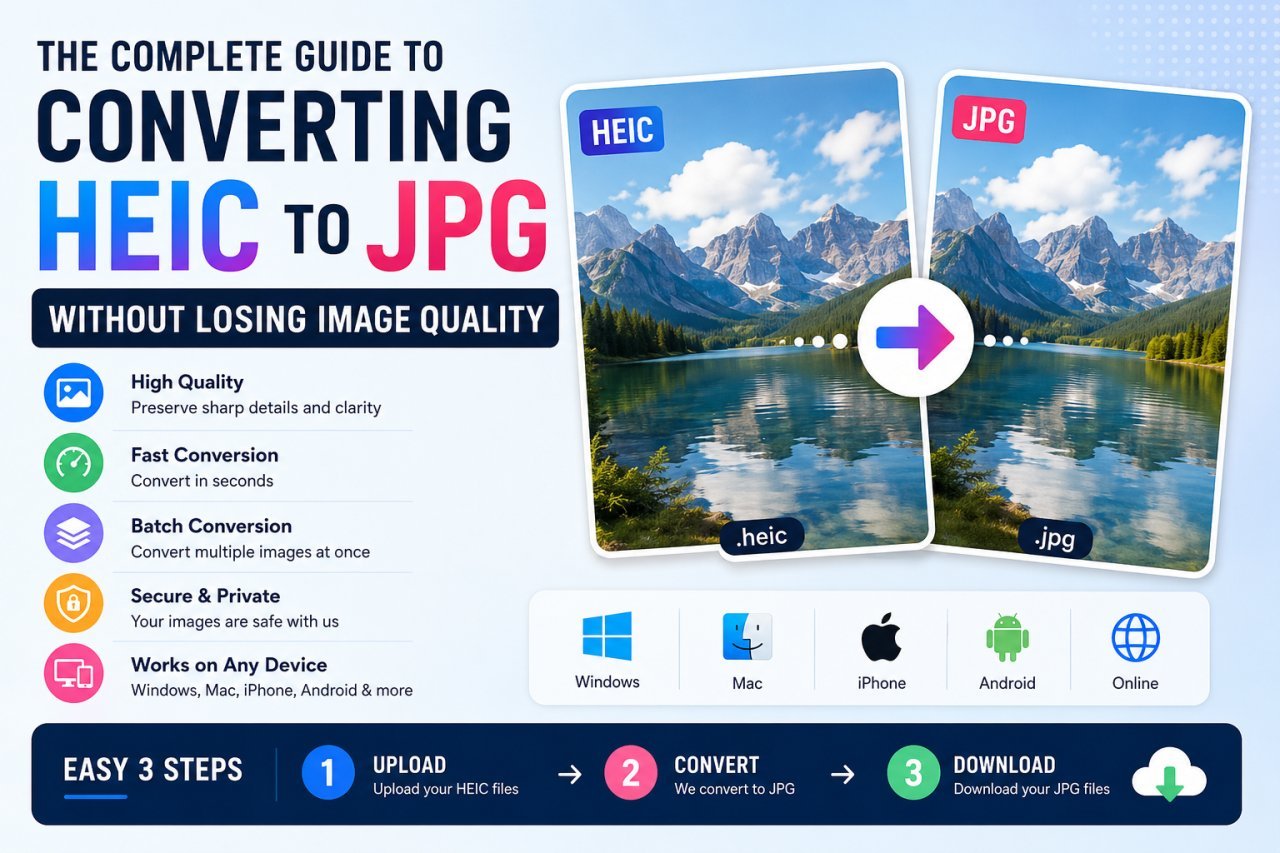
The Complete Guide to Converting HEIC to JPG Without Losing Image Quality
Apple devices save photos in the HEIC format because it offers excellent image quality while consuming less storage space. However, many websites, applications, and older devices still prefer JPG images. If you've encountered compatibility issues while opening or uploading HEIC files, converting them to JPG is often the simplest solution. This guide explains multiple ways to perform the conversion while maintaining the original image quality.
Many users are surprised when their beautiful iPhone photos suddenly become difficult to share, edit, or upload. That's because Apple saves images in the HEIC format by default, while many websites, software programs, and older devices still expect JPG images.
Fortunately, converting HEIC to JPG is simple—and when done correctly, you can preserve excellent image quality.
In this complete guide, you'll learn everything you need to know about converting HEIC images into JPG format without losing quality. Whether you're using Windows, Mac, Android, iPhone, or an online converter, this guide covers every method.
What is a HEIC File?
HEIC, short for High Efficiency Image Container, is an image format widely used by Apple devices to store photos more efficiently. Instead of simply reducing image quality to save space, it uses advanced compression technology to maintain sharp, detailed pictures while requiring less storage than older formats like JPG. As a result, users can keep more photos on their devices without sacrificing visual clarity.
Beginning with iOS 11, Apple adopted HEIC as the default photo format for iPhones and iPads, allowing users to capture high-quality images while using less storage space.
Compared to JPG, HEIC offers:
Better image quality Smaller file sizes Support for transparency Multiple images in one file Better color depth Live Photo support Improved compression
For iPhone users, HEIC is an excellent format because it saves storage without noticeably reducing image quality.
Why Convert HEIC to JPG?
Although HEIC has many advantages, compatibility remains its biggest drawback.
Many websites, applications, and devices still don't fully support HEIC images.
Converting to JPG makes your images easier to:
Upload to websites Share with friends Edit using older software Print professionally Open on Windows PCs Send through email Use in presentations Upload to online forms
Since JPG is one of the world's most widely accepted image formats, converting HEIC files eliminates compatibility issues.
HEIC vs JPG Feature HEIC JPG Image Quality Excellent Excellent File Size Smaller Larger Compatibility Limited Universal Compression Better Standard Editing Support Limited Excellent Printing Good Excellent Website Upload Sometimes Unsupported Supported Everywhere
If storage efficiency matters most, HEIC is ideal.
If compatibility matters most, JPG is the better choice.
Does Converting HEIC Reduce Quality?
One of the most common concerns users have is whether converting HEIC to JPG will ruin image quality.
The answer depends on the conversion method.
A high-quality converter preserves almost all visible details. While JPG is a compressed format, most users won't notice any difference when using maximum-quality export settings.
Poor-quality converters, however, may:
Add compression artifacts Reduce sharpness Lower resolution Strip image metadata Change colors
Choosing a reliable converter helps preserve image quality throughout the conversion process.
Why Use an Online HEIC to JPG Converter?
Online converters have become increasingly popular because they require no installation.
Some advantages include:
- Works on Any Device
Whether you're using Windows, macOS, Linux, Android, or iPhone, an online converter works directly inside your browser.
- No Software Installation
You don't need Photoshop, Lightroom, or any expensive software.
Everything happens online within seconds.
- Fast Conversion
Most images convert in less than 10 seconds.
Batch conversion can save even more time when working with multiple photos.
- Beginner Friendly
Most online converters require only three simple steps:
Upload Convert Download
No technical knowledge is required.
- Saves Device Storage
Because everything runs online, you don't have to install additional applications or consume disk space.
How to Convert HEIC to JPG Online
The easiest way is by using a trusted online converter.
The process typically looks like this:
Step 1
Open your preferred HEIC to JPG converter.
Step 2
Upload one or multiple HEIC files.
Step 3
The tool automatically processes the images.
Step 4
Download your JPG images.
That's it.
Most conversions finish within a few seconds.
How to Convert HEIC to JPG on Windows
Many Windows users find that older versions of the operating system cannot open HEIC images without additional support or conversion tools. This is one of the main reasons people choose to convert HEIC files into JPG format.
Here are several options.
Option 1: Use an Online Converter
This is the quickest method.
Upload your HEIC file, let the converter process it automatically, and download a high-quality JPG image within seconds.
No installation required.
Option 2: Microsoft Photos
Recent Windows versions can open HEIC images after installing Microsoft's HEIF extension.
After opening the image:
Click Save As Choose JPG Save Option 3: Third-Party Software
Many desktop image editors also support HEIC conversion and allow batch processing.
These are useful for photographers who regularly work with hundreds of images.
How to Convert HEIC to JPG on Mac
Mac computers have native support for HEIC.
Using Preview:
Open the HEIC file. Click File. Select Export. Choose JPG. Adjust quality. Save.
This method preserves excellent image quality and works without installing additional software.
How to Convert HEIC to JPG on iPhone
If you're using an iPhone, there are multiple ways to create JPG versions.
Method 1: Share Through Certain Apps
Some apps automatically convert HEIC into JPG during sharing.
Method 2: Files App
Saving images through specific export workflows can generate JPG copies.
Method 3: Change Camera Settings
To prevent future HEIC images:
Settings
→ Camera
→ Formats
→ Most Compatible
After selecting this option, your iPhone will capture future photos in JPG format, making them easier to share, upload, and open on almost any device.
Since JPG files are generally larger than HEIC files, switching formats may require additional storage space on your device over time.
Common Problems During HEIC Conversion
Although converting HEIC images is usually straightforward, some users may encounter minor issues such as reduced image quality, missing metadata, or compatibility problems depending on the conversion method they choose. The most common include:
Images Look Blurry
Usually caused by excessive JPG compression.
Always choose the highest available quality setting.
Upload Errors
Large images may exceed website upload limits.
Compressing or converting one image at a time usually resolves this.
Colors Look Different
Low-quality converters sometimes alter color profiles.
Professional converters preserve original colors much more accurately.
Metadata Is Missing
Some converters remove:
GPS information Camera settings Date captured Device information
If preserving metadata matters, choose a converter that explicitly supports metadata retention.
Best Practices for High-Quality HEIC Conversion
Follow these recommendations for the best results:
Always export at maximum quality. Avoid converting the same image multiple times. Keep the original HEIC file as a backup. Use trusted conversion tools. Verify the resolution before downloading. Convert in batches only when needed. Preserve metadata whenever possible.
Following these practices helps ensure your JPG files remain sharp, detailed, and suitable for sharing, editing, or printing.
How to Convert HEIC to JPG on Android
Although HEIC is primarily associated with Apple devices, Android users may also receive HEIC images through messaging apps, cloud storage, or file transfers. Fortunately, converting them is straightforward.
Option 1: Use an Online Converter
The fastest method is to upload your HEIC image to a trusted online converter and download the converted JPG.
This method works on nearly all Android devices without installing additional software.
Option 2: Use a File Conversion App
Several Android apps support HEIC conversion and offer features such as:
Batch conversion Adjustable image quality Automatic file saving Easy sharing to social media
Always choose a reputable app and review its privacy policy before uploading personal photos.
How to Batch Convert HEIC to JPG
When working with a large collection of HEIC photos, converting each file individually can quickly become inefficient. Using batch conversion allows you to process multiple images in a single operation, saving both time and effort.
Batch conversion allows you to process multiple images simultaneously.
Benefits of Batch Conversion Saves time Reduces repetitive work Maintains consistent image quality Ideal for photographers and businesses Supports large photo libraries
When using batch conversion, ensure the tool preserves the original image resolution and metadata whenever possible.
HEIC vs JPG vs PNG
Choosing the right image format depends on how you plan to use your images.
Feature HEIC JPG PNG Compression Excellent Good Lossless File Size Small Medium Large Transparency Yes No Yes Photo Quality Excellent Excellent Excellent Website Compatibility Limited Excellent Excellent Printing Good Excellent Good Editing Moderate Excellent Excellent When Should You Use HEIC?
HEIC is best for storing photos on Apple devices because it offers high quality with smaller file sizes.
When Should You Use JPG?
JPG is ideal for:
Website uploads Social media Email attachments Printing photos Sharing with others Presentations When Should You Use PNG?
PNG is best suited for:
Logos Icons Screenshots Graphics with transparent backgrounds Images containing text Tips to Maintain Image Quality During Conversion
Many users worry about losing quality during conversion. Following these practices helps produce excellent results.
Convert Only Once
Each additional JPG save can introduce more compression. Keep your original HEIC file as a backup.
Choose High Quality Settings
If your converter allows quality adjustments, select the highest available setting.
Avoid Excessive Compression
Smaller file sizes are useful, but too much compression can create visible artifacts and reduce sharpness.
Keep the Original Resolution
Do not resize your image unless necessary. Maintaining the original dimensions helps preserve detail.
Verify the Converted Image
Before deleting the original HEIC file, compare it with the JPG version to ensure the quality meets your expectations.
Common Mistakes to Avoid
Avoid these common errors when converting HEIC images.
Using Unknown Conversion Websites
Some websites compress images aggressively or may not handle uploaded files securely. Use trusted services with clear privacy practices.
Deleting Original Files Too Soon
Always keep your HEIC files until you've confirmed the JPG versions are correct.
Ignoring Image Resolution
Low-resolution exports can look blurry on large screens or when printed.
Uploading Sensitive Images
If your photos contain personal or confidential information, consider using offline conversion software instead of online tools.
Repeatedly Re-Editing JPG Files
Each save may reduce quality. Perform edits on the original file whenever possible.
Why JPG Remains the Most Popular Image Format
Despite newer formats like HEIC and WebP, JPG continues to be the preferred choice for millions of users because it offers excellent compatibility.
Advantages include:
Supported by virtually every browser Compatible with almost all image editing software Accepted by most websites Easy to share through messaging apps and email Ideal for digital documents and presentations
For everyday use, JPG remains one of the most practical image formats.
Image Optimization Tips After Conversion
Once you've converted your HEIC image to JPG, optimizing it can improve website performance and user experience.
Rename Your File
Instead of using generic filenames such as:
IMG_4837.jpg
Use descriptive names like:
convert-heic-to-jpg-example.jpg
Compress Large Images
If your JPG file is large, compress it without significantly reducing visual quality to improve loading speed.
Add Descriptive Alt Text
When uploading images to your website, use meaningful alt text. For example:
"Sample HEIC photo successfully converted into a high-quality JPG file for easy sharing and compatibility."
This helps improve accessibility and can support image search visibility.
Use Responsive Images
For websites, serve appropriately sized images for desktop, tablet, and mobile devices to improve page speed.
Why Use ImageEditPro for HEIC to JPG Conversion?
If you're looking for a simple and reliable solution, ImageEditPro provides an easy way to convert HEIC images into JPG format.
Benefits include:
Beginner-friendly interface Fast conversion High-quality output Browser-based access No complicated installation Works across multiple devices Suitable for both single and batch conversions
Whether you're converting family photos, business images, or website assets, using a straightforward tool can make the process much faster.
Final Thoughts
HEIC is an efficient image format that helps save storage while maintaining impressive photo quality. However, because not every platform or application supports HEIC, converting images to JPG is often the most practical solution.
Converting HEIC images doesn't mean compromising on visual quality. Choosing a dependable conversion method, exporting at the highest quality settings, and keeping the original files safely stored will help you preserve image clarity while ensuring your photos work smoothly across different devices, applications, and websites.
No matter which device you use—Windows PC, Mac, iPhone, Android phone, or a browser-based conversion tool—you can transform HEIC files into JPG quickly and easily. After conversion, your images are ready for editing, printing, sharing with others, or uploading to virtually any platform without compatibility concerns.
Need a quick solution? Try our HEIC to JPG Converter to convert your HEIC images into high-quality JPG files in just a few clicks.
Ready to optimize your images?
Every tool mentioned in this article is free to use. No upload, no signup, and no watermarks — ever.
Try our free toolsRelated articles
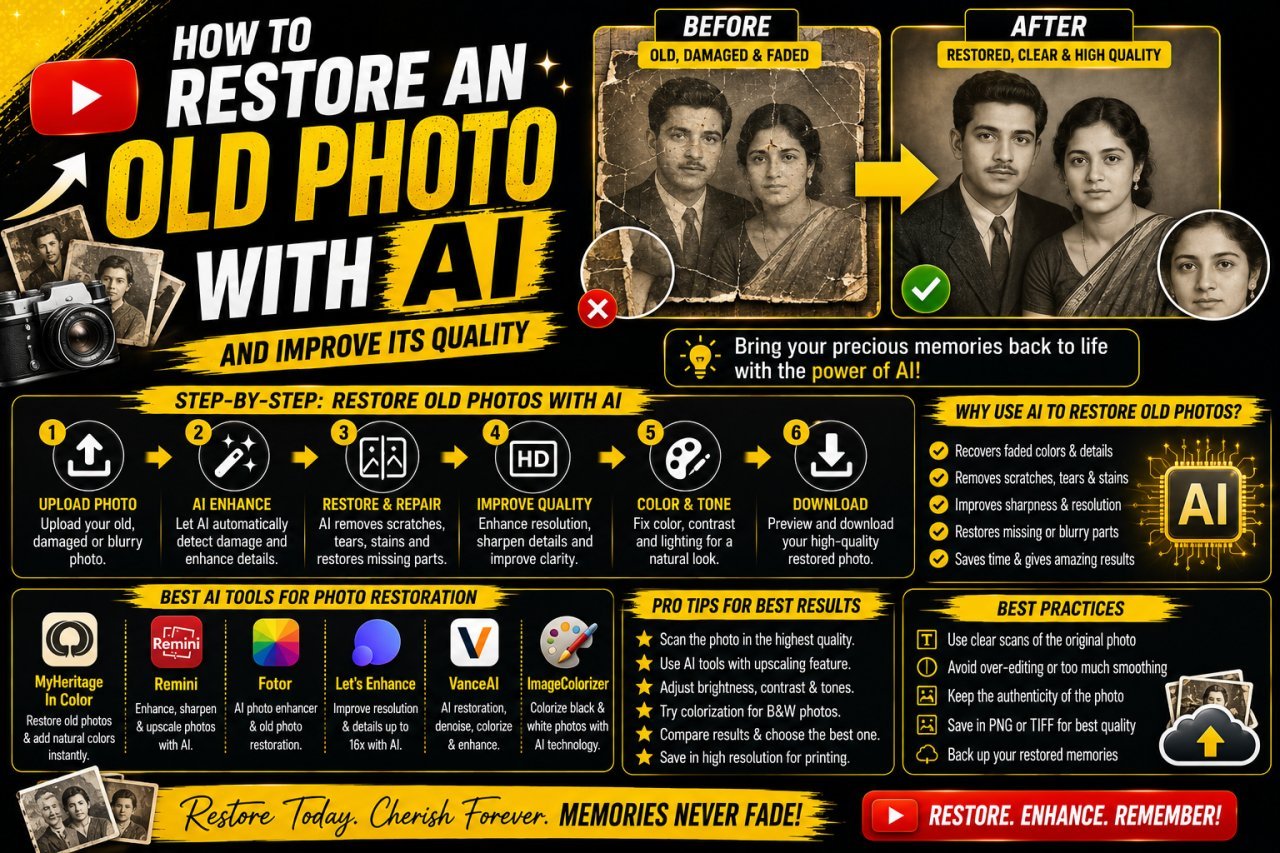
How to Restore an Old Photo With AI: Complete Beginner's Guide
Learn how to restore an old photo with AI by repairing damage, improving clarity, reducing noise, and bringing faded photographs back to life with simple techniques.
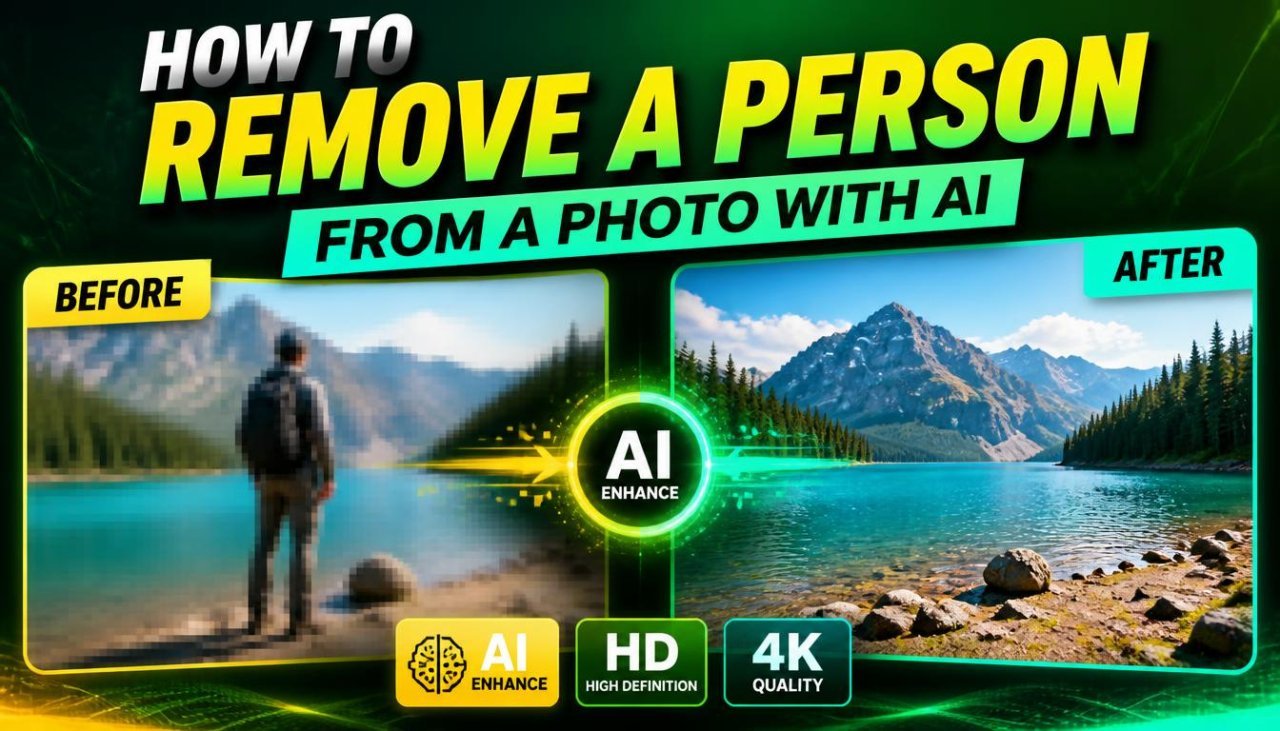
How to Remove a Person From a Photo With AI: Easy Online Guide
Learn how to remove a person from a photo with AI using simple online editing techniques. Discover how AI object removal works, when to use it, and how to get natural-looking results.
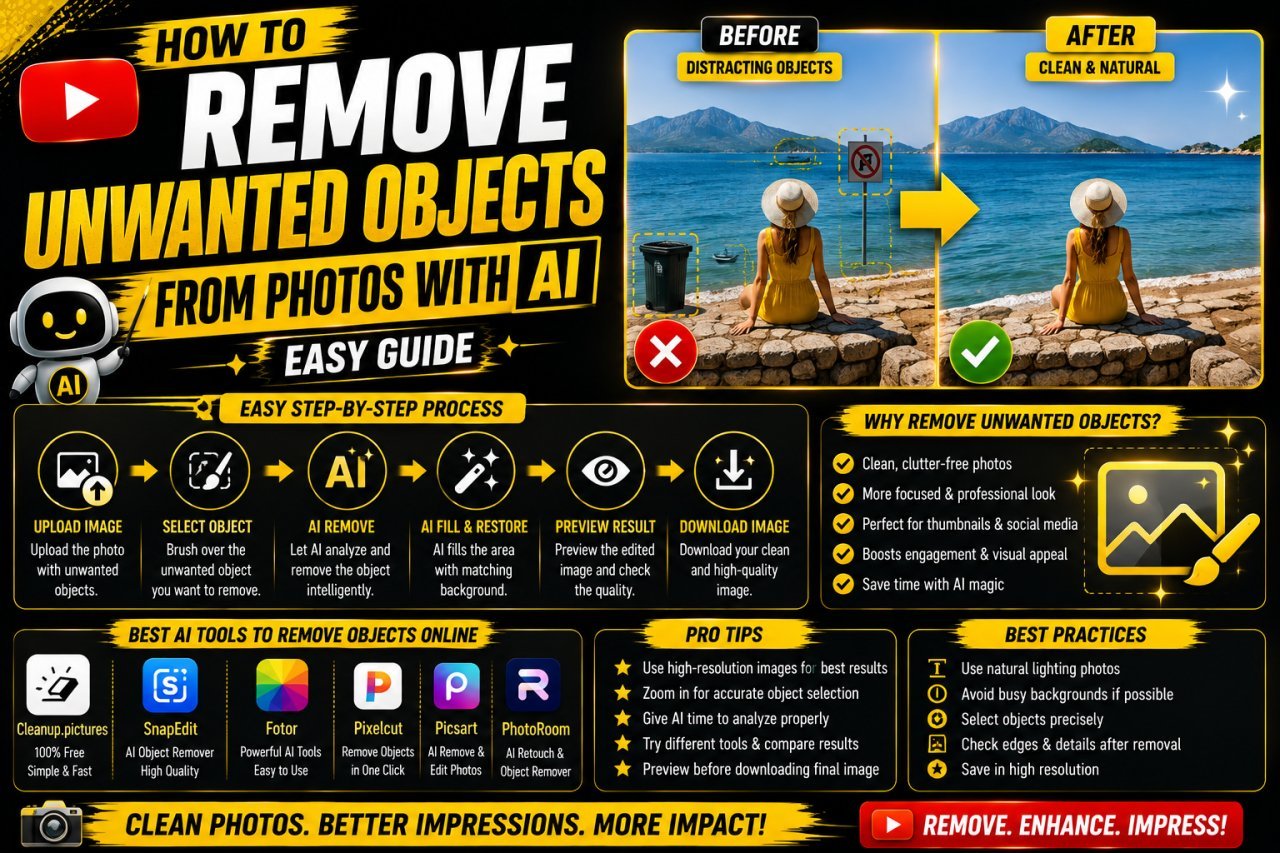
How to Remove Unwanted Objects From Photos With AI: Easy Guide
Learn how to remove unwanted objects from photos with AI using simple editing techniques. Discover how AI object removal works, useful tips, common mistakes, and ways to get natural-looking results.