How to Remove a Person From a Photo With AI: Easy Online Guide

Learn how to remove a person from a photo with AI using simple online editing techniques. Discover how AI object removal works, when to use it, and how to get natural-looking results.

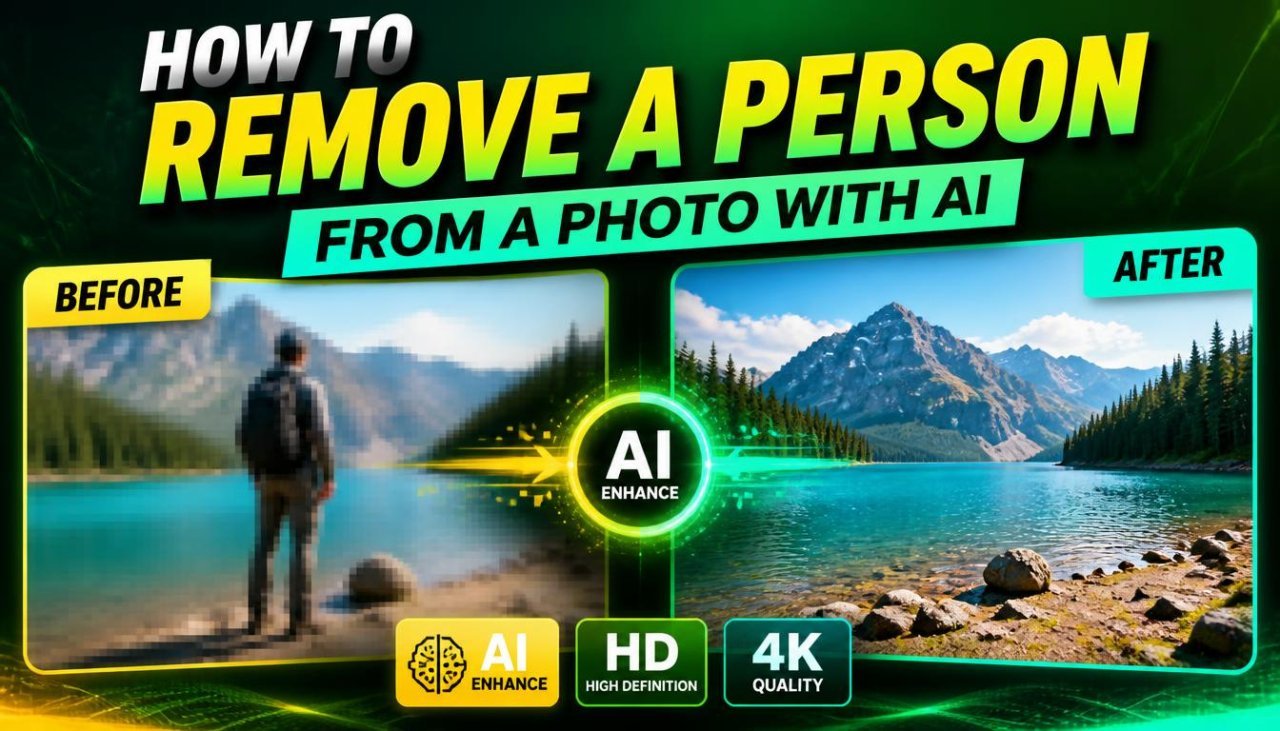
How to remove a person from a photo with AI using an AI photo editing tool

How to Remove a Person From a Photo With AI

Removing an unwanted person from a picture used to require careful manual editing, cloning, and a fair amount of patience. Today, AI-powered photo editing can make the process much simpler.

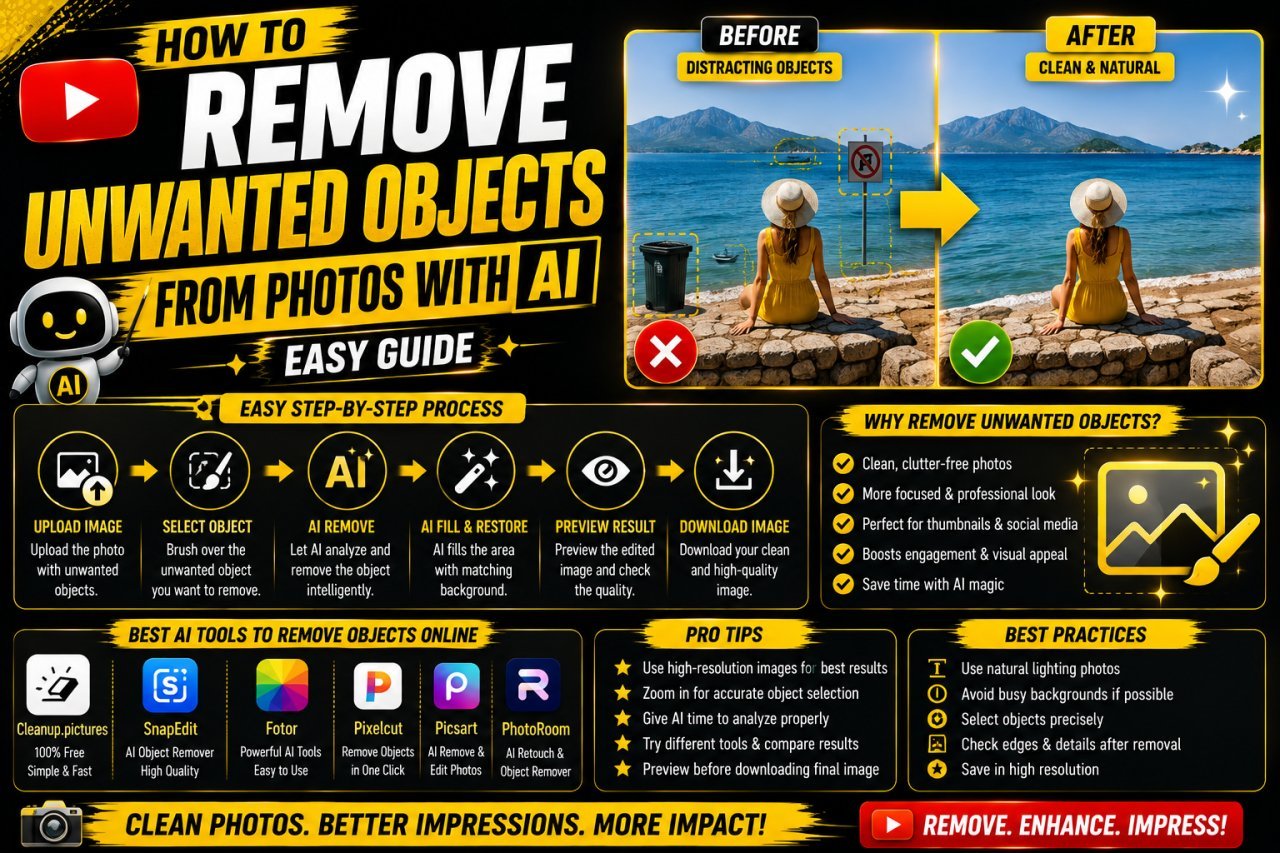
If you're wondering how to remove a person from a photo with AI, the basic process is usually straightforward: upload your image, select the person you want to remove, let the AI rebuild the selected area, and then review the result.

AI can analyze the surrounding parts of an image and generate replacement content where the person was located. This can work particularly well when the background is relatively simple.

However, AI photo removal is not magic. Results can vary depending on the image, the person's size, the background, lighting, and how much of the scene is hidden behind them.

In this guide, you'll learn the basic process, what affects the result, and how to prepare your photo before using an AI removal tool.

Why This Topic Matters

People often have photos that are almost perfect except for one unwanted person.

For example, you may have:

  • A travel photo with a stranger in the background
  • A family picture with someone accidentally walking behind you
  • A product photo containing an unwanted person
  • A landscape photo with someone standing in the frame
  • A social media image with an unwanted background subject
  • A personal photo where you want to simplify the scene
  • All Tools

Traditional photo editing can require detailed work around hair, clothing, shadows, and background objects.

AI-based editing can reduce some of that manual effort by attempting to reconstruct the area automatically.

The important part is knowing when AI is likely to work well and when you should expect to make additional corrections.

What Does AI Person Removal Mean?

AI person removal is an image-editing process that uses artificial intelligence to remove a selected person or object and generate replacement pixels for the area that was removed.

Instead of simply copying one nearby section of the image, an AI editor may analyze surrounding visual information such as:

  • Colors
  • Textures
  • Shapes
  • Edges
  • Lighting
  • Background patterns
  • Nearby objects

The tool then generates a new version of the selected area.

This type of editing is often associated with terms such as:

  • AI object removal
  • AI erase
  • Generative fill
  • Inpainting
  • Magic eraser
  • Object remover
  • People remover

Different tools use different technologies and produce different results.

How AI Removes a Person From a Photo

The process usually has four basic stages.

1. Upload the Photo

You start by uploading the original image into an AI photo editor that supports object or person removal.

Use the highest-quality version of the image you have.

2. Select the Person

Most tools provide a brush, selection tool, or similar method for identifying the person you want to remove.

You may need to cover the entire person rather than selecting only the face.

3. AI Reconstructs the Area

The AI analyzes the surrounding image and generates replacement content for the selected region.

For example, if the person is standing in front of a plain wall, the tool may recreate a section of the wall.

If the person is standing in front of complicated objects, the result can be more difficult to predict.

4. Review and Download

Always inspect the edited image before using it.

Look closely for:

  • Strange shapes
  • Repeated patterns
  • Distorted objects
  • Missing details
  • Unnatural shadows
  • Broken edges

If necessary, make another smaller selection and edit the problem area again.

Beginner-Friendly Example

Imagine you took a photo at a beach and a stranger is standing in the background.

The area behind the person contains mostly sand and sky.

An AI removal tool may have enough surrounding information to generate a plausible replacement.

Your basic workflow would be:

Upload photo → Select person → Remove → Review → Make corrections → Download

This is generally easier than manually rebuilding the entire background pixel by pixel.

Now imagine the same person is standing directly in front of a detailed building.

The AI has less visible information about what is behind the person, so it has to make a more complex reconstruction.

That's why the quality of the original image and background matters so much.

What Types of Photos Work Best?

AI person removal tends to be easier when the area surrounding the person is visually predictable.

Easier Backgrounds

Examples include:

  • Plain walls
  • Open sky
  • Sand
  • Grass
  • Simple floors
  • Large areas of water
  • Simple roads
  • Uncluttered backgrounds

These backgrounds contain patterns that may be easier for an AI editor to reconstruct.

More Difficult Backgrounds

Removal can become harder when the person overlaps:

  • Faces
  • Text
  • Buildings
  • Complex furniture
  • Detailed artwork
  • Thin objects
  • Product displays
  • Strong shadows
  • Important foreground objects

The AI has less reliable visual information about what should exist behind the person.

Person Removal vs. Object Removal

Although both tasks use similar AI editing techniques, removing a person can be more complicated than removing a small object.

Factor Small Object Person
Selection size Usually smaller Often larger
Background coverage Often limited Can hide significant detail
Hair details Usually not relevant Can be difficult
Shadows May be limited Often important
Clothing Not relevant Can cover background
Overlapping objects Sometimes limited Can be extensive
Editing complexity Often lower Can be higher

The larger the area that needs reconstruction, the more carefully you should inspect the result.

Before Removing a Person, Check the Photo

Before opening an AI editor, take a moment to inspect the original image.

Ask yourself:

How much of the background is hidden by the person?

If only a small portion is blocked, AI may have an easier job.

If the person covers a large part of the image, the tool has to generate much more missing information.

Also check whether the person overlaps important objects.

For example, removing someone standing in front of a plain wall is very different from removing someone standing in front of a bicycle, sign, or detailed building.

Understanding the image first can help you set realistic expectations.

Use the Highest-Quality Original You Have

Start with the original image whenever possible.

Avoid repeatedly editing and re-saving a heavily compressed copy.

A higher-quality source can preserve more useful visual information around the person.

This is especially important when:

  • The person is small
  • Background details are fine
  • Hair overlaps the background
  • The image contains text
  • You need to make additional corrections afterward

If you only have a low-resolution image, you can still try AI removal, but the final result may have less detail.

Don't Select More Than Necessary

When using an AI removal brush, beginners sometimes paint over a very large portion of the image.

That isn't always necessary.

Try to select the unwanted person carefully while including enough of the surrounding area for the tool to understand the boundary.

For example, if removing a person from a wall, you don't necessarily need to cover a large section of the entire wall.

A more controlled selection can make it easier to compare the result and correct specific areas.

Should You Select the Shadow Too?

If the person creates a visible shadow, removing only the person may leave an unnatural shadow behind.

Check the area around the person's:

  • Feet
  • Body
  • Hands
  • Nearby surfaces

If there is a clear shadow caused by the person, you may need to include it in the removal process.

However, be careful with shadows that belong to other objects.

Removing the wrong shadow can make the scene look less realistic.

What Happens to the Background?

The AI doesn't actually know with certainty what was behind the person.

It estimates what the missing area might look like based on the surrounding information and the patterns it has learned.

For example:

Person standing against a plain wall

The AI may generate a continuation of the wall.

Person standing on grass

The AI may generate additional grass texture.

Person standing in front of a crowd

The AI may need to reconstruct people and objects that are partially hidden.

The more complex the missing area, the more carefully you should inspect the result.

Common Problems After AI Removal

Even when the person disappears successfully, other problems can remain.

Repeated Patterns

A texture such as grass, bricks, or tiles may appear unnaturally repeated.

Distorted Objects

Objects near the removed person may change shape.

Strange Edges

The boundary around the edited area may look slightly artificial.

Missing Details

Small background elements may disappear.

Unnatural Shadows

The removed person's shadow may remain or the surrounding lighting may look inconsistent.

Texture Changes

The edited area may have a different texture from the surrounding image.

These issues don't necessarily mean the entire edit has failed.

Often, a smaller second edit can clean up the affected area.

When AI Removal May Not Be Enough

AI is useful, but some photos require more careful editing.

You may need additional work when:

  • The person covers a large portion of the background.
  • The person overlaps an important object.
  • Hair is mixed with detailed background elements.
  • The image contains repeating geometric patterns.
  • The person's shadow is complex.
  • Multiple people overlap each other.
  • The background contains readable text.
  • The person is standing directly beside another important subject.

In these situations, you may need to make several smaller AI edits or use traditional editing tools for final cleanup.

A Simple Decision Table

Photo Situation AI Removal Difficulty
Person on plain wall Usually easier
Person against open sky Usually easier
Person on simple grass Often manageable
Person on a beach Often manageable
Person in front of a detailed building More difficult
Person covering another object More difficult
Person overlapping another person More difficult
Person with complex hair edges More difficult
Person covering text Potentially difficult
Large person covering most of the background More difficult

This is only a general guide. Results depend on the specific image and editing tool.

Tips for Better Results

For a cleaner AI removal:

  • Start with the highest-quality original photo.
  • Select the entire unwanted person.
  • Check for shadows before editing.
  • Avoid unnecessarily large selections.
  • Review the edited area at full size.
  • Zoom in around difficult edges.
  • Make smaller corrections instead of repeatedly editing the whole image.
  • Compare the edited area with the surrounding texture.
  • Save the original image separately.
  • Keep an unedited copy before experimenting.

Most importantly, don't judge the result only from a zoomed-out view.

A small distortion can be easy to miss when the image is displayed as a whole but obvious when someone looks at it closely.

Tips for Better Results

For a cleaner AI removal:

  • Start with the highest-quality original photo.
  • Select the entire unwanted person.
  • Check for shadows before editing.
  • Avoid unnecessarily large selections.
  • Review the edited area at full size.
  • Zoom in around difficult edges.
  • Make smaller corrections instead of repeatedly editing the whole image.
  • Compare the edited area with the surrounding texture.
  • Save the original image separately.
  • Keep an unedited copy before experimenting.

Most importantly, don't judge the result only from a zoomed-out view.

A small distortion can be easy to miss when the image is displayed as a whole but obvious when someone looks at it closely.

Ethical and Practical Considerations

Removing an unwanted person from a personal photo can be a normal editing task.

However, context matters.

Be careful when editing images that could be presented as documentary evidence, news photography, official records, or factual documentation.

Changing the content of an image can create a misleading impression if viewers believe the edited image represents an unaltered event.

For ordinary creative editing, personal photos, social media graphics, and design projects, AI removal can be a useful tool.

When the authenticity of an image matters, preserve the original and clearly disclose significant edits when appropriate.

Quick Beginner Checklist

Before you remove a person with AI, check:

  • I have the original or highest-quality image available.
  • I know which person I want to remove.
  • I have checked the background behind them.
  • I have checked for shadows.
  • I know whether the person overlaps important objects.
  • I will save the original image before editing.
  • I will review the AI result carefully.
  • I will make smaller corrections if necessary.
  • I will avoid presenting a substantially altered image as an untouched factual photograph.

Key Point for Beginners

The easiest way to get better results isn't to use more complicated editing effects.

Start with a good-quality image, make a careful selection, use the AI removal feature, and inspect the result.

If something looks wrong, don't immediately redo the entire image.

Instead, identify the specific problem and make a smaller correction.

That approach gives you more control and makes AI photo editing much easier to learn.

When a person occupies a large area, it can be useful to work progressively.

Start by removing the main body.

Then inspect:

  • Hair
  • Hands
  • Shoes
  • Shadows
  • Small leftover edges
  • Background distortions

If you notice a small problem, make a small second selection around that area.

This is often easier to control than repeatedly selecting the entire person and surrounding background.

When a person occupies a large area, it can be useful to work progressively.

Start by removing the main body.

Then inspect:

  • Hair
  • Hands
  • Shoes
  • Shadows
  • Small leftover edges
  • Background distortions

If you notice a small problem, make a small second selection around that area.

This is often easier to control than repeatedly selecting the entire person and surrounding background.

Hair can be one of the more difficult details to remove because individual strands may blend into the background.

This is especially noticeable when:

  • Hair is against trees
  • Hair is against grass
  • The background has fine textures
  • Hair overlaps another object
  • Lighting creates strong highlights

Don't judge the result only by looking at the person's main body.

Zoom in around the head and shoulders and check whether small remnants remain.

If necessary, use another targeted removal pass rather than applying a large edit to the whole image.

A person's shadow can make the edited area look unnatural if it remains after the person has been removed.

For example, imagine someone standing on a sunny pavement.

Removing the person while leaving a dark human-shaped shadow behind can immediately reveal that the image was edited.

Look around the feet and nearby ground.

However, don't remove every dark area automatically. Some shadows may belong to buildings, trees, furniture, or other objects.

The goal is to remove the unwanted person's visual footprint without damaging the natural lighting of the scene.

Conclusion

Removing an unwanted person from a photo with AI can be much easier than traditional manual editing, especially when the person is surrounded by a simple and predictable background.

The basic process is straightforward: keep a copy of the original image, select the unwanted person carefully, let the AI reconstruct the area, and then inspect the result.

The most important thing is not simply making the person disappear. The edited background should also look natural.

Pay particular attention to hair, shadows, repeating patterns, straight lines, nearby people, signs, and objects. These areas can reveal editing problems even when the image looks fine at first glance.

For simple photographs, one AI removal may be enough. More complicated images may require several small corrections or a combination of AI and traditional editing tools.

If the image is being used for a situation where photographic accuracy matters, keep the original and be transparent about significant alterations when appropriate.

In short, the best results come from careful selection, a good-quality source image, realistic expectations, and thorough checking after the AI edit.

Call To Action

Have an old photo with an unwanted person in the background?

Try an AI photo removal workflow using a copy of the original image. Start with a careful selection, review the generated background, and make small corrections where necessary.

Don't worry if the first result isn't perfect. AI photo editing often works best when you treat the first generation as a starting point and carefully check the details afterward.

Save the original, remove carefully, review closely, and export only when the result looks natural.

1. How to remove a person from a photo with AI?

You can use an AI photo editor that includes an object or person removal feature. Upload the photo, select the unwanted person, apply the removal, and review the generated background. If artifacts remain, make smaller corrective edits.

2. Can AI remove a person from a photo without affecting the background?

AI can attempt to reconstruct the area where a person was removed, but the result is not guaranteed to be perfect. Simple backgrounds are generally easier to reconstruct than complicated scenes containing people, text, patterns, or overlapping objects.

3. Can I remove a person from a photo online?

Yes. Many online photo editors offer AI-powered object or person removal features. The exact workflow depends on the editor, but it commonly involves uploading an image, selecting the unwanted area, generating the edit, and downloading the result.

4. How do I remove a person from a photo without making it look edited?

Use a high-quality original, make a careful selection, and inspect the generated background closely. Pay special attention to shadows, edges, repeating patterns, nearby objects, and textures. Small corrective edits can help clean up visible artifacts.

5. Why does AI leave strange marks after removing someone?

AI has to estimate what should replace the area covered by the person. If the background is complex or important details were hidden, the generated replacement can contain unusual textures, shapes, or patterns. Additional editing may be needed.

6. Can AI remove someone from a group photo?

AI can attempt to remove a person from a group photograph, but this can be more difficult because people may overlap one another. Carefully check nearby faces, arms, clothing, and other details after the removal.

7. Can AI remove a person and their shadow?

An AI removal tool may be able to remove both the person and a visible shadow if the selected area includes it. Check the ground or surface afterward to make sure the shadow hasn't been left behind or replaced unnaturally.

8. What type of background is easiest for AI person removal?

Relatively simple backgrounds such as plain walls, open sky, sand, simple grass, or uncluttered surfaces can be easier for AI to reconstruct. Complex backgrounds with text, people, detailed objects, or repeating patterns can require more work.

9. Can AI recover something that was hidden behind a person?

AI can generate a plausible replacement, but it cannot reliably know the exact details of something that was completely hidden in the original photograph. If accuracy is important, compare the result with another reference image or use manual editing.

10. Is it safe to use AI to remove people from photos?

For ordinary creative editing, such as cleaning up a personal photograph, AI removal can be useful. However, edited images should not be presented as untouched evidence or factual documentation when the alteration could mislead viewers. Keep the original image when authenticity matters.

For ordinary creative editing, such as cleaning up a personal photograph, AI removal can be useful. However, edited images should not be presented as untouched evidence or factual documentation when the alteration could mislead viewers. Keep the original image when authenticity matters.

Ready to optimize your images?

Every tool mentioned in this article is free to use. No upload, no signup, and no watermarks — ever.

Try our free tools