
Best Free Online Image Tools for Students (Project + Assignment Edition)
School and college projects often need image work — diagrams, presentations, posters. These free tools cover everything without subscriptions or installs.
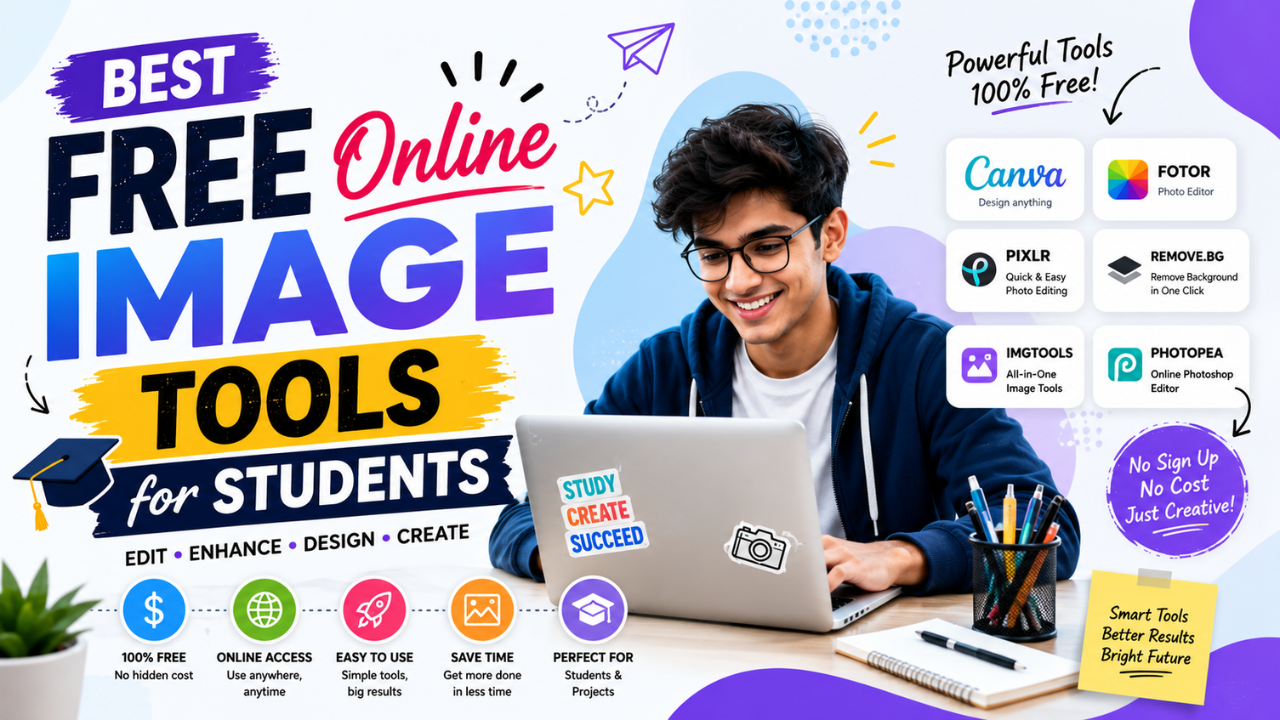
Students don't have ₹2,000/month for Adobe Creative Cloud. School and college Wi-Fi often blocks downloads. Most projects need basic-to-intermediate image work that fits into "this should be free and online."
Here's the toolkit. All free, all in-browser (no install), most without signup.
What students actually need
Based on common project requirements:
- Compress images — file size limits in submission portals
- Resize — fit images into PowerPoint slides without distortion
- Convert formats — JPG to PNG when transparency is needed
- Remove backgrounds — for clean photos of subjects in reports
- Crop — to focus on the relevant part of the image
- Add text/watermarks — for academic citations or project branding
- Combine multiple images — into a single PDF (assignment submission)
- Extract pages from PDFs — when only one slide is needed
All eight are doable for free.
Essential free tools by task
Image compression
Use: our free Image Compressor — drop image, set quality 80, download. No upload, photos stay on device. Perfect for staying under email/portal file size limits.
Resizing
Use: free Image Resize — has presets for common sizes. Use "1920×1080" for full HD presentations, "800×600" for inline doc images.
Format conversion
Use: free format converters — covers all common pairs (PNG, JPG, WEBP, AVIF). Click your direction, drop file, download converted version.
Background removal
Use: free Background Remover — AI-powered, browser-side. Great for "extract this person from a group photo" or "make this product photo into a clean PNG".
Cropping
Use: free Crop tool — has aspect ratio presets. Use "1:1 square" for Instagram, "16:9" for presentation slides.
Watermarking
Use: free Watermark tool — add your name, group name, or institution to academic projects.
Combining images into PDF
Use: free Image to PDF — drop multiple images, get one PDF. Use for assignments with photo evidence (lab reports, observations).
Extracting images from PDFs
Use: free PDF to Image — extract each PDF page as JPG/PNG.
Other free tools worth bookmarking
For things outside pure image work:
- Photopea (photopea.com) — full Photoshop clone in browser. Free. For when you need layers and complex editing.
- GIMP — desktop editor, free, requires install. For students with their own laptop.
- Canva (free tier) — design templates for posters, presentations, infographics.
- Google Slides — collaborative slide editing. Replace PowerPoint for group work.
- TinyPNG/TinyJPG — alternative compressor (uploads to their servers; ours doesn't)
- Snapseed (mobile) — free phone editor for on-the-go edits
Common project scenarios
Scenario 1: "I have 20 photos for a science project, total size 80 MB, portal limit is 10 MB"
Workflow:
- Open Bulk Compressor
- Drop all 20 images (Free tier handles up to 20 at once)
- Pick "Max Compression" preset
- Download ZIP — typically 8-15 MB after compression
Time: 1 minute. Result: under the limit.
Scenario 2: "I need to crop my face out of a group photo for my profile picture"
Workflow:
- Open Crop tool
- Drop the group photo
- Pick 1:1 aspect ratio
- Position the crop box around your face
- Download
Time: 30 seconds. Done.
Scenario 3: "I have a photo of a leaf for biology, but the background is messy. I want a clean white background"
Workflow:
- Open Background Remover
- Drop the leaf photo
- Wait ~5 seconds for AI processing
- Download — you get a transparent PNG (leaf only)
- (Optional) Open in any editor, fill background with white, re-export as JPG
Time: 1-2 minutes. Result: clean isolated leaf.
Scenario 4: "Six homework problem photos, teacher wants one PDF"
Workflow:
- Open Image to PDF
- Drop all six photos
- Set page size (A4 or Fit)
- Download single PDF
Time: 30 seconds. Done.
Scenario 5: "My presentation has 30 high-res images, file is too large to email"
Workflow:
- Save the presentation as PDF
- Open in PDF compressor (Smallpdf, ILovePDF, free tiers)
- Compress
- Email the smaller PDF
Or: re-export the slides with images already compressed (slide tool's "compress images" option, or run images through our compressor before inserting into slides).
Mobile workflow for students
If you mostly use a phone:
- Snapseed (free) — best free mobile editor
- Google Files / iOS Files — built-in PDF tools
- CamScanner — free document scanning + image to PDF (with ads on free tier)
- PicsArt (free with ads) — collage, basic editing
Combined with our free tools in browser (which work fine on mobile too), you don't need any paid apps.
Tips for academic image use
1. Always cite image sources
If you didn't take the photo, you must cite it. Most projects require:
- Source (URL or attribution)
- Date accessed
- Author / photographer if known
- License (Creative Commons, public domain, etc.)
Even AI-generated images should be cited as "generated using [tool name]".
2. Don't plagiarise images
Common student mistake: pulling images from Google Image search and using them in assignments without attribution. Many of these are copyrighted. Risk:
- Plagiarism score on academic integrity reports
- Possible Marks deduction
- (Rarely) actual legal issues for commercial-style use
Safer: use Creative Commons images, public domain images, or your own photos.
3. For presentations, use vector icons over photos when possible
Icons (SVG format) scale infinitely without quality loss. Photos pixelate when zoomed. Resources for free vector icons:
- Iconify (free, huge library)
- The Noun Project (free with attribution)
- Flaticon (free with attribution)
4. Compress before inserting
Slides/docs that contain uncompressed photos balloon in file size. Compress images first, then insert. The presentation will look identical but be 5-10× smaller.
5. Use consistent dimensions across slides
If your title slide has a 1920×1080 image and your body slides have 600×400 images, the presentation looks uneven. Pick one size, stick with it for the deck.
Free vs paid for students
When is paid worth it?
- Photographers — Lightroom student plan (~₹500/month) is genuinely worth it
- Design students — Adobe Creative Cloud student discount (~₹3000/month total) is industry-standard for portfolios
- Everyone else — free tools cover it. Don't overspend.
Most non-design students will never need paid software in school. Free tools cover it.
Quick reference: student image toolkit
Bookmark these for any image work in school/college:
- Image Compressor — for size limits
- Image Resize — for slide / doc fit
- Image Crop — for focusing
- Background Remover — for clean cutouts
- Format Converter — PNG ↔ JPG ↔ WEBP
- Image to PDF — for batch submission
- PDF to Image — for extracting
- Watermark — for attribution
- Color Palette — for presentations and posters
Everything runs in your browser. No signup. No download. No upload of your photos to anyone. Free forever — these are core tools, not trial gimmicks.
Good luck with your projects!
Ready to optimize your images?
Every tool mentioned in this article is free to use. No upload, no signup, no watermarks on small files.
Try our free toolsRelated articles

Top 10 Websites for Free Stock Images (Commercial-Use Safe)
Not every free stock image is actually free to use commercially. Here are 10 sites where the licenses genuinely permit you to use photos on your blog, business, or product.
How Optimized Images Improve Website SEO (With Real Examples)
Image optimization is the highest-leverage SEO change most websites haven't made. Here's exactly how it moves rankings and the specific levers you can pull this week.
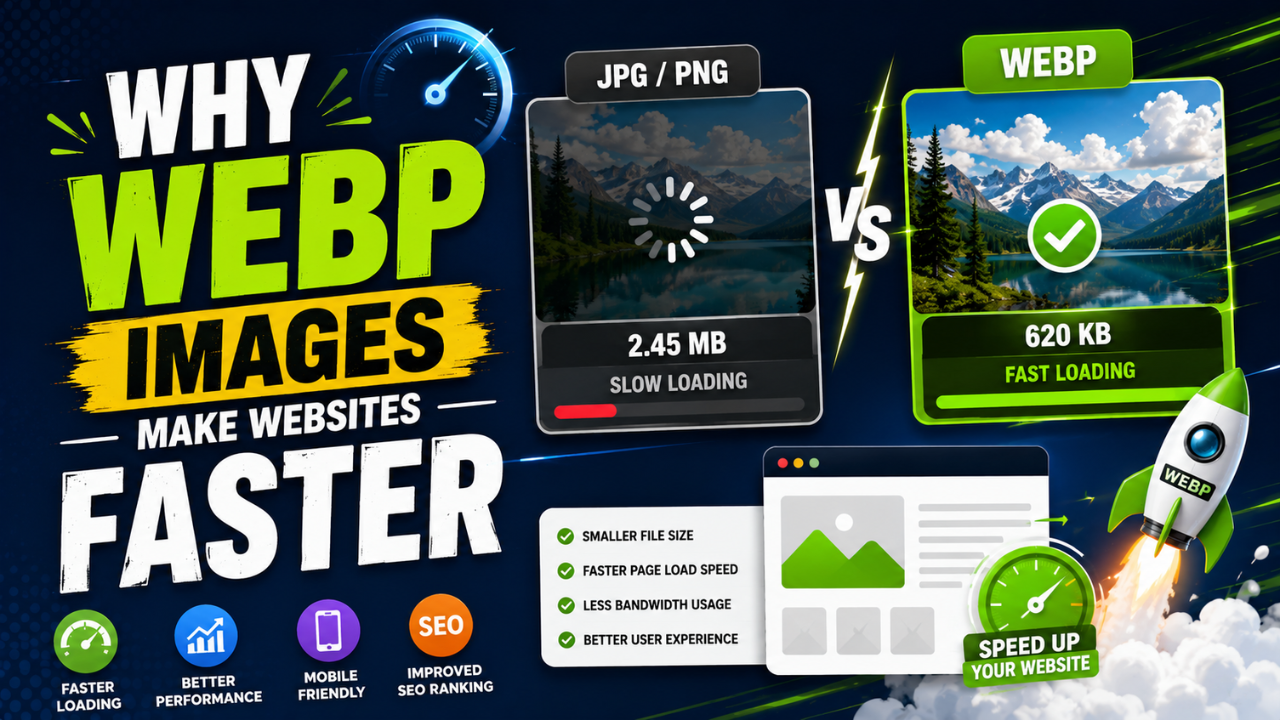
Why WEBP Images Make Websites Faster (With Real Speed Tests)
Same visual quality, 25-35% smaller files. WEBP is the easiest single SEO improvement you can ship this week — here's the data and how to convert.