
How to Convert HEIC to JPG for Free (Windows, Android & iPhone) — 2026 Guide
Got a .HEIC photo from an iPhone that won't open on your laptop? Here's every free way to turn it into a normal JPG — and the fastest one that never uploads your photo anywhere.
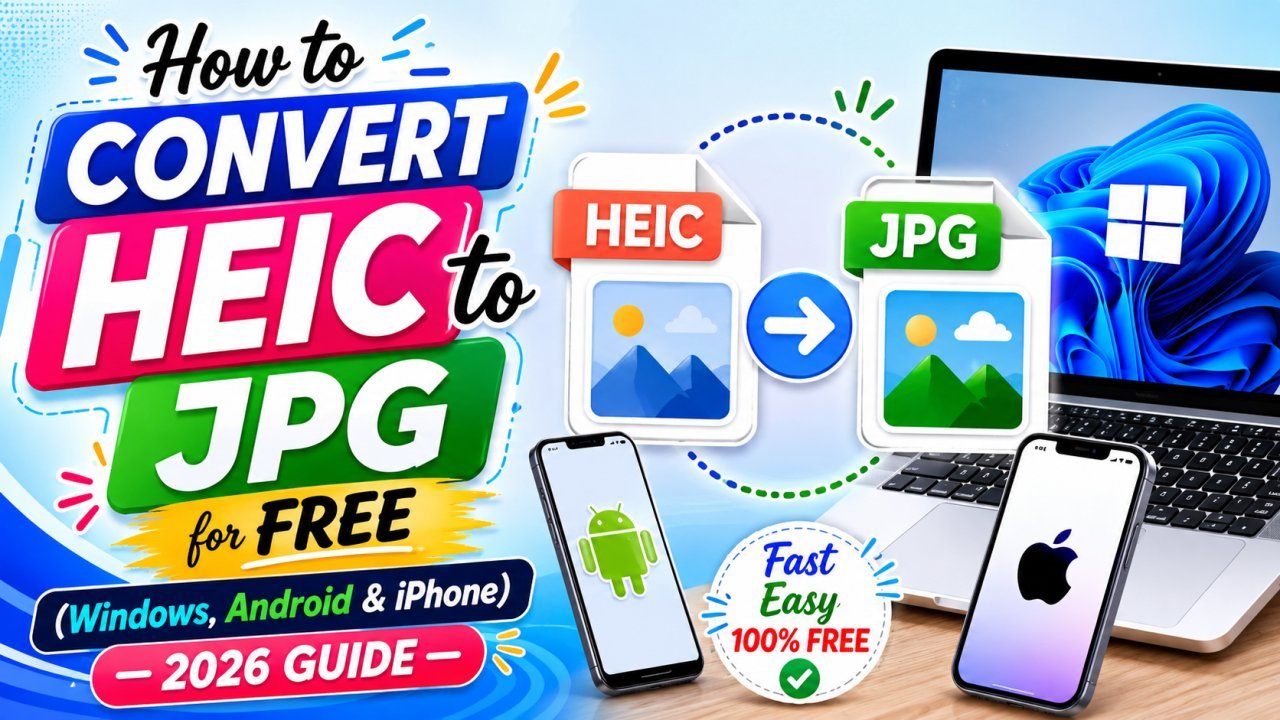
You email yourself a photo from your iPhone, open it on your Windows laptop, and… nothing. A blank icon, an error, or a file ending in .HEIC that simply refuses to open. If that sounds familiar, you're not doing anything wrong — your phone just saved the picture in a newer format that most websites, forms, and older apps still don't accept.
The good news: converting HEIC to JPG takes about ten seconds, costs nothing, and doesn't require installing anything. Here's exactly how — covering every device you might be on.
What is HEIC, and why does my iPhone use it?
HEIC (High Efficiency Image Container) is the format Apple has used by default since iOS 11. Its big advantage is size: a HEIC photo is roughly half the file size of the same JPG, at the same visual quality. That's brilliant for saving space on your phone.
The problem is compatibility. JPG is understood by literally everything — every website, every government form, every printer, every old laptop. HEIC is not. So the moment you move a photo off your iPhone — to upload it, email it, or print it — you often need it as a JPG.
In short: HEIC is great for storing photos on your phone, JPG is great for sharing them everywhere else.
The fastest free way (works on any device)
The quickest method needs no software install and works the same on Windows, Mac, Android, or iPhone — straight in your browser:
- Open our free HEIC to JPG converter.
- Drag in your
.HEICfile (or tap to select it). - Download the JPG. Done.
Because the conversion happens inside your own browser, your photo is never uploaded to any server. That matters more than people realise — photos can contain location data, faces, documents, and private moments. With a browser-based tool, the image never leaves your device, so there's nothing to leak. This is the core reason we built our tools this way.
Prefer a different output? We also have HEIC to PNG (for transparency or lossless quality) and HEIC to WebP (for the smallest possible web file).
Method by device
If you'd rather use what's already built into your device, here are the offline options too.
On Windows 10 / 11
Windows can open HEIC files if you install Apple's free HEIF Image Extensions from the Microsoft Store. Once installed:
- Open the HEIC photo in the Photos app.
- Click the ⋯ (three dots) menu → Save as.
- Choose JPG as the file type and save.
This works, but it's a per-photo chore and needs the extension installed first — fine for one image, slow for twenty.
On Android
Android can't open HEIC natively on most phones. Some gallery apps (like Google Photos) will display it, but won't easily export it as JPG. The simplest route on Android is the browser tool above — no app to install, no permissions to grant.
On the iPhone itself (stop the problem at the source)
If you want your iPhone to stop creating HEIC files and shoot normal JPGs instead:
- Open Settings → Camera → Formats.
- Tap Most Compatible.
From now on your camera saves JPG directly. You'll use a little more storage, but you'll never hit the "won't open" wall again. (Already-taken HEIC photos stay HEIC — convert those with the tool above.)
HEIC to JPG, PNG, or WebP — which should you pick?
Not sure which output format you actually want? This table sorts it out:
| You want to… | Best format | Why |
|---|---|---|
| Upload to a form, email, or print | JPG | Universally accepted, small file |
| Keep maximum quality / transparency | PNG | Lossless, supports transparent areas |
| Use the photo on a website | WebP | Smallest size, modern browsers love it |
For 90% of people, the answer is simply JPG.
Bonus: shrink the JPG if it's still too big
Some forms (exam applications, job portals, KYC uploads) demand an image under a specific size — like 100 KB or 50 KB. After converting to JPG, run it through our Compress Image to Size tool to hit an exact KB target without it looking blurry.
Quick answers
Does converting HEIC to JPG reduce quality? A tiny, usually invisible amount — JPG is a lossy format. For sharing, printing, and uploading, you'll never notice the difference.
Is it safe to convert HEIC files online? Only if the tool processes the file in your browser. Ours does — your photo is never uploaded, so it stays completely private.
Can I convert many HEIC files at once? Yes — convert them one after another in seconds, or use the dedicated converter for each format. No account, no limit, no watermark.
Why did my photo come as HEIC in the first place? Your iPhone's default camera setting. Switch it to "Most Compatible" (steps above) to shoot JPG going forward.
HEIC isn't a problem you need to fear — it's just a newer, space-saving format that the rest of the world hasn't fully caught up to yet. Whenever you need a photo to "just work" everywhere, convert it to JPG in a few seconds with our free HEIC to JPG tool, and you're done.
Ready to optimize your images?
Every tool mentioned in this article is free to use. No upload, no signup, and no watermarks — ever.
Try our free toolsRelated articles
How to Make a Passport Size Photo Online for Free (2026 Step-by-Step Guide)
You don't need a photo studio for a passport, visa, or exam photo anymore. Here's how to turn a normal selfie into a perfectly sized, correctly cropped passport photo online — free and in minutes.
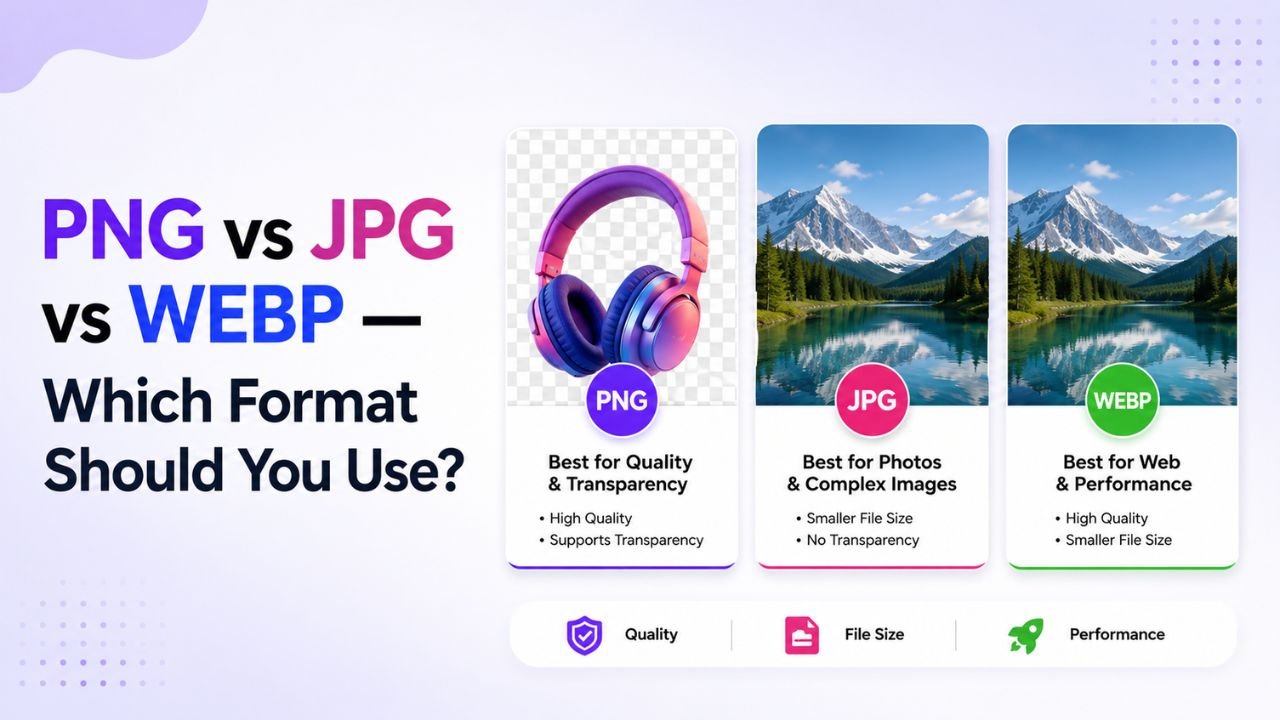
PNG vs JPG vs WEBP — A Decision Tree for Picking the Right Format
Stop guessing image formats. This decision tree walks you to the right answer in 3 questions or fewer — regardless of your specific image.
How to Remove Background from Images in One Click (Free, No Photoshop)
Background removal used to take 10 minutes per image with the Pen Tool. In 2026 it takes one click. Here's the practical guide for any image type.