
How to Remove Background from Images in One Click (Free, No Photoshop)
Background removal used to take 10 minutes per image with the Pen Tool. In 2026 it takes one click. Here's the practical guide for any image type.
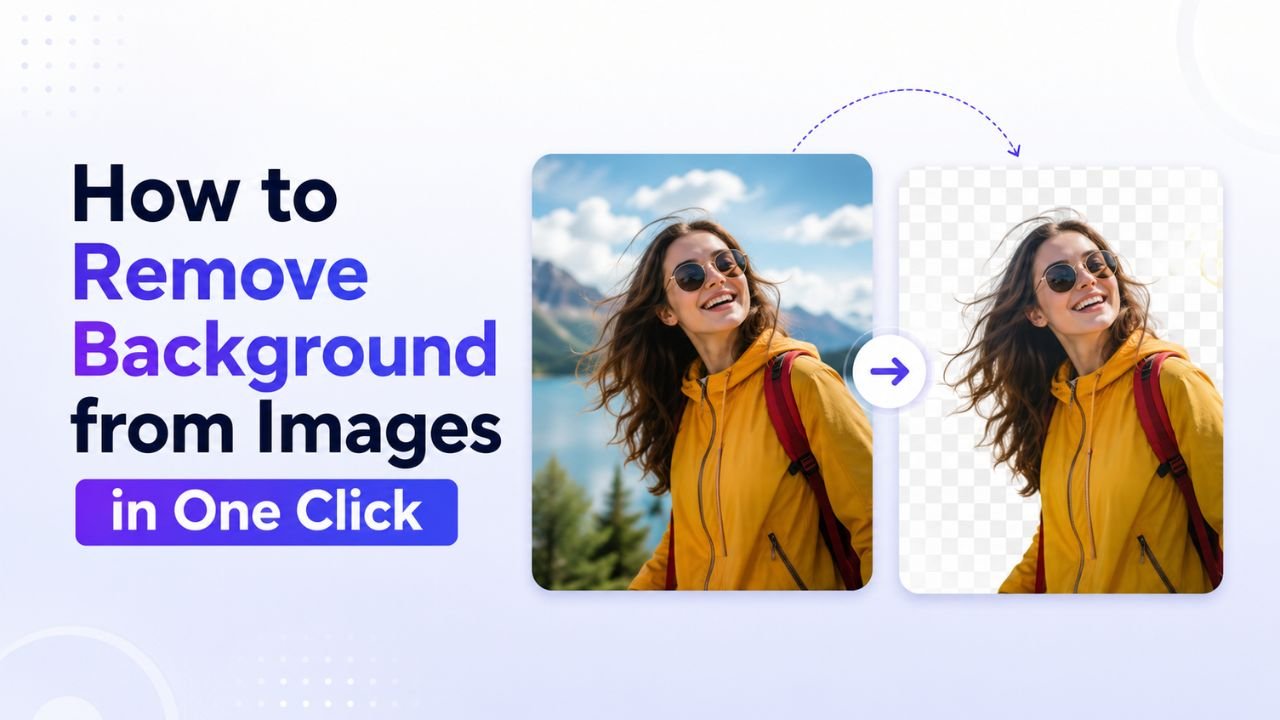
You need to remove the background from a photo. You don't have Photoshop, don't want to download anything, and don't want to upload private photos to a random server. The 2026 answer:
Use a browser-side AI background remover. Drop image → wait 2 seconds → download. Done.
Here's the practical guide, including the cases where one-click fails and what to do.
The one-click workflow
- Go to our free Background Remover
- Drop your image into the upload box (or click to pick from your device)
- Wait 2-5 seconds while the AI processes locally in your browser
- Click download
The output is a transparent PNG ready to drop onto any background.
Privacy note: the entire process runs in your browser. No upload, no signup, your image never leaves your device. Compare this to remove.bg or similar tools that upload to their servers.
What works well in one click
Most photos in these categories produce clean one-click results:
- Product photography against any contrasting background
- Portraits with clear separation between person and background
- Single objects photographed front-on
- Animals with defined edges (cats, dogs, birds with feathers)
- Logos photographed cleanly
If your photo is in one of these categories, expect 95%+ accurate output with no manual touch-up needed.
What needs a second pass
Some photos challenge AI background removers. You'll get an okay first pass but may need to fix:
- Glass and transparent objects — wine glasses, sunglasses, plastic bottles. Edges may be off.
- Fine hair detail — curly hair, flyaways, fur. Most modern tools handle this, but check at 100% zoom.
- Subjects matching the background colour — green shirt against green wall, white object on white surface.
- Multiple subjects — sometimes the AI keeps only the largest. Crop to one subject for best results.
For these cases, the workflow:
- Run one-click as a starting point
- Pull the result into any image editor (Photoshop, Photopea, GIMP — even MS Paint for basic touch-up)
- Manually fix the 5-10% the AI missed
Time investment: 1-3 minutes per image, vs 10-15 minutes from scratch.
When one-click straight up fails
A few scenarios where you'll get unusable output:
- Blurry or motion-blurred subjects — no clean edges for the AI to find
- Very low-resolution images (under 200×200) — not enough information
- Extreme zoom-in on textures — AI can't tell which texture is "foreground"
- Heavily compressed JPEGs with blocky artefacts — uncompress / re-shoot if possible
For these, manual editing is the realistic option.
Pre-processing for better results
The output quality depends on the input. Quick prep:
- Crop the image to focus on the subject. AI works better when the subject occupies most of the frame. Use our free Crop Tool.
- Check resolution — at least 500×500 ideal. Use resize only to crop, not to upscale a tiny image.
- Convert to PNG if your source is a heavily-compressed JPG. Free JPG to PNG converter.
- Strip EXIF metadata — generally not needed for BG removal but doesn't hurt: free EXIF remover.
Output: what format do you get?
A background-removed image is, by definition, transparent in the background area. The only formats that support transparency:
- PNG — universal, lossless, widely supported. Default output.
- WEBP — smaller files, supports transparency. Modern alternative.
- SVG — vector, but only if you're working with logos/icons (not photos).
Never save a background-removed image as JPG. JPG doesn't support transparency — your "removed" background will come back as solid white or whatever the platform fills it with.
After background removal: what next?
A transparent PNG is rarely the final goal. Common follow-ups:
- Drop onto a new background — open both files in any editor, layer transparent PNG on top
- Add a coloured fill — open in a basic editor, fill the transparent area with brand colour
- Resize to a standard dimension — Amazon, Etsy, Shopify each have size requirements. Free resize tool.
- Compress before uploading — transparent PNGs are often large. Convert to compressed PNG or WEBP. Free converters.
Bulk workflow (multiple photos at once)
If you have 10+ photos:
- Process each through the background remover (sequential — each takes 2-5 seconds, so a batch of 10 = ~30 seconds)
- Resize each to your target dimensions
- Use Bulk Compressor to compress them all into a single ZIP
Total time for 10 photos: about 3-4 minutes including downloads.
Cost comparison
Time-cost of background removal in 2026:
| Method | Per image | Software cost |
|---|---|---|
| Manual Pen Tool in Photoshop | 5-15 min | ₹2,200/mo |
| Manual in Photopea (free) | 5-15 min | Free |
| remove.bg (cloud AI) | 10 sec + upload | Free / ₹800+/mo |
| Our free in-browser AI | 2-5 sec, local | ₹0 forever |
| AI mobile apps with watermark | 10 sec | Free with watermark |
The browser-side AI option is hard to beat on cost, speed, and privacy simultaneously.
Try it now
Got an image? Try our free Background Remover. No signup, no upload, no watermark on the output, no daily limit on the free tier. Your photos stay on your device.
Ready to optimize your images?
Every tool mentioned in this article is free to use. No upload, no signup, no watermarks on small files.
Try our free toolsRelated articles
How to Blur Background Like a DSLR Using Online Tools (No Camera Needed)
That dreamy DSLR portrait blur (bokeh) is now reproducible from any phone photo — using free online tools that simulate depth of field convincingly.
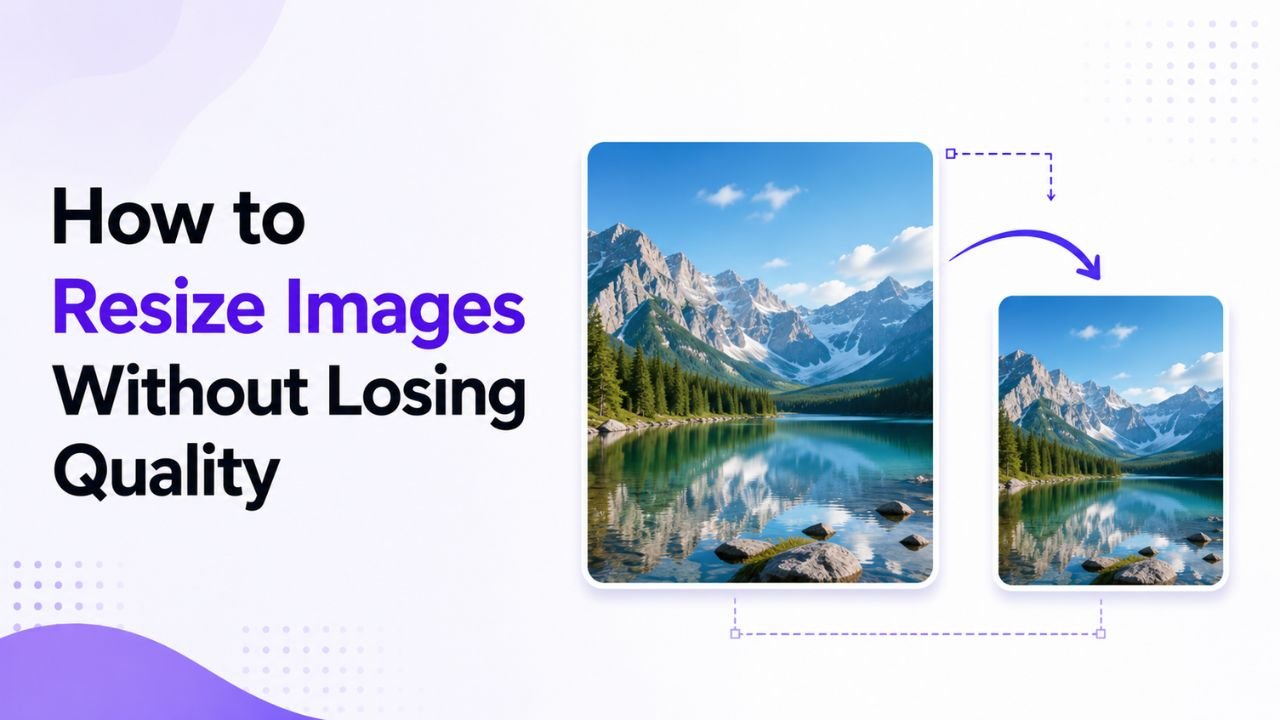
How to Resize Images Without Losing Quality (The Real Guide)
Resizing seems trivial but most tools make it look worse than it should. Here's how to keep images crisp regardless of which direction you're going.
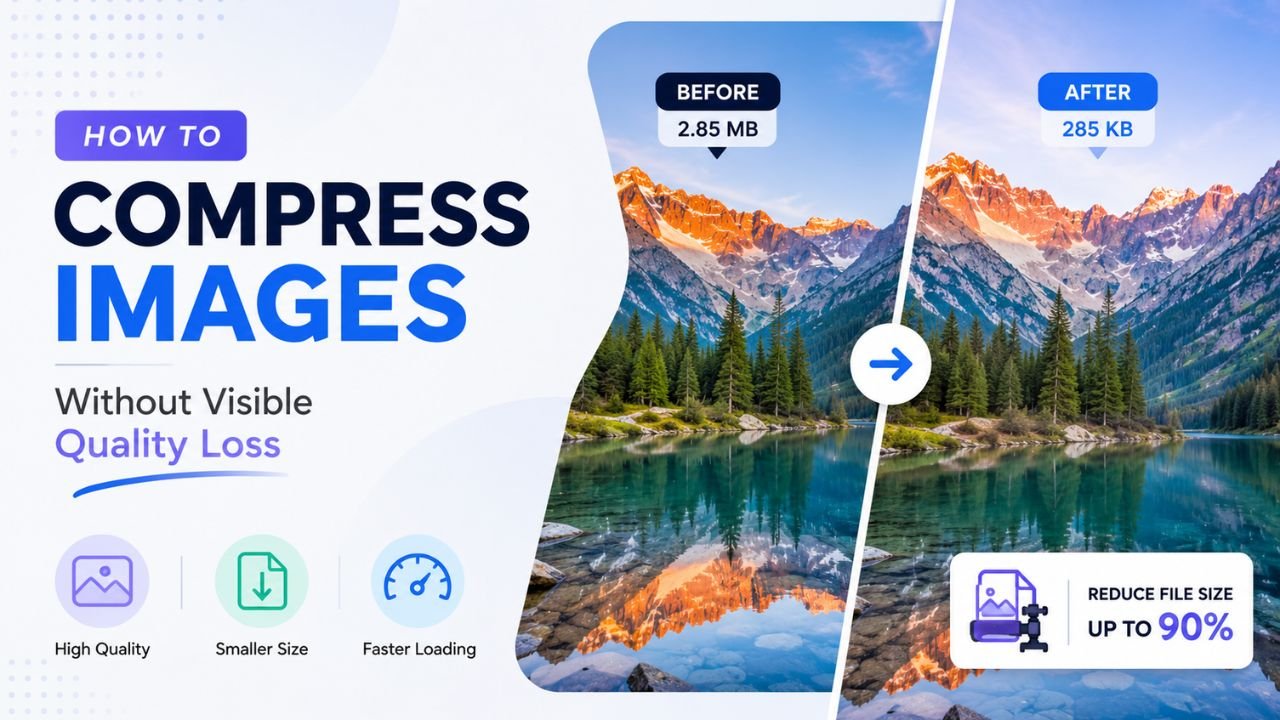
How to Compress Images Without Any Visible Quality Loss
There's a science to picking the exact quality setting where files shrink dramatically but no human can spot the difference. Here's how to find that sweet spot every time.