
How to Compress an Image to 100 KB (or 50 KB & 20 KB) Without Losing Quality
Online forms and exam portals often reject photos that are too big. Here's how to shrink any image to exactly 100 KB, 50 KB, or 20 KB in seconds — free, in your browser, with no quality drop you can actually see.
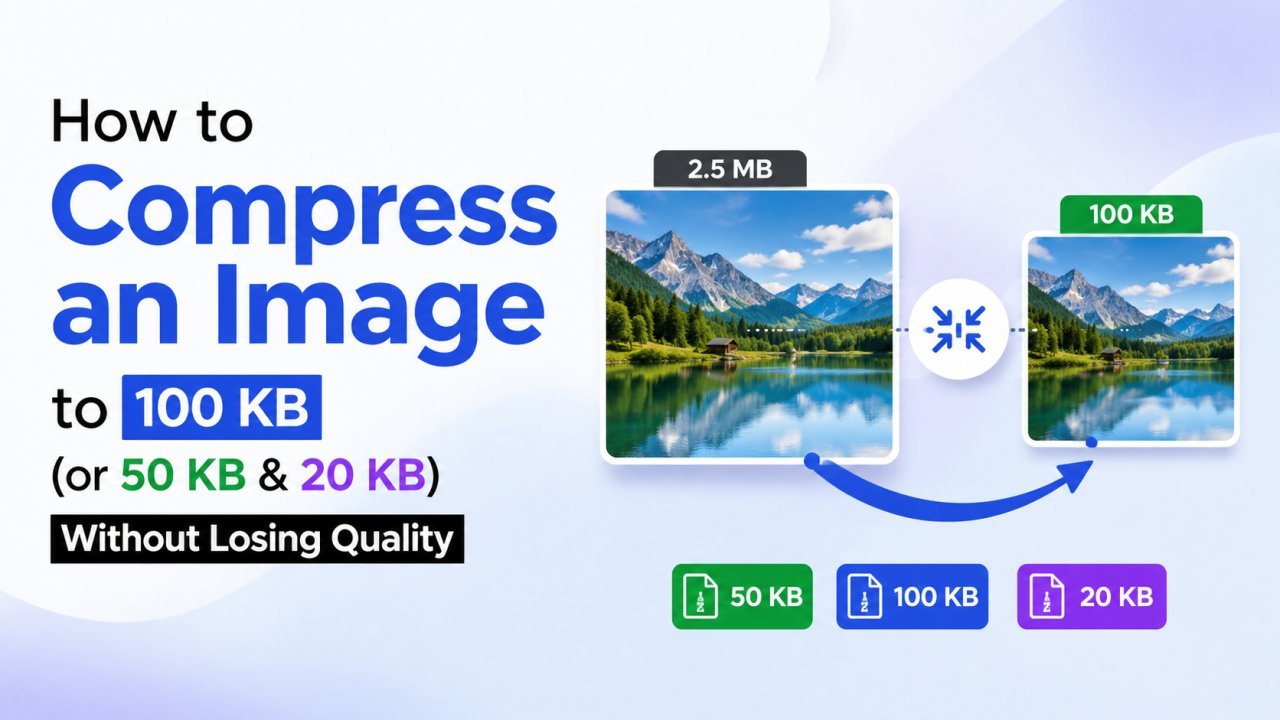
You're filling out an online application — a government exam, a job portal, a visa form, a college admission — and you hit the same wall almost everyone does: "Photo size must be less than 100 KB." Your photo is 3 MB. The upload button refuses to cooperate, and the clock is ticking.
The fix takes about ten seconds, and you don't need Photoshop, a paid app, or any technical skill. Here's exactly how to compress an image to 100 KB, 50 KB, or even 20 KB — while keeping it looking sharp.
Why forms insist on tiny file sizes
It feels annoying, but there's a reason behind it. Exam boards and government portals receive millions of uploads. If every photo were 3–5 MB, their servers would fill up instantly and pages would crawl. So they cap each photo — usually somewhere between 20 KB and 200 KB — to keep things fast and storage manageable.
The most common limits you'll run into:
- 20 KB – 50 KB — strict government and exam forms (SSC, UPSC, bank exams, many state portals)
- 100 KB — the most common all-rounder limit for job and admission forms
- 200 KB – 500 KB — visa applications and some professional portals
The trick is hitting that exact number without turning your face into a blurry mess.
The fastest way: compress to an exact size
Most "image compressors" only let you drag a quality slider and guess. That's slow and frustrating when you need a specific number. Instead, use a tool that lets you type the target size and does the math for you.
Our free Compress Image to Size tool does exactly that. You upload a photo, type 100 (or pick a preset), and it automatically finds the highest possible quality that still lands under your limit. Everything happens inside your browser — your photo is never uploaded to a server, so it stays completely private.
If you already know your exact target, we even have direct one-click pages:
Step by step
- Open the Compress Image to Size tool.
- Upload your JPG or PNG photo (or just drag it in).
- Enter your target — for example, 100 KB — or tap a preset.
- Download the compressed file. Done.
That's it. The tool quietly runs a "binary search" on the image quality behind the scenes: it tries a quality level, checks the resulting size, and keeps adjusting until it lands just under your target. You get the best-looking image possible for that size — no guesswork.
How to keep quality high at small sizes
Squeezing a photo to 20 KB will always involve some trade-off, but these habits make a big difference:
- Crop before you compress. Empty background wastes precious kilobytes. If the form only needs your face, resize or crop the photo first so every KB is spent on what matters.
- Match the required dimensions. Many forms specify pixel sizes (e.g. 200×230 px). Resizing to those exact dimensions before compressing means the tool doesn't waste data on pixels that get thrown away anyway.
- Use JPG for photos. JPG compresses real-world photos far smaller than PNG. Save PNG for logos, screenshots, and graphics with sharp edges or transparency.
- Start from the best original. Compressing an already-compressed photo stacks the damage. Always start from the clearest version you have.
What about PDFs and documents?
If your form asks for a document under a size limit instead of a photo, the same idea applies — you just need a different tool. Our Compress PDF tool shrinks scanned documents and multi-page PDFs the same private, in-browser way.
Is it safe to compress photos online?
It depends entirely on the tool. Many popular compressors upload your image to their servers to process it — which means your face, signature, or ID photo briefly lives on someone else's computer. That's not ideal for personal documents.
Image EditPro is built differently: every tool runs locally in your browser using your own device. Nothing is uploaded, nothing is stored, and nothing is shared. When you close the tab, the image is gone. For sensitive documents like exam photos and ID proofs, that privacy matters.
Quick recap
- Online forms cap photo size (commonly 100 KB, sometimes as low as 20 KB) to save server space.
- Don't guess with a quality slider — use a compress-to-size tool and type your target.
- Crop and resize first, use JPG for photos, and always start from a clean original.
- Pick a tool that processes images in your browser so your personal photos never leave your device.
Next time a form says "max 100 KB," you'll be done before the page even finishes loading. Try it now with our free image compressor — no signup, no watermark, no upload.
Ready to optimize your images?
Every tool mentioned in this article is free to use. No upload, no signup, and no watermarks — ever.
Try our free toolsRelated articles
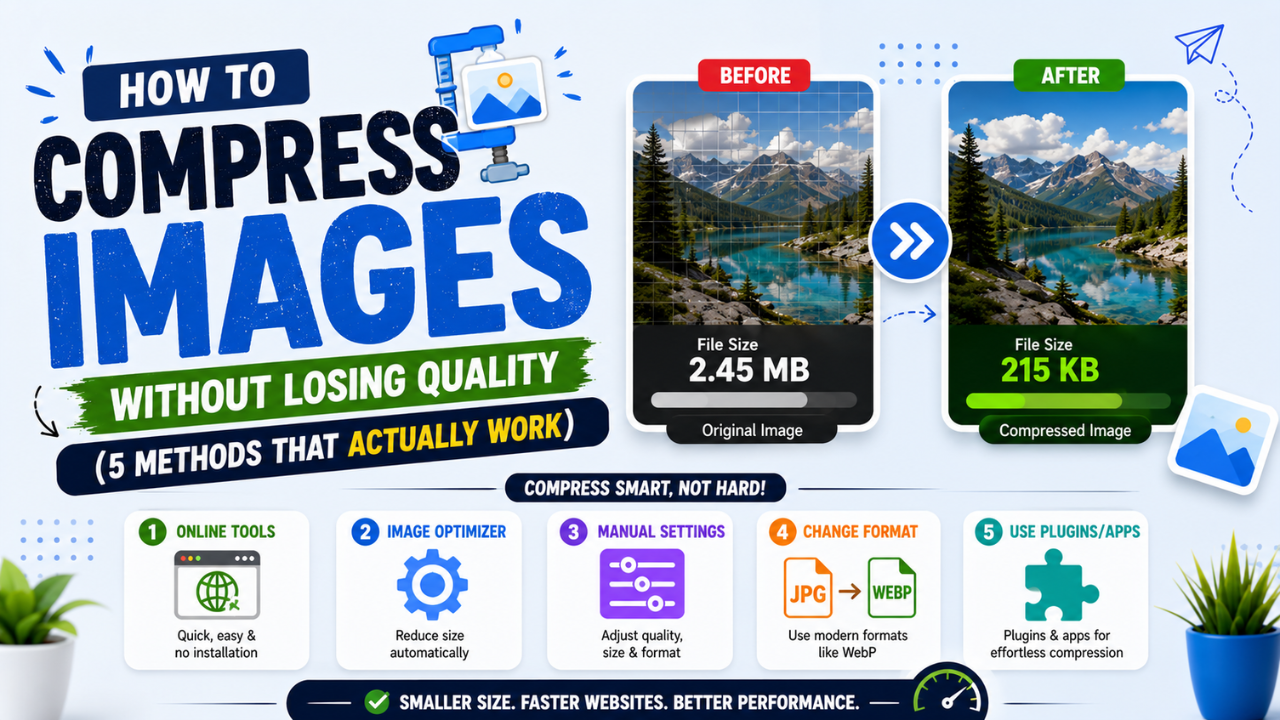
How to Compress Images Without Losing Quality (5 Methods That Actually Work)
Slash your image file sizes by 50-80% while keeping them visually identical. Five practical methods you can use today, no Photoshop needed.
How to Convert HEIC to JPG for Free (Windows, Android & iPhone) — 2026 Guide
Got a .HEIC photo from an iPhone that won't open on your laptop? Here's every free way to turn it into a normal JPG — and the fastest one that never uploads your photo anywhere.
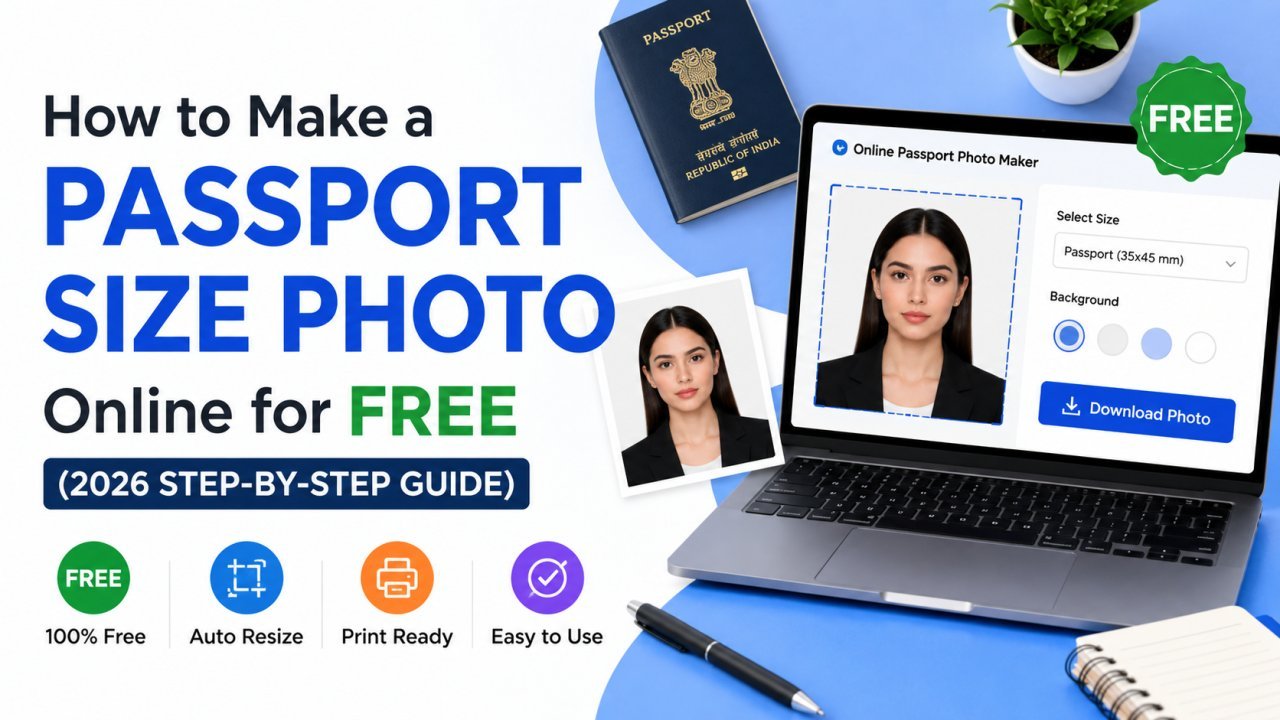
How to Make a Passport Size Photo Online for Free (2026 Step-by-Step Guide)
You don't need a photo studio for a passport, visa, or exam photo anymore. Here's how to turn a normal selfie into a perfectly sized, correctly cropped passport photo online — free and in minutes.