
How to Make a WhatsApp DP Without Cropping Your Photo
Learn how to make a WhatsApp DP without cropping your photo using simple resizing, borders, backgrounds, and easy photo editing methods.
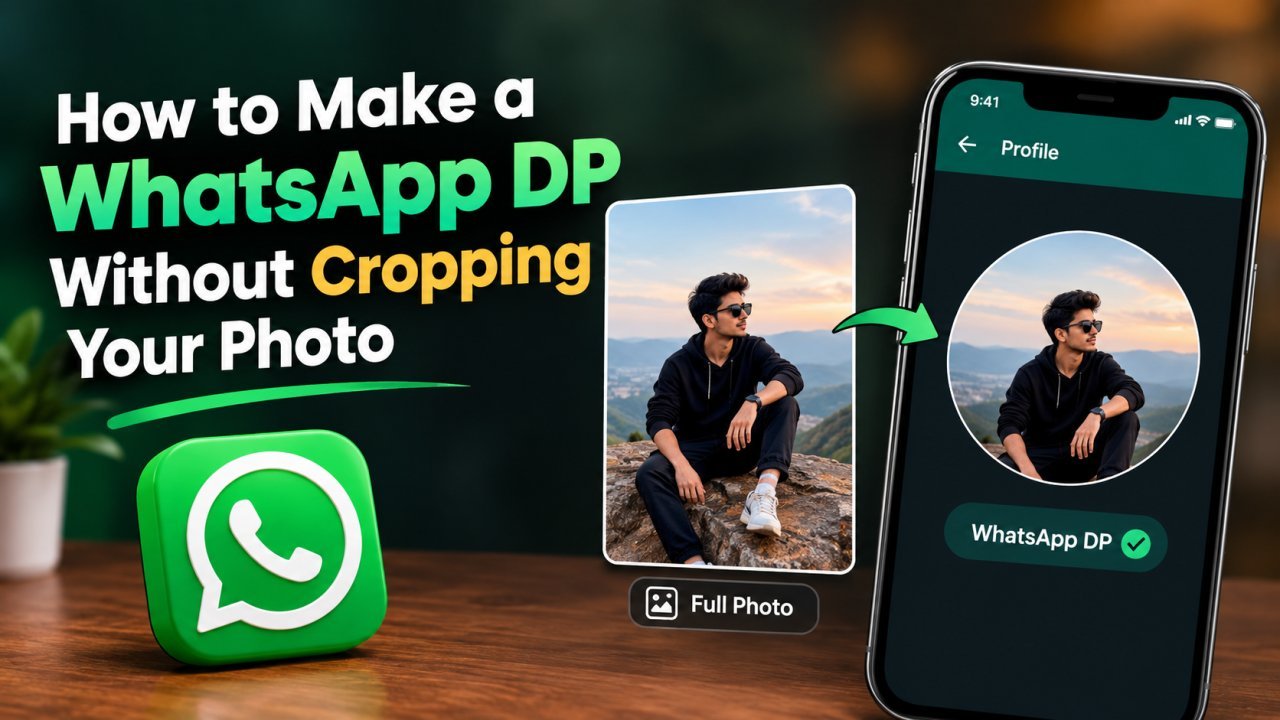
How to Make a WhatsApp DP Without Cropping Your Photo
Have you ever tried to set your favorite photo as your WhatsApp DP, but WhatsApp cropped part of it? This usually happens when your photo is vertical, horizontal, or has a subject that does not fit properly inside a square profile picture.
If you want to use your full photo as a WhatsApp DP without cropping, there is a simple solution. Instead of uploading the original photo directly, you can first resize it and place it on a square canvas. The extra space around the photo allows the complete image to fit without cutting off important parts.
In this guide, you will learn how to make a WhatsApp DP without cropping using simple photo-editing techniques. You can use the same basic method on Android, iPhone, or a computer.
Why Does WhatsApp Crop Your Photo?
WhatsApp profile pictures are designed to fit into a square image area and are commonly displayed as a circle.
Because of this, a photo that is too tall or too wide may not fit completely when you upload it.
For example, suppose you have a vertical photo from your phone camera. The photo may show your complete body, but when you select it for your WhatsApp DP, the preview may zoom into the middle.
As a result:
- All Tools
- Crop Image Online — Free, Private, In Your Browser
- Remove Background from Image — Free & Private
- YouTube Thumbnail Enhancer
- Your head may be too close to the top.
- Your feet may disappear.
- Part of the background may be removed.
- People standing at the sides may be cropped.
- Text or logos near the edges may disappear.
The problem is not necessarily the quality of your photo. It is mainly the shape and framing of the image.
The easiest way to solve this is to prepare the photo before uploading it.
The Simple Solution: Make the Photo Square
The easiest method is to turn your photo into a square image without actually cutting anything from the original.
For example, if your original photo is vertical, do not crop it into a square.
Instead, reduce the size of the photo and add space around it.
This changes the final image from something like a portrait shape into a square shape while keeping the complete original photo visible.
The basic process is:
Original photo → Resize → Add background → Make it square → Save → Upload to WhatsApp
This is the main technique you will use throughout this guide.
Step 1: Choose the Original Photo
First, select the photo you want to use as your WhatsApp DP.
Try to use the original or highest-quality version of the photo you have.
For example, you may want to use:
- A selfie
- A full-body photo
- A family photo
- A wedding photo
- A travel photo
- A group photo
- A business photo
- A product image
If the photo already looks clear and sharp, you do not need to make major changes to it.
The goal is simply to prepare its dimensions so the complete photo can fit inside the WhatsApp profile-picture area.
Step 2: Check the Shape of Your Photo
Before editing, look at the shape of your image.
Most phone photos are either vertical or horizontal.
A vertical photo is taller than it is wide, while a horizontal photo is wider than it is tall.
For example:
- Vertical photo: 1080 × 1350 pixels
- Horizontal photo: 1350 × 1080 pixels
- Square photo: 1080 × 1080 pixels
A square image has the same width and height.
This is why creating a square version of your photo is useful for a WhatsApp DP.
However, do not simply stretch your photo until it becomes square.
Stretching can make faces and objects look wider or narrower than they should.
Instead, keep the original proportions and add space around the photo.
Step 3: Create a Square Canvas
Now create a new square canvas for your photo.
You can use a size such as:
1080 × 1080 pixels
This gives you enough space to prepare a good-quality profile picture.
The exact size is less important than making sure the final image has a 1:1 square aspect ratio.
Once you create the square canvas, place your original photo inside it.
At this point, your photo may not fill the entire canvas.
That is completely normal.
Do not crop it just to fill the empty space.
Instead, resize the photo while keeping its original aspect ratio.
Step 4: Resize the Photo Without Distorting It
This is the most important part of the process.
When you resize the original photo, make sure the aspect ratio is locked.
This means the width and height change proportionally.
For example, if your original photo is 1080 × 1350 pixels, you should make it smaller while keeping the same 1080:1350 proportion.
Do not change it directly to 1080 × 1080.
That would force the portrait image into a square shape and could distort it.
Instead, reduce the photo until the entire image fits comfortably inside your square canvas.
The result should show the complete photo without stretching or cutting anything.
Step 5: Add Space Around the Photo
After resizing the photo, you will probably see empty areas around it.
This is what allows you to keep the full photo.
You can leave the space simple or use it creatively.
For example, you can use:
- A white background
- A black background
- A light gray background
- A color from the original photo
- A blurred version of the photo
- A simple gradient
- A subtle design
For a clean WhatsApp DP, a simple background is often enough.
You do not need to add lots of effects.
The main purpose of the background is to fill the extra space created when you place a non-square photo inside a square canvas.
Step 6: Keep the Main Subject in the Center
Once your photo is inside the square canvas, check its position.
The main subject should generally stay near the center.
This is especially important for portraits and full-body photos.
For example, if you are using a full-body photo, make sure there is enough space above your head and below your feet.
If you are using a group photo, try to keep the people away from the extreme edges.
This gives you some protection against the circular display of the profile picture.
Step 7: Leave Safe Space Around the Edges
Even after making your photo square, you should avoid placing important details directly against the edges.
Why?
Because WhatsApp may display your profile photo as a circle in different parts of the app.
The corners of the square image may therefore not be visible.
This means you should leave some margin around:
- Faces
- Text
- Logos
- Important objects
- People's hands
- Feet
- Other important details
For example, if your photo contains a person's face, do not position the face right against the top edge.
Move the photo slightly inward if necessary.
This makes the final DP look more balanced and reduces the chance of important parts being hidden.
Step 8: Choose the Right Background
The background can make a big difference to how your final WhatsApp DP looks.
If you want a simple and professional appearance, use a solid color.
White, black, gray, beige, or another color that matches the photo can work well.
If you want something more attractive, you can use a blurred version of the same photo as the background.
This creates a natural-looking effect because the empty areas still contain colors from the original image.
For example, if your original photo was taken outdoors, the background can use a blurred version of the sky, trees, or surroundings.
The important thing is to keep the background subtle.
Your actual photo should remain the main focus.
Step 9: Use a Blurred Background for a More Natural Look
A blurred background is especially useful for portrait photos.
Instead of showing plain white or black space around your photo, you can enlarge the original photo in the background and blur it.
Then place the clear original photo over it.
This gives the final DP a more polished appearance.
The basic editing process is:
- Create a square canvas.
- Add your original photo.
- Duplicate the photo.
- Use one copy as the background.
- Enlarge the background until it covers the entire square.
- Apply a blur effect to the background.
- Keep the second copy clear.
- Resize the clear photo so the entire image is visible.
- Place it in the center.
- Export the final square image.
You now have a full-photo WhatsApp DP without cutting the original image.
Step 10: Check the Photo Before Saving
Before exporting your final image, take a few seconds to check it carefully.
Make sure:
- The complete photo is visible.
- The face is not too close to the edge.
- Important objects are not cut off.
- The photo is not stretched.
- The background looks clean.
- There is enough space around the subject.
- The image is square.
- The photo is still sharp and clear.
This small check can prevent problems after uploading the image to WhatsApp.
Step 11: Save the Final Image
Once everything looks correct, save the edited image.
For a normal photo, JPEG is usually a practical choice.
If your editing tool supports high-quality export, choose a good-quality setting rather than heavily compressing the image.
Try to avoid repeatedly saving and reopening the same image through multiple apps.
Every additional compression step can reduce image quality.
A better workflow is:
Original photo → Edit once → Export final image → Upload to WhatsApp
Step 12: Upload the Prepared Photo to WhatsApp
Now open WhatsApp and go to your profile settings.
Select your profile picture and choose the edited square image.
Because the image has already been prepared as a square, you have much more control over how it appears.
When the WhatsApp preview appears, check the framing before confirming.
If the preview still feels too zoomed in, go back to your editor and make the main photo slightly smaller on the square canvas.
This creates more space around the subject.
The Best Way to Make a Full Photo Fit
The entire method can be summarized in a simple workflow:
1. Select your original photo
↓
2. Create a square canvas
↓
3. Place the photo inside the canvas
↓
4. Resize it without changing its proportions
↓
5. Add a background or border
↓
6. Keep important details away from the edges
↓
7. Export the square image
↓
8. Upload it as your WhatsApp DP
This approach works for most portrait, landscape, full-body, and group photos.
What If You Do Not Want a Border?
You do not have to use a visible border.
If you do not like the look of empty white or black space, use a blurred background instead.
Another option is to use a background color taken from the original photo.
For example, if the photo contains mostly blue sky, a soft blue background can make the empty space feel intentional.
The important thing is that the original photo remains completely visible.
Can You Use This Method for a Full-Body Photo?
Yes.
In fact, this is one of the most useful situations for this method.
Suppose you have a full-body photo where your head and feet are both visible.
If you crop the photo into a square, one or both may get cut off.
Instead, reduce the photo until your entire body fits inside the square canvas.
Then add enough space around it.
This lets you keep the complete photo while still creating a square image suitable for a profile picture.
Can You Use This Method for a Group Photo?
Yes.
Group photos can be difficult because people may be positioned close to the left and right edges.
If you crop the image directly, someone may disappear from the final DP.
To avoid this, place the complete group photo inside a square canvas and make it slightly smaller.
Leave enough space around the group so that everyone remains visible.
If the people become too small, you can try using a wider square canvas design with a blurred background.
One Important Mistake to Avoid
Do not use the stretch-to-fit method.
For example, taking a 1080 × 1350 portrait photo and forcing it directly into 1080 × 1080 can distort the image.
Faces may look wider, bodies may look unnatural, and objects may change shape.
Always maintain the original aspect ratio.
The correct method is:
Resize proportionally + add space
not:
Stretch the photo + fill the square
That one difference can make your WhatsApp DP look much more natural.
Part 2: How to Make a WhatsApp DP Without Cropping on Phone
Now that you know the basic idea of placing your photo on a square canvas, let's look at the practical process you can follow on your phone.
You do not need advanced photo-editing skills. The same basic workflow works with many image-editing and design apps.
The names of buttons may be different depending on the app, but the process is usually similar.
How to Make a WhatsApp DP Without Cropping on Android
If you are using an Android phone, start by opening a photo-editing or design app that allows you to create a custom square canvas.
The general process is:
- Open the editing app.
- Create a new project.
- Choose a square canvas.
- Add your original photo.
- Resize the photo without changing its proportions.
- Center the photo.
- Add a background if necessary.
- Check the edges.
- Export the final square image.
- Set the exported image as your WhatsApp DP.
The important step is to choose Fit or a similar option rather than Crop whenever the app gives you both choices.
Use "Fit" Instead of "Crop"
Many editing apps provide options such as:
- Fit
- Fill
- Crop
- Stretch
- Resize
If your goal is to keep the complete photo, choose Fit.
The Fit option reduces the image until the complete photo is visible.
The Crop or Fill option may enlarge the image until the canvas is covered, which can remove parts of the original photo.
For a no-crop WhatsApp DP, Fit is usually the better choice.
How to Make a WhatsApp DP Without Cropping on iPhone
The same technique works on an iPhone.
Start with the original photo and open it in an image-editing or design application that allows you to create a square project.
Then:
- Create a square project.
- Import the photo.
- Reduce the photo until the complete image is visible.
- Keep the original aspect ratio locked.
- Add a background around it.
- Position the photo in the center.
- Leave some space around important details.
- Export the image.
- Upload the square image to WhatsApp.
The iPhone's original camera photos can have a relatively tall aspect ratio, so directly uploading a portrait image may result in unwanted framing.
Preparing the image as a square first gives you more control.
How to Add a White Background
A white background is one of the easiest options if you want a clean-looking DP.
After creating a square canvas, choose white as the background.
Then place your photo in the center.
Resize the photo until the entire image is visible.
This is especially useful when you want a simple and minimal profile picture.
For example, if you have a full-body portrait, you can leave enough white space above and below the person so that the complete body remains visible.
When a White Background Works Best
A white background works well for:
- Portraits
- Professional photos
- Product images
- Simple profile pictures
- Business WhatsApp accounts
- Photos with bright backgrounds
However, white may not look ideal with every photo.
If the original image is very bright, the subject may blend into the background.
In that case, try a darker or more suitable color.
How to Add a Black Background
A black background can give a photo a more dramatic appearance.
It can work particularly well with:
- Night photos
- Dark clothing
- Portrait photography
- Fashion photos
- High-contrast images
The process is exactly the same.
Create a square canvas, choose black as the background, and fit your original photo inside it.
Do not make the photo unnecessarily small.
You want enough space to prevent cropping while still making the subject easy to see.
How to Use a Blurred Background
If you want your WhatsApp DP to look more polished, use the original image as a blurred background.
This technique is particularly useful for portrait photos.
The process is:
Step 1: Create a Square Canvas
Start with a square project.
Step 2: Add the Photo Twice
Use one copy as the background and another as the main photo.
Step 3: Enlarge the Background
Increase the size of the background copy until it completely covers the square canvas.
It is fine if this background copy gets cropped because it is only being used as the background.
Step 4: Apply Blur
Apply a moderate blur to the background.
Do not make it completely unrecognizable unless that is the look you want.
Step 5: Add the Original Photo
Place the clear version of the photo over the blurred background.
Resize it until the complete image is visible.
Step 6: Center the Image
Position the clear photo in the middle.
Step 7: Export
Save the final square image.
This creates a professional-looking no-crop DP while keeping the original photo visible.
How to Make a WhatsApp DP With a Colored Background
You can also match the background color to your photo.
For example, if your photo has a blue sky, you can use a soft blue background.
If the photo contains warm colors, a beige or warm neutral background may work well.
Try not to use a very bright color that competes with the subject.
The background should support the photo rather than become the main focus.
How to Make a WhatsApp DP With a Border
Another simple option is to add a border around the photo.
A border can be useful when you want the original image to stand out clearly.
You can use:
- Thin white border
- Thin black border
- Rounded border
- Soft shadow
- Double border
- Simple colored border
Keep the border relatively simple.
A very thick border can make the actual photo appear too small.
For most profile pictures, a clean and subtle border looks better.
How to Make a Full-Body WhatsApp DP Without Cropping
Full-body photos require slightly more space than normal portraits.
Suppose the original photo shows you from head to toe.
Do not enlarge the image until your head touches the top of the canvas and your feet touch the bottom.
Instead, leave some space around the entire body.
A good workflow is:
- Create a square canvas.
- Add the full-body photo.
- Scale it down proportionally.
- Make sure the head and feet are both visible.
- Leave some margin around the body.
- Add a suitable background.
- Check the circular preview.
- Export the final image.
If the person appears too small, you can make the image slightly larger while still keeping enough safe space.
The goal is to find a balance between showing the entire body and keeping the subject easy to recognize.
How to Make a Group Photo Fit
Group photos can be more difficult because several people need to remain visible.
If people are spread across the entire width of the photo, you may need to make the image slightly smaller.
Make sure the people near the left and right sides are not too close to the edge.
A blurred background can help here because it allows you to keep the complete group photo in the center without creating large empty borders.
If the group becomes too small after fitting the entire photo, consider using a closer original photo or choosing a different image.
Sometimes the best solution is simply selecting a photo where the people are already closer together.
How to Fix WhatsApp DP When It Still Looks Cropped
Sometimes you create a square image and WhatsApp still appears to zoom or crop it.
This can happen because the important content is positioned too close to the edges.
Try this:
- Open your edited square image again.
- Make the main photo slightly smaller.
- Add more space around it.
- Keep faces and important objects near the center.
- Export the image again.
- Upload the new version.
You do not need to make the entire photo tiny.
Usually, a small reduction is enough to create a safer margin.
What to Do If Your Face Looks Too Zoomed In
If your face appears too large in the WhatsApp DP, the original image may be too tightly framed.
Reduce the main photo slightly inside the square canvas.
For example, if the original photo only shows your face and shoulders, you cannot create additional real body area without changing the image.
In that situation, you can either:
- Use more space around the existing photo, or
- Use an image with a wider composition.
If you use an AI expansion tool, check the generated areas carefully before using the result.
For a natural-looking DP, an original photo with enough surrounding space is usually better than heavily generated content.
What to Do If Your Full-Body Photo Looks Too Small
The opposite problem can also happen.
You may successfully fit the entire body, but the person becomes so small that the DP is difficult to recognize.
If this happens, try to find a better balance.
Make the photo slightly larger while keeping the head and feet visible.
You can also remove unnecessary empty areas from the original photo before placing it on the square canvas.
For example, if there is a lot of empty sky above the person, you may be able to reduce that area while still keeping the person completely visible.
The key is to remove unnecessary space without cutting important parts of the subject.
How to Make a WhatsApp DP From a Landscape Photo
Landscape photos are wider than they are tall.
If you upload one directly, the sides may be cropped.
To preserve the complete image, place it inside a square canvas.
You can then use:
- A blurred version of the photo
- A plain background
- A matching color
- A gradient
- A simple border
If the landscape contains an important subject, such as a person or landmark, position that subject closer to the center.
This makes it easier to keep visible in the circular profile-picture display.
How to Make a WhatsApp DP for a Business
If you are using WhatsApp for business, your profile picture needs to remain recognizable even when displayed at a small size.
For a business logo, place the logo in the center of a square canvas.
Leave enough empty space around it so the logo does not touch the edges.
Avoid using very small text because it may become difficult to read when the profile picture is displayed as a small circle.
For a business profile, a simple design is usually more effective than a complicated one.
A clear logo or recognizable brand mark can work better than a detailed promotional graphic.
How to Make a WhatsApp DP Without Losing Quality
Avoid unnecessary editing steps.
Start with the highest-quality original image you have.
Then prepare the square version and export it once.
If the editing app provides quality settings, choose a high-quality export.
Also avoid repeatedly taking screenshots of the image.
For example, this workflow is not ideal:
Original → Screenshot → Edit → Screenshot → WhatsApp
Every extra step can reduce quality.
A better workflow is:
Original → Edit → Export → WhatsApp
This helps preserve details and keeps the final DP cleaner.
Common Mistakes When Making a No-Crop WhatsApp DP
1. Stretching the Image
Never force a portrait image into a square by changing its width and height independently.
This can distort faces and objects.
2. Making the Subject Too Small
Adding too much empty space can make the profile picture difficult to recognize.
Keep the subject large enough to be visible.
3. Putting Important Details Near the Edge
Faces, logos, and text should not sit directly against the border.
Leave safe space around them.
4. Using a Distracting Background
A complicated background can take attention away from the main photo.
Keep it simple.
5. Using a Low-Quality Source Photo
A small or blurry original image will not become truly sharp simply because you place it on a larger canvas.
Start with the best source image available.
6. Overusing AI Editing
AI background expansion can be useful, but it is not always necessary.
For a simple WhatsApp DP, a clean background or blurred version of the original photo may look more natural.
Quick Method for Beginners
If you do not want to spend much time editing, remember this simple method:
Step 1: Open a photo-editing app.
Step 2: Create a square canvas.
Step 3: Add your photo.
Step 4: Choose Fit rather than Crop.
Step 5: Reduce the photo until the complete image is visible.
Step 6: Add a white, black, colored, or blurred background.
Step 7: Center the photo.
Step 8: Leave some safe space around important details.
Step 9: Export the image.
Step 10: Upload it as your WhatsApp DP.
This is enough for most people who simply want to use their full photo without unwanted cropping.
Final Check Before Uploading
Before setting the image as your profile picture, ask yourself:
- Is the image square?
- Is the complete photo visible?
- Is the main subject easy to recognize?
- Are faces away from the edges?
- Is the image sharp?
- Is the background clean?
- Did I maintain the original aspect ratio?
- Did I avoid stretching the image?
If the answer is yes, your image is ready.
What We Will Cover in Part 3
In Part 3, we will cover the best WhatsApp DP practices, recommended dimensions and safe areas, how to fix blurry or low-quality profile pictures, common questions about WhatsApp DP cropping, and a complete FAQ section.
We will also include the FAQ schema, internal link ideas, external link suggestions, keyword usage notes, image suggestions, and a final SEO checklist for publishing this article.
Part 3: Final Tips, FAQs, and SEO Checklist
By now, you know how to prepare a square photo, resize it without distortion, add a background, and keep the complete image visible.
Before publishing or uploading your final WhatsApp DP, there are a few more things worth checking.
Best Practices for a WhatsApp DP Without Cropping
If you want your profile picture to look clean and professional, follow these simple practices.
1. Start With a High-Quality Photo
Always use the best version of your original photo available.
A clear original gives you more flexibility when resizing the image.
Avoid starting with:
- Screenshots
- Heavily compressed images
- Photos downloaded repeatedly from messaging apps
- Very small images
A high-quality source usually gives you a better final result.
2. Use a Square Final Image
Preparing your image as a square gives you more control over the final framing.
A 1:1 canvas is easy to work with and makes it simpler to position your photo correctly.
3. Keep the Subject Near the Center
Important parts of the image should stay reasonably close to the center.
This is especially important for:
- Faces
- People
- Logos
- Text
- Products
- Important objects
4. Leave Some Safe Space
Do not place important details directly against the edges.
A little extra space can help prevent unwanted framing when the profile picture is displayed in a circular format.
5. Maintain the Original Aspect Ratio
Always resize proportionally.
Do not stretch a portrait or landscape image into a square.
If you need a square image, use extra space around the original photo instead.
How to Make a WhatsApp DP Look Professional
A professional-looking DP does not require complicated editing.
In many cases, a simple composition works better.
For example, you can use:
Clear photo + simple background + centered subject + enough safe space
Avoid adding too many stickers, filters, effects, or decorative elements.
If you are using the DP for a business account, make sure the logo or subject remains recognizable even when the profile picture appears small.
What Background Should You Use?
There is no single background that works for every photo.
Choose based on the original image.
White Background
Good for clean and minimal designs.
Black Background
Useful for darker, dramatic, or high-contrast photos.
Matching Color
Choose a color that already appears in the photo.
This can make the extra space look more intentional.
Blurred Background
Useful when you want the final image to feel more natural and photographic.
Gradient Background
Can work well when you want something more stylish without adding too much detail.
The main rule is simple: the background should support the photo, not overpower it.
How to Fix a Blurry WhatsApp DP
If your WhatsApp DP looks blurry after uploading, first check the original image.
If the original photo is already blurry, placing it on a square canvas will not restore missing detail.
Try these steps:
- Start with the highest-quality original photo.
- Avoid enlarging a very small image.
- Export the edited image at good quality.
- Avoid repeatedly saving the image.
- Check the image at full size before uploading.
- Use a sharper original photo if available.
You can also use an image-enhancement or upscaling tool when appropriate, but avoid excessive sharpening.
Too much sharpening can create artificial edges and make skin or other details look unnatural.
How to Fix a WhatsApp DP That Looks Too Small
If your full photo fits perfectly but the subject looks tiny, reduce the amount of empty space.
For example, if there is a large amount of empty background around a person, make the photo slightly larger.
Keep increasing the size until the subject is easy to recognize while still leaving enough room around important details.
There is a balance between:
No cropping
and
Making the subject large enough to see clearly.
You want both.
How to Make a WhatsApp DP Without Cropping Text
If your image contains text, logos, or a quote, keep the writing away from the edges.
Text near the edge may become difficult to see when the profile picture is displayed in a smaller circular format.
For text-based profile images, use:
- Large readable text
- Simple fonts
- Good contrast
- Plenty of space around the text
- A clean background
Avoid filling the entire square with small text.
Can You Use a Full Photo as a WhatsApp DP?
Yes. You can prepare a full photo as a square image by fitting the original image inside a square canvas.
The important thing is to resize the photo instead of cropping it.
If the original photo is very tall or very wide, there will be extra space around it.
You can fill that space with a color, border, blurred background, or another simple design.
Frequently Asked Questions
1. How do I make a WhatsApp DP without cropping?
Create a square image and place your original photo inside it without changing its proportions. Resize the photo until the complete image is visible, then fill the remaining space with a background or border.
2. How do I put my full photo on WhatsApp DP?
Create a square canvas, add your full photo, and reduce it proportionally until the entire photo fits. Add space around the image instead of cropping it.
3. What is the best way to avoid cropping a WhatsApp profile picture?
The easiest method is to prepare a square version of the photo before uploading it. Keep the original aspect ratio and add a suitable background around it.
4. Can I use a full-body photo as my WhatsApp DP?
Yes. Place the full-body image inside a square canvas and scale it down until the head and feet are both visible. Leave some space around the body.
5. Why does WhatsApp crop my photo?
A photo with a portrait or landscape aspect ratio may not fit naturally into the profile-picture frame. Preparing a square version before uploading gives you greater control over the framing.
6. How do I make a portrait photo fit WhatsApp DP?
Create a square canvas and place the portrait photo inside it. Resize the image proportionally and use a background to fill the remaining space.
7. Can I use a blurred background for my WhatsApp DP?
Yes. A blurred version of the original photo can be used as the background while the complete, sharp photo is placed in the center.
8. How do I make a landscape photo fit WhatsApp DP?
Place the landscape photo inside a square canvas and resize it proportionally. You can fill the extra space with a blurred version of the image, a solid color, or a simple border.
9. How do I stop my WhatsApp DP from looking zoomed in?
Make the main photo slightly smaller inside the square canvas and leave more space around the subject. Keep faces and important objects away from the edges.
10. Why does my WhatsApp DP look blurry?
The original photo may be low quality, or the image may have been compressed several times. Start with a high-quality original and avoid repeatedly saving the same image.
11. Should I stretch my photo to make it square?
No. Stretching can distort faces, bodies, and objects. Keep the original aspect ratio and use extra space around the photo instead.
12. Can I make a WhatsApp DP without using an editing app?
You may be able to use basic cropping or resizing features available on your phone, but creating a proper no-crop square canvas is easier with an editor that lets you add background space around the photo.
13. What background is best for a no-crop WhatsApp DP?
It depends on the photo. A plain color gives a clean appearance, while a blurred version of the original photo can create a more natural look.
14. How much space should I leave around my photo?
Leave enough room so that important details are not close to the edges. The exact amount depends on the composition of your photo, so check the final profile-picture preview before saving it.
15. Can I use an AI tool to make my photo fit without cropping?
Yes. Some AI image editors can expand the background around a photo. However, always check the generated areas for unwanted or unnatural details before using the final image.
Quick No-Crop WhatsApp DP Checklist
Before uploading your photo, use this checklist:
- Original photo is high quality
- Final image is square
- Photo is not stretched
- Complete photo is visible
- Main subject is centered
- Important details are away from the edges
- Background is simple and suitable
- Face is clearly visible
- Text or logo is readable
- Image is exported at good quality
- Final WhatsApp preview looks correct
If all of these points are checked, your image is ready to use.
Simple Workflow to Remember
If you forget everything else, remember this five-step process:
Choose the photo → Make a square canvas → Fit the complete photo → Add background space → Upload to WhatsApp
The key is not to force the original photo into a square.
Instead, make the canvas square while keeping the photo's original proportions.
That is the easiest way to create a WhatsApp DP without cropping your photo.
Conclusion
Making a WhatsApp DP without cropping your photo is easier than it may seem.
The main trick is to prepare the image before uploading it. Create a square canvas, place your original photo inside it, resize the photo without distorting it, and use the extra space for a background, border, or blurred version of the image.
This method works well for selfies, portraits, full-body photos, group pictures, travel photos, business images, and landscape photos.
Most importantly, do not stretch or force your photo into a square. Keep its original proportions and use the surrounding space to create the square format.
With a few simple edits, you can keep the important parts of your photo visible and create a cleaner-looking WhatsApp profile picture.
Ready to optimize your images?
Every tool mentioned in this article is free to use. No upload, no signup, and no watermarks — ever.
Try our free toolsRelated articles
Wallpapers: How to Download, Resize and Make Them HD
Learn how to download wallpapers, resize them for any screen, and make them HD using simple image editing, upscaling, and quality enhancement techniques.
How to Make 1980s AI Photos With Your Own Picture
Learn how to make 1980s AI photos with your own picture using AI tools, retro outfits, vintage backgrounds, film effects, and detailed prompts.
How to Make Cricket Player Photos HD for Social Media
Learn how to make cricket player photos HD for social media using AI upscaling, sharpening, cropping, and the right export settings.