
How to Resize GTA 6 Wallpapers Without Losing Quality
Learn how to resize GTA 6 wallpapers without losing quality using proper dimensions, cropping, upscaling, sharpening, and export settings.
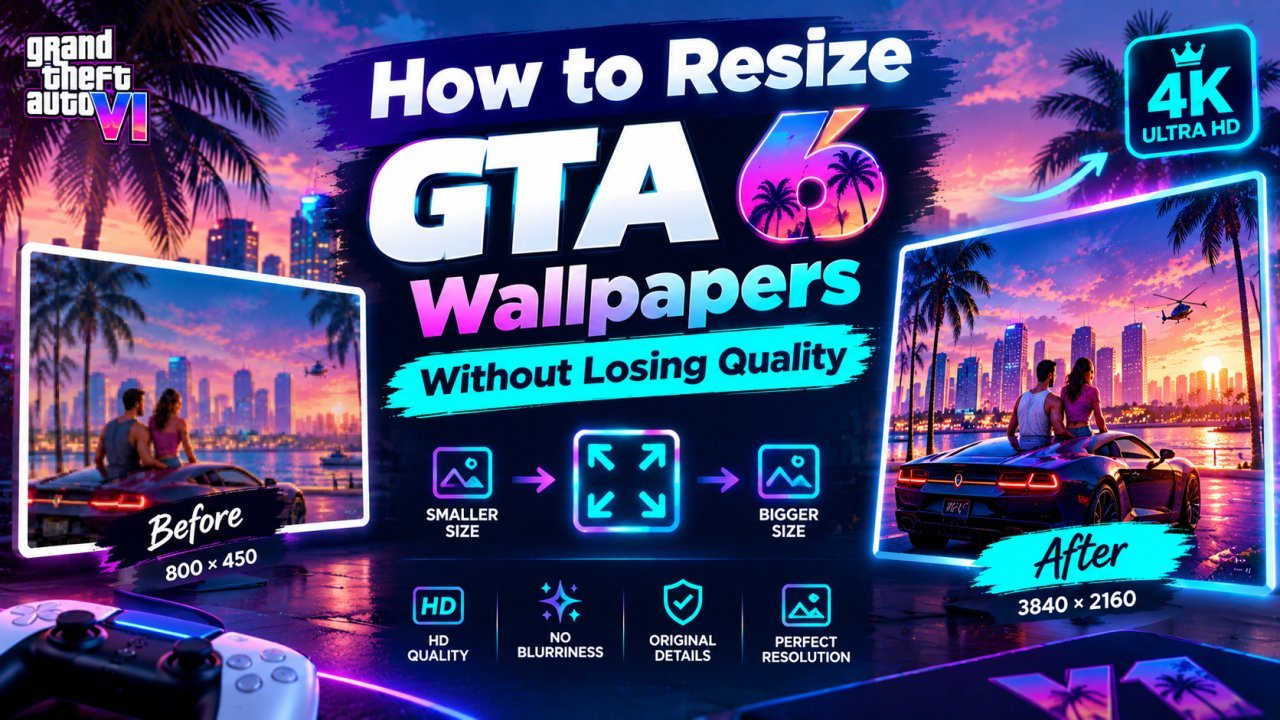
How to Resize GTA 6 Wallpapers Without Losing Quality
A GTA 6 wallpaper can look great on one screen but become blurry, stretched, or badly cropped when you resize it for another device. If you want to learn how to resize GTA 6 wallpapers without losing quality, the key is to use the right dimensions, preserve the original aspect ratio, and avoid unnecessary enlargement.
Whether you want to use a GTA 6 wallpaper on a desktop monitor, laptop, phone, tablet, or social media post, resizing does not have to ruin the image.
In this guide, you will learn how to resize GTA 6 wallpapers while keeping them sharp, clean, and visually balanced.
Why GTA 6 Wallpapers Lose Quality When Resized
Simply changing the width and height of an image does not guarantee a good result.
A wallpaper can lose quality because of:
- All Tools
- How to Make a YouTube Thumbnail the Right Size Without Cropping
- Crop Image Online — Free, Private, In Your Browser
- Enlarging a low-resolution image too much
- Stretching the image
- Using the wrong aspect ratio
- Cropping important parts of the scene
- Repeatedly saving the same image
- Using heavy compression
- Applying too much sharpening
- Upscaling without enough original detail
For example, imagine you have a small GTA 6 wallpaper and try to turn it into a large desktop background.
If the original image does not contain enough pixels, the enlarged version may look soft or blurry.
That is why the quality of the original wallpaper matters so much.
Start With the Highest-Quality GTA 6 Wallpaper
The first step is simple:
Use the highest-resolution version of the wallpaper you can access.
If you have multiple versions of the same GTA 6 image, choose the one with the largest useful resolution.
For example, if you have:
- 1280 × 720
- 1920 × 1080
- 2560 × 1440
- 3840 × 2160
The larger version generally gives you more flexibility when creating different wallpaper sizes.
A larger original also gives you more room for cropping.
Why the Original Resolution Matters
Resizing cannot magically recover every detail that was missing from a small image.
If a wallpaper is already heavily compressed or blurry, enlarging it may simply make those problems more visible.
Starting with a better source gives your resizing process a much better foundation.
Check the Original Wallpaper Dimensions
Before resizing a GTA 6 wallpaper, check its current dimensions.
You might see something like:
1920 × 1080
or:
2560 × 1440
or:
3840 × 2160
These numbers represent the image width and height in pixels.
The relationship between these two numbers is called the aspect ratio.
Understanding aspect ratio is one of the most important parts of resizing wallpapers correctly.
What Is Aspect Ratio?
Aspect ratio describes the shape of an image.
For example, a 1920 × 1080 image has a 16:9 aspect ratio.
This is a common widescreen format.
Other examples include:
- 16:9 — widescreen
- 16:10 — some laptop displays
- 4:3 — older displays and some tablets
- 9:16 — vertical phone format
- 1:1 — square images
If you change the width and height without maintaining the correct proportions, the GTA 6 characters, vehicles, buildings, and other objects can look stretched.
That is one of the easiest ways to ruin a wallpaper.
Keep the Original Aspect Ratio
When resizing, look for an option such as:
Lock aspect ratio
or:
Maintain proportions
or:
Constrain proportions
The exact wording depends on the image-editing software.
When this option is enabled, changing the width automatically adjusts the height proportionally.
For example:
Original:
1920 × 1080
Resize width to:
1600
The height should automatically adjust to maintain the same shape.
This prevents the image from becoming unnaturally wide or tall.
Choose the Correct Wallpaper Size First
Before resizing the image, decide where you will use it.
A desktop wallpaper and a phone wallpaper usually need different shapes.
For example, you may be creating:
- Desktop wallpaper
- Laptop wallpaper
- Ultrawide wallpaper
- Mobile wallpaper
- Tablet wallpaper
The correct workflow depends on the target screen.
Do not resize the image randomly and decide what to do with it afterward.
Instead:
Choose the target device → Check the target dimensions → Crop or resize → Enhance if necessary → Export
This simple approach can prevent many quality problems.
How to Resize GTA 6 Wallpaper for a Desktop
Desktop monitors commonly use widescreen formats.
If your original GTA 6 wallpaper already has the same aspect ratio as your monitor, resizing is relatively simple.
For example:
Original: 3840 × 2160
Target: 1920 × 1080
Both use a 16:9 shape.
You can resize the image while maintaining its aspect ratio.
Because the target image is smaller than the original, you are reducing the number of pixels rather than trying to invent additional detail.
This can help the wallpaper remain sharp.
How to Resize GTA 6 Wallpaper for a Laptop
Laptop screens can use different aspect ratios.
Some displays are 16:9, while others use taller formats such as 16:10.
This matters when choosing a wallpaper.
If your GTA 6 wallpaper and laptop display have different proportions, you may need to crop the image instead of simply changing its dimensions.
For example, if the wallpaper is very wide but your laptop screen is taller, forcing the image into the laptop's dimensions can stretch the scene.
Cropping is usually a better approach.
Crop Instead of Stretching
If the original wallpaper does not match the target screen's aspect ratio, you have three basic options:
- Stretch the image
- Add empty space
- Crop the image
Stretching is usually the option to avoid.
It can make:
- Characters look wider
- Cars look distorted
- Buildings look unnaturally narrow
- Circles become oval
- Faces lose their natural proportions
Cropping removes part of the image while preserving the remaining content's proportions.
For wallpapers, this is often the cleaner solution.
How to Resize GTA 6 Wallpaper Without Stretching
Use this basic process:
Step 1: Open the Original Wallpaper
Start with the highest-quality version available.
Step 2: Check Its Dimensions
Note the current width and height.
Step 3: Check Your Target Screen
Find the required wallpaper dimensions or aspect ratio.
Step 4: Compare the Aspect Ratios
If they match, resize proportionally.
If they do not match, crop the image first.
Step 5: Resize the Image
Keep the aspect ratio locked.
Step 6: Check Sharpness
Zoom in and inspect important details.
Step 7: Export at Good Quality
Use an appropriate image format and avoid unnecessary compression.
How to Resize GTA 6 Wallpaper for Mobile
Mobile wallpapers are different from desktop wallpapers because they are usually displayed vertically.
A landscape GTA 6 wallpaper may need significant cropping before it can work as a phone background.
Instead of simply rotating or stretching the image, create a vertical crop.
For example, imagine the original screenshot contains a character standing on one side of the scene.
You may want to position the character in the center or slightly above the middle so important details are not hidden by the phone interface.
The goal is to keep the main subject visible while adapting the wallpaper to a vertical screen.
Keep Important GTA 6 Details Inside the Crop
When cropping a GTA 6 wallpaper, pay attention to the main subject.
Important elements may include:
- Character faces
- Vehicles
- Logos
- Buildings
- Signs
- Landscapes
- Bright lights
- Action scenes
Do not crop randomly from the center.
Move the crop area until the composition still looks good.
A technically correct image size can still look bad if the main subject has been cut off.
Resize First or Upscale First?
This is a common question.
The answer depends on what you are trying to achieve.
If you already have a large, high-quality GTA 6 wallpaper and need a smaller version, you usually do not need AI upscaling.
You can simply resize it down while maintaining the correct proportions.
If you have a small wallpaper and need a much larger version, you may need an upscaling process.
A simple workflow can be:
Small original → Upscale → Crop → Resize → Sharpen → Export
For some images, cropping before upscaling may be more efficient if you already know which part of the image you want to keep.
When Should You Use AI Upscaling?
AI upscaling can be useful when your GTA 6 wallpaper is smaller than the required output size.
For example, you may have a relatively small image but want to create a larger desktop wallpaper.
An AI upscaling tool can increase the pixel dimensions while attempting to preserve or improve visible detail.
However, remember that AI enhancement is not the same as recovering the exact original pixels.
The tool may generate or estimate details.
For that reason, inspect the final image carefully.
Do Not Upscale More Than Necessary
One common mistake is creating an extremely large image when you only need a normal desktop wallpaper.
If your target screen needs a particular resolution, create an image that is suitable for that screen.
There is usually no practical reason to make a tiny GTA 6 wallpaper enormous and then reduce it again.
A more controlled workflow is:
Original → Target size → Quality check → Export
This keeps the editing process simple.
Avoid Repeated Resizing
Repeatedly resizing and exporting the same image can gradually reduce quality, especially when using lossy compression.
For example, avoid doing this:
Original → Resize → Save → Resize again → Save → Resize again → Save
Instead, keep the original file untouched and create the final version from that original whenever possible.
This gives you a clean source for future wallpaper sizes.
Keep a Master Copy
If you plan to create multiple GTA 6 wallpapers, keep one high-quality master copy.
For example:
Master image
↓
Desktop version
↓
Laptop version
↓
Mobile version
↓
Tablet version
This is better than repeatedly editing the already-resized version.
The master copy gives you more flexibility whenever you need a new size.
Choose the Right Image Format
The file format can also affect the final quality.
For many wallpaper workflows, common image formats include:
- JPEG
- PNG
- WebP
The best choice depends on the image and how you plan to use it.
A photographic gaming screenshot often works well with a properly compressed format that keeps file size manageable.
Images containing sharp graphics, text, or transparency may benefit from a format that preserves those details more effectively.
The important point is to avoid unnecessary repeated compression.
Check the Wallpaper After Resizing
Do not immediately upload the resized image.
First, inspect it.
Look at:
- Character faces
- Vehicle edges
- Hair
- Buildings
- Road details
- Signs
- Bright lights
- Shadows
- Fine textures
Check the image at both normal viewing size and 100% zoom.
If the image looks soft, you may need a better source or a suitable upscaling step.
If the image looks overly sharp, reduce sharpening.
The Basic Formula for High-Quality GTA 6 Wallpaper Resizing
A simple workflow is:
High-quality original → Check dimensions → Choose target size → Match aspect ratio → Crop if needed → Resize → Sharpen lightly → Export → Check final image
This approach works for most common wallpaper resizing situations.
In the next part, we will cover more advanced GTA 6 wallpaper resizing methods, including mobile wallpapers, ultrawide screens, 4K wallpapers, cropping strategies, AI upscaling, sharpening, and how to avoid blurry results.
How to Resize GTA 6 Wallpapers Without Losing Quality
Advanced GTA 6 Wallpaper Resizing Methods
Resizing a GTA 6 wallpaper becomes more challenging when the original image and target screen have very different dimensions.
A simple resize may not be enough when you are working with 4K displays, ultrawide monitors, vertical phone wallpapers, or small images that need to become much larger.
The solution is to combine correct aspect ratios, smart cropping, careful upscaling, moderate sharpening, and high-quality export settings.
How to Resize GTA 6 Wallpapers for 4K
If you want a GTA 6 wallpaper for a 4K display, the target resolution is commonly:
3840 × 2160 pixels
If your original wallpaper is already larger than this, you can resize it down while maintaining its aspect ratio.
For example:
7680 × 4320 → 3840 × 2160
This is a proportional reduction.
If your original image is smaller, such as:
1920 × 1080
you may need an upscaling process to create a larger version.
A useful workflow is:
Original → Upscale → Inspect details → Resize if needed → Light sharpening → Export
Do not assume that simply increasing the pixel dimensions will automatically create genuine additional detail.
How to Resize GTA 6 Wallpapers for Ultrawide Monitors
Ultrawide monitors have wider aspect ratios than standard 16:9 screens.
If you place a normal widescreen GTA 6 wallpaper on an ultrawide display, the image may not fill the entire screen correctly.
You may see:
- Empty space
- Cropping
- Incorrect scaling
- Important subjects being pushed out of frame
Instead of stretching the image, create an ultrawide crop.
Keep the main subject visible and remove less important areas from the sides when possible.
For example, if a GTA 6 character is near the center, keep the character intact and use the surrounding environment to fill the wider composition.
How to Resize GTA 6 Wallpapers for Phones
Phone wallpapers are usually taller than desktop wallpapers.
This means a landscape GTA 6 image may need a completely different crop.
A good process is:
- Open the original high-quality wallpaper.
- Select a vertical crop.
- Position the main subject carefully.
- Keep important details away from the edges.
- Resize to the target dimensions.
- Check the image on a phone-sized preview.
- Export at good quality.
Keep the Main Character Visible
If your GTA 6 wallpaper features a character, do not crop through the face or other important areas.
Leave enough space around the character so the wallpaper still looks balanced.
Also remember that phone interfaces can cover parts of the wallpaper.
Avoid placing important text, faces, or small details exactly where interface elements may appear.
How to Resize GTA 6 Wallpapers for Tablets
Tablets can use different screen proportions, so there is no single crop that works for every device.
Start by identifying the target display's aspect ratio.
Then compare it with your original wallpaper.
If the ratios are different, crop the image instead of stretching it.
For a tablet wallpaper, try to keep:
- Main characters
- Vehicles
- Important buildings
- Bright focal points
- Important scene details
inside the safe area.
How to Resize a Small GTA 6 Wallpaper to a Larger Size
If the original wallpaper is small, simply increasing its dimensions can create a blurry result.
For example:
1280 × 720 → 3840 × 2160
This is a large increase.
If the original contains limited detail, the enlarged image may look soft.
An AI upscaler can sometimes improve the perceived detail and make the larger image look cleaner.
However, always inspect the result.
AI enhancement can sometimes create:
- Artificial textures
- Strange edges
- Incorrect small details
- Unnatural faces
- Overly sharp backgrounds
If these problems appear, try a lower enhancement level.
Use AI Upscaling Carefully
AI upscaling can be useful when you need to enlarge a GTA 6 wallpaper significantly.
A basic workflow is:
Original image → AI upscale → Crop → Final resize → Sharpen → Export
But you do not always need AI.
If the original wallpaper is already larger than your target resolution, normal resizing is often enough.
Use enhancement when there is an actual quality problem to solve.
How to Avoid Blurry GTA 6 Wallpapers
Blur can happen for several reasons.
The most common causes are:
- Low-resolution source
- Excessive enlargement
- Poor compression
- Incorrect resize settings
- Heavy cropping
- Repeated editing
- Weak sharpening
To reduce blur, start with the best source image available.
Then resize it using a quality-focused image editor.
If you need to enlarge it substantially, consider using an appropriate upscaling tool.
After resizing, apply only a small amount of sharpening.
Do Not Over-Sharpen the Wallpaper
Sharpening can make a resized GTA 6 wallpaper look more detailed.
But too much sharpening can create visible problems.
You may notice:
- Bright outlines around objects
- Rough hair
- Harsh edges
- Grainy backgrounds
- Artificial textures
- Overly strong details
A wallpaper should look natural from normal viewing distance.
If the image only looks good when heavily sharpened at 100% zoom, the source image may simply not contain enough detail.
How to Preserve GTA 6 Character Details
Characters are often the most important part of a gaming wallpaper.
When resizing, check:
- Face
- Hair
- Eyes
- Clothing
- Hands
- Accessories
- Body proportions
If the character starts looking distorted, check whether the image was stretched.
If the character looks overly artificial, reduce sharpening or AI enhancement.
Always compare the resized version with the original.
How to Preserve GTA 6 Vehicle Details
Vehicles contain many straight lines and reflective surfaces.
These can reveal resizing problems quickly.
Check:
- Wheels
- Headlights
- Windows
- Body edges
- Mirrors
- Grilles
- Reflections
If you notice strange halos around the vehicle, reduce sharpening.
If the vehicle looks stretched, check the aspect ratio.
Resize GTA 6 Wallpapers With Smart Cropping
Smart cropping means deciding what part of the image should remain before removing anything.
For example, imagine a GTA 6 scene with:
- A character on the right
- A car in the center
- Buildings on the left
For a vertical phone wallpaper, you may need to remove some of the left and right areas.
Instead of cropping from the center automatically, position the crop around the most important subjects.
This preserves the visual story of the image.
Use Content-Aware Editing When Necessary
Some image editors provide tools that can extend or adjust backgrounds.
These can be useful when you need to change the composition without cutting off an important subject.
For example, you may want additional background space around a character.
However, if an editing tool generates new content, inspect it carefully.
Generated buildings, signs, vehicles, or people may not match the original scene perfectly.
For a wallpaper where visual accuracy matters, compare the edited area with the original.
How to Resize GTA 6 Wallpaper for Social Media
Sometimes you may want to use a wallpaper as a social media post.
Social media images may require different shapes from desktop wallpapers.
Instead of squeezing the entire wallpaper into a new shape, create a dedicated crop.
For example:
Original wallpaper → Social media crop → Resize → Sharpen lightly → Export
This keeps the main subject visible and prevents distortion.
Keep a Separate Version for Each Device
If you frequently use GTA 6 wallpapers on multiple devices, do not keep resizing the same exported file.
Instead, maintain the original master image.
Then create:
- Desktop version
- Laptop version
- 4K version
- Ultrawide version
- Mobile version
- Tablet version
Each version can be created directly from the master image.
This helps maintain better quality and gives you more control over cropping.
Best Workflow for GTA 6 Wallpaper Resizing
Here is a reliable workflow you can use.
Step 1: Find the Best Original
Choose the largest and clearest version available.
Step 2: Check the Target Resolution
Find the resolution and aspect ratio of the screen or platform.
Step 3: Compare Aspect Ratios
Determine whether the original image needs cropping.
Step 4: Crop Carefully
Keep important characters, vehicles, and scene details inside the frame.
Step 5: Upscale if Necessary
If the original is too small, use a suitable image upscaling method.
Step 6: Resize to the Final Dimensions
Set the exact target width and height while preserving the correct proportions.
Step 7: Sharpen Lightly
Apply only enough sharpening to improve perceived clarity.
Step 8: Inspect the Image
Check faces, vehicles, edges, text, reflections, and backgrounds.
Step 9: Export the Final Version
Use a suitable format and avoid unnecessary compression.
Step 10: Keep the Original
Save the master image separately for future versions.
Common GTA 6 Wallpaper Resizing Mistakes
Stretching the Image
Never change width and height independently unless you intentionally want to distort the image.
Using a Small Image for a Huge Wallpaper
A low-resolution source may not contain enough information for a very large display.
Cropping the Main Subject
Always check the crop before exporting.
Sharpening Too Much
Heavy sharpening can make a wallpaper look artificial.
Repeatedly Compressing the Same File
Create new versions from the original master file instead.
Ignoring the Target Screen
A wallpaper should be created for the screen where it will actually be used.
How to Know If Your Resized Wallpaper Looks Good
A good resized GTA 6 wallpaper should have:
- Natural proportions
- Clear main subjects
- Clean edges
- Reasonable detail
- Natural colors
- No obvious stretching
- No excessive sharpening
- No major AI artifacts
- Correct dimensions for the target screen
The wallpaper does not need to be perfectly sharp at extreme zoom.
What matters is how it looks during normal use.
Quick GTA 6 Wallpaper Resizing Formula
For most situations, remember this:
Best original → Target aspect ratio → Smart crop → Upscale if needed → Resize → Light sharpening → Quality export
This simple formula can help you create versions for different screens without unnecessarily damaging the image.
Final Tip
The biggest mistake when resizing GTA 6 wallpapers is treating every image as if it needs the same process.
A large 4K wallpaper being reduced to 1080p is very different from a small image being enlarged to 4K.
Always look at:
Original quality + target resolution + aspect ratio + crop + final use
When those five things are handled correctly, you have a much better chance of keeping the wallpaper sharp and visually balanced.
In the next part, we will cover the final checklist, FAQs, FAQ schema, internal links, external links, image suggestions, keyword usage, and the complete SEO publishing checklist for this GTA 6 wallpaper article.
How to Resize GTA 6 Wallpapers Without Losing Quality
Conclusion
Learning how to resize GTA 6 wallpapers without losing quality is mainly about choosing the right source image, maintaining the correct aspect ratio, cropping carefully, and using the right export settings.
If your original wallpaper is already large enough for your target screen, you may only need a proportional resize.
If the original image is too small, an appropriate upscaling process can help create a larger version, but you should always inspect the result for blur and artificial details.
The most important rule is simple:
Never stretch the image just to match the screen dimensions.
Instead, maintain the proportions and use smart cropping when the original and target aspect ratios are different.
Whether you are preparing a GTA 6 wallpaper for a 4K monitor, laptop, ultrawide display, phone, or tablet, starting with the best original image gives you the most flexibility.
Final GTA 6 Wallpaper Resizing Checklist
Before you save or publish your resized wallpaper, check these points:
- Started with the highest-quality original available
- Checked the original resolution
- Checked the target screen resolution
- Checked both aspect ratios
- Kept the image proportions locked
- Cropped instead of stretching
- Kept important characters inside the crop
- Kept important vehicles and scene details visible
- Used AI upscaling only when necessary
- Avoided unnecessary enlargement
- Applied sharpening carefully
- Checked for blurry areas
- Checked for artificial AI details
- Checked character faces
- Checked vehicle edges
- Checked signs and small details
- Preserved the original colors
- Exported at suitable quality
- Kept a high-quality master copy
Frequently Asked Questions
How do I resize GTA 6 wallpapers without losing quality?
Start with the highest-resolution version of the wallpaper. Maintain the original aspect ratio, crop the image when necessary, resize it to the target dimensions, and use light sharpening if the image becomes slightly soft.
What size should a GTA 6 wallpaper be?
The ideal size depends on the screen where you plan to use it. Common desktop resolutions include Full HD, QHD, and 4K, while phones and tablets can use different resolutions and aspect ratios.
Can I resize a GTA 6 wallpaper to 4K?
Yes. If the original wallpaper is smaller than 4K, you can use an appropriate upscaling method before creating the final 4K version. The quality of the result depends heavily on the original image.
How can I resize a GTA 6 wallpaper without stretching it?
Keep the aspect ratio locked when resizing. If the original wallpaper has a different aspect ratio from the target screen, crop the image instead of changing the width and height independently.
How do I make a GTA 6 wallpaper fit my phone?
Use a vertical crop that matches your phone's screen proportions. Position the crop so important characters, vehicles, and other visual details remain visible.
Can AI upscale a GTA 6 wallpaper?
AI upscaling can increase the resolution of a smaller image and may improve its perceived clarity. However, AI can sometimes generate inaccurate details, so compare the enhanced version with the original.
Should I crop or resize a GTA 6 wallpaper?
If the original and target have the same aspect ratio, proportional resizing is usually enough. If the aspect ratios are different, cropping is often better than stretching the image.
Why does my resized GTA 6 wallpaper look blurry?
The original image may not contain enough detail for the larger size. Excessive enlargement, compression, or repeated resizing can also reduce perceived quality. Starting with a higher-resolution source or using an appropriate upscaling process may help.
Should I sharpen a resized GTA 6 wallpaper?
Light sharpening can help compensate for some softness caused by resizing. Avoid excessive sharpening because it can create halos, rough edges, and artificial-looking details.
How do I resize a GTA 6 wallpaper for an ultrawide monitor?
Check the ultrawide monitor's aspect ratio first. Then create a wider crop from the original wallpaper while keeping the main subject visible. Do not stretch a standard widescreen image to fill the ultrawide display.
What is the best format for a GTA 6 wallpaper?
The best format depends on the image and intended use. Common choices include JPEG, PNG, and WebP. Use a format and quality setting that preserve the visual details while keeping the file size practical.
Can I resize the same GTA 6 wallpaper for desktop and mobile?
Yes. Keep a high-quality master copy and create separate desktop, laptop, tablet, and mobile versions from that original. This is better than repeatedly resizing an already-compressed version.
Ready to optimize your images?
Every tool mentioned in this article is free to use. No upload, no signup, and no watermarks — ever.
Try our free toolsRelated articles
How to Upscale Cricket Photos Without Losing Quality
Learn how to upscale cricket photos without losing quality using AI upscalers, sharpening, noise reduction, and the right export settings.
How to Turn Your Photo Into a 1980s Vintage Photo With AI
Learn how to turn your photo into a 1980s vintage photo with AI using retro outfits, film effects, old cameras, vintage backgrounds, and realistic prompts.
How to Improve a YouTube Thumbnail With AI
Learn how to improve a YouTube thumbnail with AI using practical methods for better composition, text, backgrounds, colors, faces, and visual clarity. Discover how to use AI to enhance an existing thumbnail without making it look confusing or generic.