
How to Make Cricket Player Photos HD for Social Media
Learn how to make cricket player photos HD for social media using AI upscaling, sharpening, cropping, and the right export settings.
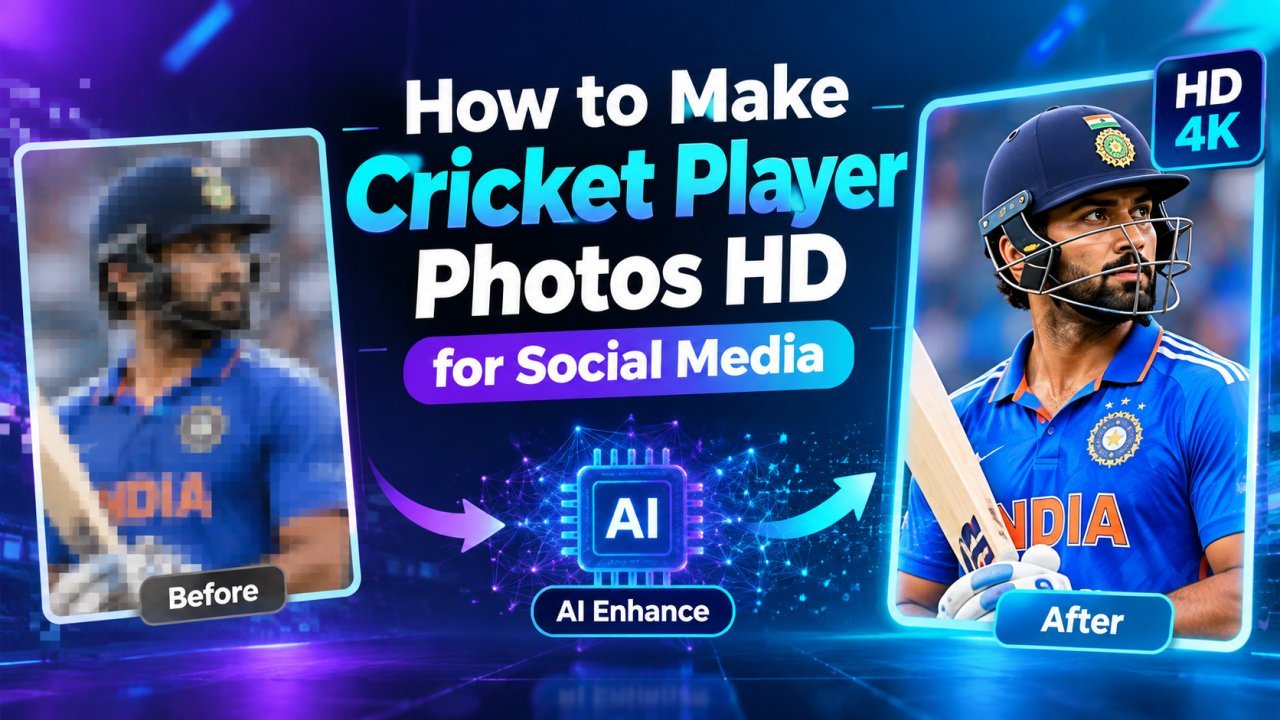
How to Make Cricket Player Photos HD for Social Media
If you post cricket content on Instagram, Facebook, YouTube, X, or other social platforms, image quality matters. A cricket player photo that looks clear in your gallery can become soft, blurry, or pixelated after cropping and uploading.
Learning how to make cricket player photos HD for social media can help you create cleaner posts, better thumbnails, player edits, match graphics, and social media content.
You do not always need a professional camera or expensive editing software. With a good original photo, an AI image upscaler, careful cropping, and the right export settings, you can improve the appearance of many cricket player photos.
This guide explains how to make cricket player photos HD, how to improve blurry images, how to prepare photos for different social platforms, and how to avoid common quality problems.
What Does HD Mean for a Cricket Player Photo?
HD generally refers to an image with enough resolution and visual detail to appear clear at its intended display size.
For social media, the important thing is not simply having the largest possible image.
A good social media photo should have:
- All Tools
- Ecommerce Photo Optimizer
- How to Blur the Background in a YouTube Thumbnail
- Clear player details
- Natural facial features
- Sharp clothing and equipment
- Good lighting
- Appropriate dimensions
- Minimal compression artifacts
- A suitable file size
- A clean crop
A huge image can still look poor if the original photograph is blurry or heavily compressed.
That is why the editing process matters.
Why Cricket Player Photos Become Blurry
There are several reasons a cricket photo may lose quality.
Low-resolution original
If the original image is very small, enlarging it normally can create visible pixels.
Heavy cropping
Cropping too much can leave very few pixels around the player.
Screenshot
A screenshot may have lower quality than the original image.
Social media compression
Some platforms process uploaded images, which can affect sharpness and detail.
Repeated editing
Opening, resizing, compressing, and saving the same image repeatedly can reduce quality.
Motion blur
Fast cricket action can create blur around the player.
Poor lighting
Night matches and dark stadium conditions can produce noise and soft details.
Understanding the cause helps you choose the right solution.
Start With the Best Cricket Photo Available
The easiest way to make a cricket player photo HD is to begin with a good original.
Before using an AI enhancer, check whether you have a better version of the same image.
Look for:
- Higher resolution
- Better focus
- Clearer face
- Less compression
- Better lighting
- Less motion blur
- More visible player details
If you have the original camera file or a high-resolution source, use that instead of a screenshot or heavily compressed copy.
Avoid Using Screenshots When Possible
Screenshots are convenient, but they are not always the best source for editing.
A screenshot may contain:
- Reduced resolution
- Compression
- Cropping
- Interface elements
- Less image information
If you can access the original photo, download or use that version instead.
This gives your AI enhancement tool more information to work with.
Check the Photo Resolution First
Before editing, check the dimensions of your cricket photo.
For example:
Original:
1200 × 800 pixels
You may want to increase it to:
2400 × 1600 pixels
This is a 2× enlargement.
Another option could be:
4800 × 3200 pixels
This is a 4× enlargement.
However, bigger is not automatically better.
If the original photo contains very little detail, an extreme enlargement may create artificial-looking textures.
For many images, start with a moderate increase.
Use an AI Image Upscaler
An AI image upscaler can increase the resolution of a cricket photo while attempting to preserve or improve visible details.
Depending on the tool, you may find options such as:
- 2× upscale
- 4× upscale
- Super resolution
- AI enhancement
- Face enhancement
- Noise reduction
- Sharpening
- Detail recovery
The exact features vary between tools.
Start with a moderate setting and inspect the result before increasing the enhancement.
How to Make a Cricket Player Photo HD With AI
A simple workflow looks like this:
- Choose the highest-quality original photo.
- Upload it to an AI image upscaler.
- Start with 2× enlargement.
- Check the player's face.
- Check the jersey and equipment.
- Check the background.
- Apply mild sharpening if necessary.
- Crop the image for your social platform.
- Export at suitable quality.
- Compare the final image with the original.
This workflow can help prevent unnecessary processing.
Step 1: Upload the Original Photo
Choose the best version of the cricket player photo.
If possible, avoid:
- Screenshots
- Extremely compressed images
- Tiny thumbnails
- Images downloaded multiple times
- Photos that have already been heavily sharpened
The better the source, the more useful the enhancement can be.
Step 2: Start With 2× Upscaling
If you are new to AI image enhancement, 2× is a useful starting point.
For example:
Original:
1000 × 667 pixels
2×:
2000 × 1334 pixels
After generating the enlarged image, inspect it carefully.
Look at:
- Face
- Eyes
- Hair
- Jersey
- Bat
- Ball
- Hands
- Shoes
- Stadium
If the image still looks natural, you can decide whether a larger version is actually necessary.
Step 3: Check the Player's Face
The player's face is usually one of the most important parts of a cricket photograph.
AI enhancement can sometimes change facial details while trying to make the image sharper.
Check:
- Eyes
- Nose
- Mouth
- Jawline
- Skin texture
- Hair
- Facial proportions
If the face looks unnatural, try reducing face enhancement.
A slightly softer but accurate face is often better than an extremely sharp face that looks artificial.
Step 4: Improve the Cricket Jersey
Cricket jerseys contain many small details.
Look for:
- Player name
- Player number
- Team logo
- Sponsor logo
- Collar
- Fabric texture
Small text can be difficult for AI tools to reconstruct correctly.
If the player name or logo is important, compare the enhanced version with the original.
Do not assume that sharper text is automatically accurate text.
Step 5: Check the Cricket Bat and Ball
The bat and ball can also reveal AI artifacts.
Check the:
- Bat shape
- Bat edge
- Handle
- Gloves
- Cricket ball
- Helmet
- Pads
The cricket ball can be especially difficult when it occupies only a few pixels in the original.
If the AI changes its appearance, try a lower enhancement level.
Step 6: Crop the Photo Carefully
Cropping is extremely important for social media.
If the player is the main subject, remove unnecessary background areas while keeping the composition balanced.
For example, instead of using:
Full stadium → tiny player
you may create:
Closer player crop → larger visible face and action
This can make the image appear clearer because more of the available pixels are focused on the subject.
Make the Player the Main Focus
A good cricket social media photo usually has a clear subject.
When cropping, consider:
- Player's face
- Body position
- Bat
- Ball
- Direction of movement
- Empty space for text
- Background distractions
Do not crop so tightly that important parts of the player disappear.
How to Make Cricket Photos HD for Instagram
Instagram content can use different image orientations, so prepare your photo according to the final post format.
For a cricket player post, you may want:
- Portrait format
- Square format
- Landscape format
Start with the highest-quality image.
Then:
- Crop the player.
- Upscale the image.
- Check the face.
- Adjust brightness if needed.
- Apply mild sharpening.
- Export the final version.
- Upload the appropriate size.
Avoid repeatedly resizing the same file.
How to Make Cricket Photos HD for Facebook
Facebook content can also be affected by image processing and compression.
Before uploading:
- Use a clean high-resolution source.
- Avoid unnecessary compression.
- Check the final crop.
- Keep the player clearly visible.
- Export at a suitable quality level.
If the image is being used as a match graphic, keep text and important logos sharp and readable.
How to Make Cricket Photos HD for YouTube
Cricket player photos are often used for:
- YouTube thumbnails
- Community posts
- Video covers
- Match previews
- Player comparison graphics
For thumbnails, the player's face should usually remain easy to recognize.
A simple workflow is:
Original photo → Crop → AI upscale → Mild enhancement → Thumbnail design → Export
Do not rely on extreme sharpening to make a thumbnail stand out.
Good cropping and clear subject placement are often more useful.
How to Improve Blurry Cricket Player Photos
If the original photo is slightly blurry, AI enhancement may improve its appearance.
However, there is an important difference between:
Low resolution
and
Severe blur
An AI tool may increase the apparent detail of a low-resolution image, but severe motion blur or out-of-focus areas may not be fully recoverable.
Try moderate enhancement first.
Then compare the result with the original.
How to Improve Night Cricket Photos
Night cricket photographs can contain:
- Digital noise
- Dark shadows
- Bright floodlights
- High contrast
- Motion blur
- Color noise
A useful workflow is:
Noise reduction → AI upscale → Mild sharpening
Avoid heavy sharpening because it can make noise and bright lights look worse.
Check the floodlights for halos after processing.
Do Not Over-Sharpen the Photo
Sharpening can make an image look clearer, but excessive sharpening can make it look artificial.
Signs of too much sharpening include:
- Bright outlines
- Harsh edges
- Plastic-looking skin
- Strange hair texture
- Overly detailed grass
- Strong halos around objects
If you notice these problems, reduce the sharpening level.
Use Natural-Looking Enhancement
The goal is not to make every part of the image extremely sharp.
Instead, focus on the most important details:
Face → Jersey → Equipment → Main action → Background
The player should look natural.
The stadium does not need to have perfect detail in every seat.
A Useful AI Prompt for Cricket Photos
If your image enhancement tool accepts text instructions, you can try:
Enhance and upscale this cricket player photograph for social media while preserving the original player's facial features, identity, body proportions, cricket jersey, equipment, bat, ball, stadium, lighting, and composition. Improve resolution and clarity while keeping the image realistic and photographic. Preserve natural skin texture and colors. Reduce noise and mild blur without creating artificial details, distorted facial features, incorrect text, excessive sharpening, or unnatural textures.
How to Make Cricket Player Photos HD for Social Media — Part 2
Advanced Ways to Make Cricket Player Photos HD
Basic upscaling is enough for many images, but cricket photography can become more difficult when the photo is blurry, heavily cropped, dark, or very small.
Advanced enhancement techniques can help you get better results while keeping the player and the overall photograph natural.
How to Make Blurry Cricket Action Photos HD
Cricket is a fast sport, so action photos may contain motion blur.
You may see blur when a player is:
- Batting
- Bowling
- Running
- Diving
- Catching
- Celebrating
- Throwing the ball
AI enhancement can improve the overall appearance, but it cannot always recover details that were completely lost because of motion blur.
Start with moderate enhancement instead of using the strongest setting.
Example Prompt
Enhance and upscale this cricket action photograph while preserving the original player's appearance, facial features, body proportions, cricket equipment, jersey, stadium, and natural photographic texture. Improve clarity and resolution without creating artificial details, distorted faces, excessive sharpening, or unrealistic textures.
How to Make Cricket Player Photos HD for Social Media — Part 3
Final Quality Checklist
Before uploading your cricket player photo to social media, take a few minutes to inspect the final image.
A good HD cricket photo should look clear without looking over-processed.
Use this checklist:
- Player's face looks natural
- Eyes and facial features are not distorted
- Jersey details look correct
- Player number is readable when possible
- Cricket bat has a natural shape
- Cricket ball has not been distorted
- Hands and fingers look normal
- Stadium background looks realistic
- Colors are natural
- Sharpening is not excessive
- No strange AI textures are visible
- Image dimensions match the intended platform
- File size is reasonable
- Final export looks good after opening it again
Do not judge the image only inside the editing tool.
Open the exported file separately and inspect it before posting.
Keep the Original Cricket Photo
Always keep a copy of the original image.
For example:
Original → Edited Version → Social Media Version
Do not replace the original with the edited file.
Keeping the original allows you to create:
- New crops
- Different social media sizes
- New thumbnails
- Poster versions
- Website versions
- Future edits
This is especially useful when you need the same cricket photo for several projects.
Create Separate Versions for Different Platforms
One image does not always need to be exported in exactly the same way for every platform.
You may need different versions for:
Create the crop and dimensions suitable for your Instagram post.
Prepare a clean image with appropriate dimensions and compression.
YouTube
Create a thumbnail version where the player's face and main action remain visible.
Website
Use an optimized version that balances image quality and page performance.
Poster
Keep a higher-resolution version according to the printing requirements.
Creating platform-specific versions can give you more control over the final appearance.
Do Not Upload an Extremely Large File Without a Reason
A very large image is not automatically better for social media.
If your final display size is relatively small, an unnecessarily huge file may only increase the file size without providing a visible benefit.
A better approach is:
Upscale → Edit → Final resize → Export
The final dimensions should match the actual purpose of the image.
How to Make Cricket Photos Look Professional
A professional-looking cricket photo is not only about resolution.
Pay attention to:
- Composition
- Crop
- Lighting
- Contrast
- Color
- Player position
- Background
- Facial clarity
- Overall balance
For example, a moderately sharp photo with a strong crop can look better than a very high-resolution image where the player is tiny.
Think about the entire image rather than focusing only on pixel count.
Use the Right Crop for Player Photos
The crop can dramatically change how a cricket player photo looks.
For a player portrait, you may want to focus on:
- Face
- Upper body
- Jersey
- Bat
For an action photo, you may want to include:
- Full body
- Bat
- Ball
- Direction of movement
- Some stadium background
Choose the crop based on the purpose of the post.
Avoid Cutting Important Parts of the Player
When cropping, be careful not to accidentally remove important visual information.
For action photos, avoid cutting off:
- Bat
- Ball
- Hands
- Feet
- Head
- Important movement direction
For portraits, keep enough space around the player's face so the image does not feel unnecessarily cramped.
Improve the Background Carefully
A cricket stadium can add context to the photograph, but too much background detail can distract from the player.
If the player is the main subject, make sure the background supports the image instead of competing with it.
You can use:
- A tighter crop
- Moderate background blur
- Slight contrast adjustment
- Careful brightness adjustment
Avoid aggressive AI background replacement unless the project specifically requires it.
How to Make Low-Resolution Cricket Photos Better
If the original image is very small, follow this process:
- Find a better source if possible.
- Remove obvious compression issues.
- Use moderate AI enhancement.
- Upscale gradually.
- Check the face.
- Check the jersey.
- Check the equipment.
- Apply mild sharpening.
- Export at the final required size.
Remember that AI cannot always recreate information that was never present in the original image.
The goal should be to improve the photograph, not pretend that every missing detail can be perfectly recovered.
How to Handle Highly Compressed Cricket Photos
Compressed images may contain blocky textures or blurry edges.
If possible, find an original or less-compressed version first.
If you only have the compressed version:
- Use moderate restoration
- Avoid excessive sharpening
- Upscale carefully
- Check faces and text
- Compare the result with the source
Heavy compression can make AI enhancement more difficult.
How to Make Cricket Player Photos HD Without Overediting
A simple editing approach is often enough:
Good source → Crop → Upscale → Mild color correction → Mild sharpening → Export
You do not need to apply every available AI feature.
Using too many enhancement tools at once can produce an unnatural result.
Best Workflow for Beginners
If you are new to AI photo enhancement, follow this simple process:
Step 1
Choose the highest-quality cricket photo you have.
Step 2
Crop the image around the main player.
Step 3
Use a 2× AI upscale.
Step 4
Check the player's face.
Step 5
Check the jersey, bat, ball, and hands.
Step 6
Make small brightness or contrast adjustments if needed.
Step 7
Apply mild sharpening.
Step 8
Resize the image for the final platform.
Step 9
Export at an appropriate quality.
Step 10
Open the exported file and check it before posting.
This workflow is simple enough for beginners and flexible enough for many types of cricket content.
Frequently Asked Questions
How can I make cricket player photos HD for social media?
Start with the highest-quality original photo, crop it carefully, use moderate AI upscaling, check the player's face and equipment, apply mild sharpening, and export the image at a suitable size and quality.
Can AI make a low-resolution cricket photo HD?
AI can increase the resolution and improve the appearance of many low-resolution photos. However, it cannot guarantee accurate recovery of details that were completely missing from the original.
What is the best AI upscale for cricket player photos?
There is no single setting that works best for every photo. A 2× upscale is a useful starting point, while larger enlargement can be used when the final project requires it.
How can I make a blurry cricket player photo clearer?
Use moderate AI enhancement and inspect the result carefully. If the blur comes from severe motion or poor focus, some original details may not be recoverable.
Should I crop a cricket photo before upscaling?
If you are focusing on one player, make the crop from the highest-quality original available and then upscale the crop. This helps concentrate the available image information on the main subject.
How can I improve a cricket player's face in a photo?
Use moderate enhancement and carefully inspect the face after processing. Avoid aggressive face restoration if it changes the player's original facial appearance.
How do I make cricket photos look better on Instagram?
Start with a high-quality source, choose a suitable crop, upscale the image if necessary, make small color adjustments, apply mild sharpening, and export the final version at an appropriate size.
Can I make cricket photos HD for YouTube thumbnails?
Yes. Crop around the player or main action, upscale the image, check the face and equipment, then create the thumbnail with clear text and composition.
Why does my AI-enhanced cricket photo look fake?
The enhancement may be too strong. Excessive sharpening, face restoration, noise reduction, or enlargement can create artificial details. Try lower enhancement settings and compare the result with the original.
Can AI recover details from a very small cricket photo?
AI may improve the appearance of a small image, but it cannot guarantee accurate recovery of information that was not captured clearly in the original photograph.
Ready to optimize your images?
Every tool mentioned in this article is free to use. No upload, no signup, and no watermarks — ever.
Try our free toolsRelated articles
How to Upscale Cricket Photos Without Losing Quality
Learn how to upscale cricket photos without losing quality using AI upscalers, sharpening, noise reduction, and the right export settings.
How to Resize GTA 6 Wallpapers Without Losing Quality
Learn how to resize GTA 6 wallpapers without losing quality using proper dimensions, cropping, upscaling, sharpening, and export settings.
How to Turn Your Photo Into a 1980s Vintage Photo With AI
Learn how to turn your photo into a 1980s vintage photo with AI using retro outfits, film effects, old cameras, vintage backgrounds, and realistic prompts.