
How to Convert Low-Quality Images into HD Using AI (Step by Step)
Got a blurry, pixelated photo you wish was sharper? AI upscaling can genuinely help — when you know its limits. Here's the realistic guide.
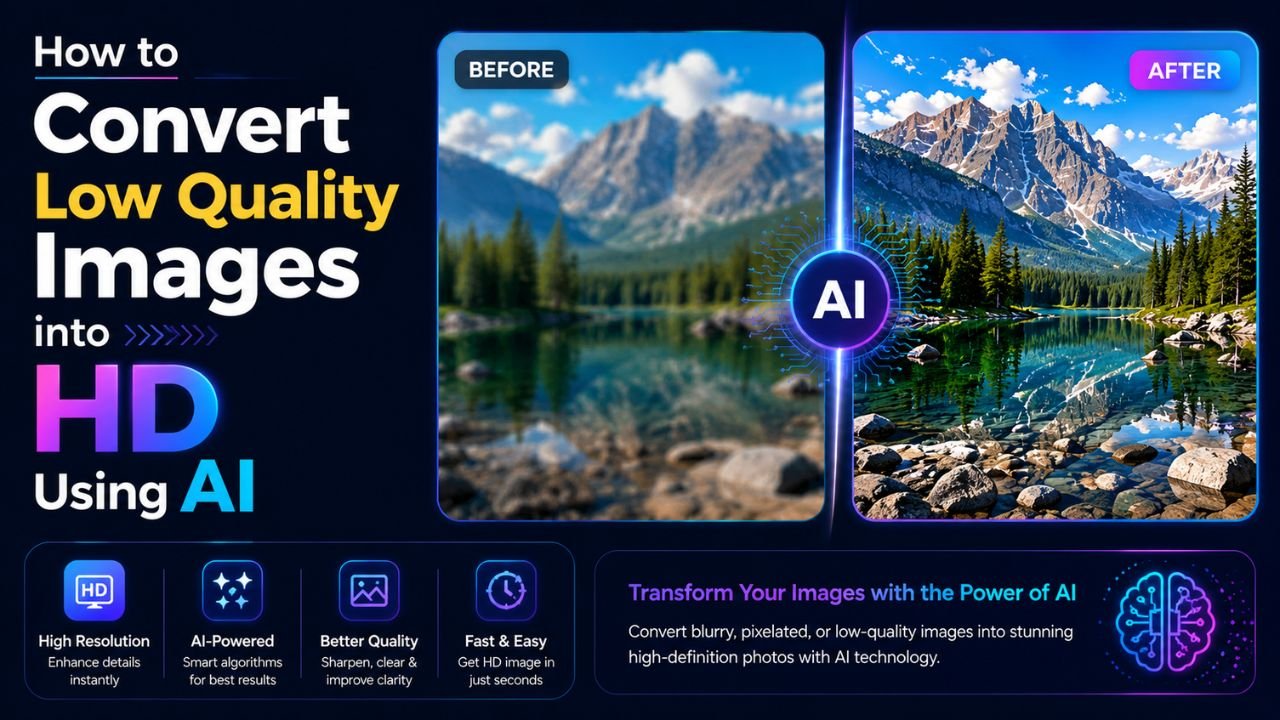
You have a photo. It's small, blurry, or just pixelated when you zoom in. You've heard AI can "enhance" it. Can it actually?
Yes, but with important caveats. Modern AI upscalers genuinely reconstruct detail — they don't just stretch pixels. But they're not magic, and unrealistic expectations are the biggest reason people get disappointed.
What AI upscaling actually does
A regular upscale (bicubic interpolation) takes a 500×500 image and stretches it to 1500×1500 by averaging nearby pixels. You get a bigger image that's still blurry — just blurry at a larger size.
AI upscaling does something fundamentally different:
- The model looks at small patches of your image
- It compares them to millions of similar patches it learned during training
- For each patch, it predicts what the higher-resolution version would look like
- The output is a larger image with invented but plausible detail
The "invented but plausible" part is key. The AI isn't reading minds — it's generating its best guess of how detail at this point would appear if the photo had been taken at higher resolution. Sometimes that guess is excellent. Sometimes it's wrong.
Step 1: Check if your image is actually fixable
Not every low-quality image can be saved. Quick sanity check:
| Image starting state | AI upscale verdict |
|---|---|
| Small but sharp (e.g. 600×400 product photo) | Excellent — usually 2-4× clean |
| Medium with mild noise/blur | Good — denoise + 2× upscale works well |
| Heavily compressed JPEG (blocky artefacts visible) | Mixed — artefacts often get sharpened, not removed |
| Severe motion blur | Limited — needs specific deblur model, not just upscale |
| Tiny (under 200×200) | Poor — not enough information |
| Already high-res but soft | Try sharpening tools instead of upscaling |
Step 2: Pre-process before upscaling
Send the AI the cleanest possible input:
- Strip metadata — sometimes weird EXIF data confuses tools. Use our free EXIF Remover.
- Crop out junk — focus the AI on the subject. Free crop tool.
- Save as PNG before upscaling — re-saving as JPG introduces new artefacts. AI tools accept PNG cleanly.
Step 3: Choose the right upscaler
Free / freemium tools that genuinely work in 2026:
- Upscale.media — free with limited credits, easy interface
- Cutout.pro — free tier, decent quality
- Bigjpg — free up to 4×, slower
- Open-source ESRGAN / Real-ESRGAN — free if you can run Python locally
- Topaz Photo AI / Gigapixel — paid, best results
Avoid:
- Generic "AI Enhancer" mobile apps that aggressively over-sharpen faces
- Anything that lets you upscale to 16× without warnings — that's marketing, not technology
Step 4: Pick the right scale
Common scales: 2×, 3×, 4×.
- 2× upscale: safest, almost always looks better. Use this 80% of the time.
- 3× upscale: still usable, occasional artefacts on edges.
- 4× upscale: noticeable AI "look" creeps in — fine for casual use, risky for professional output.
- Beyond 4×: marketing, not engineering. Quality drops fast.
Pro tip: if you need 4× upscale, do it in two 2× passes instead of one 4× pass. Output usually looks cleaner.
Step 5: Post-process after upscaling
The upscaled file is large. Optimize it:
- Resize down to your actual display needs. AI tools love to output huge files; you usually don't need 4000-pixel images. Use free resize to scale to your real use case.
- Compress for web — AI upscalers usually output uncompressed PNG. Convert to WEBP or JPG quality 80-85 for web use. Try our free JPG to WEBP converter.
- Visual inspection at 100% — zoom in on faces, text, fine textures. Look for "AI smell" (uncanny smooth skin, mangled text).
Common mistakes to avoid
- Upscaling text — you'll get scrambled "looks like text" but isn't actually readable. Recreate the text in a design tool instead.
- Upscaling logos — sharp brand graphics turn fuzzy. Use the original SVG or recreate the logo at the size you need.
- Upscaling for print — 300 DPI print requires more care than upscaling alone provides. Combine with a paid tool for hero shots.
- Forgetting to compress after — defeats the point of optimizing.
Realistic expectations
If your source image is 800×600 of a person, expect:
- 2× → 1600×1200, looking like the original was taken at that resolution
- 4× → 3200×2400, looking decent at viewing distance but slightly "AI" at 100% zoom
If your source is 200×200 of low quality:
- 2× → 400×400, slightly better but still clearly low quality
- 4× → 800×800, looks usable for thumbnails but won't pass for "HD"
The honest truth: AI upscaling makes low-quality images usable for one tier higher than they originally were. It doesn't perform miracles.
Workflow summary
- Clean input (crop, strip metadata, save as PNG)
- Run through a reputable AI upscaler (start at 2×)
- Resize down to your actual use case
- Compress to a sensible format for distribution
- Inspect at 100% before publishing
For the post-AI steps, try our free image tools — resize, crop, compress, convert — all in your browser, no upload.
Ready to optimize your images?
Every tool mentioned in this article is free to use. No upload, no signup, no watermarks on small files.
Try our free toolsRelated articles
Best AI Image Enhancer Tools in 2026 (Free + Paid Compared)
Eight AI image enhancers tested on the same blurry, low-res, and noisy photos. Some made the cut. Most didn't. Here's what actually works in 2026.
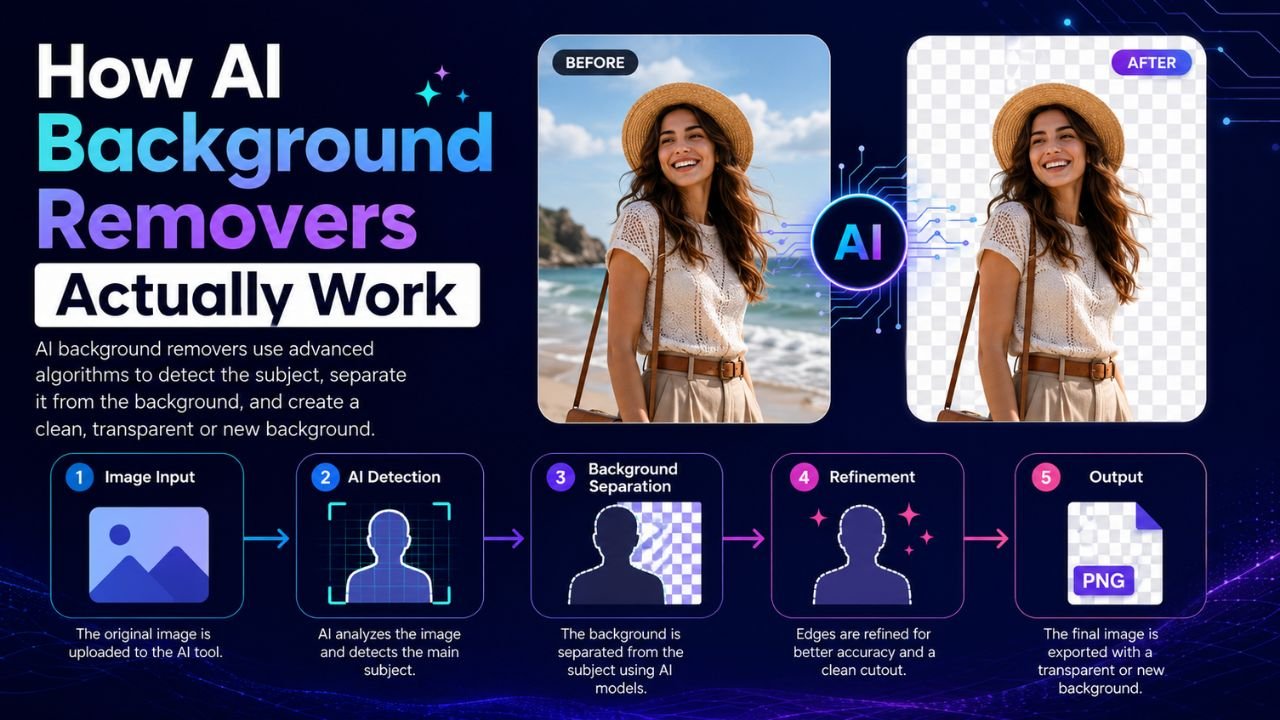
How AI Background Removers Actually Work (Explained Simply)
Behind that magical 2-second background removal is a neural network making millions of decisions. Here's a non-technical look at what's actually happening.
AI vs Manual Photo Editing — Which One Should You Use in 2026?
The honest answer isn't 'AI always wins'. We compared 12 common editing tasks across speed, quality, and control — here's where each approach actually beats the other.