
Wallpapers: How to Download, Resize and Make Them HD
Learn how to download wallpapers, resize them for any screen, and make them HD using simple image editing, upscaling, and quality enhancement techniques.
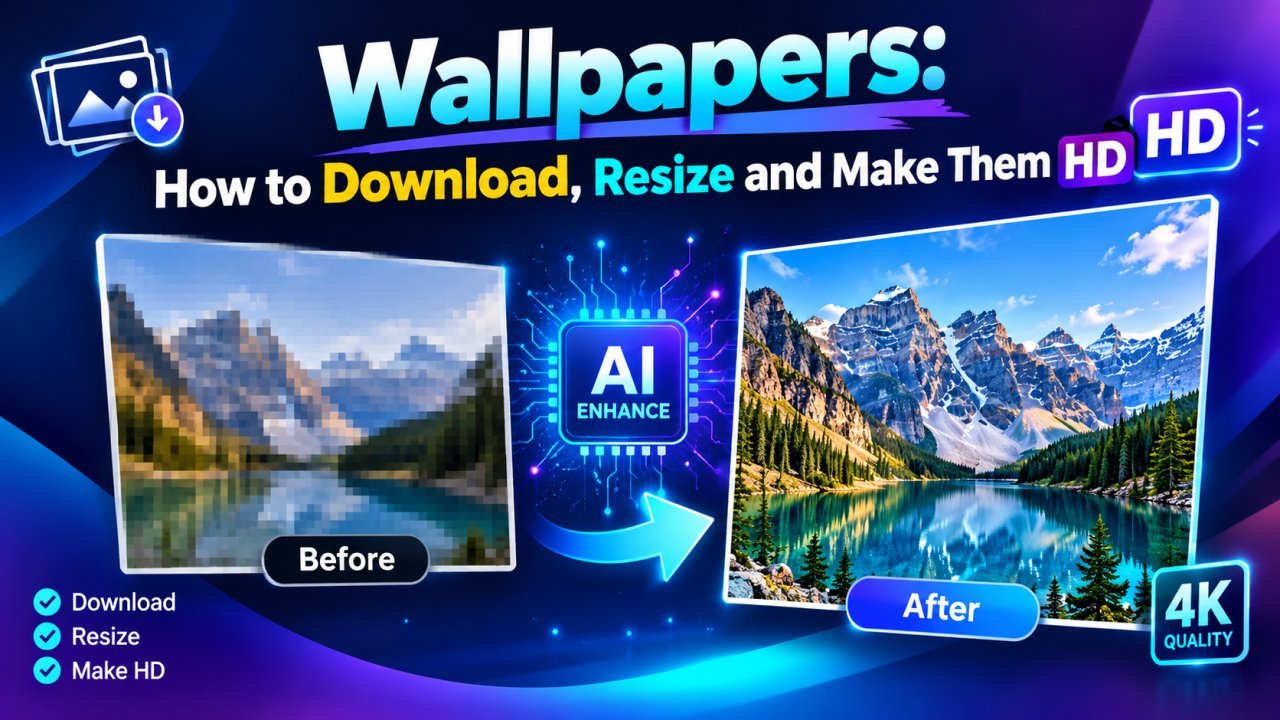
Wallpapers: How to Download, Resize and Make Them HD
Wallpapers can make your phone, laptop, or desktop look more attractive and personal. But finding a good wallpaper is only the first step. You also need to download the right version, resize it for your screen, and make sure it looks clear without losing quality.
If you want to learn how to download, resize, and make wallpapers HD, this guide will help you understand the complete process in simple steps.
You will learn how to find high-quality wallpapers, choose the right resolution, resize images for different devices, improve blurry wallpapers, and save the final image in good quality.
Whether you want a nature wallpaper, gaming wallpaper, car wallpaper, anime wallpaper, landscape image, or minimalist background, the same basic principles apply.
What Is an HD Wallpaper?
An HD wallpaper is an image with enough resolution and visual detail to look clear on a screen.
The term HD commonly refers to a resolution of 1280 × 720 pixels, but many people also use it more generally to describe high-quality wallpapers.
You may come across several wallpaper resolutions:
| Resolution | Common Name | Typical Use |
|---|---|---|
| 1280 × 720 | HD | Smaller displays and basic wallpapers |
| 1920 × 1080 | Full HD | Many desktop and laptop screens |
| 2560 × 1440 | QHD | Higher-resolution displays |
| 3840 × 2160 | 4K UHD | 4K monitors and large displays |
These are common examples, not requirements for every device.
The best wallpaper resolution depends on your screen's actual resolution and aspect ratio.
Why Wallpaper Quality Matters
A wallpaper is often displayed across a large portion of your screen.
If the image is too small, it may appear blurry or pixelated.
If the image has the wrong proportions, it may look stretched or lose important details when cropped.
A high-quality wallpaper should have:
- All Tools
- YouTube Thumbnail Enhancer
- Watermark & Object Remover
- Clear details
- Natural colors
- Correct proportions
- Suitable resolution
- Minimal visible compression
- A composition that fits your screen
Choosing the right wallpaper can improve the overall appearance of your device without requiring complicated editing.
How to Download HD Wallpapers
The first step is finding a wallpaper that matches your interests and screen size.
You can look for wallpapers featuring:
- Nature and landscapes
- Cars and motorcycles
- Gaming and video games
- Anime and illustrations
- Space and astronomy
- Minimalist designs
- Abstract backgrounds
- Animals and wildlife
- Architecture and city views
- Movies and entertainment
Once you find an image you like, check whether a larger version is available.
A preview image may look clear on a website but become blurry when used as a full-screen wallpaper.
Step 1: Choose a Reliable Wallpaper Source
Download wallpapers from websites that clearly provide image files and explain how their images may be used.
Before downloading, check:
- Whether the image is available in its original resolution
- Whether the download button provides the full image
- Whether the website displays image dimensions
- Whether the image is free to use for your intended purpose
- Whether attribution or other licensing conditions apply
Avoid assuming that every image available online is free to reuse.
If you plan to publish or redistribute a wallpaper, check its licensing terms.
Step 2: Search for the Right Wallpaper Resolution
When searching for a wallpaper, include the resolution or device type in your search.
For example, you might search for:
- 1920 × 1080 desktop wallpaper
- 4K landscape wallpaper
- HD mobile wallpaper
- 2560 × 1440 gaming wallpaper
- Vertical nature wallpaper
- Full HD car wallpaper
Adding the resolution to your search can help you find images that are closer to your screen's requirements.
However, always check the actual image dimensions before downloading.
A title that says "4K wallpaper" does not guarantee that the image is genuinely 3840 × 2160 pixels.
Step 3: Download the Original Image
When possible, download the full-size image rather than saving a small preview.
On many websites, you can open the image and use the available download option.
Depending on the website and device, the process may involve:
- Opening the wallpaper page.
- Selecting the desired resolution.
- Clicking the download button.
- Choosing a save location if prompted.
- Checking the downloaded image.
The exact steps vary by website and device.
Step 4: Check the Downloaded Wallpaper
After downloading, check the image dimensions.
On a computer, you can often find image dimensions through the file's properties or information panel.
On a phone, the gallery or photo information screen may show the image dimensions.
Look for details such as:
- Width
- Height
- File format
- File size
For example, a wallpaper measuring 1920 × 1080 pixels is a Full HD image.
A wallpaper measuring 3840 × 2160 pixels is a 4K UHD image.
Checking these details helps you understand whether the image is suitable for your screen.
How to Choose the Right Wallpaper Size
The best wallpaper size depends on the device where you plan to use it.
A desktop monitor may need a landscape image, while a phone generally needs a vertical image.
Before downloading or resizing a wallpaper, identify the screen's resolution and aspect ratio.
Desktop Wallpapers
Desktop wallpapers commonly use landscape formats.
Examples include:
- 1920 × 1080
- 2560 × 1440
- 3840 × 2160
Choose a wallpaper that matches your monitor's resolution when possible.
If the original image is larger than the screen resolution, you can usually resize it down proportionally.
Laptop Wallpapers
Laptop displays may use different aspect ratios.
Some use 16:9, while others use 16:10 or other proportions.
Check your laptop's display resolution before selecting a wallpaper.
If the wallpaper has a different aspect ratio, you may need to crop it to fit.
Mobile Wallpapers
Phone wallpapers are usually vertical.
The exact dimensions vary by device.
When selecting a mobile wallpaper, look for an image that is tall enough for your screen and has enough room around the main subject.
This is particularly useful for images featuring characters, people, vehicles, or other central subjects.
Tablet Wallpapers
Tablets can use different screen proportions depending on the model.
Choose a wallpaper that matches your tablet's display as closely as possible.
If the image does not match the screen, crop it carefully while keeping the main subject visible.
What Is Aspect Ratio in Wallpaper Images?
Aspect ratio describes the relationship between an image's width and height.
For example:
- 16:9 is a common widescreen format.
- 16:10 is used by some laptop displays.
- 9:16 is a common vertical image format.
- 1:1 is a square format.
If you resize an image without preserving its aspect ratio, the wallpaper may look stretched.
Characters can appear wider, cars can look distorted, and buildings may lose their natural proportions.
That is why maintaining the aspect ratio is important when resizing wallpapers.
How to Resize Wallpapers Without Losing Quality
Resizing a wallpaper means changing its pixel dimensions.
You may need to resize an image to fit a particular screen or reduce its file dimensions.
The key is to preserve the image's proportions and avoid unnecessary enlargement.
Step 1: Open the Wallpaper in an Image Editor
Choose an image editor that allows you to change the image dimensions.
Open the original wallpaper rather than a previously resized copy.
Step 2: Check the Current Dimensions
Before editing, note the original width and height.
For example:
Original wallpaper: 3840 × 2160 pixels
This information helps you decide how much resizing is necessary.
Step 3: Enter the Target Dimensions
Choose dimensions that match your intended screen.
If your target screen uses a 1920 × 1080 resolution and your wallpaper is 3840 × 2160, you can reduce the image proportionally.
Both images have the same 16:9 aspect ratio.
Step 4: Lock the Aspect Ratio
Look for an option such as:
- Lock aspect ratio
- Maintain proportions
- Constrain proportions
Enable it before changing the dimensions.
This helps prevent the image from becoming stretched.
Step 5: Apply the Resize
Enter the desired width or height and allow the other dimension to adjust proportionally.
Then inspect the image.
If the image needs a different aspect ratio, crop it instead of forcing it into the new shape.
Why You Should Avoid Stretching Wallpapers
Stretching changes the proportions of the original image.
This can make the wallpaper look unnatural.
For example:
- Faces may look wider.
- Cars may look longer.
- Buildings may look thinner.
- Circular objects may appear oval.
- Landscapes may lose their natural appearance.
Instead of stretching, use proportional resizing or crop the image to fit the screen.
How to Crop a Wallpaper Correctly
Cropping removes unwanted parts of an image while keeping the remaining content in its original proportions.
It is useful when your wallpaper and screen have different aspect ratios.
For example, if you want to turn a landscape wallpaper into a vertical phone background, you may need to crop the sides.
Before cropping, identify the main subject.
Keep important elements such as faces, vehicles, buildings, or scenery inside the frame.
Move the crop area until the composition looks balanced.
Can You Make a Small Wallpaper HD?
Yes, you can sometimes improve a small wallpaper using image upscaling and enhancement tools.
However, the result depends on the original image.
If the wallpaper is very small or heavily blurred, it may not contain enough information to produce a perfectly detailed larger image.
Upscaling increases the number of pixels, but it cannot guarantee recovery of the exact original details.
For a better result:
- Start with the highest-quality original available.
- Crop the image carefully.
- Use a suitable upscaling method if necessary.
- Apply moderate sharpening.
- Check the final image for artificial details.
What Is Image Upscaling?
Image upscaling is the process of increasing an image's pixel dimensions.
For example:
1280 × 720 → 2560 × 1440
This increases the image's width and height.
Traditional resizing methods estimate the new pixels using mathematical interpolation.
AI upscaling tools use trained models to estimate or generate additional visual details.
Both methods can produce larger images, but neither guarantees perfect recovery of missing information.
When Should You Use AI Upscaling?
AI upscaling may be useful when:
- Your wallpaper is smaller than your screen resolution.
- You need a larger version of an image.
- The original image has mild softness.
- You want to create a larger wallpaper from a smaller source.
It may be unnecessary when your original wallpaper is already large enough.
If you only need to reduce the image size, normal proportional resizing is usually sufficient.
A Simple Wallpaper Enhancement Workflow
For most images, follow this process:
Download original → Check dimensions → Crop if needed → Upscale if necessary → Resize → Sharpen lightly → Export
This workflow helps you avoid unnecessary editing while keeping the wallpaper suitable for your device.
In the next part, we will cover advanced wallpaper enhancement techniques, mobile and desktop resizing workflows, image formats, sharpening, common mistakes, and practical ways to improve wallpaper quality.
Part 2: Advanced Ways to Resize and Make Wallpapers HD
How to Make a Wallpaper Look Sharper and Clearer
After resizing a wallpaper, you may notice that it looks slightly blurry or less detailed. This can happen when the original image has a low resolution or when the image is enlarged too much.
You can improve the appearance of a wallpaper by adjusting sharpness, reducing noise, correcting colors, and using image enhancement tools.
However, remember that editing can improve how an image looks, but it cannot always restore details that were never present in the original image.
Here are some practical ways to make wallpapers look clearer.
1. Use a Wallpaper Image Enhancer
A wallpaper image enhancer is a tool that improves the appearance of an image. Some tools offer sharpening, noise reduction, color correction, and AI upscaling.
These features can help when a wallpaper looks soft, grainy, or pixelated.
A typical enhancement process includes:
- Open the wallpaper in an image editing or enhancement tool.
- Upload or import the original image.
- Select an enhancement or upscaling option if available.
- Adjust sharpness and noise reduction.
- Preview the result at its actual size.
- Save the improved wallpaper in a suitable format.
Avoid applying too much enhancement. Excessive sharpening can create bright outlines around objects, while strong AI enhancement may add details that were not in the original image.
2. Adjust Sharpness Carefully
Sharpening makes edges appear more defined. It can help improve wallpapers that look slightly soft.
For example, a landscape wallpaper may look clearer after a small sharpening adjustment.
However, sharpening cannot recover all the details lost in a low-resolution image.
Tips for sharpening wallpapers:
- Start with a low sharpening setting.
- Check the edges of buildings, trees, and other objects.
- Avoid creating white or dark outlines around objects.
- Compare the edited image with the original.
- Preview the wallpaper at the size you will actually use.
If the wallpaper already looks sharp, additional sharpening may make it look unnatural.
3. Reduce Noise and Grain
Noise appears as unwanted dots, speckles, or rough patterns in an image. It is especially noticeable in dark areas, night scenes, and images captured in low light.
Noise reduction can make a wallpaper look smoother and cleaner.
To reduce noise:
- Open the image in an editing tool.
- Find the noise reduction or denoise option.
- Apply a small amount of noise reduction.
- Check whether fine details remain visible.
- Increase the setting only if necessary.
Too much noise reduction can make textures look soft or artificial.
For example, a wallpaper showing a starry sky may lose small stars if noise reduction is too strong.
4. Improve Brightness, Contrast, and Color
Sometimes a wallpaper looks dull even when its resolution is high.
Adjusting brightness, contrast, saturation, and white balance can improve its appearance.
Here is what each setting does:
| Setting | What It Changes | When to Use It |
|---|---|---|
| Brightness | Makes the image lighter or darker | When the wallpaper looks too dark or bright |
| Contrast | Changes the difference between light and dark areas | When the image looks flat |
| Saturation | Changes the intensity of colors | When colors look dull or too strong |
| White balance | Adjusts the overall color temperature | When the image looks too warm or too cool |
| Highlights | Adjusts the brightest areas | When bright areas lose detail |
| Shadows | Adjusts the darkest areas | When dark areas hide important details |
Make small adjustments and compare the result with the original image.
The goal is to improve the wallpaper without making it look unnatural.
How to Resize Wallpapers for Different Devices
A wallpaper should match the screen's resolution and shape as closely as possible.
A wallpaper designed for a desktop monitor may not fit a mobile phone correctly. Similarly, a portrait wallpaper may not work well on a widescreen laptop.
The following workflows explain how to prepare wallpapers for different devices.
How to Resize a Wallpaper for a Desktop or Laptop
Desktop and laptop screens usually use a landscape orientation.
Common resolutions include:
- 1366 × 768 pixels
- 1920 × 1080 pixels
- 2560 × 1440 pixels
- 3840 × 2160 pixels
The correct resolution depends on your display.
Step-by-Step Desktop Wallpaper Resizing
Step 1: Check your screen resolution
Open your computer's display settings and check the recommended resolution.
Using the recommended resolution helps the wallpaper fit the screen properly.
Step 2: Find a wallpaper with a suitable aspect ratio
A 16:9 wallpaper is suitable for many widescreen displays.
If your screen uses a different aspect ratio, choose an image that matches it or crop the image carefully.
Step 3: Open the wallpaper in an image editor
Import the original image into an image editing tool.
Step 4: Resize the image
Enter the target width and height while keeping the aspect ratio locked.
If the original image has a different aspect ratio, decide whether to crop it or leave some space around the image.
Step 5: Check the result
Look for stretched objects, blurry edges, or important details that may have been cropped.
Step 6: Save the wallpaper
Save the final image as a high-quality JPEG or PNG, depending on its content and intended use.
Your wallpaper is now ready to use on your desktop or laptop.
How to Resize a Wallpaper for a Mobile Phone
Mobile wallpapers usually use a portrait orientation.
A wallpaper designed for a computer may need significant cropping to fit a phone screen.
Before resizing, check your phone's display resolution and aspect ratio.
Step-by-Step Mobile Wallpaper Resizing
Step 1: Check your phone's screen dimensions
Find the display resolution in your phone's settings or official specifications.
Remember that the visible wallpaper area may differ depending on the lock screen, home screen, and operating system.
Step 2: Choose a portrait wallpaper
A portrait image is often easier to fit on a phone than a landscape image.
If you only have a landscape image, you may need to crop it.
Step 3: Crop the image carefully
Keep the main subject in a suitable position.
Leave enough space for the clock, app icons, widgets, and other screen elements.
Step 4: Resize the wallpaper
Set the image dimensions to match your target display as closely as possible.
Keep the aspect ratio locked when resizing.
If the image has a different shape, crop it before resizing.
Step 5: Preview the wallpaper on your phone
Check how the wallpaper looks on the lock screen and home screen.
Some phones zoom or reposition wallpapers automatically, so you may need to adjust the crop.
Step 6: Save and apply the wallpaper
Save the final image and set it as your phone's wallpaper.
Check that the subject is visible and that the image looks clear.
How to Resize Wallpapers for Tablets
Tablets often use a larger screen than phones and may switch between portrait and landscape orientations.
This makes choosing the correct wallpaper more important.
Tips for Tablet Wallpapers
- Check the tablet's display resolution.
- Choose an image with enough pixels for the larger screen.
- Consider how the wallpaper will look in both orientations.
- Avoid placing important subjects near the edges.
- Use a crop that works well with the tablet's screen shape.
If you frequently switch between portrait and landscape modes, consider saving two versions of the wallpaper.
One version can be designed for portrait mode, while the other can be optimized for landscape mode.
This gives you more control over the composition.
How to Resize Wallpapers for Ultrawide Monitors
Ultrawide monitors have a wider screen than standard 16:9 displays.
Common ultrawide resolutions include 2560 × 1080 and 3440 × 1440 pixels, although other resolutions are available.
A standard widescreen wallpaper may look stretched or cropped when used on an ultrawide monitor.
Steps to Create an Ultrawide Wallpaper
- Check your monitor's native resolution.
- Find an image with a wide composition.
- Open the image in an editing tool.
- Crop or extend the image to match the required aspect ratio.
- Resize the image to the target dimensions.
- Preview the image to check for distortion.
- Save the wallpaper in a high-quality format.
Important: Do not stretch a standard wallpaper horizontally just to fill an ultrawide screen. This can make people, buildings, and other objects look unnaturally wide.
If the original image is too narrow, consider using a different image or carefully extending the background with an image editing tool.
How to Make a Wallpaper HD Without Losing Quality
Many people want to make a wallpaper HD without losing quality.
The key is to avoid unnecessary resizing and repeated compression.
Every time you resize or save a lossy image, some image information may be lost.
Follow these steps to protect image quality.
Step 1: Start With the Best Available Original
Choose the highest-quality version of the wallpaper that is legally available to you.
A larger original image gives you more flexibility when preparing wallpapers for different screens.
Avoid using screenshots of wallpapers when the original image is available.
Screenshots may include interface elements, compression, or scaling that reduces image quality.
Step 2: Keep the Original File
Save a separate copy of the original wallpaper before editing.
This allows you to return to the original if the edited version becomes blurry or distorted.
Step 3: Resize Only When Necessary
If the wallpaper already matches your screen's resolution and aspect ratio, you may not need to resize it.
Unnecessary resizing can introduce softness or other unwanted changes.
Step 4: Avoid Repeated JPEG Saving
JPEG is a lossy image format.
Saving a JPEG repeatedly can gradually reduce image quality.
Whenever possible, keep an original copy and make your edits from that file.
If your editing workflow supports it, use a lossless working format until the final export.
Step 5: Check the Final Image
Before applying the wallpaper, inspect it at its actual display size.
Look for:
- Blurry edges
- Visible pixelation
- Unnatural colors
- Compression artifacts
- Unwanted cropping
- Distorted objects
If the image looks good at its intended size, it may be ready to use.
Which Image Format Is Best for HD Wallpapers?
Choosing the right image format can help preserve wallpaper quality while keeping the file size manageable.
The most common formats are JPEG, PNG, and WebP.
JPEG
JPEG is widely used for photographs and detailed images.
It can reduce file size significantly, but it uses lossy compression.
Use JPEG for:
- Landscape wallpapers
- Nature photography
- Cityscapes
- Photographic backgrounds
- Everyday desktop and mobile wallpapers
Choose a high-quality export setting to reduce visible compression artifacts.
PNG
PNG uses lossless compression, which preserves the image data without introducing additional lossy compression.
However, PNG files can be much larger than JPEG files for photographic images.
Use PNG for:
- Wallpapers with text or sharp graphic elements
- Illustrations
- Images with flat colors
- Graphics that need lossless storage
PNG is not automatically better than JPEG for every wallpaper. The best choice depends on the image and how it will be used.
WebP
WebP supports both lossy and lossless compression.
It can offer smaller file sizes while maintaining good visual quality, depending on the image and settings.
Use WebP for:
- Websites that need optimized wallpaper images
- Compatible devices and applications
- Sharing images where smaller file size matters
Before using WebP as a device wallpaper, check whether your device supports it directly. If not, convert the image to a supported format.
Wallpaper Format Comparison
| Format | Compression | Main Advantage | Main Limitation |
|---|---|---|---|
| JPEG | Lossy | Small files for photographs | Repeated saving can reduce quality |
| PNG | Lossless | Preserves image data | Can create large files |
| WebP | Lossy or lossless | Flexible compression options | Compatibility varies |
For most photographic wallpapers, a high-quality JPEG is a practical choice.
For graphics and images that need lossless storage, PNG may be more suitable.
How to Compress a Wallpaper Without Making It Blurry
Sometimes a wallpaper file is too large to upload, share, or store conveniently.
Image compression can reduce file size, but excessive compression may create visible artifacts.
Tips for Reducing Wallpaper File Size
- Start with the original image.
- Resize it to the dimensions you actually need.
- Choose a suitable file format.
- Use a high-quality compression setting.
- Preview the compressed image.
- Compare its appearance with the original.
- Save the version that balances quality and file size.
Avoid reducing the image dimensions too much just to make the file smaller.
For example, if your monitor uses a 1920 × 1080 display, a much smaller wallpaper may look soft when enlarged to fill the screen.
Common Mistakes to Avoid When Making Wallpapers HD
Even a good image can look poor if it is resized or edited incorrectly.
Here are common mistakes to avoid.
1. Stretching the Wallpaper
Stretching changes the proportions of objects in an image.
This can make faces, buildings, and landscapes look unnatural.
Better approach: Crop the image or use a wallpaper with a matching aspect ratio.
2. Enlarging a Small Image Too Much
Upscaling can increase the pixel dimensions of an image, but it cannot guarantee genuine new detail.
A small image enlarged too much may still look blurry.
Better approach: Start with a larger original or use careful upscaling when necessary.
3. Applying Too Much Sharpening
Excessive sharpening can create harsh edges, halos, and unnatural textures.
Better approach: Use small adjustments and inspect the image at its intended display size.
4. Ignoring the Screen's Aspect Ratio
A wallpaper with the wrong aspect ratio may be cropped or zoomed automatically.
This can hide important parts of the image.
Better approach: Match the wallpaper's aspect ratio to the screen whenever possible.
5. Saving the Image at Low Quality
Low-quality compression can introduce blocky patterns, color banding, and blurry details.
Better approach: Use an appropriate format and a high-quality export setting.
6. Using Screenshots Instead of Original Images
Screenshots may contain interface elements and may have lower resolution than the original wallpaper.
Better approach: Download the original image whenever possible.
7. Ignoring Wallpaper Placement
A wallpaper may look good in an image editor but become difficult to use when app icons or widgets cover important areas.
Better approach: Preview the wallpaper on the actual device before finalizing it.
A Simple Workflow to Download, Resize, and Make Wallpapers HD
If you want a practical process that works for most devices, follow this workflow.
Step 1: Download a High-Quality Wallpaper
Choose a reliable source and download the largest suitable version available.
Check the image's dimensions and make sure you have permission to use it.
Step 2: Check Your Screen Resolution
Find your device's native display resolution.
This helps you choose the correct target dimensions.
Step 3: Check the Aspect Ratio
Compare the wallpaper's aspect ratio with your screen's aspect ratio.
If they do not match, decide whether to crop the image or choose another wallpaper.
Step 4: Resize the Image
Use an image editing tool to resize the wallpaper.
Keep the aspect ratio locked and avoid unnecessary enlargement.
Step 5: Enhance the Image if Needed
If the wallpaper looks blurry or dull, consider using:
- Light sharpening
- Gentle noise reduction
- Small color adjustments
- AI upscaling when appropriate
Skip enhancement if the original already looks clear.
Step 6: Save in a Suitable Format
Choose JPEG for most photographic wallpapers or PNG when lossless storage is important.
Use a high-quality export setting to avoid unnecessary quality loss.
Step 7: Apply and Preview the Wallpaper
Set the image as your wallpaper.
Check the fit, clarity, colors, and placement of important details.
If the image looks stretched or cropped incorrectly, return to the editing step and adjust the composition.
Final Tips for Better Wallpaper Quality
Keep these simple tips in mind when downloading and editing wallpapers:
- Use the highest-quality original available.
- Match the image to your screen's resolution and aspect ratio.
- Avoid stretching images.
- Crop carefully to protect important subjects.
- Use AI upscaling only when necessary.
- Apply sharpening and noise reduction gently.
- Avoid repeated lossy compression.
- Choose the right image format.
- Preview the wallpaper on your actual device.
- Keep a backup of the original image.
Following these steps can help you create wallpapers that look clear, fit your screen properly, and retain as much image quality as possible.
Part 3: Final Checklist, FAQs, and SEO Optimization
Final Checklist: How to Download, Resize, and Make Wallpapers HD
Before applying your wallpaper, use this checklist to make sure the image looks clear and fits your device properly.
Wallpaper Download Checklist
- Download the wallpaper from a reliable source.
- Choose the highest-quality version available.
- Check the image's resolution and file format.
- Make sure you have permission to use the image.
- Keep a copy of the original file.
Wallpaper Resizing Checklist
- Check your device's screen resolution.
- Match the wallpaper's aspect ratio to your screen.
- Keep the aspect ratio locked while resizing.
- Crop the image instead of stretching it.
- Keep important subjects visible.
Wallpaper Enhancement Checklist
- Use an image enhancer only if needed.
- Apply sharpening carefully.
- Reduce noise without removing important details.
- Adjust brightness and colors naturally.
- Avoid excessive AI enhancement.
Final Quality Checklist
- Save the wallpaper in a suitable format.
- Avoid unnecessary compression.
- Check the wallpaper at its actual display size.
- Apply the wallpaper to your device.
- Confirm that it fits correctly without unwanted cropping.
Following this checklist can help you avoid common image quality problems and create a wallpaper that looks good on your screen.
Frequently Asked Questions (FAQs)
1. How do I download HD wallpapers?
To download HD wallpapers, choose a reliable wallpaper website or image source. Select an image with a resolution suitable for your device and download the original or highest-quality version available.
Check the image dimensions before using it.
2. How do I resize a wallpaper without losing quality?
To resize a wallpaper without unnecessary quality loss, start with a high-resolution original, keep the aspect ratio locked, and avoid enlarging the image too much.
Use a suitable image format and avoid repeatedly saving the image with lossy compression.
3. How do I make a wallpaper HD?
You can improve a wallpaper by resizing it carefully, adjusting sharpness and colors, reducing noise, or using an AI upscaling tool.
However, increasing the pixel dimensions does not guarantee that the image will gain genuine detail.
4. Can I turn a low-quality wallpaper into 4K?
You can upscale a low-resolution wallpaper to 4K dimensions using an image editing or AI upscaling tool.
However, the result may not contain the same level of detail as a genuine 4K image.
The quality depends on the original image and the enhancement method.
5. What is the best resolution for a wallpaper?
The best wallpaper resolution depends on your device's display.
For example, a 1920 × 1080 wallpaper may suit a Full HD monitor, while a 3840 × 2160 wallpaper may suit a 4K display.
For mobile devices, check the phone's actual display resolution and aspect ratio.
6. What is the best format for HD wallpapers?
JPEG is a practical choice for most photographic wallpapers because it offers good visual quality with relatively small file sizes.
PNG is useful for graphics and lossless storage, while WebP supports both lossy and lossless compression.
Choose a format that your device supports.
7. Why does my wallpaper look blurry after resizing?
A wallpaper may look blurry after resizing because the original image has insufficient resolution, the image was enlarged too much, or the resizing process introduced softness.
Start with a higher-resolution original whenever possible.
8. How do I make a wallpaper fit my phone screen?
Check your phone's display dimensions and choose a wallpaper with a suitable portrait aspect ratio.
Crop the image carefully, resize it if necessary, and preview it on your phone before applying it.
Leave enough space for the clock, icons, and widgets.
9. Can I use a desktop wallpaper on my phone?
Yes. You can use a desktop wallpaper on your phone by cropping and resizing it to fit the phone's screen.
However, some parts of the original image may be removed during cropping.
Choose an image with enough space around the main subject.
10. Why does my wallpaper look stretched?
A wallpaper may look stretched when its dimensions are changed without maintaining the original aspect ratio.
To prevent this, keep the aspect ratio locked while resizing.
If the image does not match your screen, crop it or choose a better-fitting wallpaper.
11. Does AI upscaling improve wallpaper quality?
AI upscaling can make a low-resolution wallpaper appear sharper and more detailed by estimating missing image information.
However, it may also create artificial details or change parts of the original image.
Always compare the enhanced image with the original.
12. How can I reduce wallpaper file size without making it blurry?
Resize the wallpaper to the dimensions you actually need and use a suitable image format with a high-quality compression setting.
Preview the compressed image before applying it to make sure it still looks clear.
13. Is a 4K wallpaper better than a Full HD wallpaper?
A 4K wallpaper contains more pixels than a Full HD wallpaper.
It may be useful for a 4K display, but the visible difference depends on the screen size, viewing distance, image quality, and display resolution.
A properly sized Full HD wallpaper can look clear on a Full HD screen.
14. Can I make a wallpaper HD for free?
Yes. Many image editing tools offer free resizing, cropping, and basic enhancement features.
Some AI upscaling tools also provide free options, although their features and usage limits may vary.
15. How do I make a wallpaper look clear on a large monitor?
Use a wallpaper with enough resolution for your monitor, match the aspect ratio, and avoid enlarging a small image excessively.
If necessary, use careful upscaling and preview the wallpaper at its actual display size.
Ready to optimize your images?
Every tool mentioned in this article is free to use. No upload, no signup, and no watermarks — ever.
Try our free toolsRelated articles
How to Make 1980s AI Photos With Your Own Picture
Learn how to make 1980s AI photos with your own picture using AI tools, retro outfits, vintage backgrounds, film effects, and detailed prompts.
How to Make Cricket Player Photos HD for Social Media
Learn how to make cricket player photos HD for social media using AI upscaling, sharpening, cropping, and the right export settings.
How to Resize GTA 6 Wallpapers Without Losing Quality
Learn how to resize GTA 6 wallpapers without losing quality using proper dimensions, cropping, upscaling, sharpening, and export settings.