
How to Resize Images Online Without Losing Quality (2026 Guide)
Learn how to resize images online without losing quality using free AI-powered tools. Discover the best methods, image dimensions, resizing tips, and SEO best practices for JPG, PNG, WebP, and AVIF im
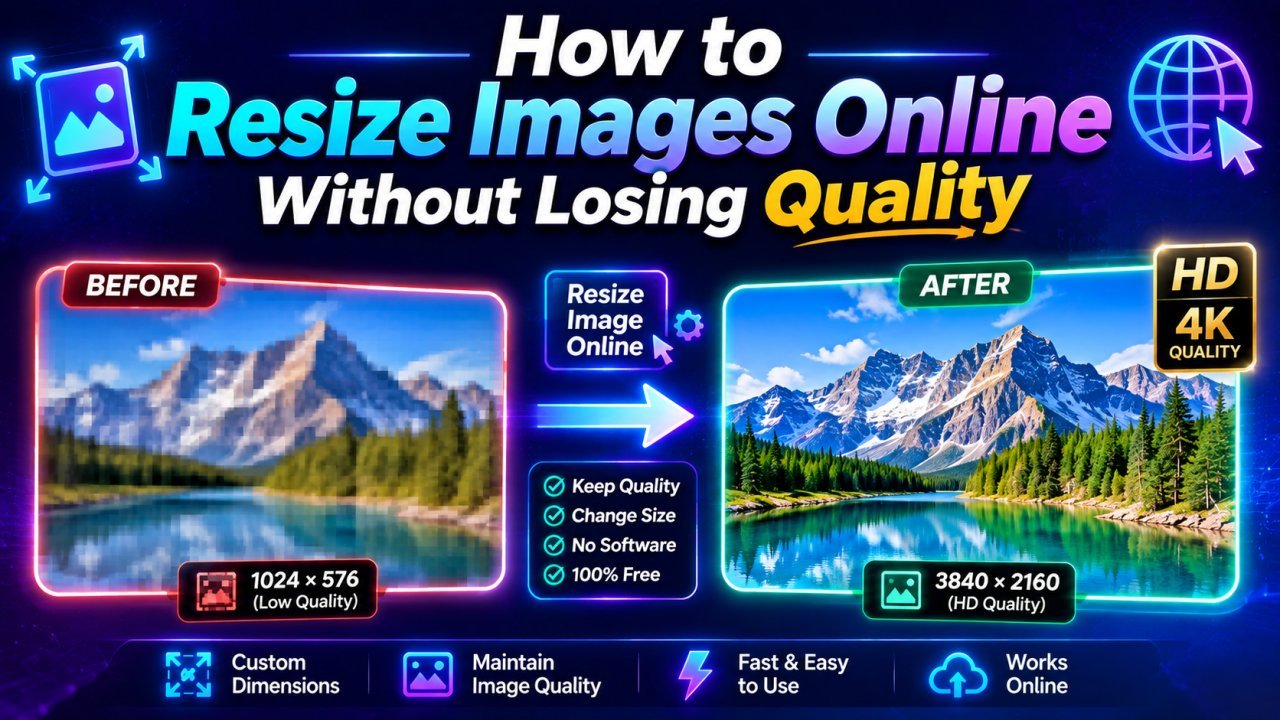
How to Resize Images Online Without Losing Quality (2026 Guide)
Images are essential for websites, blogs, online stores, and social media, but using the wrong image size can slow down your website, reduce visual quality, and create a poor user experience. Fortunately, you can resize images online without losing quality by using modern AI-powered image resizing tools.
Whether you're resizing a product photo, social media graphic, blog image, or website banner, choosing the correct dimensions helps improve page speed, SEO, and overall appearance.
In this complete 2026 guide, you'll learn how image resizing works, why it matters, the best image sizes for different platforms, and how to resize JPG, PNG, WebP, and AVIF images without sacrificing quality.
If you need a quick and free solution, Image EditPro lets you resize images online in just a few clicks while maintaining excellent image quality.
What Is Image Resizing?
Image resizing is the process of changing an image's dimensions without significantly affecting its visual quality. You can either increase or decrease the width and height of an image depending on your needs.
Unlike image compression, resizing changes the image dimensions, while compression reduces the file size.
Why Resize Images?
Using properly sized images offers many benefits for websites and digital content.
Benefits of Resizing Images
- Faster website loading
- Better SEO performance
- Improved Core Web Vitals
- Reduced storage usage
- Better mobile experience
- Faster uploads
- Improved website design
- Better social media presentation
- Lower bandwidth usage
Properly resized images help visitors enjoy a faster and smoother browsing experience.
Resize vs Compress Images
Many people confuse image resizing with image compression, but they serve different purposes.
| Resize Images | Compress Images |
|---|---|
| Changes image dimensions | Reduces file size |
| Affects width and height | Keeps dimensions the same |
| Ideal for websites and social media | Ideal for faster loading |
| Helps match required image sizes | Helps reduce storage and bandwidth |
For the best results, resize your images first and then compress them.
How to Resize Images Online Without Losing Quality
Using Image EditPro is simple and takes less than a minute.
Step 1 – Upload Your Image
Choose a JPG, PNG, WebP, or AVIF image from your computer or mobile device.
Step 2 – Select New Dimensions
Enter your desired width and height or choose from preset sizes.
Step 3 – Maintain Aspect Ratio
Enable the aspect ratio option to prevent image stretching or distortion.
Step 4 – Preview the Image
Review the resized image before downloading.
Step 5 – Download
Save the resized image in your preferred format and use it for your website, blog, online store, or social media.
Which Image Formats Can Be Resized?
Most online image resizing tools support:
- JPG
- JPEG
- PNG
- WebP
- AVIF
- GIF
Each format can be resized without significantly affecting quality when using modern image processing technology.
Best Image Sizes for Websites
Using the correct image dimensions helps improve page speed and keeps your website looking professional.
Recommended Website Image Sizes
| Image Type | Recommended Size |
|---|---|
| Hero Banner | 1920 × 1080 px |
| Blog Featured Image | 1200 × 630 px |
| Product Image | 1000 × 1000 px |
| Thumbnail | 300 × 300 px |
| Logo | 500 × 500 px (PNG) |
| Favicon | 48 × 48 px |
Choosing the correct dimensions reduces unnecessary file size and improves loading speed.
Best Image Sizes for Social Media
Each social platform recommends different image dimensions.
| Platform | Recommended Size |
|---|---|
| Instagram Post | 1080 × 1080 px |
| Instagram Story | 1080 × 1920 px |
| Facebook Post | 1200 × 630 px |
| Facebook Cover | 1640 × 624 px |
| LinkedIn Post | 1200 × 627 px |
| X (Twitter) Post | 1600 × 900 px |
| YouTube Thumbnail | 1280 × 720 px |
| Pinterest Pin | 1000 × 1500 px |
Using the correct dimensions prevents cropping and ensures your images look sharp across all devices.
Tips to Resize Images Without Losing Quality
Follow these best practices to maintain image quality while resizing:
- Always keep the original image as a backup.
- Maintain the aspect ratio to avoid stretching.
- Resize images before uploading them to your website.
- Use high-resolution source images for better results.
- Save resized images in modern formats like WebP when possible.
- Preview the image before downloading.
- Avoid enlarging very small images, as this can reduce sharpness.
These simple tips help preserve clarity and ensure professional-looking results.
Best Image Format After Resizing
Choosing the right format is just as important as choosing the right dimensions.
JPG
Best for:
- Photographs
- Blog images
- Social media
PNG
Best for:
- Logos
- Icons
- Transparent backgrounds
WebP
Best for:
- Websites
- Blogs
- Online stores
- Landing pages
AVIF
Best for:
- Modern websites
- Maximum compression
- High-performance web applications
For most websites, WebP offers the best balance between image quality and file size.
Why Image Resizing Improves SEO
Properly resized images contribute to better website performance.
Benefits include:
- Faster page loading
- Better Core Web Vitals
- Improved mobile experience
- Reduced bandwidth usage
- Lower hosting costs
- Better user engagement
- Improved search engine rankings
Search engines favor websites that load quickly and provide a smooth user experience.
Common Image Resizing Mistakes
Avoid these common mistakes when resizing images.
Enlarging Small Images
Increasing the size of a low-resolution image often results in blurry or pixelated visuals.
Ignoring Aspect Ratio
Changing only the width or height can stretch the image and distort its appearance.
Uploading Oversized Images
Large images slow down your website and increase loading times unnecessarily.
Using the Wrong File Format
Choose the appropriate format based on the image type. For example, use PNG for logos and WebP for website images.
Forgetting to Compress Images
After resizing, compress your images to further reduce file size without noticeably affecting quality.
Best Online Image Resizer
If you're looking for a simple and reliable solution, Image EditPro makes image resizing easy.
Features
- Resize JPG, PNG, WebP, and AVIF images
- Maintain image quality
- Preserve aspect ratio
- Fast AI-powered processing
- No software installation
- Free to use
- Works on desktop and mobile
With just a few clicks, you can resize your images for websites, blogs, online stores, or social media.
Frequently Asked Questions (FAQs)
1. Can I resize images online without losing quality?
Yes. Modern AI-powered image resizing tools use advanced algorithms to resize images while preserving sharpness, colors, and overall image quality. Starting with a high-resolution image delivers the best results.
2. What is the best image size for a website?
For most websites:
- Hero Banner: 1920 × 1080 px
- Blog Image: 1200 × 630 px
- Product Image: 1000 × 1000 px
- Thumbnail: 300 × 300 px
Choosing the correct dimensions improves website speed and user experience.
3. Does resizing an image reduce quality?
Reducing image dimensions usually has little to no noticeable impact on quality when done correctly. Enlarging a small image, however, can make it appear blurry or pixelated.
4. Which image format should I use after resizing?
It depends on your needs:
- JPG – Best for photographs
- PNG – Best for logos and transparent images
- WebP – Best for websites and blogs
- AVIF – Best for maximum compression and modern websites
5. Does resizing images improve SEO?
Yes. Properly resized images load faster, improve Core Web Vitals, reduce page weight, and contribute to a better user experience, which supports SEO performance.
6. Can I resize PNG, JPG, WebP, and AVIF images?
Yes. Most modern online image resizers support JPG, JPEG, PNG, WebP, AVIF, and GIF formats without requiring any software installation.
7. Should I resize images before uploading them?
Yes. Resizing images before uploading reduces loading times, saves storage space, and improves website performance.
8. What's the difference between resizing and compressing an image?
Resizing changes the image's width and height, while compression reduces the file size. For the best results, resize the image first and then compress it.
9. Can I resize images on my phone?
Yes. Online image resizers work on smartphones, tablets, laptops, and desktop computers, making it easy to resize images from anywhere.
10. Is Image EditPro free to use?
Yes. Image EditPro allows you to resize images online for free. Simply upload your image, choose the desired dimensions, and download the resized version in seconds.
Final Thoughts
Resizing images is a simple yet powerful way to improve website performance, create professional-looking visuals, and deliver a better user experience. Whether you're preparing images for your blog, online store, portfolio, or social media, using the correct dimensions ensures faster loading and a polished appearance.
For the best results, maintain the original aspect ratio, choose the right image format, and combine resizing with image compression to optimize both quality and performance.
By following the tips in this guide, you'll be able to resize images confidently without sacrificing quality.
Resize Images Online with Image EditPro
Looking for a fast and free image resizer?
Image EditPro makes it easy to:
- Resize JPG, PNG, WebP, and AVIF images online
- Maintain image quality
- Preserve the original aspect ratio
- Prepare images for websites, blogs, and social media
- Download resized images in seconds
Start resizing your images today with Image EditPro and create perfectly optimized visuals for every platform. [AI Image Upscaler](AI Image Upscaler/ai-image-upscaler)
Ready to optimize your images?
Every tool mentioned in this article is free to use. No upload, no signup, and no watermarks — ever.
Try our free toolsRelated articles
How to Compress Images Without Losing Quality (2026 Guide)
Reduce image file sizes without sacrificing quality. Learn the best image compression techniques, free online tools, and expert tips to optimize JPG, PNG, WebP, and AVIF images for faster websites in this complete 2026 guide.
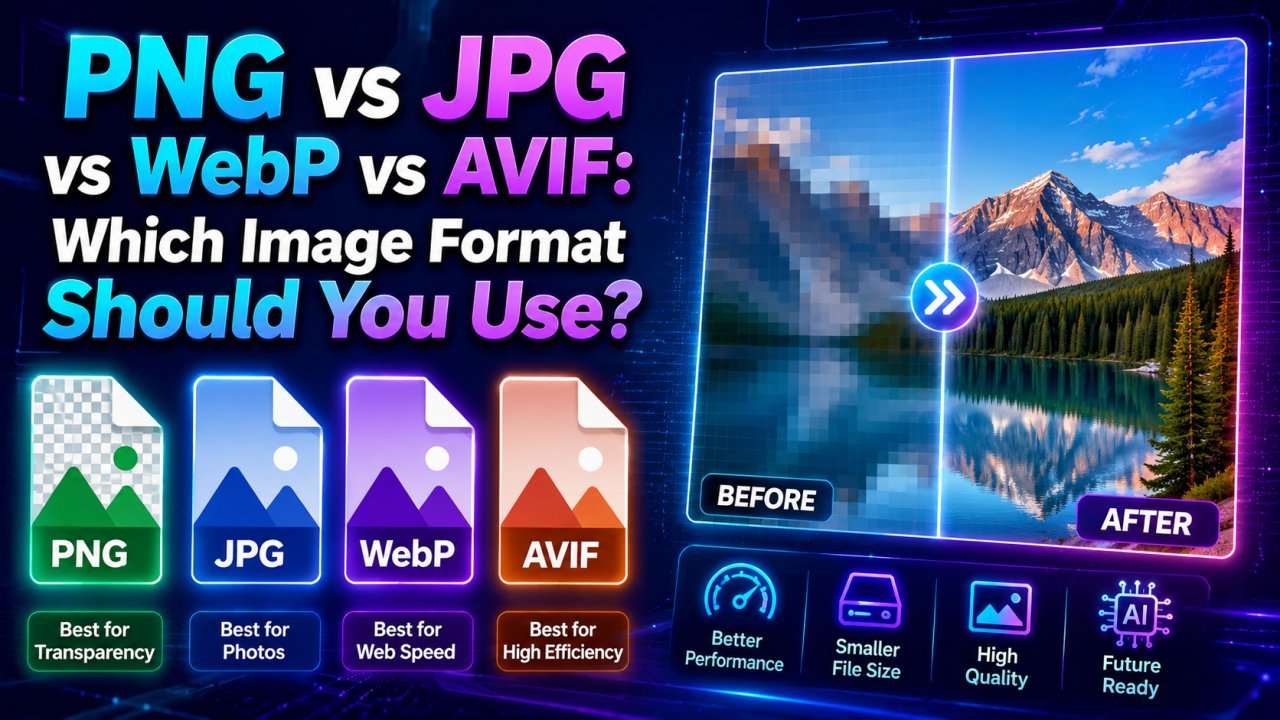
PNG vs JPG vs WebP vs AVIF: Which Image Format Should You Use? (2026 Guide)
Learn the differences between PNG, JPG, WebP, and AVIF image formats. Compare quality, compression, transparency, browser support, and discover which format is best for websites, social media, photography, and SEO in 2026.
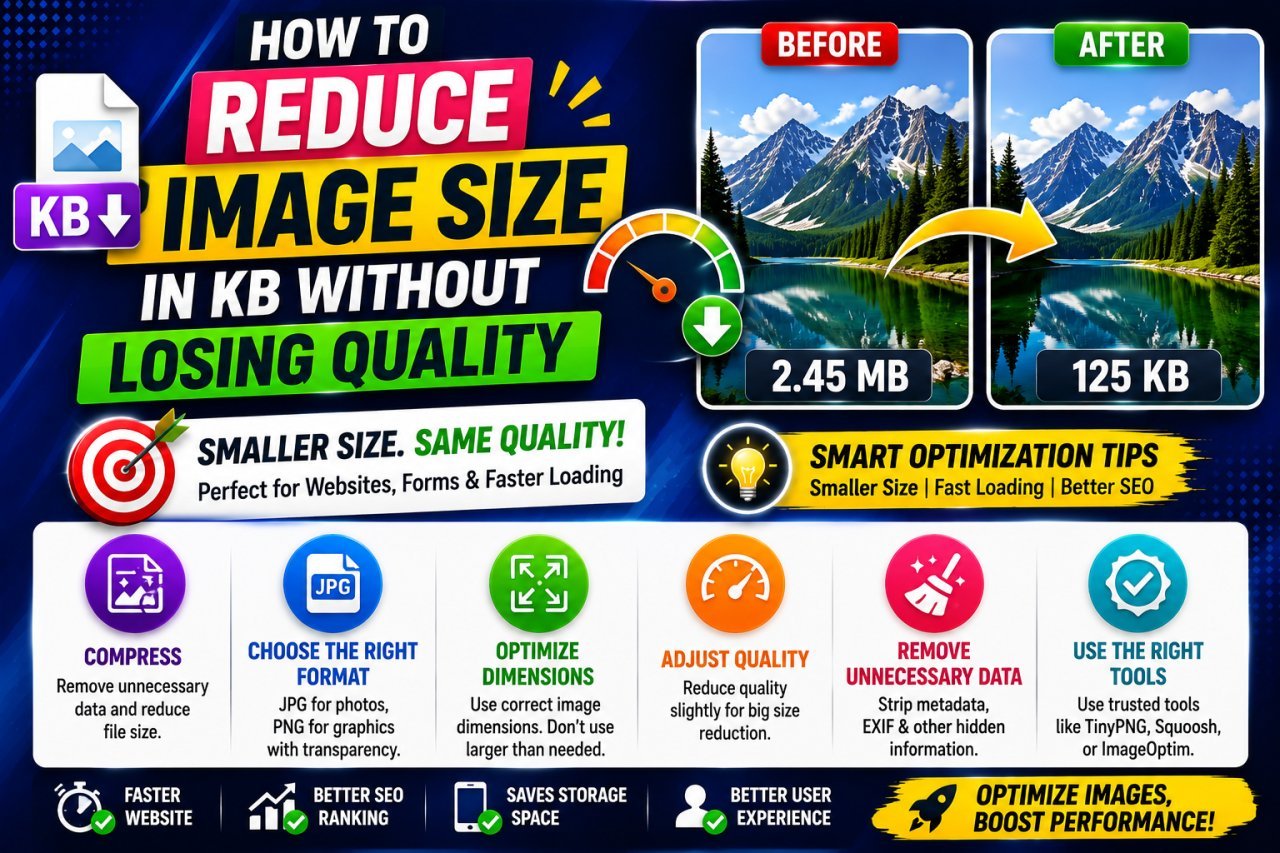
How to Reduce Image Size in KB Without Losing Quality
Learn how to reduce image size in KB without losing quality using smart compression, resizing, format selection, and practical image optimization techniques.