
How to Compress Images Without Losing Quality (2026 Guide)
Reduce image file sizes without sacrificing quality. Learn the best image compression techniques, free online tools, and expert tips to optimize JPG, PNG, WebP, and AVIF images for faster websites in this complete 2026 guide.
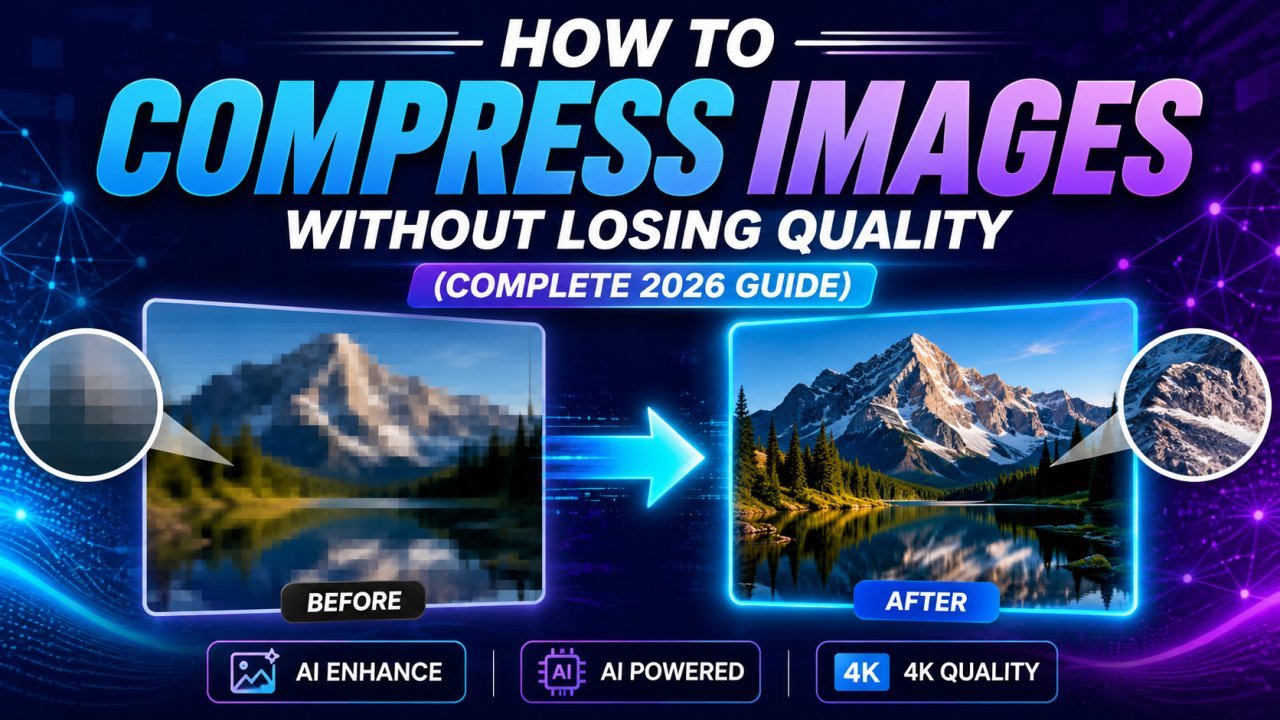
How to Compress Images Without Losing Quality (2026 Guide)
Large image files can slow down your website, consume unnecessary storage, and create a poor user experience. Whether you're running a blog, an online store, or a business website, optimizing your images is one of the easiest ways to improve page speed and SEO.
The good news is that you don't have to sacrifice image quality to reduce file size. Modern image compression tools use advanced algorithms and AI to make images significantly smaller while keeping them sharp and visually appealing.
In this complete 2026 guide, you'll learn how image compression works, the difference between lossless and lossy compression, the best free image compression tools, and practical tips for optimizing JPG, PNG, WebP, and AVIF images.
If you're looking for a fast and easy solution, Image EditPro allows you to compress images online for free while maintaining excellent quality.
What Is Image Compression?
Image compression is the process of reducing an image's file size without noticeably affecting its appearance. Smaller image files load faster, save storage space, and improve website performance.
Compression removes unnecessary image data while preserving the details that matter most to the human eye.
Why Compress Images?
Image compression offers several benefits for both website owners and everyday users.
Benefits of Image Compression
- Faster website loading speeds
- Improved SEO performance
- Better Core Web Vitals
- Reduced bandwidth usage
- Lower hosting costs
- Faster image uploads
- Improved mobile experience
- More storage space
- Better user engagement
Even reducing image sizes by 30–70% can significantly improve website performance.
Lossy vs Lossless Compression
Understanding the two main compression methods helps you choose the right option.
Lossy Compression
Lossy compression permanently removes some image data to achieve much smaller file sizes.
Advantages
- Smaller files
- Faster websites
- Ideal for photographs
- Better for blogs
Disadvantages
- Minor quality loss
- Cannot fully restore original image
Common formats:
- JPG
- WebP
- AVIF
Lossless Compression
Lossless compression reduces file size without removing image data.
Advantages
- Original quality preserved
- Perfect for graphics
- Great for logos
- Excellent for screenshots
Disadvantages
- Larger files than lossy compression
Common formats:
- PNG
- WebP
- AVIF
How to Compress Images Without Losing Quality
Compressing images with Image EditPro takes only a few seconds.
Step 1 – Upload Your Image
Choose a JPG, PNG, WebP, or AVIF file from your device.
Step 2 – AI Optimization
Our intelligent compression engine analyzes the image and selects the best compression settings while maintaining visual quality.
Step 3 – Preview
Compare the original and compressed versions before downloading.
Step 4 – Download
Save your optimized image and use it on your website, blog, or social media.
The entire process takes less than a minute.
Which Image Formats Can Be Compressed?
Modern compression tools support multiple image formats, including:
- JPG
- JPEG
- PNG
- WebP
- AVIF
- GIF
Each format uses different compression techniques to achieve the best balance between quality and file size.
Best Ways to Compress Images Without Losing Quality
Not all compression methods produce the same results. Choosing the right technique depends on the image type and where it will be used.
1. Use Modern Image Formats
Converting images to modern formats like WebP or AVIF can significantly reduce file size while maintaining excellent quality.
Best for:
- Websites
- Blogs
- Online stores
- Landing pages
2. Resize Images Before Uploading
Uploading a 5000×3500 pixel image when your website only displays it at 1200 pixels wastes bandwidth.
Always resize images before compression.
Recommended widths:
- Blog images: 1200px
- Website banners: 1920px
- Product images: 1000–1500px
- Thumbnails: 300–600px
3. Choose the Right Image Format
Each image format serves a different purpose.
| Image Type | Best Format |
|---|---|
| Photographs | JPG or WebP |
| Logos | PNG |
| Website Images | WebP |
| Maximum Compression | AVIF |
| Transparent Images | PNG or WebP |
4. Remove Unnecessary Metadata
Many images contain hidden information such as:
- Camera model
- GPS location
- Device settings
- Date taken
Removing metadata can reduce file size without affecting image quality.
Best Image Compression Tips
For the best results, follow these expert recommendations:
- Compress images before uploading them.
- Use WebP whenever possible.
- Convert large PNG photos into WebP.
- Keep image dimensions appropriate for your website.
- Avoid compressing the same image multiple times.
- Preview compressed images before publishing.
- Use responsive images for mobile devices.
Image Compression for SEO
Image optimization is an important part of technical SEO.
Compressed images help improve:
- Page loading speed
- Core Web Vitals
- Largest Contentful Paint (LCP)
- Mobile usability
- Crawl efficiency
- User experience
Search engines favor fast-loading websites because they provide a better experience for visitors.
Common Image Compression Mistakes
Avoid these mistakes to maintain high-quality visuals.
Compressing Images Too Much
Excessive compression can create blurry photos and visible artifacts.
Using PNG for Every Image
PNG files are much larger than JPG or WebP. Use PNG only when transparency or lossless quality is necessary.
Uploading Full-Resolution Camera Photos
Modern smartphone photos are often 5–15 MB. Resize and compress them before uploading.
Ignoring Mobile Users
Large images slow down mobile browsing and increase data usage.
Forgetting Alt Text
Adding descriptive alt text improves accessibility and helps search engines understand your images.
Best Image Compression Tools
Several free online tools make image optimization simple.
Image EditPro
- AI-powered compression
- Supports JPG, PNG, WebP, and AVIF
- Fast online processing
- No software installation
- Beginner-friendly
Other Popular Tools
- TinyPNG
- Squoosh
- ImageOptim
- Compressor.io
Choose a tool that balances file size reduction with excellent visual quality.
How Much Can You Compress Images?
The amount of compression depends on the image format.
| Format | Average Size Reduction |
|---|---|
| JPG | 40–70% |
| PNG | 20–50% |
| WebP | 25–35% smaller than JPG |
| AVIF | 20–40% smaller than WebP |
Actual results vary based on image content and compression settings.
When Should You Compress Images?
You should compress images before:
- Uploading to your website
- Publishing blog posts
- Sharing product images
- Sending images by email
- Posting on social media
- Creating presentations
- Building mobile apps
Making image compression part of your workflow saves storage space and ensures faster loading times across all platforms.
Frequently Asked Questions (FAQs)
1. Can I compress images without losing quality?
Yes. Modern image compression tools use intelligent algorithms to reduce file size while preserving visual quality. Lossless compression keeps all image data intact, while optimized lossy compression minimizes noticeable quality loss.
2. Which image format is best for compression?
WebP offers an excellent balance between image quality and file size, making it ideal for most websites. AVIF provides even better compression but may have limited support in some older applications.
3. Does image compression improve SEO?
Yes. Smaller image files help pages load faster, improve Core Web Vitals, reduce bounce rates, and create a better user experience, all of which support better SEO performance.
4. Is PNG or JPG better for compression?
JPG generally produces much smaller file sizes than PNG, making it better for photographs. PNG is better for logos, graphics, and images requiring transparent backgrounds.
5. What is lossless image compression?
Lossless compression reduces file size without removing image data. This ensures the image retains its original quality after compression.
6. Can I compress images for free?
Yes. Many online tools, including Image EditPro, allow you to compress JPG, PNG, WebP, and AVIF images for free without installing software.
7. How much can image compression reduce file size?
Depending on the image type and format, compression can reduce file sizes by 20% to 80% while maintaining excellent visual quality.
8. Should I compress images before uploading them?
Absolutely. Compressing images before uploading them improves website speed, saves storage space, and provides a better experience for visitors.
9. Does compressing an image reduce its resolution?
No. Compression reduces the file size, while resizing changes the image dimensions. You can compress an image without changing its resolution.
10. Which image format is best for websites in 2026?
For most websites, WebP is the best all-around choice because it combines high image quality with small file sizes. If maximum compression is your priority and your audience uses modern browsers, AVIF is an excellent future-ready option.
Final Thoughts
Image compression is one of the easiest and most effective ways to improve website performance. By reducing file sizes without sacrificing quality, you can create a faster, more user-friendly experience while supporting better SEO and lower bandwidth usage.
Whether you're managing a blog, running an online store, or sharing images on social media, optimizing your visuals before uploading them is a smart habit that pays off over time.
For most users, WebP provides the best balance between quality and performance, while AVIF is an excellent option for those looking for next-generation image optimization.
Compress Your Images Online with Image EditPro
Ready to optimize your images?
With Image EditPro, you can:
- Compress JPG, PNG, WebP, and AVIF images for free
- Reduce file size without noticeable quality loss
- Improve website speed and SEO
- Process images directly in your browser
- Download optimized images in seconds
Start compressing your images today and make your website faster, lighter, and more user-friendly.
Ready to optimize your images?
Every tool mentioned in this article is free to use. No upload, no signup, and no watermarks — ever.
Try our free toolsRelated articles
PNG vs JPG vs WebP vs AVIF: Which Image Format Should You Use? (2026 Guide)
Learn the differences between PNG, JPG, WebP, and AVIF image formats. Compare quality, compression, transparency, browser support, and discover which format is best for websites, social media, photography, and SEO in 2026.
How to Resize Images Online Without Losing Quality (2026 Guide)
Learn how to resize images online without losing quality using free AI-powered tools. Discover the best methods, image dimensions, resizing tips, and SEO best practices for JPG, PNG, WebP, and AVIF im
How to Reduce Image File Size Without Losing Quality: Complete Guide
Learn how to reduce image file size without losing quality using compression, resizing, format conversion, and practical optimization techniques. This beginner-friendly guide explains how to compress JPG, PNG, and WebP images for websites, email, social media, uploads, and everyday use.