
JPG vs PNG for YouTube Thumbnails: Which Is Better?
Should you use JPG or PNG for a YouTube thumbnail? This guide compares image quality, file size, transparency, text, compression, editing, and practical use cases to help you choose the right thumbnail format.
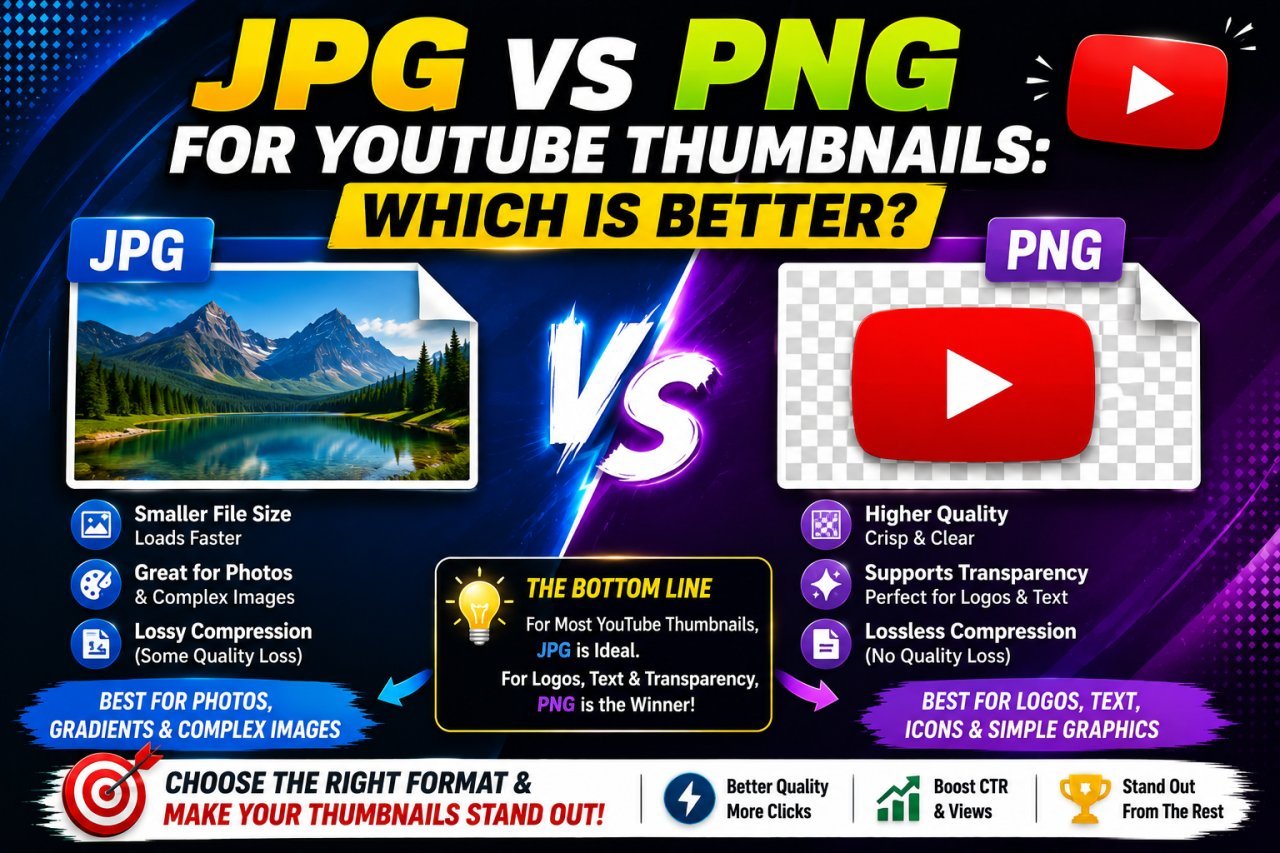
JPG vs PNG for YouTube Thumbnails: Which Is Better?
Choosing the right image format can make a noticeable difference when you're creating and exporting a YouTube thumbnail.
Two of the most common choices are JPG and PNG.
But which one should you use?
Is JPG better because the file is usually smaller?
Is PNG better because it can preserve image quality and transparency?
The answer depends on the type of thumbnail you're creating.
For a thumbnail built mainly from a photograph, JPG can be a practical choice. For designs containing sharp text, graphics, logos, transparent elements, or repeated editing, PNG can sometimes be more suitable.
However, there is no universal rule that says one format is always better.
In this guide, we'll compare JPG vs PNG for YouTube thumbnails and explain the differences in quality, compression, file size, transparency, text clarity, editing, and everyday use.
All Tools
JPG vs PNG: Quick Answer
If you want the short answer:
Use JPG when you want a smaller file and your thumbnail mainly contains photographs or complex images.
Use PNG when your thumbnail contains graphics, sharp text, logos, transparent elements, or you want lossless image storage during editing.
For many normal YouTube thumbnails, either format can work.
The important thing is to start with a good-quality source and export the final image correctly.
What Is JPG?
JPG, also written as JPEG, is a popular image format designed to store photographs efficiently.
It uses lossy compression, which means some image information is discarded when the image is compressed.
The advantage is a smaller file.
This makes JPG useful for:
- Photos
- People
- Landscapes
- Gaming screenshots
- Complex backgrounds
- Real-world scenes
- Thumbnails with photographic content
For example, if your thumbnail contains a person standing in front of a detailed background, JPG can often keep the image visually good while keeping the file relatively compact.
What Is PNG?
PNG stands for Portable Network Graphics.
Unlike JPG, PNG uses lossless compression.
This means PNG does not intentionally discard image information in the same way JPG compression does.
PNG is particularly useful for:
- Logos
- Icons
- Graphics
- Text-heavy designs
- Screenshots
- Transparent backgrounds
- Illustrations
- UI elements
PNG also supports transparency, which can be important when you're designing thumbnails from multiple visual elements.
JPG vs PNG for YouTube Thumbnails
Here's the basic comparison:
| Feature | JPG | PNG |
|---|---|---|
| Compression | Lossy | Lossless |
| Typical file size | Smaller | Often larger |
| Transparency | No | Yes |
| Best for photos | Excellent | Excellent |
| Graphics | Good | Excellent |
| Sharp text | Good | Excellent |
| Logos | Good | Excellent |
| Repeated editing | Less ideal | Better |
| Web-friendly file size | Usually smaller | Often larger |
| Quality loss from compression | Possible | No lossy compression |
| Best use | Photographic thumbnails | Graphics-heavy thumbnails |
This doesn't mean PNG will automatically look better.
The source image, export settings, dimensions, and thumbnail design still matter.
Why File Format Matters for a Thumbnail
Imagine creating a thumbnail at the correct dimensions but exporting it with excessive compression.
The result can contain:
- Blurry edges
- Blocky areas
- Color artifacts
- Rough text
- Loss of fine detail
On the other hand, choosing a large PNG file doesn't automatically solve poor image quality.
If the original photo is blurry, PNG will preserve that blur.
The format preserves the image you give it.
It doesn't magically improve the source.
JPG for YouTube Thumbnails
JPG is often a practical choice when your thumbnail contains a lot of photographic information.
For example:
Travel Thumbnail
A travel thumbnail might contain:
- A person
- Mountains
- Sky
- Buildings
- Trees
- Water
These elements contain many gradual color changes and photographic details.
JPG compression is designed to handle this kind of content efficiently.
Example
Imagine a thumbnail showing a person standing in front of a famous landmark.
The background contains thousands of small details.
JPG can often reduce the file size while maintaining a visually acceptable result.
PNG for YouTube Thumbnails
PNG can be useful when your thumbnail contains clean graphical elements.
For example:
Technology Thumbnail
A tech thumbnail might contain:
- Smartphone cutout
- Large headline
- Arrows
- Icons
- Shapes
- Solid-color background
- Logo
These elements contain sharp edges and simple graphical areas.
PNG can preserve those edges without introducing the same type of lossy compression associated with JPG.
Which Format Gives Better Quality?
This question sounds simple, but there is an important distinction.
PNG
PNG uses lossless compression, so it doesn't introduce the same type of quality loss caused by JPG compression.
JPG
JPG can lose some information during compression.
But that doesn't mean every JPG thumbnail looks worse.
A high-quality JPG can look excellent.
For a typical YouTube thumbnail, viewers may not notice a meaningful difference between a well-exported JPG and PNG.
The difference becomes more noticeable when:
- The JPG quality setting is too low.
- The image contains lots of sharp text.
- There are strong edges.
- The image is repeatedly saved.
- The design contains flat colors or graphics.
Which Format Produces a Smaller File?
In many cases, JPG produces a smaller file than PNG, especially for photographs and complex images.
This is one of JPG's biggest advantages.
For example, a photographic thumbnail can contain many colors and textures.
JPG compression can reduce the amount of data required to store those details.
PNG, on the other hand, prioritizes preserving the image data and may produce a larger file.
Simple comparison
| Thumbnail Type | Often More Efficient |
|---|---|
| Portrait photo | JPG |
| Travel photo | JPG |
| Landscape | JPG |
| Gaming screenshot | JPG or PNG |
| Text-heavy graphic | PNG |
| Logo-heavy design | PNG |
| Transparent graphic | PNG |
| Simple illustration | PNG |
These are practical guidelines rather than absolute rules.
Always compare the exported files if file size matters.
Is PNG Always Better for YouTube Thumbnail Quality?
No.
This is a common misunderstanding.
PNG can preserve image information without lossy compression, but it cannot improve a poor source.
Suppose your original image is:
320 × 180 pixels and blurry.
Saving it as PNG won't make it sharp.
You'll simply have a PNG version of the same blurry image.
Likewise, if your original image is already high quality, exporting it as a good-quality JPG may still produce an excellent thumbnail.
The format is only one part of the quality equation.
JPG vs PNG for Thumbnail Text
Text is an area where PNG can have an advantage.
Imagine a thumbnail with:
"NEW CAMERA!"
written in large bold letters.
Sharp edges around letters can be affected by aggressive JPG compression.
You may notice:
- Blocky edges
- Slight halos
- Color bleeding
- Rough letter boundaries
PNG avoids lossy compression, which can help preserve clean graphical edges.
However, a properly exported high-quality JPG can still produce very readable text.
JPG vs PNG for Faces
For photographs of people, JPG is often a practical choice.
Faces contain:
- Skin tones
- Hair
- Shadows
- Gradual color transitions
- Fine photographic details
JPG compression can handle this type of content efficiently.
If you're creating a thumbnail centered around a portrait, you don't necessarily need PNG just because the face is important.
The quality of the source and export settings matter more.
JPG vs PNG for Gaming Thumbnails
Gaming thumbnails can go either way.
A gaming thumbnail may contain:
- Game characters
- Screenshots
- Effects
- Large text
- Logos
- Background scenes
If the thumbnail is mostly a screenshot, JPG may be practical.
If it's a graphic composition with many sharp text and design elements, PNG can be useful during the editing stage.
A practical workflow
Original game screenshot
↓
Edit and design
↓
Add text and graphics
↓
Save editable project
↓
Export final thumbnail
The final format can depend on the resulting image and your file-size requirements.
JPG vs PNG for Transparent Elements
This is one of the biggest differences.
JPG
JPG does not support transparency.
If you have a person cutout with a transparent background, saving that image as JPG will require a background.
PNG
PNG supports transparency.
This makes it useful for:
- Person cutouts
- Product cutouts
- Logos
- Icons
- Decorative overlays
- Transparent graphics
For example, if you have a person cutout that you want to place over different backgrounds, PNG is a natural choice for the transparent asset.
What Should You Use While Editing?
Your editing workflow and final export don't necessarily have to use the same format.
This is an important distinction.
You can keep:
Original photo → high-quality source
Transparent assets → PNG
Editable project → layered project format
and then export the final thumbnail separately.
This prevents you from repeatedly editing and saving a compressed JPG.
Avoid Repeated JPG Saving
One practical mistake is repeatedly opening and saving the same JPG.
For example:
JPG → Edit → Save JPG
↓
Open → Edit → Save JPG
↓
Open → Edit → Save JPG
Repeated lossy compression can gradually affect image quality.
Better workflow
Keep the original or editable project.
Then export the final JPG once when the thumbnail is ready.
This gives you a cleaner workflow and makes future changes easier.
JPG vs PNG: Which Should Beginners Choose?
If you're a beginner, don't overcomplicate the decision.
Use this simple rule:
Choose JPG when:
- Your thumbnail is mainly photographic.
- You want a smaller file.
- You don't need transparency.
- You're exporting a final image for general use.
Choose PNG when:
- Your design contains transparency.
- You have many graphics and sharp edges.
- You are working with logos or cutouts.
- You want lossless storage for a graphical asset.
And remember:
PNG is not automatically higher quality in every practical situation.
A high-quality JPG can look excellent. JPG vs PNG for YouTube thumbnails is not really a question of which format is always better.
The right choice depends on the type of thumbnail you're creating.
For photo-based thumbnails, JPG is usually a practical choice because it can provide good visual quality with a smaller file size.
For graphics-heavy designs, transparent elements, logos, icons, and sharp graphical details, PNG can be more useful because it uses lossless compression and supports transparency.
For most creators, the simplest approach is to keep high-quality original assets and an editable project file, then choose the final format based on the actual thumbnail.
If a high-quality JPG looks just as good as PNG, using JPG can be a sensible choice.
If JPG compression creates visible artifacts around text, graphics, or important details, PNG may be the better option.
The important thing is not to choose a format simply because one sounds "higher quality."
Start with a good source image, design the thumbnail at the appropriate dimensions, avoid unnecessary compression, and always inspect the final exported image before publishing.
Ready to optimize your images?
Every tool mentioned in this article is free to use. No upload, no signup, and no watermarks — ever.
Try our free toolsRelated articles
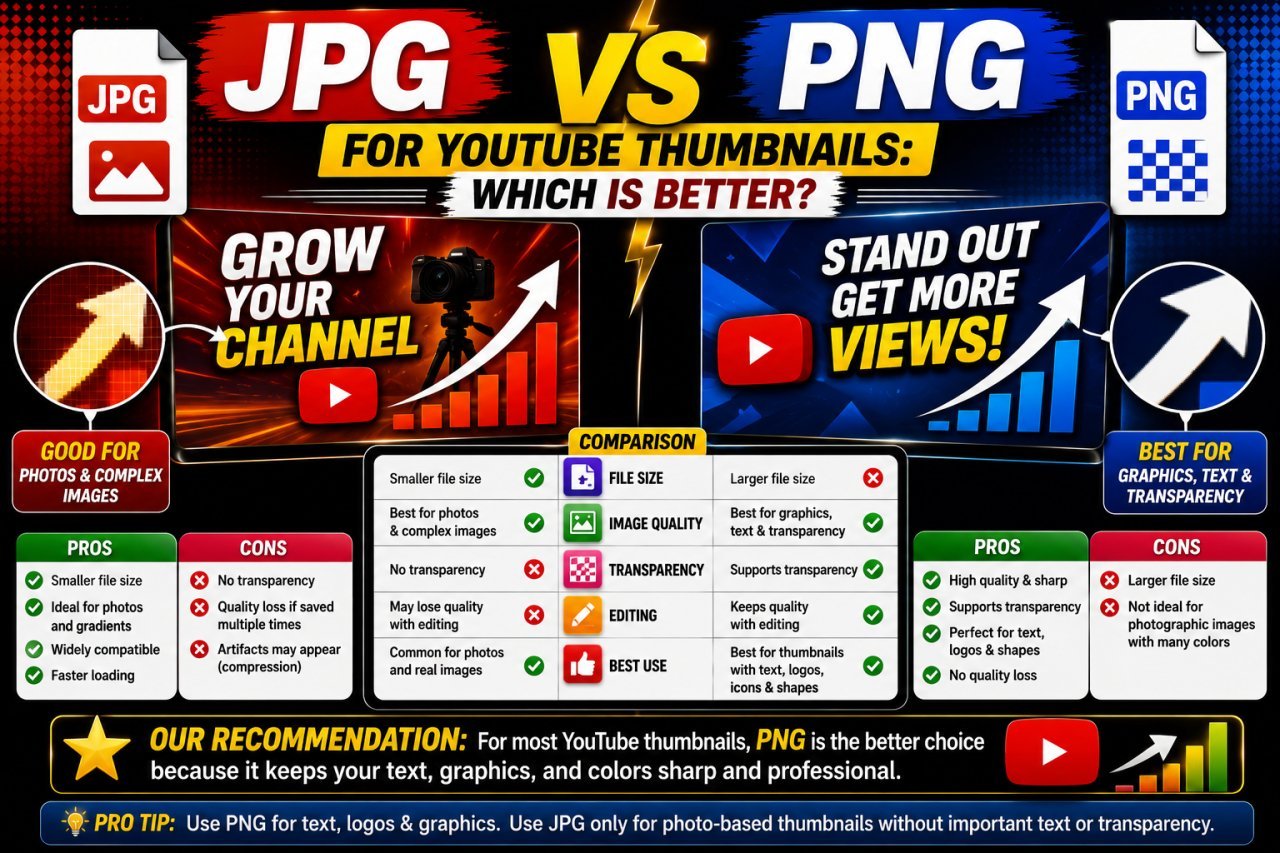
JPG vs PNG for YouTube Thumbnails: Which Is Better?
JPG vs PNG for YouTube thumbnails explained. Learn which format gives better quality, smaller file sizes, sharper text, cleaner graphics, and better results for different thumbnail designs.
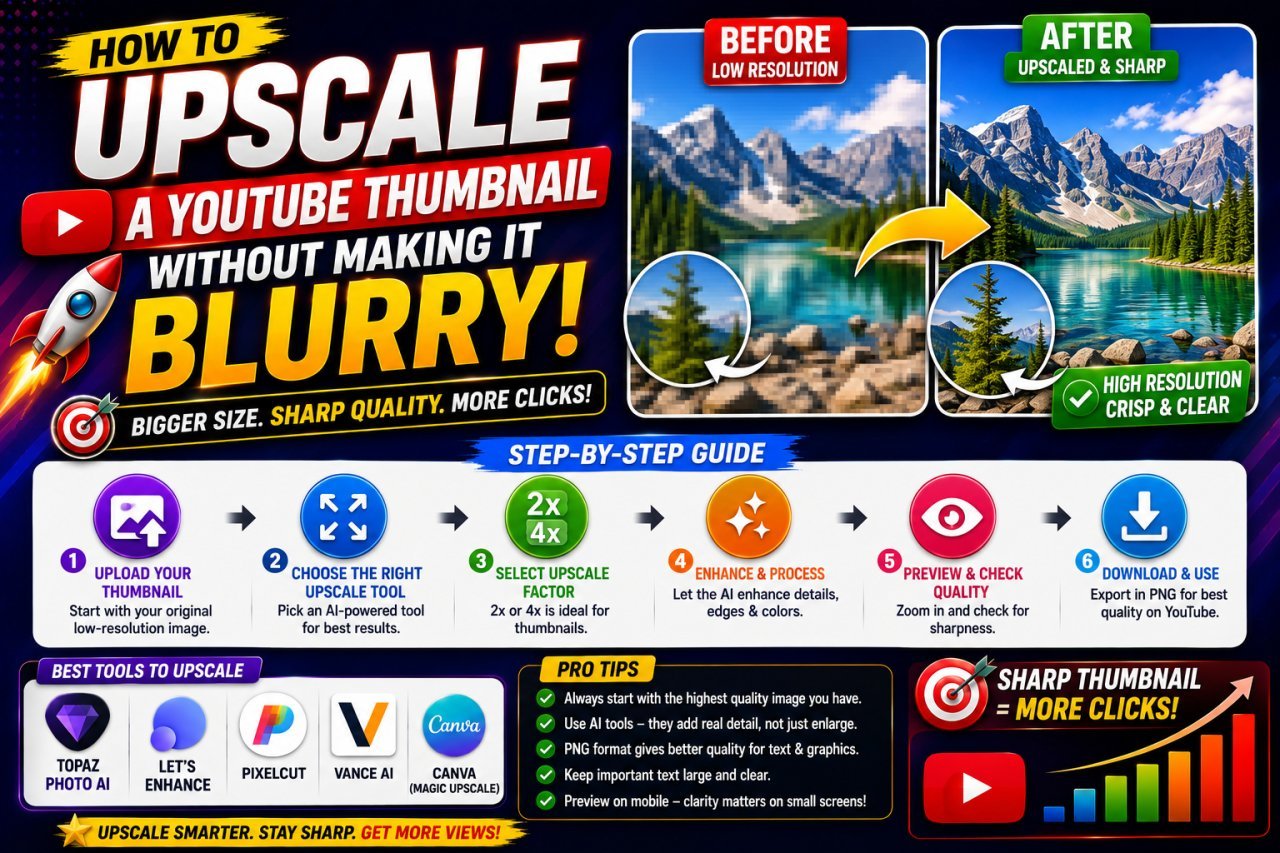
How to Upscale a YouTube Thumbnail Without Making It Blurry
Learn how to upscale a YouTube thumbnail without making it blurry. Discover the right image size, AI upscaling tips, sharpening techniques, and common mistakes to avoid.
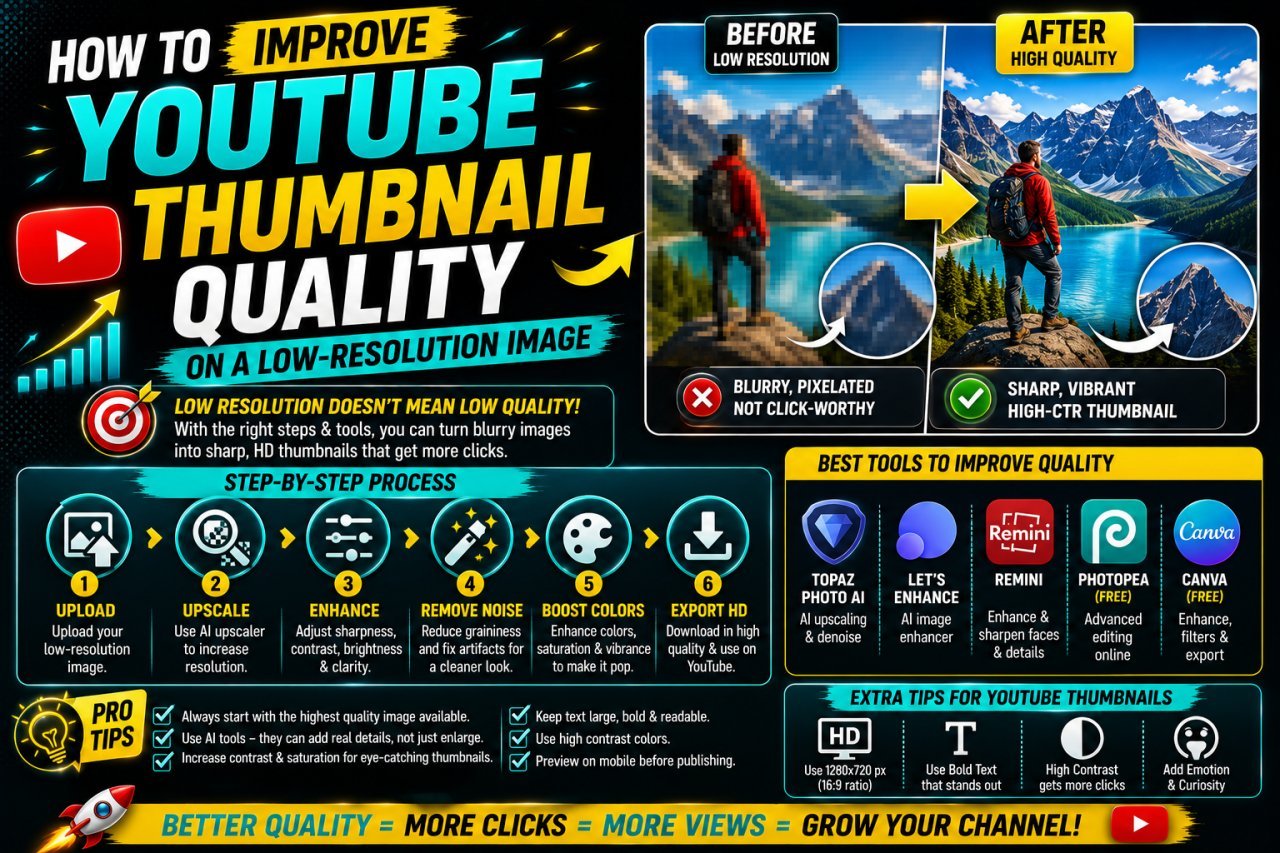
How to Improve YouTube Thumbnail Quality on a Low-Resolution Image
Learn how to improve YouTube thumbnail quality on a low-resolution image using resizing, sharpening, background techniques, compression control, and better export settings.