
JPG vs PNG for YouTube Thumbnails: Which Is Better?
JPG vs PNG for YouTube thumbnails explained. Learn which format gives better quality, smaller file sizes, sharper text, cleaner graphics, and better results for different thumbnail designs.
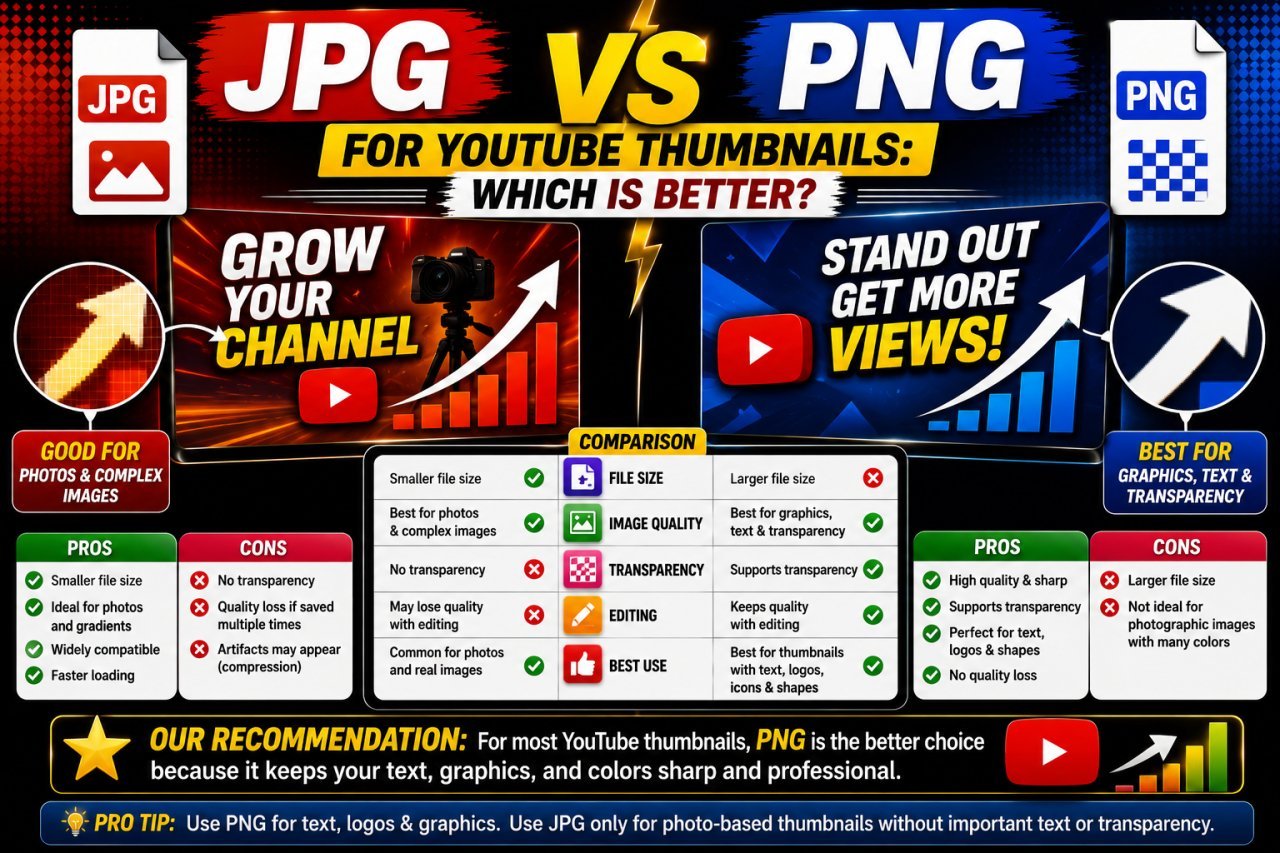
JPG vs PNG for YouTube Thumbnails: Which Gives Better Quality?
Introduction
Choosing the right image format can make a noticeable difference when creating a YouTube thumbnail.
The two formats most people consider are JPG and PNG. Both can produce good-looking thumbnails, but they work differently.
JPG is usually more efficient for photographs and images with lots of colors. PNG is often better suited to graphics, text-heavy designs, and images that need transparency.
So which one should you use?
There is no single answer for every thumbnail. The better choice depends on what your thumbnail contains and how important file size, text edges, transparency, and image detail are for your particular design.
This guide compares JPG and PNG specifically for YouTube thumbnails so you can choose the format that makes sense for your workflow.
JPG vs PNG: The Quick Answer
If your thumbnail is mostly a photo, face, product, or real-world scene, JPG is often the practical choice.
If your thumbnail contains sharp graphics, transparency, logos, or heavily designed elements, PNG can be useful.
| Feature | JPG | PNG |
|---|---|---|
| Photographs | Excellent | Good |
| File size | Usually smaller | Often larger |
| Compression | Lossy | Lossless by default |
| Transparency | No | Yes |
| Text and graphics | Good | Excellent |
| Repeated editing | Less ideal | Better |
| Complex photos | Efficient | Can be large |
| Simple graphics | Good | Excellent |
| Best for | Photo-based thumbnails | Graphic-heavy thumbnails |
The important point is that image format alone does not determine thumbnail quality.
Your source image, dimensions, editing, export settings, and compression level also matter.
All Tools
What Is JPG?
JPG, also written as JPEG, is a widely used image format designed to store photographic images efficiently.
It uses lossy compression, which means some image information can be discarded when the file is saved.
The advantage is a significantly smaller file compared with many uncompressed or losslessly compressed alternatives.
That makes JPG particularly useful for images containing:
- Faces
- Landscapes
- Products
- Background photographs
- Detailed scenes
- Gradients
- Many colors
For example, imagine a thumbnail showing a creator standing in front of a colorful room.
That image contains many different shades and fine details.
JPG can usually store that type of visual information efficiently.
How JPG Compression Works
JPG compression looks for visual information that can be simplified.
At moderate quality settings, these changes may be difficult to notice.
At very aggressive settings, however, you may see:
- Blocky areas
- Blurry edges
- Loss of fine detail
- Color artifacts
- Rough text
- Unnatural-looking faces
This is why choosing the lowest possible JPG quality is not a good thumbnail strategy.
You want efficient compression without obvious visual damage.
What Is PNG?
PNG is an image format that uses lossless compression.
Unlike JPG, PNG can preserve the image data without introducing the same type of lossy compression artifacts.
PNG also supports transparency.
That makes it particularly useful for:
- Logos
- Icons
- Text-heavy graphics
- Cutout subjects
- Transparent elements
- Simple illustrations
- Designs with sharp edges
For example, if your thumbnail contains a person cut out from the background and you need transparent areas during your editing workflow, PNG can be very useful.
Why PNG Files Can Become Large
PNG is not automatically a better-quality choice for every thumbnail.
A photograph saved as PNG can sometimes produce a much larger file than the same image saved as a reasonably high-quality JPG.
This happens because PNG is designed differently.
If your thumbnail is a detailed photograph, PNG may preserve information that does not provide much visible benefit at the final thumbnail size.
That can result in a larger file without a meaningful improvement for the viewer.
JPG vs PNG for YouTube Thumbnail Quality
Now let's compare the two formats based on the areas that matter most for thumbnail creation.
1. Photo Quality
For photographic thumbnails, JPG is often the more practical option.
A photo of:
- A person
- A car
- A phone
- A room
- Food
- A travel destination
can usually be compressed effectively with JPG while retaining good visual quality.
PNG can preserve the source image very well, but the resulting file may be unnecessarily large.
Winner for most photographic thumbnails: JPG
2. Text Sharpness
Text is one area where PNG can have an advantage.
Imagine a thumbnail with:
5 BEST PHOTO APPS
Large, bold text with clean edges can remain very crisp in PNG.
JPG can also produce excellent text, especially at a good quality setting. However, aggressive JPG compression may create artifacts around sharp letters.
Winner for heavily graphic designs: PNG
But remember: text size, font choice, contrast, and export quality often matter more than simply choosing PNG.
3. Transparency
This one is straightforward.
PNG supports transparency.
JPG does not.
If you need a transparent background while preparing your thumbnail, PNG is the obvious choice.
For example:
Person cutout → transparent PNG → thumbnail editor
This lets you place the subject over another background.
Winner: PNG
4. File Size
JPG generally wins when the thumbnail contains photographs.
A well-compressed JPG can be significantly smaller than a PNG version of the same detailed image.
This makes JPG convenient when you want a good balance between:
- Visual quality
- File size
- Easy sharing
- Fast handling
Winner for most photo-based thumbnails: JPG
5. Graphics and Illustrations
If the thumbnail is mostly made from:
- Flat colors
- Logos
- Icons
- Shapes
- Text
- Illustrations
PNG can be a strong choice.
Its lossless nature helps preserve clean edges and solid-color areas.
Winner for graphic-heavy designs: PNG
Which Format Gives Better Quality?
This is where the comparison needs some context.
It would be inaccurate to simply say:
"PNG always gives better quality."
PNG can preserve image information without lossy compression, but that does not automatically mean it will look noticeably better as a YouTube thumbnail.
Likewise, it would be inaccurate to say:
"JPG is low quality."
A properly exported JPG can look excellent.
The better question is:
Which format preserves the important visual details of your particular thumbnail while keeping the file practical?
For a photographic thumbnail, a high-quality JPG may look virtually identical to a much larger PNG at the size viewers actually see.
For a graphic-heavy thumbnail, PNG may preserve sharp edges more effectively.
Example: Photo-Based Thumbnail
Suppose you create a thumbnail for:
"I Tested 10 AI Photo Editors"
Your design includes:
- Your face
- A laptop
- A colorful background
- A photo displayed on screen
- Large thumbnail text
Because the design contains a lot of photographic content, JPG can be a practical final format.
You could export a high-quality JPG and inspect:
- Facial details
- Laptop edges
- Text
- Background
- Screen content
If everything remains clear, there may be little reason to use a much larger PNG.
Example: Graphic-Based Thumbnail
Now imagine a thumbnail for:
"5 Photoshop Shortcuts You Need to Know"
The design contains:
- Large text
- Keyboard icons
- Simple shapes
- Arrows
- A logo
- Flat-color backgrounds
This type of design contains many sharp graphical elements.
PNG can be useful because it preserves those edges cleanly.
Example: Before-and-After Thumbnail
Suppose your thumbnail shows:
Before → After
with two photographs side by side.
Because both sides are photographic images, JPG is usually a sensible choice.
However, if you add transparent graphic elements or need to preserve the design during editing, PNG can still be useful as an intermediate file.
This highlights an important distinction:
Working file vs. final upload file
You may use PNG while designing and export a JPG for the final version.
There is nothing wrong with using different formats at different stages.
JPG vs PNG Comparison Table
| Category | JPG | PNG |
|---|---|---|
| Photographic thumbnail | Excellent | Good |
| Text-heavy design | Good | Excellent |
| Transparent background | No | Yes |
| Smaller file size | Usually | Often no |
| Lossy compression | Yes | No |
| Lossless compression | No | Yes |
| Fine photo detail | Good at high quality | Excellent |
| Flat graphics | Good | Excellent |
| Logos | Good | Excellent |
| Editing workflow | Better as final export | Good as working format |
| Best general use | Photo-based thumbnail | Graphic-based thumbnail |
When Should You Use JPG?
JPG is usually a good choice when your thumbnail is dominated by photographs.
Use it when you have:
- A creator's face
- A product photo
- A travel scene
- A gaming screenshot
- A food photograph
- A room or landscape
- A video frame
- A before-and-after photo
It is also useful when keeping the final file relatively small matters to your workflow.
JPG is especially practical when:
Photo content > graphic content
When Should You Use PNG?
PNG is a strong option when your design contains sharp graphical elements or transparency.
Use it when you have:
- Transparent backgrounds
- Logos
- Simple illustrations
- Flat-color designs
- Large graphical text
- Cutout elements
- UI screenshots
- Graphic compositions
PNG is especially practical when:
Graphic content > photographic content
Can You Use Both Formats?
Yes.
You do not have to choose one format for your entire workflow.
A professional workflow might look like:
Original image → Editing → PNG master → JPG final export
This gives you a high-quality working version and a smaller final copy.
For example, you might create your thumbnail in an editor and save the editable project file.
Then export:
PNG for your master image
and
JPG for a smaller final copy
The exact workflow depends on your editing software and how you plan to use the image.
How Compression Changes the Result
The quality difference between JPG and PNG is also affected by compression.
A high-quality JPG can look excellent.
A heavily compressed JPG can look poor.
PNG can preserve the image data, but that does not mean every PNG will be visually better for your particular thumbnail.
Think about it this way:
High-quality JPG > poorly designed PNG
and
Well-prepared PNG > heavily compressed JPG
The format is only one part of the final result.
How to Check Your Thumbnail Before Uploading
Before choosing the final format, zoom out.
Do not judge your thumbnail only while editing at 200% or 400%.
Preview it at a small size.
Ask yourself:
- Can I read the main text?
- Is the face clear?
- Can I recognize the main object?
- Are the edges clean?
- Does the background look natural?
- Are there compression artifacts?
- Does the thumbnail still look attractive?
If the answer is yes, the format and export settings are probably working well.
How ImageEditPro Can Help With Thumbnail Optimization
After creating your design, you may want to improve or optimize the image before exporting the final version.
ImageEditPro's Image Compressor can help reduce image file size while letting you compare the original and compressed result.
If your thumbnail is soft, the YouTube Thumbnail Enhancer can help improve its sharpness and resolution before final export.
If your source image needs enlargement, the AI Image Upscaler can be useful for increasing image dimensions before you build the final thumbnail.
For a screenshot or source image with unwanted elements, the Background Remover can help separate the main subject from its original background.
If you want to quickly adjust the dimensions of an image before designing the thumbnail, the Image Resizer can also be useful.
A simple workflow is:
Resize → Enhance → Remove Background if needed → Design → Compress → Export
This keeps the editing process organized and helps you avoid repeatedly compressing the same image.
Common Mistakes to Avoid
Mistake 1: Assuming PNG Always Means Better Quality
PNG preserves image data differently, but that does not mean viewers will always see a noticeable improvement.
Mistake 2: Saving Every Photo as PNG
Photographic thumbnails can become unnecessarily large.
Mistake 3: Using Extremely Low JPG Quality
This can create visible artifacts around text, faces, and sharp edges.
Mistake 4: Converting Formats Repeatedly
Repeatedly converting and saving lossy JPG files can gradually affect quality.
Mistake 5: Ignoring Transparency
If you need transparency, JPG is not suitable.
Mistake 6: Choosing Based Only on File Size
The smallest file is not necessarily the best thumbnail.
Mistake 7: Forgetting the Original
Always keep an editable master or high-quality original.
Pros and Cons
JPG
Pros
- Usually smaller file sizes
- Excellent for photographs
- Efficient for detailed images
- Easy to share and store
- Good for final thumbnail exports
Cons
- Lossy compression
- Can create artifacts at low quality
- Does not support transparency
- Repeated saving can reduce quality
PNG
Pros
- Lossless compression
- Excellent for graphics
- Supports transparency
- Sharp text and simple shapes
- Good for working files
Cons
- Often larger than JPG for photographs
- Can be unnecessarily large for photo-heavy thumbnails
- May not provide a noticeable visual benefit for every design
Best Choice Based on Thumbnail Type
| Thumbnail Type | Recommended Starting Point |
|---|---|
| Face + photo | JPG |
| Product photo | JPG |
| Travel photo | JPG |
| Gaming screenshot | JPG |
| Before-and-after photos | JPG |
| Text-heavy graphic | PNG |
| Transparent cutout | PNG |
| Logo-based design | PNG |
| Simple illustration | PNG |
| Mixed photo + graphics | Test both |
The word "starting point" matters here.
Always inspect the final result instead of blindly following a format rule.
Best Practices for Better Thumbnail Quality
Start with a high-quality source
A good format cannot fix a poor source image.
Use appropriate dimensions
Avoid unnecessarily huge images.
Keep your master file
Do not make your compressed copy your only version.
Export once for the final version
Avoid repeated lossy conversions.
Check text after compression
Text can reveal quality problems quickly.
Compare JPG and PNG when unsure
Export both versions and compare them at the size viewers will actually see.
Prioritize the viewer's experience
A slightly larger file is acceptable if it produces a clearly better result within the platform's requirements.
Final Recommendation
So, JPG vs PNG for YouTube thumbnails: which gives better quality?
The answer depends on the thumbnail.
Choose JPG when:
- Your thumbnail is mostly photographic.
- You want a smaller file.
- You are using faces, products, or video frames.
- You do not need transparency.
Choose PNG when:
- Your design contains lots of graphics.
- You need transparency.
- Your thumbnail has sharp flat-color elements.
- You want a lossless working version.
For many photo-based YouTube thumbnails, a high-quality JPG is a practical final choice.
For graphic-heavy designs, PNG can be the better option.
And if you are unsure, export both, compare them at a small viewing size, and choose the version that gives you the best balance of clarity, file size, and visual quality.
Conclusion
JPG and PNG can both produce excellent YouTube thumbnails.
The right choice depends less on the name of the format and more on what your thumbnail contains.
For photographs, faces, products, and video frames, JPG is often an efficient option because it can maintain good visual quality while keeping the file smaller.
For transparent elements, logos, illustrations, and graphic-heavy designs, PNG can be more suitable because it preserves sharp edges and supports transparency.
There is no need to treat the choice as permanent.
You can use PNG during your editing workflow and export a high-quality JPG when you need a smaller final image.
The best approach is simple: choose the format based on the design, compare the final result at a realistic viewing size, and never sacrifice important visual details just to make the file smaller.
Key Takeaways
- JPG is usually practical for photo-based thumbnails.
- PNG is useful for graphics, transparency, and sharp design elements.
- JPG uses lossy compression.
- PNG uses lossless compression.
- PNG does not automatically mean a visibly better thumbnail.
- High-quality JPG can look excellent.
- Avoid extremely low JPG quality.
- Keep an original or editable master file.
- Compare both formats when your design contains mixed content.
- Choose based on visual quality and practical file size, not format popularity.
Call To Action
If your thumbnail needs resizing, sharpening, background cleanup, or compression before upload, you can use the relevant tools on ImageEditPro.in.
A simple workflow is:
Resize → Enhance → Edit → Optimize → Compare → Upload
Take a few minutes to check the final thumbnail at a small size before publishing. That simple check can help you catch blurry text, weak contrast, and compression artifacts before your audience sees them.
10 SEO FAQs
1. Is JPG or PNG better for YouTube thumbnails?
Neither format is always better. JPG is generally practical for photo-based thumbnails, while PNG is often better for graphics, transparency, and designs with sharp flat-color elements.
2. Does PNG give better quality than JPG?
PNG uses lossless compression, but that does not mean it will always look noticeably better than a high-quality JPG. For many photographic thumbnails, a properly exported JPG can look excellent.
3. Is JPG good for YouTube thumbnails?
Yes. JPG is a practical choice for thumbnails containing faces, products, photographs, video frames, and other detailed photographic content.
4. Is PNG good for YouTube thumbnails?
Yes. PNG can be useful for graphic-heavy thumbnails, transparent elements, logos, illustrations, and designs where preserving sharp edges is important.
5. Which format makes a smaller YouTube thumbnail file?
JPG will often produce a smaller file than PNG when the image contains detailed photographic content. The actual file size depends on the image and export settings.
6. Can YouTube thumbnails have transparent backgrounds?
A thumbnail design may use transparency during editing, but the final upload should follow YouTube's supported image requirements. PNG is useful during the design process when transparency is needed.
7. Should I save my YouTube thumbnail as JPG or PNG?
Choose JPG when the design is mostly photographic and PNG when it relies heavily on graphics or transparency. When unsure, export both and compare the final results.
8. Does converting PNG to JPG reduce quality?
Converting a PNG to JPG can introduce lossy compression. The amount of visible change depends on the JPG quality setting and the content of the image.
9. Which is better for thumbnail text, JPG or PNG?
PNG can preserve sharp graphical text very well, but a high-quality JPG can also keep text clear. The font size, contrast, and compression setting are important factors.
10. What is the best image format for a YouTube thumbnail?
There is no universal best format. JPG is often a strong choice for photo-heavy thumbnails, while PNG can be preferable for graphic-heavy designs and workflows that require transparency.
Ready to optimize your images?
Every tool mentioned in this article is free to use. No upload, no signup, and no watermarks — ever.
Try our free toolsRelated articles
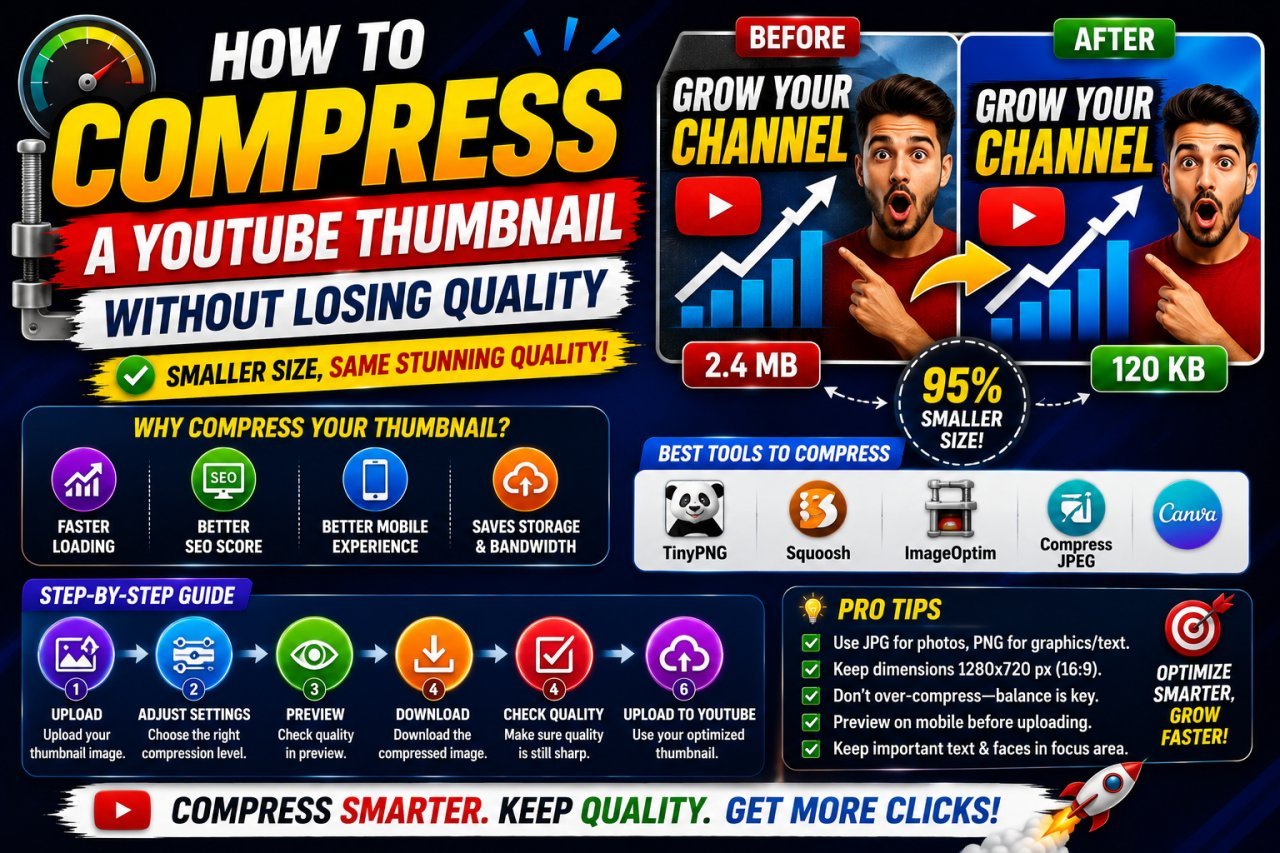
How to Compress a YouTube Thumbnail Without Losing Quality
Learn how to compress a YouTube thumbnail without losing quality using the right dimensions, file format, compression settings, and simple image optimization techniques.
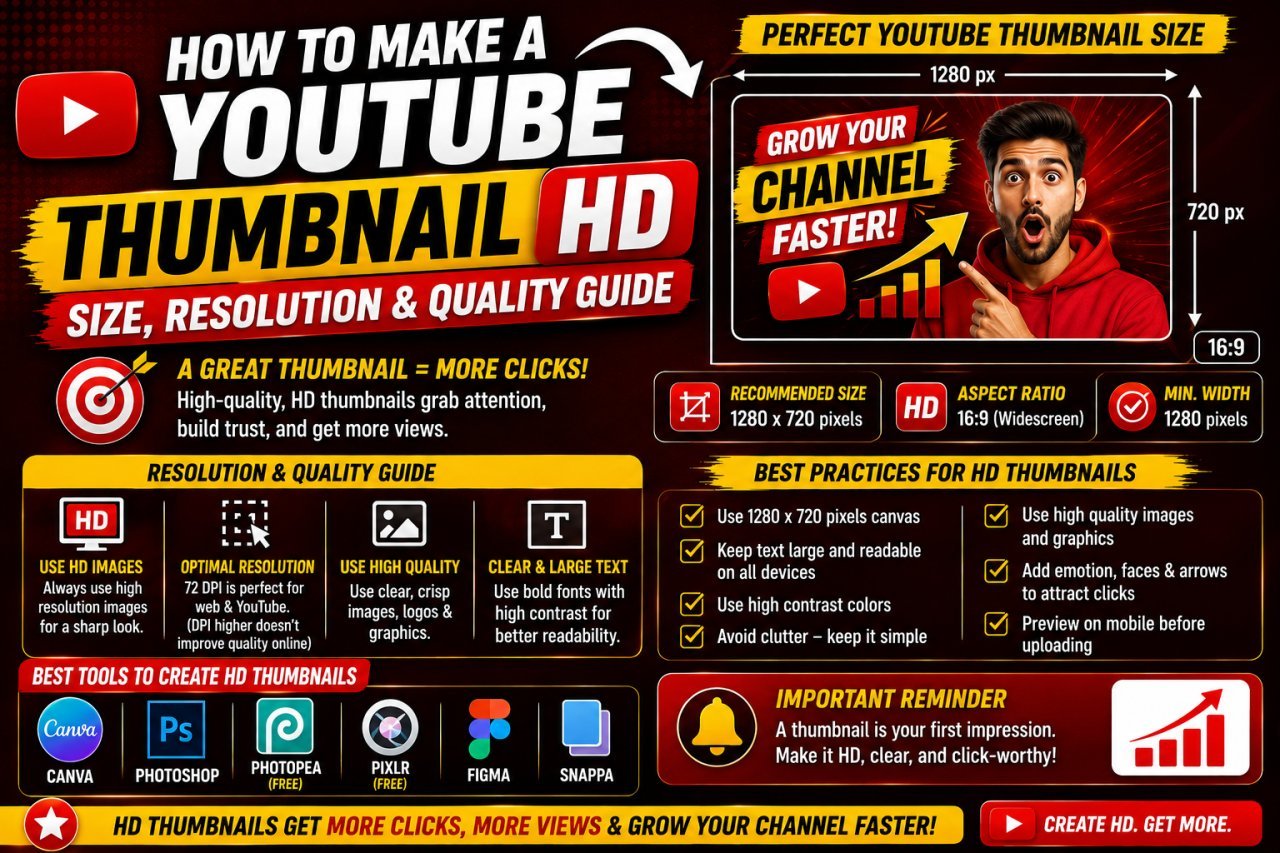
How to Make a YouTube Thumbnail HD: Size, Resolution & Quality Guide
Learn how to make a YouTube thumbnail HD with the right size, resolution, image quality, and export settings. Create sharp thumbnails without blur or pixelation.
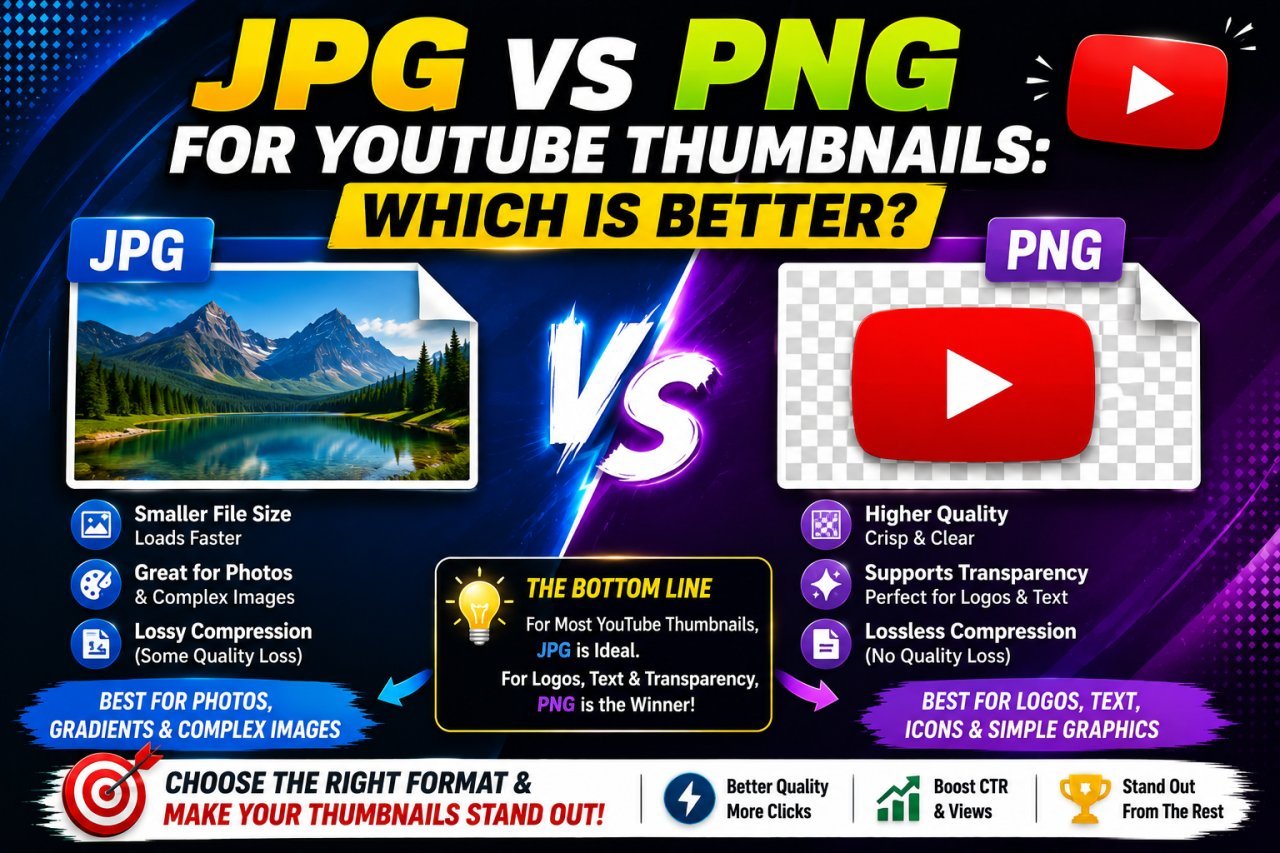
JPG vs PNG for YouTube Thumbnails: Which Is Better?
Should you use JPG or PNG for a YouTube thumbnail? This guide compares image quality, file size, transparency, text, compression, editing, and practical use cases to help you choose the right thumbnail format.