
How to Create a YouTube Thumbnail With AI
Learn how to create a YouTube thumbnail with AI using simple prompts, image generation, editing, text placement, and mobile-friendly design tips.
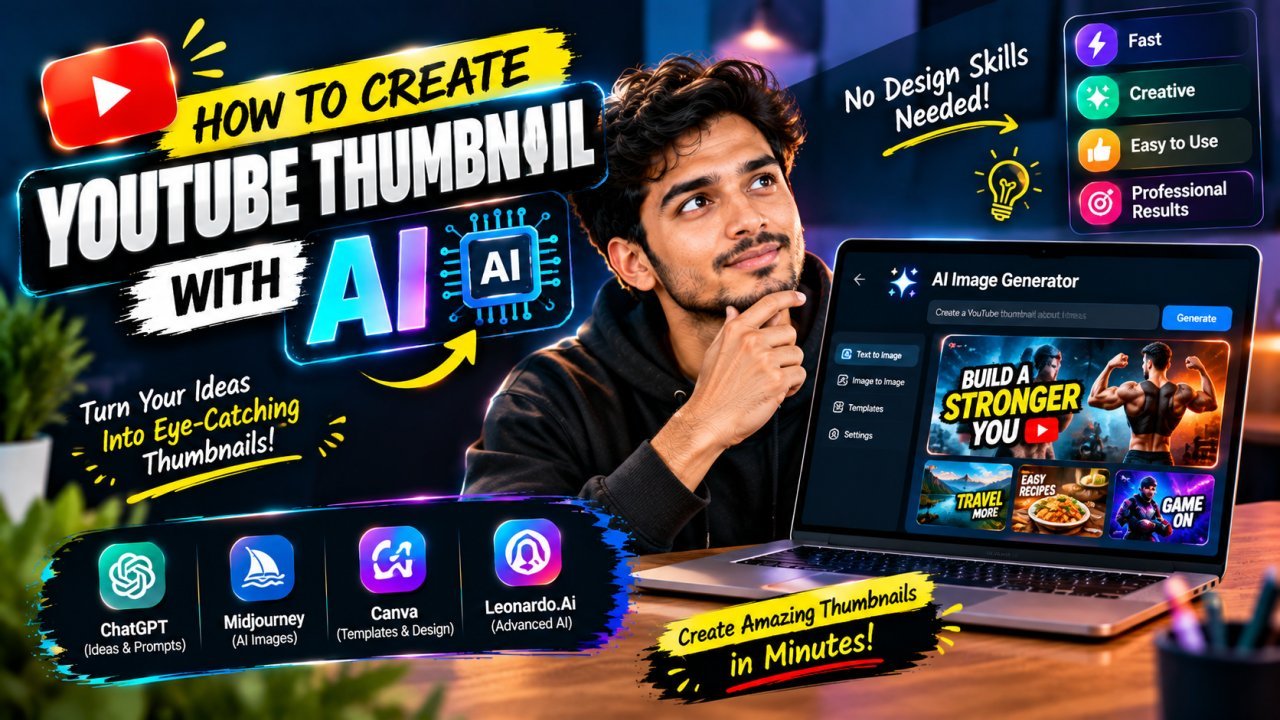
How to Create a YouTube Thumbnail With AI
AI can make the thumbnail creation process faster, especially when you need ideas, backgrounds, visual concepts, or multiple design variations. Instead of starting from a blank canvas, you can use AI to generate a concept and then refine it into a YouTube-ready thumbnail.
Learning how to create a YouTube thumbnail with AI does not mean letting AI handle every part of the design. The strongest workflow usually combines AI-generated ideas or visuals with human editing, clear text, accurate branding, and a final quality check.
In this guide, you will learn how to plan an AI thumbnail, write a useful prompt, generate or create the visual, add readable text, edit the result, and prepare the final thumbnail for YouTube.
What Is an AI YouTube Thumbnail?
An AI YouTube thumbnail is a thumbnail created with the help of artificial intelligence tools.
Depending on the tool, AI may help you:
- [All Tools](All Tools/tools)
- [Image Compressor (Home)](Image Compressor (Home)
- [AI Product Photo Enhancer](AI Product Photo Enhancer/product-photo-enhancer)
- Generate a background
- Create a visual concept
- Produce an illustration
- Remove or replace an image background
- Generate design ideas
- Improve or modify an existing image
- Create several visual variations
- Help with layout or editing
AI does not have to create the entire thumbnail from beginning to end. You can use it for one part of the process and complete the rest manually.
For example, you might use AI to create a dramatic background, add your own photo of the presenter, and then manually add the headline and branding.
Why Use AI to Create YouTube Thumbnails?
Creating thumbnails manually can take time, particularly when you need several concepts before choosing one.
AI can help speed up the early stages of the process.
AI can help with ideas
If you are unsure how to visually represent a video topic, an AI tool can generate concepts based on your description.
For example, instead of simply asking for a “YouTube thumbnail about photography,” you could describe the subject, mood, composition, and visual focus.
AI can help create visual assets
Some AI tools can generate images from text prompts. This can be useful when you need a background or a visual that is difficult to photograph yourself.
AI can help with repetitive editing
Depending on the software, AI-powered features may help with tasks such as background removal, object selection, image expansion, or other editing operations.
The exact features vary by tool, so check the current capabilities of the software you use.
Step 1: Understand the Video Before Designing
Before opening an AI tool, identify the main idea of the video.
A thumbnail should represent the actual content of the video. AI can generate an attractive image, but an attractive image is not automatically a useful thumbnail.
Ask:
- What is the video about?
- Who is the target viewer?
- What is the main result or idea?
- What should viewers notice first?
- Does the video feature a person, product, location, or object?
- Is there a comparison, transformation, tutorial, or story?
Example
Suppose the video is about:
“How to Edit Photos on Your Phone”
Possible visual directions include:
- A smartphone displaying an edited photo
- A before-and-after photo comparison
- A person editing a picture on a phone
- A dramatic split-screen showing the original and edited result
The best concept depends on the actual video.
Step 2: Decide What AI Should Create
You do not always need AI to generate the entire thumbnail.
There are several ways to use AI.
Option 1: Generate the complete visual concept
You can ask an AI image tool to create a thumbnail-style composition based on your idea.
This can be useful for brainstorming, but you may still need to add or correct text, branding, and other elements manually.
Option 2: Generate only the background
This gives you more control over the final thumbnail.
For example, you could generate:
- A futuristic technology background
- A dramatic studio environment
- A travel scene
- A colorful gaming environment
- A clean business background
You can then add your own subject and text.
Option 3: Use AI to edit an existing image
If you already have a photo of yourself, a product, or another important subject, you may not need to generate it with AI.
Instead, use AI-assisted editing to remove the background, clean up the image, or create a better composition.
This approach can help preserve the accuracy of important subjects.
Step 3: Write a Better AI Prompt
The prompt is one of the most important parts of AI image generation.
A vague prompt can produce a generic image. A detailed prompt gives the tool more information about what you want.
A simple prompt structure
You can describe:
Subject + setting + composition + lighting + style + mood + aspect ratio
For example:
A professional photographer holding a camera, standing in a modern studio, large camera visible in the foreground, dramatic lighting, high contrast, clean background, dynamic YouTube thumbnail composition, space on the left for headline text, 16:9 composition
The exact wording will depend on the AI tool and the type of image you want.
Describe the composition
Do not focus only on the subject.
Tell the AI where important elements should appear.
For example:
- Subject on the right
- Open space on the left
- Main object in the foreground
- Background slightly blurred
- Strong visual contrast
- Clear separation between subject and background
This can make the generated image easier to turn into a thumbnail.
Step 4: Leave Space for Thumbnail Text
One common mistake is generating an image that fills every part of the canvas.
If you know you want a headline, tell the AI to leave clean space for it.
For example:
Subject positioned on the right side, clean darker background on the left with open space for large white headline text, strong subject separation, dramatic lighting, 16:9 composition
The goal is to create a visual hierarchy before adding text.
You do not need to ask the AI to fill every corner with details.
Step 5: Generate Multiple Concepts
Your first AI-generated image may not be the best option.
Instead of immediately using the first result, create several variations with different:
- Subject positions
- Backgrounds
- Lighting
- Camera angles
- Color combinations
- Levels of visual detail
Then compare them.
A useful workflow is:
- Generate several concepts.
- Remove designs that are difficult to understand.
- Keep the clearest few.
- Add text to the strongest concepts.
- Preview them at small size.
- Choose the design that communicates the video most clearly.
The goal is not simply to find the most impressive AI image. The thumbnail needs to work as a thumbnail.
Step 6: Add Your Own Photos When Appropriate
AI-generated people, products, or other important subjects may not accurately represent the real subject of your video.
If the video features you, your team, a real product, or a specific location, consider using your own photograph where accuracy matters.
For example, you can:
- Generate an AI background.
- Upload your own portrait.
- Remove the portrait background.
- Place yourself in the AI-generated scene.
- Adjust lighting and color.
- Add the headline.
This creates a hybrid workflow that combines AI assistance with real content.
Step 7: Create the Thumbnail Composition
Once you have your visual, move it into your preferred editing tool.
A common YouTube thumbnail canvas is 1280 × 720 pixels, using a 16:9 aspect ratio. Check YouTube's current requirements before publishing because platform specifications can change.
Arrange the major elements so the viewer can understand the thumbnail quickly.
A basic composition might include:
- Main subject: the person, product, or object
- Background: supports the topic without competing with the subject
- Headline: short and easy to read
- Accent element: optional arrow, shape, icon, or highlight
Do not add every possible element. A simple composition can communicate more effectively than a crowded one.
Step 8: Add Clear Thumbnail Text
AI can help generate visual concepts, but you should carefully check any text it creates.
AI-generated text inside images can sometimes contain spelling errors, incorrect letters, or awkward words. For important thumbnail headlines, adding the final text manually in your editing tool gives you more control.
Keep the headline short
For example:
Instead of:
“How You Can Easily Edit Professional Looking Photos on Your Smartphone”
Use something shorter, such as:
“EDIT PHOTOS FAST”
The exact wording should match the actual video.
Make the text mobile-friendly
Check:
- Font size
- Font weight
- Contrast
- Line spacing
- Position
- Background behind the text
A headline that looks perfect on a desktop design canvas may become difficult to read on a phone.
Step 9: Make the Subject Stand Out
The main subject should be easy to recognize.
You can improve separation by using:
- Background blur
- Contrast adjustments
- Lighting adjustments
- A subtle outline
- A shadow
- A simpler background area
Use effects carefully. Too many effects can make an AI-generated thumbnail look artificial or cluttered.
Step 10: Check the Thumbnail for AI Errors
Before publishing an AI-assisted thumbnail, inspect it carefully.
Look for:
- Strange hands or fingers
- Distorted faces
- Incorrect objects
- Unusual text
- Misspelled words
- Unnatural shadows
- Repeated objects
- Strange background details
- Incorrect logos or product features
This is especially important when the thumbnail contains a real person, recognizable product, or technical subject.
Do not assume that an AI-generated image is accurate simply because it looks realistic at first glance.
Part 1 Summary
To create a YouTube thumbnail with AI, start by understanding the video and deciding what role AI should play. Use a detailed prompt, plan the composition, leave space for text, and generate several concepts instead of relying on the first result.
You can use AI for the entire visual, only the background, or specific editing tasks. For important real-world subjects, combining AI-generated elements with your own photographs can give you greater control.
After generating the image, finish the thumbnail manually, check the text, inspect the image for AI errors, and preview the final design at a small size.
Part 2 — Advanced AI YouTube Thumbnail Methods
11. Use AI for the Parts That Take the Most Time
You do not have to use AI for every step of thumbnail creation. A better workflow is often to use AI where it saves time and keep manual control over the parts that need accuracy.
For example:
| Thumbnail task | Possible AI use |
|---|---|
| Thumbnail ideas | Generate concepts |
| Background | Create a custom background |
| Background removal | Automatically isolate a subject |
| Image expansion | Extend an existing image |
| Object cleanup | Remove unwanted elements |
| Composition | Generate layout ideas |
| Headline | Brainstorm short text |
| Final typography | Add manually for accuracy |
| Branding | Add manually |
| Final quality check | Review manually |
This approach gives you the speed of AI without giving up control over the final design.
12. Create AI Thumbnails for Different YouTube Niches
The visual style should match the topic of the video. A gaming thumbnail, finance thumbnail, cooking thumbnail, and travel thumbnail may need very different compositions.
Gaming videos
A gaming thumbnail might use:
- A recognizable game-related subject
- Strong action or movement
- High visual contrast
- One dominant character or object
- A short headline, if needed
Avoid filling the design with too many characters and effects. The main subject should remain obvious.
Tech videos
For technology content, you could use:
- A smartphone, laptop, camera, or other device
- A clean background
- A close-up product view
- A comparison between two products
- A short benefit or question
If the video reviews a real product, use accurate product imagery rather than relying on an AI-generated version that may change important details.
Finance videos
Finance thumbnails often need to communicate a specific topic quickly.
Possible visual elements include:
- Charts
- Currency
- A relevant person
- A financial concept
- A simple background
Avoid adding random numbers, charts, or financial claims that are not supported by the video.
Travel videos
AI can help create atmospheric backgrounds or concept visuals, but be careful when representing real destinations.
If the video is about a specific location, real photographs can be useful because they accurately show the place.
Educational videos
For educational content, clarity is more important than visual complexity.
Use:
- One main concept
- A relevant object or illustration
- Short text
- Simple visual hierarchy
The thumbnail should give viewers an accurate idea of what they will learn.
13. Use a Prompt Template
Instead of writing a completely new prompt every time, create a reusable structure.
Try this template:
Create a YouTube thumbnail visual about [VIDEO TOPIC].
Main subject: [SUBJECT].
Composition: [SUBJECT POSITION].
Background: [BACKGROUND].
Lighting: [LIGHTING STYLE].
Mood: [MOOD].
Visual style: [STYLE].
Leave clear space on [LEFT/RIGHT/TOP] for headline text.
Strong subject-background separation.
16:9 composition.
No unnecessary text or logos.
You can replace the sections for every video.
Example
For a video about smartphone photography:
Create a YouTube thumbnail visual about smartphone photography.
Main subject: a modern smartphone displaying a dramatic edited photo.
Composition: smartphone large on the right side.
Background: dark modern photography studio with subtle camera equipment.
Lighting: dramatic directional lighting.
Mood: exciting and professional.
Visual style: clean, high-contrast YouTube thumbnail.
Leave clear space on the left for headline text.
Strong subject-background separation.
16:9 composition.
No unnecessary text or logos.
The exact prompt structure will vary between AI tools. Treat it as a starting framework rather than a guaranteed formula.
14. Generate the Background Separately
One useful AI workflow is to create the background independently from the main subject.
This gives you more control over the final composition.
For example:
- Generate a suitable background.
- Add your own photograph.
- Remove the photograph's original background.
- Position the subject.
- Adjust the lighting and colors.
- Add the headline.
- Export the final thumbnail.
This method can be especially useful when the thumbnail needs to feature a real person or product.
15. Use AI to Expand Existing Images
Sometimes you already have a good photo, but there is not enough empty space for text.
An AI editing feature that expands an image can potentially create additional background area around the original photo.
For example, if your subject is too close to the left edge, you may expand the canvas on the right and create room for a headline.
Always inspect generated areas carefully. AI expansion can introduce objects or details that were not present in the original image.
16. Use AI Background Removal
Background removal is another practical use of AI.
Suppose you have a portrait of yourself but the original background does not fit your thumbnail. You can remove the background and place the subject over a more suitable visual.
A simple workflow is:
- Upload the original image.
- Remove the background.
- Clean up any unwanted edges.
- Add the new background.
- Adjust the subject's size.
- Match brightness and color.
- Add text and other elements.
Pay particular attention to hair, hands, clothing edges, and other detailed areas. Automatic background removal is not always perfect.
17. Match the Subject to the AI Background
A common problem with AI-assisted thumbnails is that the subject looks like it was pasted onto the background.
You can improve the composition by matching:
- Brightness
- Contrast
- Color temperature
- Shadow direction
- Overall lighting
- Subject scale
For example, if the AI background has dramatic lighting from the left but the subject is evenly lit from the front, the composition may feel unnatural.
Small adjustments can make the final design more cohesive.
18. Create Thumbnail Variations
Do not stop after creating one design.
Try several variations such as:
Variation A — Subject focused
Large subject with a simple background and short headline.
Variation B — Comparison
Two visual elements placed side by side with a clear distinction.
Variation C — Result focused
The final result takes up most of the thumbnail, with minimal supporting text.
Variation D — Question based
A strong visual combined with a short question that accurately reflects the video.
Compare the variations at a small size. The design that looks most impressive when enlarged is not necessarily the one that communicates the video most clearly when reduced.
19. Use AI for Thumbnail Text Ideas, Not Blindly for Final Text
AI can help brainstorm headline options, but you should review every suggestion.
For example, for a video about creating thumbnails with AI, possible ideas could include:
- “AI THUMBNAIL”
- “MADE WITH AI”
- “CREATE FASTER”
- “AI DESIGN?”
- “THUMBNAIL IN MINUTES”
Choose wording that accurately reflects the actual video. Avoid exaggerated claims simply because they sound more attention-grabbing.
For final typography, manually adding the text in your design software usually gives you better control over spelling, font, spacing, and placement.
20. Keep AI-Generated Faces and Products Accurate
AI-generated images can alter recognizable details.
This matters when the thumbnail features:
- A real person
- A specific product
- A company logo
- A real location
- A recognizable piece of equipment
If accuracy is important, consider using an authentic photograph or approved brand asset instead.
AI can still help with the surrounding composition or background.
21. Common AI Thumbnail Mistakes
Mistake 1: Using the first generated image
The first result may not have the best composition.
Better approach: Generate several concepts and compare them.
Mistake 2: Asking AI to create lots of text
AI image generators may not reliably produce clean, accurate typography.
Better approach: Generate the visual first and add important text manually.
Mistake 3: Making the prompt too vague
A prompt such as “make a cool YouTube thumbnail” gives little information about the subject or composition.
Better approach: Describe the subject, placement, background, mood, and empty space for text.
Mistake 4: Filling the entire canvas with details
Too many visual elements can make the thumbnail difficult to understand.
Better approach: Give one subject visual priority and simplify the background.
Mistake 5: Trusting AI-generated facts or objects
An AI-generated visual may contain inaccurate details.
Better approach: Inspect the image and use real assets when factual or product accuracy matters.
Mistake 6: Forgetting the video itself
A visually impressive AI image may not accurately represent the content.
Better approach: Start with the video's main idea and design around it.
Mistake 7: Ignoring mobile viewers
A complex AI-generated composition can become a confusing collection of small details on a phone.
Better approach: Preview the thumbnail at a small size and remove anything that becomes unnecessary.
22. AI Thumbnail Workflow: From Idea to Upload
A practical workflow can look like this:
Video topic
     ↓
Thumbnail concept
     ↓
AI prompt
     ↓
Generate several visuals
     ↓
Choose the clearest concept
     ↓
Add real photos or assets if needed
     ↓
Crop and compose
     ↓
Add headline manually
     ↓
Adjust contrast and lighting
     ↓
Check for AI errors
     ↓
Preview on mobile
     ↓
Export
     ↓
Upload to YouTube
This workflow separates creative experimentation from final quality control.
23. How to Make AI Thumbnails Look Less Generic
AI-generated images can sometimes have a similar polished appearance. Adding elements that are specific to your channel can make the thumbnail more recognizable.
Consider using:
- Your usual font
- A consistent brand color
- Your own photography
- A recognizable presenter
- A consistent composition style
- A small brand element
Do not force every thumbnail to look identical. Keep the overall identity consistent while adapting the design to each video's topic.
24. Final AI Thumbnail Checklist
Before publishing, ask:
- Does the thumbnail accurately represent the video?
- Is the main subject immediately clear?
- Does the composition have one obvious focal point?
- Is the headline short and readable?
- Did I manually check all important text?
- Did I inspect the image for AI-generated errors?
- Are real people and products represented accurately?
- Is the background supporting rather than competing with the subject?
- Is there enough contrast?
- Does the design work at mobile size?
- Does the thumbnail fit the channel's visual identity?
- Have I removed unnecessary effects and details?
- How to Blur the Background in a YouTube Thumbnail
Part 2 Summary
AI can speed up YouTube thumbnail creation, but the best results still require thoughtful design and manual review.
Use AI for brainstorming, backgrounds, image generation, editing, and variations when useful. Keep control over important elements such as accurate people, products, branding, final typography, and the overall message.
A successful AI thumbnail is not simply an impressive generated image. It is a clear visual that accurately represents the video and remains understandable when viewed at a small size.
Part 3: How to Create a YouTube Thumbnail With AI
Conclusion
Learning how to create a YouTube thumbnail with AI can make the thumbnail design process faster and easier, especially when you need multiple ideas for the same video.
AI can help you generate backgrounds, create visual concepts, remove backgrounds, improve compositions, and explore different thumbnail styles. However, the final thumbnail still needs human judgment.
A good YouTube thumbnail should make the video's topic clear within a few seconds. It should have a strong visual subject, readable text, good contrast, and a design that matches the actual content of the video.
The best approach is to use AI as a design assistant rather than relying on it to do everything automatically.
Start with your video's main idea, create several AI concepts, choose the strongest composition, add accurate text manually, check the image carefully, and then compare different versions.
Remember that a beautiful image is not automatically a good YouTube thumbnail. The thumbnail needs to communicate the video's value clearly and encourage the right viewers to understand what they will get from watching.
Key Takeaways
Here are the most important points to remember when creating YouTube thumbnails with AI:
- Start with the main idea of your video.
- Write a clear AI prompt before generating an image.
- Keep the thumbnail visually simple.
- Use one strong main subject whenever possible.
- Leave enough empty space for thumbnail text.
- Use large, short, readable text.
- Keep strong contrast between the subject, background, and text.
- Check AI-generated faces, hands, objects, logos, and product details.
- Create multiple thumbnail variations instead of using the first result.
- Make sure the thumbnail accurately represents the video.
- Use your own photos when a real person or product needs to look accurate.
- Use AI for ideas and visual creation, but make the final design decisions yourself.
- Test different layouts, images, colors, and text combinations when possible.
A Simple AI YouTube Thumbnail Formula
You can use this simple formula for almost any YouTube video:
Video topic → Main subject → Background → Emotion or visual hook → Short text → Contrast → Final quality check
For example, if your video is about creating a website with AI, your thumbnail could contain:
Main subject: laptop showing a website
Background: modern workspace
Visual hook: glowing AI effect around the laptop
Text: "BUILD A WEBSITE"
Composition: laptop on one side with empty space for text on the other side
This gives the AI a clear creative direction instead of asking it to randomly generate a thumbnail.
Call to Action
If you regularly publish videos on YouTube, start using AI to create and test more thumbnail concepts.
You do not need to accept the first AI-generated image. Generate several ideas, select the strongest composition, improve the image manually, and make sure the final thumbnail accurately represents your video.
If you are looking for a faster way to create better YouTube visuals, use the AI thumbnail workflow explained in this guide as your starting point.
Frequently Asked Questions
1. Can I create a YouTube thumbnail with AI?
Yes. AI can help you create thumbnail concepts, backgrounds, visual elements, compositions, and image variations. You can then edit the result and add your final text before uploading the thumbnail.
2. How do I create a YouTube thumbnail with AI?
Start by identifying your video's main topic and visual idea. Write a detailed AI prompt describing the subject, background, composition, lighting, mood, and empty space for text. Generate multiple concepts, choose the strongest one, edit it, add readable text, and check the final image before publishing.
3. What should I include in an AI thumbnail prompt?
A useful prompt can include the main subject, background, composition, camera angle, lighting, mood, colors, visual style, and space for text.
For example:
Create a bold YouTube thumbnail for a video about AI website building. Show a laptop displaying a modern website, dramatic lighting, clean background, high contrast, strong focal point, realistic style, and empty space on the left for large thumbnail text.
4. Should I let AI generate the text on my thumbnail?
It is usually better to add important thumbnail text manually in an image editor. AI image generators can produce text incorrectly or make it difficult to control the exact wording and placement.
5. Can AI create thumbnails for gaming videos?
Yes. AI can create gaming-style backgrounds, dramatic scenes, characters, effects, and visual concepts. For gaming thumbnails, keep the main character or gameplay element easy to recognize and avoid making the image unnecessarily crowded.
6. Can I use my own photo with an AI-generated background?
Yes. One useful workflow is to use your own photo as the main subject and create or replace the background with AI. This can help maintain a more accurate appearance while still giving you creative control over the scene.
7. How many thumbnail versions should I create?
There is no universal number that works for every channel. Creating several distinct concepts can help you compare different compositions before choosing the final design.
For example, you might create versions with:
- Different subject positions
- Different backgrounds
- Different facial expressions
- Different text placement
- Different visual hooks
8. What makes an AI-generated YouTube thumbnail effective?
A useful thumbnail usually has a clear subject, strong visual hierarchy, readable text, sufficient contrast, and a direct connection to the video topic. It should also remain understandable when viewed at a small size.
9. Can AI thumbnails look too generic?
Yes. A generic prompt can produce a generic-looking image. To create a more specific result, describe the subject, composition, visual hierarchy, mood, camera angle, background, lighting, and the exact purpose of the image.
10. Is AI enough to create a professional YouTube thumbnail?
AI can handle much of the creative and production work, but a professional-looking thumbnail often still benefits from human editing. Manual adjustments to text, cropping, contrast, composition, branding, and accuracy can make the final result more useful.
Ready to optimize your images?
Every tool mentioned in this article is free to use. No upload, no signup, and no watermarks — ever.
Try our free toolsRelated articles
How to Make a YouTube Thumbnail With Two Images
Learn how to make a YouTube thumbnail with two images. Follow simple steps to combine photos, arrange them clearly, and create a balanced thumbnail that works on mobile.

How to Make YouTube Thumbnail Text Clear and Sharp
Learn how to make YouTube thumbnail text clear and sharp with better fonts, sizing, contrast, spacing, outlines, export settings, and simple design techniques.
How to Make a YouTube Thumbnail More Eye-Catching
Learn how to make a YouTube thumbnail more eye-catching with better colors, text, contrast, composition, faces, branding, and simple design techniques.