
Mobile Editing vs PC Editing — Full Comparison (When to Use What)
Mobile editors are wildly more capable than they were in 2020. PC editors are wildly more accessible online. Here's when each actually wins.
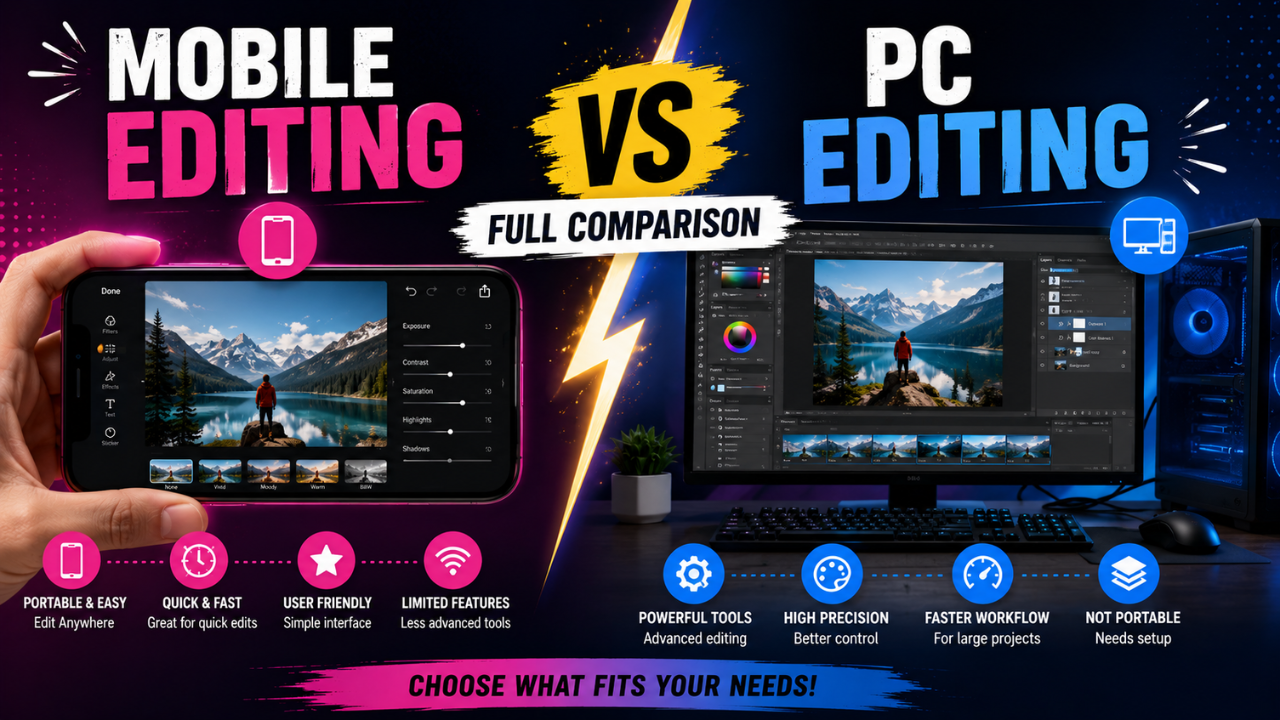
In 2020, "real" photo editing meant a PC. By 2026, mobile editing has caught up dramatically — modern phone editors can do 80% of what desktop editors do, often faster.
But there are still tasks where one platform crushes the other. Here's the honest breakdown.
Where mobile wins (do this on your phone)
1. Quick crop + colour adjustment
Time on phone: 30 seconds. Time on PC: 2 minutes (file transfer + open editor + close editor).
For one-off social posts, mobile is universally faster.
2. AI-powered effects
Most "AI" mobile apps (Lensa, Picsart, Pixelcut) launched cloud-AI in mobile form. The user experience is genuinely better than desktop versions of the same tools.
Mobile apps that beat desktop for AI tasks:
- Lensa AI — better cartoonification than most desktop apps
- Adobe Express mobile — surprisingly capable
- Pixelcut — solid all-rounder
3. Quick social media-ready exports
Mobile apps know what Instagram/TikTok/YouTube want. One tap exports at the right ratio, quality, and resolution.
On PC you'd need to manually set everything (or use export presets you've configured).
4. Editing while travelling / commuting
No laptop required. Decent editing while on a train, in a cafe, or in bed.
5. Live previews of filters
Mobile apps' filter strips give you instant before/after comparisons across many styles. Desktop tools usually require you to apply, see result, undo, try next.
Where desktop wins (do this on PC)
1. Multi-image batch processing
PC tools (Lightroom, Photoshop, our Bulk Compressor in a browser tab) handle 50+ images cleanly. Mobile gets tedious past 10.
2. Fine pixel-level precision
Touch input is imprecise. A trackpad/mouse is much better for:
- Spot healing on tiny details
- Pixel-precise mask refinement
- Pen Tool work
- Text placement
3. Complex layered compositions
Composite work (3+ layers, masks, blend modes) is technically possible on mobile but slow. On desktop, it flows.
4. Long sessions
Editing 50 wedding photos on a phone for 3 hours? Possible but brutal. Same job on a 27" monitor is comfortable.
5. Heavy AI operations
Browser-side AI on a phone is faster than 2020 but still slow vs desktop GPU. A 4K upscale that takes 5 seconds on a desktop takes 30 seconds on a phone.
Task-by-task verdict
| Task | Phone | PC | Tie |
|---|---|---|---|
| Quick crop | ✅ | ||
| Quick exposure/colour fix | ✅ | ||
| Apply trending filter | ✅ | ||
| Cartoonify a portrait | ✅ | ||
| Background removal | ✅ | ||
| Resize for Instagram | ✅ | ||
| Resize for print (300 DPI) | ✅ | ||
| Batch process 30+ photos | ✅ | ||
| Composite (3+ layers) | ✅ | ||
| Precise mask refinement | ✅ | ||
| Add text to thumbnail | ✅ | ||
| Heavy AI upscale | ✅ | ||
| Export at platform sizes | ✅ | ||
| Detailed retouching | ✅ | ||
| Social media one-offs | ✅ | ||
| Wedding/event 200+ photos | ✅ | ||
| Quick screenshot edit | ✅ |
The pattern: mobile wins for volume of small tasks; PC wins for depth on single tasks or batches.
The hybrid workflow most pros use
Working photographers and designers in 2026 don't pick sides — they use both:
- Capture and quick review on mobile
- Heavy editing on PC (Lightroom desktop / Photoshop / similar)
- Final mobile-specific polish on phone (Instagram-specific cropping, story formats)
- Publish from mobile (faster, has correct app integrations)
Some pros also use:
- iPad with Apple Pencil for hybrid (touch precision + bigger screen). Real growth segment 2022-2026.
- Web tools accessed from both — our free image tools work on both, no install needed
What if you only have one device?
Only mobile (phone)?
Solid free apps that cover most needs:
- Snapseed (free) — best free mobile editor
- Lightroom Mobile (free with limits) — same engine as desktop
- Picsart — versatile, free with watermarks on some features
- Pixelcut — AI-focused, free tier
Skip: anything with intrusive ads, anything requiring login just to crop
Only PC?
Solid free desktop options:
- Photopea — browser-based Photoshop clone
- GIMP — desktop install, full editor
- Canva — web-based, design-oriented
- Our browser-based tools — runs in any browser
You don't need Photoshop. Free alternatives cover 95% of use cases.
Cost comparison
For a moderately serious editor:
| Stack | Cost / year |
|---|---|
| Phone-only: Snapseed + Lightroom Mobile (free tier) | ₹0 |
| Phone-only: Snapseed + Lightroom Mobile (paid) | ~₹3,000 |
| PC-only: Photopea/GIMP/free tools | ₹0 |
| PC-only: Affinity Photo (one-time) | ~₹7,500 |
| PC-only: Adobe Creative Cloud | ~₹22,000+ |
| Pro hybrid: Lightroom both + Photoshop | ~₹22,000 |
For most people, the all-free path covers 90% of needs.
Common decisions paralysis: which to start with?
If you're a beginner deciding:
- Just want to post nice photos on social? Start mobile. Snapseed + Lightroom Mobile.
- Want to do photography seriously / take photos with a real camera? Start desktop. Lightroom is the answer.
- Designing thumbnails and graphics? Either works; iPad + Procreate is increasingly popular.
- Building a brand with consistent assets? PC. Mobile templates exist but are limited.
The future trend (2026-2030)
Where the line is moving:
- Mobile getting better at heavy tasks (NPU chips making on-device AI viable)
- Desktop getting more mobile-like (touchscreen Macs, iPad-style interfaces)
- Cloud-based hybrid tools (work continues across devices seamlessly — Lightroom cloud, Adobe Express, Figma)
- Browser-based everything — desktop, mobile, anywhere, no install
Our free image tools follow this last trend — work in any browser, on any device, no install, no upload, no signup.
Workflow recommendations
"I'm a beginner / hobbyist":
- Phone: Snapseed (free)
- PC/Tablet: browser-based tools (free)
- Use both based on what's nearby
"I'm a creator (YouTube, Instagram, TikTok)":
- Phone: Lightroom Mobile, Picsart, native platform editors
- PC: Photopea or Canva for thumbnails
- Hybrid: edit photos on phone, design assets on PC
"I'm a photographer / designer professionally":
- PC primary: Lightroom + Photoshop + specialised tools
- Phone secondary: for client previews and quick on-the-go edits
- Cloud sync via Lightroom Cloud or alternatives
Bottom line
Mobile vs PC isn't a fight; it's a tool selection problem. Match the tool to the task:
- Speed matters? Mobile
- Precision matters? PC
- Batch matters? PC
- You're already on your phone? Mobile
For tools that bridge both, our browser-based image tools work identically on phone and desktop. No download, no signup, your photos stay on your device.
Ready to optimize your images?
Every tool mentioned in this article is free to use. No upload, no signup, no watermarks on small files.
Try our free toolsRelated articles
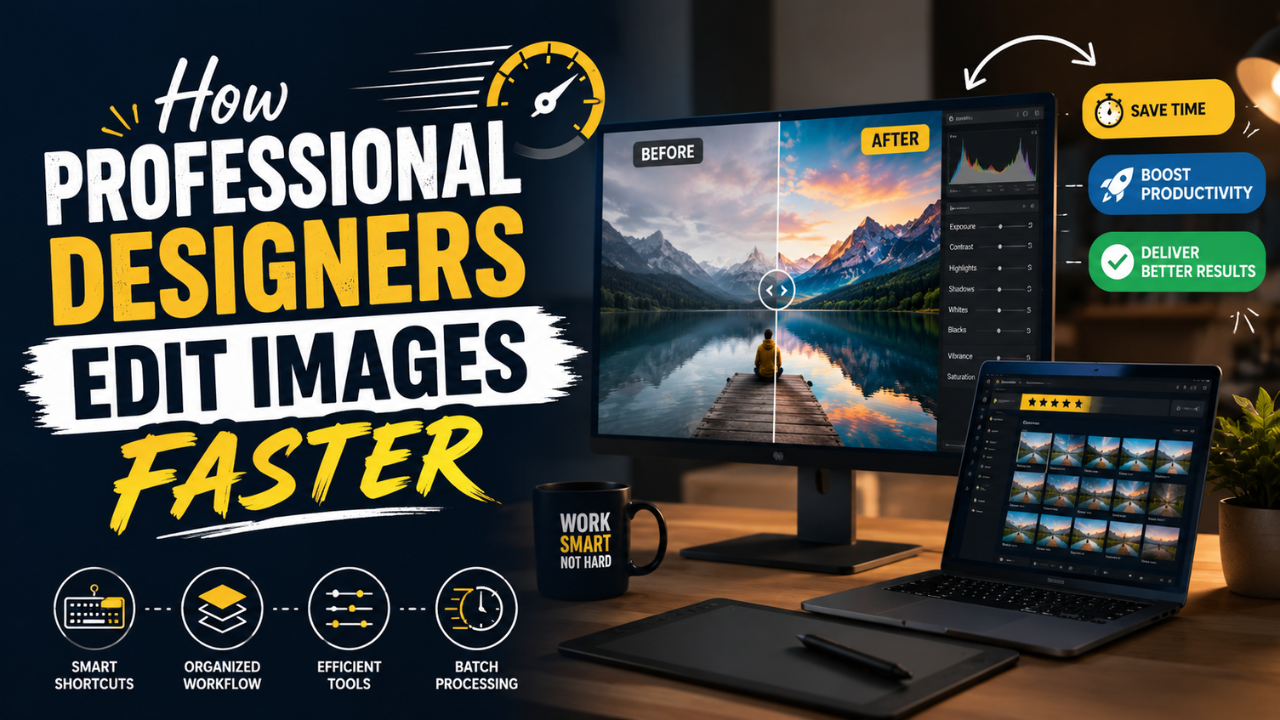
How Professional Designers Edit Images 10× Faster (Real Workflow Secrets)
The gap between amateur and pro editing isn't talent — it's workflow. Here's how working designers process 100+ images per day without burning out.
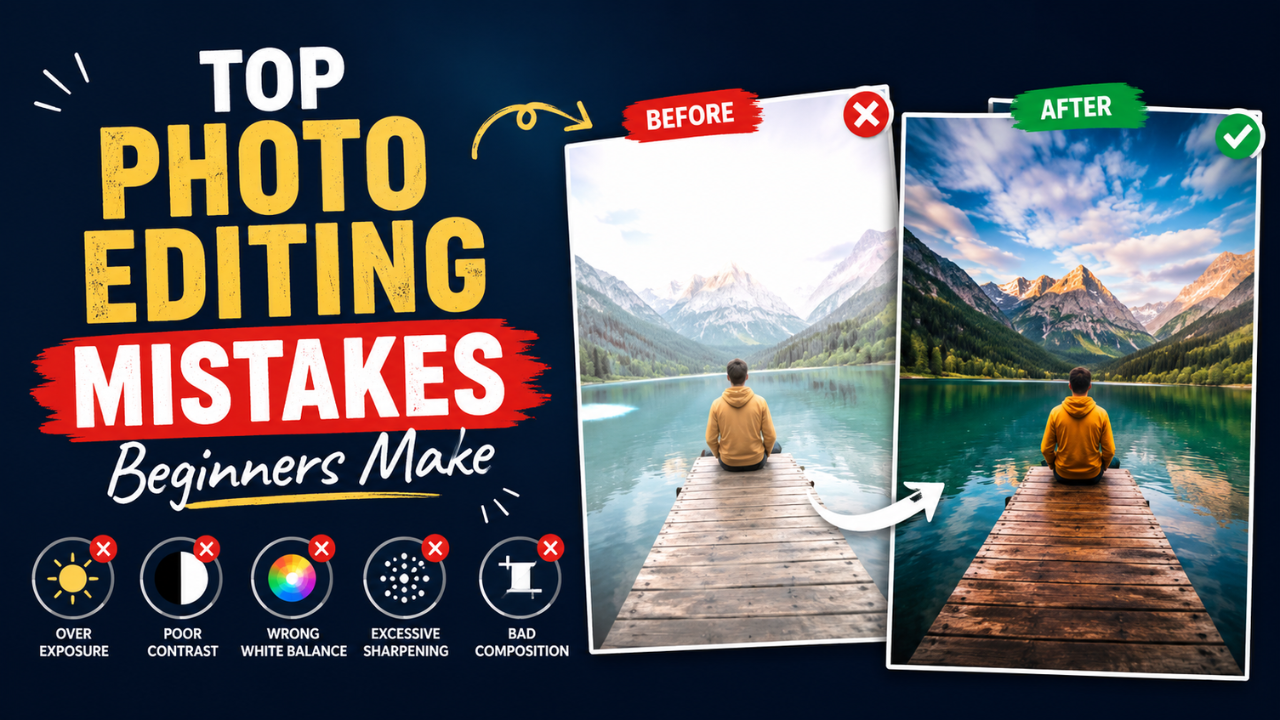
10 Photo Editing Mistakes Every Beginner Makes (and How to Fix Them)
Over-sharpened skin, jacked-up saturation, the dreaded HDR halo — the mistakes beginners make are easy to spot once you know what to look for.
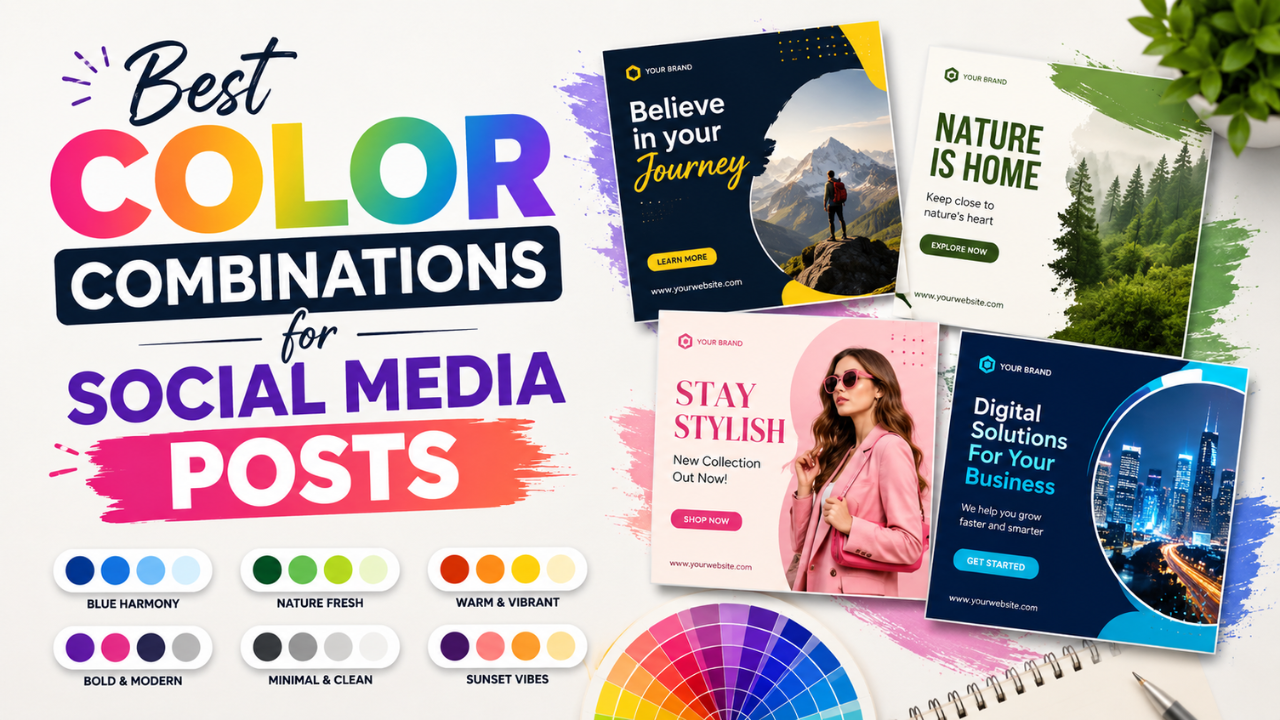
Best Color Combinations for Social Media Posts (Tested Across Platforms)
The right two colours can double a post's engagement. The wrong combination kills the scroll. Here are the palettes that consistently work — across Instagram, LinkedIn, Pinterest, and Twitter.