
How to Turn a Photo Into a Cartoon: AI Apps and Manual Methods
Ways to give your own photos a cartoon, comic or painted look, from AI cartoon apps to a manual posterize-and-outline method you can do in any free editor.
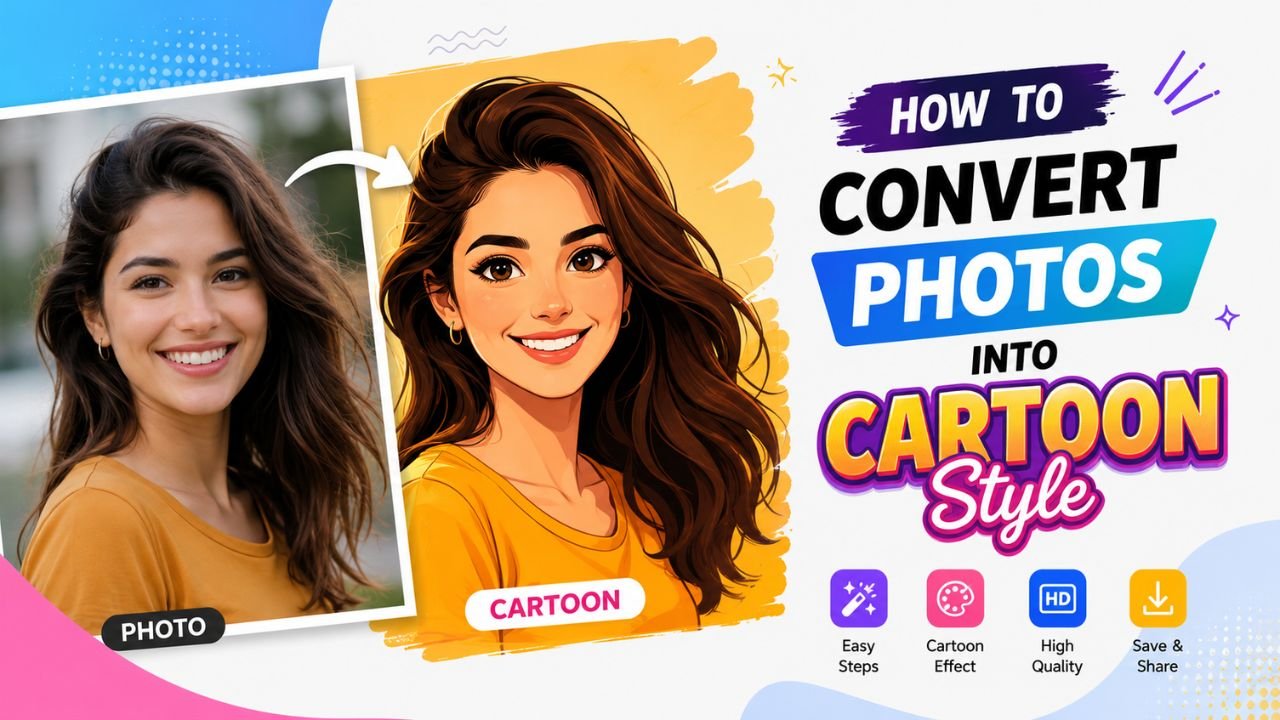
To turn a photo into a cartoon you can either use an AI cartoon app, which restyles the picture in seconds, or build the effect yourself in a free editor by flattening the colours and adding black outlines. Image EditPro does not have a cartoon filter, so this guide covers both outside methods honestly and shows where our free tools help before and after — cleaning up the source photo, removing the background and preparing the final image for sharing.
Pick the Look You Want
"Cartoon" covers several quite different styles:
- Cartoon portrait — smooth skin, simplified features, bold colour. Mostly done with AI apps.
- Comic or ink style — strong black outlines with flat colour.
- Pop-art posterization — a few bold colour bands, like screen printing.
- Painted or watercolour — soft, brushy texture rather than outlines.
Decide which one you want before you start; each has a different best method.
Method 1: AI Cartoon Apps
How they work
AI cartoon apps and image generators with a photo-to-image ("img2img") mode take your photo and redraw it in a chosen style. Many photo apps, including Picsart and similar editors, include cartoon or anime filters. The usual flow is: add a photo, choose a style, wait a few seconds, download.
What to expect
- Portraits and pets usually work well.
- Group photos and landscapes are less consistent.
- Results vary between attempts, so generate a few and pick the best.
- AI may change features — age, face shape, skin tone — in ways you didn't intend. Compare carefully with the original before sharing.
- Free tiers often limit the number of images, reduce resolution or add a watermark.
Privacy and permission
Most of these apps process your photo on their servers. Before uploading:
- Read how long the app keeps images and whether it uses them to train models.
- Only upload photos you took or have permission to use. Don't cartoonize other people's photos and post them without their consent.
- Take extra care with photos of children.
Many apps let you name a specific animation studio or artist as the style. For anything you publish or sell, describe a general style ("flat colour cartoon", "comic ink") rather than imitating a particular studio's characters.
Method 2: Manual Posterize and Outline
This approach works in any editor with layers and filters — Photopea in the browser, GIMP on desktop or Photoshop. It is predictable, needs no uploads to an AI service and gives you full control.
Step 1: Prepare the photo
Start with a sharp, well-lit image. If the background is cluttered, remove it first with the background remover and place the subject on a plain colour; the cartoon effect looks much cleaner on a simple background.
Step 2: Flatten the colours
Duplicate the photo layer. On the lower layer, apply a slight blur or a "surface blur" to smooth textures, then apply Posterize with about 4–6 levels. Fewer levels give a louder, pop-art look; more levels look subtler.
Step 3: Create the outlines
On the upper layer, desaturate the image, then apply an edge-detection filter such as Find Edges. Adjust levels or threshold until you get clean dark lines on white. Invert if your filter produces light lines on black.
Step 4: Combine
Set the outline layer's blend mode to Multiply so the white disappears and only the lines remain over the flat colours. Lower its opacity until the lines look drawn rather than harsh.
Step 5: Tidy up
Paint out stray specks in the outline layer, boost saturation slightly on the colour layer, and compare with the original at the size people will see it.
Method 3: Painted and Watercolour Looks
For a softer, illustrated feel rather than outlines:
- Use an editor's oil-paint, watercolour or "cutout" filter.
- Combine a light posterize with a texture overlay such as paper grain.
- Many phone editors include painting-style looks you can apply and adjust.
These styles suit landscapes, food and still-life photos better than the ink method.
Getting Cleaner Results
- Start sharp and well lit. Dark or blurry photos turn into muddy cartoons. If a photo is soft, try the blur image fixer first.
- Fix low resolution before stylising. Small images produce jagged outlines; the AI image upscaler can enlarge your own photo first. See how to make a small image bigger.
- Front-facing portraits work best. Profile and three-quarter views confuse many AI apps.
- Simplify the background. Remove or plainly colour it before processing.
- Use one effect. Stacking several filters tends to produce muddy, overprocessed results.
When Not to Cartoonize
- Professional headshots and profile photos for work — keep these realistic; see AI vs manual photo editing for when AI changes go too far.
- Product photos for marketplaces, which expect realistic images.
- Property listings and news photos, where viewers expect the image to show reality.
- ID or form photos, which must be unedited photographs.
Cartoon styles suit social posts, profile pictures for personal accounts, invitations, stickers, kids' projects and channel art for your own content. When you share AI-styled images, saying so is good practice; our guide to making AI-generated photos look realistic also covers disclosure.
Finishing the Image With Image EditPro
Once you have a cartoon version, these browser tools help prepare it for sharing:
- Remove the background to make a sticker-style cut-out — background remover.
- Crop to square, 4:5 or 9:16 with the crop tool.
- Resize for a platform with the resize tool.
- Choose the right format. Flat colours and sharp outlines often compress well as PNG or WebP, while painted styles with soft gradients suit JPG or WebP. The PNG to WebP converter and the image compressor keep the file small.
Frequently Asked Questions
Does Image EditPro have a photo to cartoon tool?
No. Image EditPro does not offer a cartoon filter. Use an AI cartoon app or the manual posterize and outline method in a free editor such as Photopea or GIMP, then use Image EditPro to remove the background, crop, resize or compress the result.
How do I cartoonize a photo without AI?
Duplicate the photo layer, posterize the bottom layer to a few colour levels, turn the top layer into black outlines with an edge-detection or find-edges filter, then set the outline layer to Multiply and adjust its opacity.
Are AI cartoon apps safe to use with my photos?
Most AI cartoon apps upload your photo to their servers. Read the privacy policy to see how long images are kept and whether they are used for training, avoid uploading other people's photos without permission, and be careful with photos of children.
Which photos work best for a cartoon effect?
Sharp, well-lit photos of a single subject facing the camera, with a simple background. Busy backgrounds, group shots and dark or blurry photos give messy results.
Related articles
How to Make AI-Generated Photos Look More Realistic
Plastic skin, glossy eyes, odd hands and mismatched light give AI images away. How to prompt for realism, then fix what remains with careful, light editing.
Best Free AI Image Editors in 2026: Which Tool for Which Job
A practical guide to free AI image editors grouped by job: background removal, upscaling, object removal, design, generation and everyday image prep.

Best AI Tools for Product Photo Editing
How small sellers can use AI for background removal, enhancement, upscaling and marketplace sizing to turn phone shots into clean listing photos.